Data Disaster Recovery (DBS) provides multiple backup schedule types, including micro, small, medium, large, and xlarge. Higher-tier types offer better performance at a lower unit price. You can upgrade to a backup schedule type based on your data volume and performance requirements for backup and recovery.
For more information about selecting a backup schedule type and the free quota for each type, see Select backup methods and backup schedule types.
Usage notes
Once the upgrade is complete, DBS immediately applies the new configuration, improving backup and recovery performance.
After you upgrade, the free quota for the new backup schedule type takes effect the next day.
Procedure
Log in to the DMS console V5.0.
-
In the top navigation bar, choose .
NoteIf you use the DMS console in simple mode, move the pointer over the
 icon in the upper-left corner of the DMS console and choose .
 Find the backup schedule by its Backup Schedule ID. In the Actions column, choose .

On the Upgrade/Downgrade page, select the new backup schedule type.
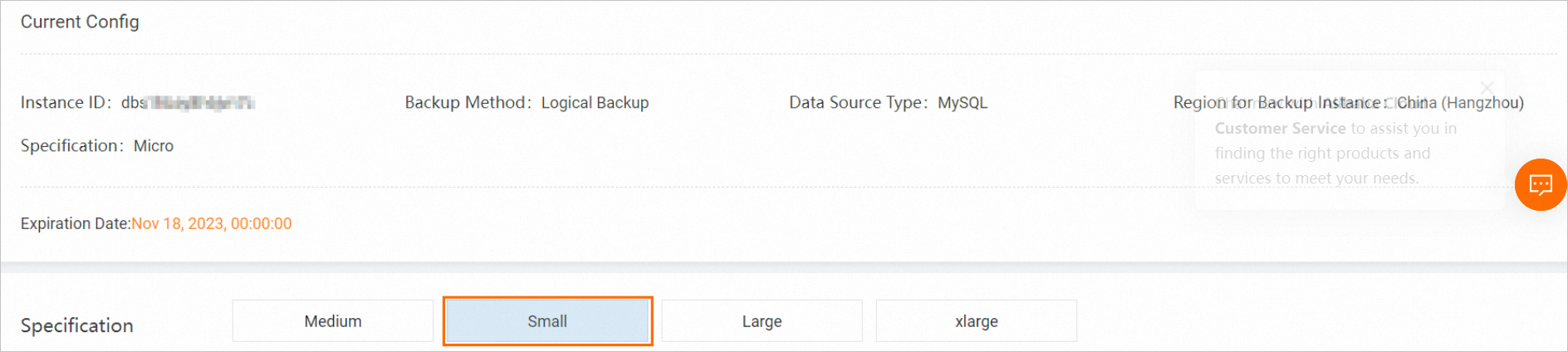
Confirm the order information, read and agree to the terms of service, and then click Buy Now.
Complete the payment.
Related documents
If the amount of your backup data exceeds the free quota, DBS charges you for the excess data. For more information about billing, see billing items (DMS).