The intelligent baseline feature detects exceptions that prevent tasks on a baseline from completing on time and sends early warnings. This ensures that important data is generated within the expected time in scenarios with complex dependencies. This feature helps reduce configuration costs, prevent invalid alerts, and automatically monitor all important tasks.
Use cases
-
Manage task priorities.
When resources are limited, resource preemption can occur. Add important tasks to a high-priority baseline to ensure they receive resources first.
-
Calculate the estimated completion time of a task.
Add a task to a baseline, and DataWorks calculates its estimated daily or hourly completion time based on resource availability and ancestor task status. This makes it easy to view the task's predicted completion time.
-
Ensure tasks finish before their committed time.
Add a task to a baseline and set a committed time. If the system predicts the task will miss the committed time, or an ancestor task fails or slows down, it sends an alert so you can resolve the issue promptly.
Concepts
-
Baseline: A collection of important tasks with a committed completion time. The system monitors execution status and triggers alerts when tasks risk missing the committed time.
-
committed time: The latest time by which a task must successfully complete. This is a commitment that the task's data output will be ready for downstream applications by this time. To reserve time for your operations team to handle exceptions, you can set an Alert Margin Threshold for the baseline. The system then uses the formula
committed time - alert marginto determine the alert time, which is the threshold for triggering an alert. -
Baseline task: A task that is added to a baseline.
-
Baseline instance: The system uses baseline instances to calculate the estimated completion time for each task run. A baseline instance can have one of the following statuses: Safe, Warning, or Breached.
-
Safe:
Estimated completion time < Alert time. -
Warning:
Alert time < Estimated completion time < Committed time. -
Breached:
Estimated completion time > Committed time.
-
-
Key path: The path with the longest execution time among all paths that affect a baseline task.
-
Event: Generated when a baseline task or its ancestor fails, or when a key-path task slows down. Events may delay baseline task completion.
How it works
When you add tasks to a baseline, DataWorks allocates resources based on baseline priority and determines the monitoring scope from task dependencies. Alerts are triggered based on task execution status within this scope.

The monitoring scope is determined based on a baseline task K.
-
Ancestor nodes of the baseline task: All nodes that affect the output of task K are included in the monitoring scope:

-
Descendant nodes of the baseline task: These are not in the monitoring scope:

-
Key path: The longest path among all paths that affect task K:

-
Create a baseline:
-
Specify task K to be added to the baseline.
-
Set the baseline priority and alert policy parameters.
-
-
A baseline alert or an event alert is triggered based on the actual execution status of tasks within the monitoring scope.
The intelligent baseline provides the following capabilities:
-
Create and manage baselines.
The Baselines page allows you to create and manage baselines:
-
Add tasks that require major event support to a baseline, set the committed time, and configure alert policies (method and recipients). The system monitors tasks and sends alerts based on these settings.
-
Set a baseline priority to control task execution order. Higher-priority baselines receive resources first when scheduling resources are limited.
Note-
This priority is mapped to the priority of a MaxCompute computing task if the following two conditions are met:
-
The priority feature is enabled for the MaxCompute project.
-
The MaxCompute project uses subscription computing resources.
-
-
MaxCompute job priority = 9 - DataWorks baseline priority.
-
-
-
Determine the monitoring scope.
DataWorks determines the monitoring scope based on task dependencies and monitors all tasks that might affect baseline data output. Core logic: Monitoring scope.
-
Trigger and send alerts
-
Baseline alerts.
DataWorks automatically triggers alerts based on the configured alert policy and actual task execution status. The system sends alert messages to the specified recipients in real time. If the system predicts a baseline task cannot complete before the committed time, it sends a baseline alert. Core logic: Baseline alerts.
-
Event alerts.
Once the monitoring scope is determined, if a baseline task or its upstream tasks fail, or if a task on the key path slows down, the system generates an event and sends an event alert. View events on the DataWorks Events page. Event management.
-
Billing
-
Number of baseline instances: All enabled baselines generate baseline instances. DataWorks charges based on instances generated by 23:59 daily. Billing of intelligent baseline instances.
-
Number of alert text messages and phone calls: Baseline alerts incur fees for text messages and phone calls. Billing of alert text messages and phone calls.
Limits
Only DataWorks Standard Edition and later support intelligent baselines. Upgrade if you use an earlier edition. Features of different DataWorks editions.
Core logic: Monitoring scope
The intelligent baseline does not monitor all upstream and downstream tasks. The monitoring scope is:
-
Upstream tasks: Upstream tasks that affect the baseline task's data output are monitored.
-
Downstream tasks: Downstream tasks are not monitored. No alert is triggered if a downstream task of the baseline task or a task on another ancestor branch fails.

As shown in the preceding figure, assume that there are six task nodes in the DataWorks system. Tasks D and E are baseline tasks. Tasks A and B affect their data output, so A, B, D, and E are all monitored. If any of these tasks fails or slows down, the intelligent baseline detects it. Tasks C and F are outside the monitoring scope.
Core logic: Baseline alerts
You can add important tasks to a baseline and set the Committed Completion Time and Alert Margin Threshold. After that:
-
DataWorks uses the formula
committed time - alert marginto calculate the Alerting Time. Then, based on the historical average runtime of tasks within the monitoring scope, DataWorks uses the Baseline Instances to derive the latest completion and start times for each task in the scope. -
During runtime, if a task's status suggests that a baseline task will not be completed by the Alerting Time, DataWorks triggers a baseline alert.
Core logic: Event alerts
When a monitored task becomes abnormal, the system generates an event and triggers an alert. Abnormalities include:
-
Error: The task run fails.
-
Slow: The task's current runtime significantly exceeds its historical average.
-
A slowdown event triggers when a task's runtime exceeds 30 minutes and is at least 15 minutes above its historical average.
-
If the same task first slows down and then fails, two events are generated.
View event details on the Event Management page.
Core logic: Key path and key instances
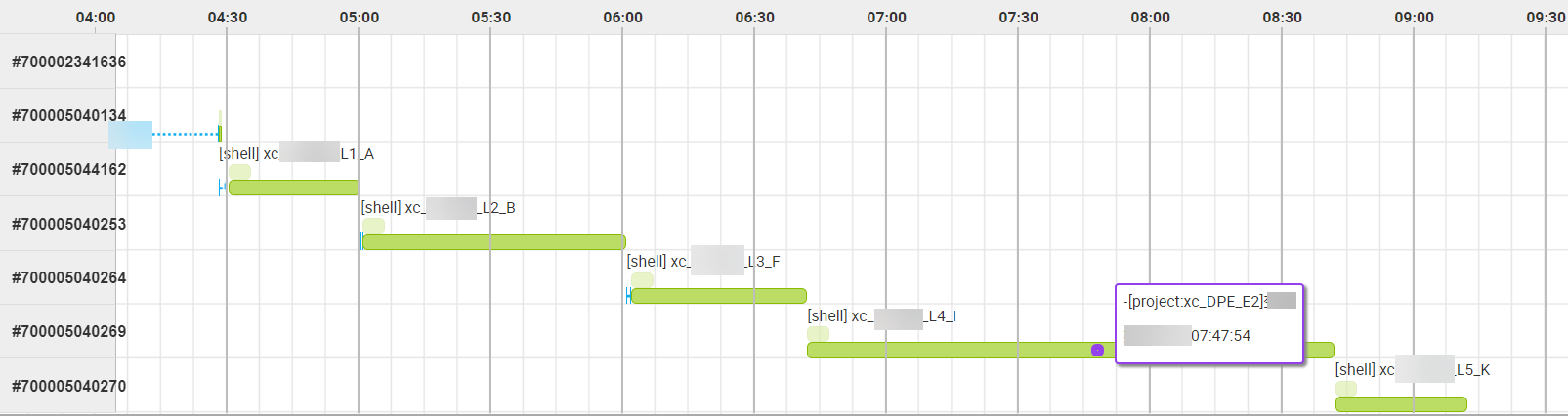
Task dependencies on a baseline can be complex. DataWorks provides a Gantt chart to help locate the key path and key instances blocking data output. The key path is the longest-running path among all paths that affect a baseline task's output.

Example
-
Scenario: The current time is 6:40, and task F is still running.
-
Baseline warning:
YYYY-MM-DD HH:mm:ss
Baseline XX warning, business time XX, margin: -10 min...
-
Event alert:
YYYY-MM-DD HH:mm:ss
Event reminder, business time XX, task XX, status: Delayed...
A Gantt chart shows the key execution path of a target task. The key path and exception catch time for the preceding example: