DataWorks auto triggered tasks use the T+1 mode by default: instances generated the day after deployment reflect the newly deployed content. To make a newly deployed or modified task take effect on the same day, use the Immediately After Deployment mode.
How it works
After you modify and Submit a task, the new configuration takes effect either on the same day or on the next day, depending on the instance generation mode.
Next day (default)
This default, recommended option maximizes the stability of your production environment by isolating changes from the current day's running instances.
-
Operating principle:
A deployment on Day T only changes the task definition and does not interfere with any instance runs on that day. -
Impact on Day T (Deployment Day):
-
The system only updates the task's code and property definitions. Instances already generated or scheduled on Day T are not affected and run based on the pre-deployment configuration.
-
If you want the new logic to apply to the current day's data, manually perform a backfill data operation for the Day T instances after deployment.
-
-
Impact on Day T+1 (Next Day):
All changes take effect starting with the first auto-triggered instance on the day after deployment (Day T+1). These instances are generated and run based on the new configuration.
Immediately after deployment
This mode applies task changes on the deployment day. The system compares the task's deployment time with each instance's scheduling time to determine how instances run on Day T.
-
Operating principle:
The system compares the scheduling time of each auto-triggered instance on Day T with the task's deployment time plus a 10-minute system buffer. -
Scheduling time < Deployment time + 10 minutes
-
Result: New tasks perform a dry run; modified tasks do not generate an instance.
-
For new tasks that have never been deployed, the instance expires and performs a dry run without executing business logic. For modified and re-deployed tasks, expired instances are not generated.
-
-
Scheduling time > Deployment time + 10 minutes
-
Result: Normal execution.
-
The system generates and runs the instance based on the new configuration.
-
-
Impact on Day T+1 (Next Day):
All auto-triggered instances on the next day (Day T+1) are generated based on the new configuration.
Deployments submitted between 22:00 and 24:00 take effect on Day T+2, regardless of the selected generation mode.

Limitations
-
Effective Time of Change: The system generates instances in batches from
22:00to24:00every day. For deployments submitted during this period, changes take effect in the auto triggered instances generated on T+2. -
Limitations on data source changes: If you only modify the data source of a node, auto triggered instances already generated for the day are not updated, even if you select
Immediately After Deployment. They continue to run with the previously configured data source. To apply the change immediately, use the backfill data feature.
Immediate deployment scenarios
The Immediately After Deployment mode carries higher risk. Improper use can cause disordered scheduling dependencies, unexpected instance deletion or replacement, and compromised stability of same-day tasks.
Recommended use cases
Use this mode with caution and only in the following scenarios:
-
New tasks that must run on the same day: Use for new tasks without complex ancestor or descendant dependencies that need to run on the day of deployment.
-
Replacing existing instances: Use this mode to replace a pending auto-triggered instance that was generated for the current day but has not yet run.
High-risk scenarios (not recommended)
Avoid using this mode in the following scenarios, as it can complicate same-day scheduling dependencies and cause scheduling failures:
-
Modifying the schedule of a deployed task: This is especially risky for tasks with complex ancestor and descendant dependencies. Changing the scheduling cycle (for example, from daily to hourly) and deploying immediately can result in a mix of old instances being retained and new ones being created, leading to disordered dependencies.
-
Failure to refresh the table schema: After you change the scheduling cycle, the schema or partitions of the output table (such as a MaxCompute table) may fail to refresh to reflect the latest result. In
Immediately After Deploymentmode, changing the scheduling cycle creates new instances but does not automatically delete the old ones. While the old and new instances coexist, the old instances continue to run with the old configuration, so the schema or partitions of the output table are not updated accordingly.Troubleshooting steps:
-
Check whether the scheduling cycle was changed on the day of deployment.
-
In Operation Center, check whether old and new instances coexist for the task.
-
Identify which instances are still running with the old configuration and are causing the output table to remain stale.
Solution:
-
Switch the task to
T+1mode and deploy the task again. -
Perform a backfill data operation for the current day's instances.
-
-
Inconsistent Instance Generation Modes for Ancestor and Descendant Tasks: For example, an ancestor task uses the
T+1mode, while a descendant task usesImmediately After Deployment. This configuration causes instances of the descendant task generated on the same day to be unable to find their ancestor dependencies, which turns them intoisolated tasksthat cannot run automatically.
Alternative solution
For scenarios involving modifications to a deployed task, a safer approach is to:
-
Use the default
T+1mode to deploy tasks. -
After the deployment succeeds, perform a backfill data operation on the task to manually trigger an instance for the current day.
Scenarios
Scenario 1: New task
After a new task is deployed, instance execution depends on whether its scheduling time falls before or after the deployment time plus the 10-minute buffer.
|
Scheduling time |
Behavior |
|
Later than (deployment time + 10 minutes) |
The system generates a normal auto-triggered instance that runs at its scheduled time. |
|
Earlier than or equal to (deployment time + 10 minutes) |
The system generates an expired instance that is generated in real time. This instance is in a dry-run state and does not actually execute. If you need to process data for the current day, you can backfill data for that day's data timestamp. This operation also has a 10-minute delay before the instance is generated. For more information, see How it works. |
For example: If a task is deployed to the production environment at 12:00, the real-time instance becomes effective at 12:10.
-
If the task's scheduling time is after
12:10, the task will be scheduled for execution. -
If the scheduling time of a task is before
12:10, the task performs a dry-run and its instance status is expired instance that is generated in real time.
Scenario 2: Update scheduling cycle
If you update the scheduling properties (such as frequency and time) of a production task and deploy the changes, instances from before and after the change may coexist on the same day, leading to complex scheduling dependencies.
This scenario only occurs on the day the task is deployed with immediate generation. On the following day, the task generates auto-triggered instances normally based on the new configuration.
 The specific behavior is as follows:
-
If the new scheduling time is in the future:
DataWorks replaces the already generated instances for future time slots with new instances based on the latest scheduling configuration.
-
If the new scheduling time is in the past:
DataWorks retains instances scheduled before the new time and replaces or deletes instances scheduled after it.
Scenario 3: Inconsistent modes
If an ancestor task and its descendant task are both new but use different instance generation modes, the descendant may become an isolated task. For example, if the ancestor uses Next Day and the descendant uses Immediately After Deployment, the descendant task may become an isolated task. An isolated task does not run automatically. If it has many descendant dependencies, this can cause severe disruptions to downstream business processes.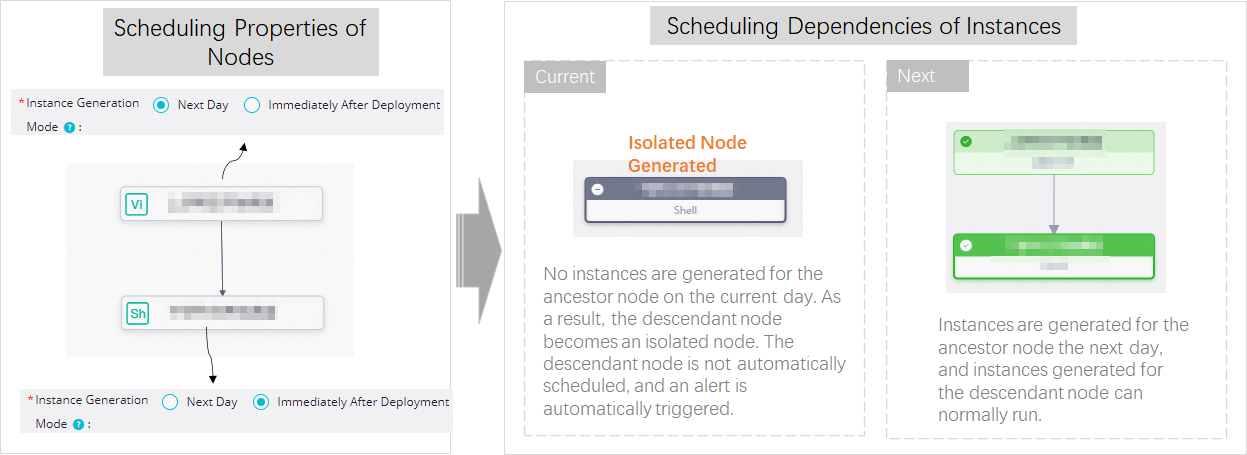
Scenario 4: Change ancestor schedule
If you modify the schedule of an ancestor task that has descendant tasks with different scheduling frequencies, dependencies for the descendant tasks are adjusted based on the ancestor's latest scheduling configuration (for example, daily, monthly, or hourly).
When you change a production task's schedule, its descendant instances have their dependencies re-established based on the new schedule. This affects both newly generated instances and older, un-replaced instances. For details on hourly and minute-level dependency scenarios, see Principles and samples of scheduling configurations in complex dependency scenarios. This scenario applies only when the task version to be deployed has its Instance Generation Mode set to Immediately After Deployment and also includes a scheduling time change.
The following are example scenarios:
-
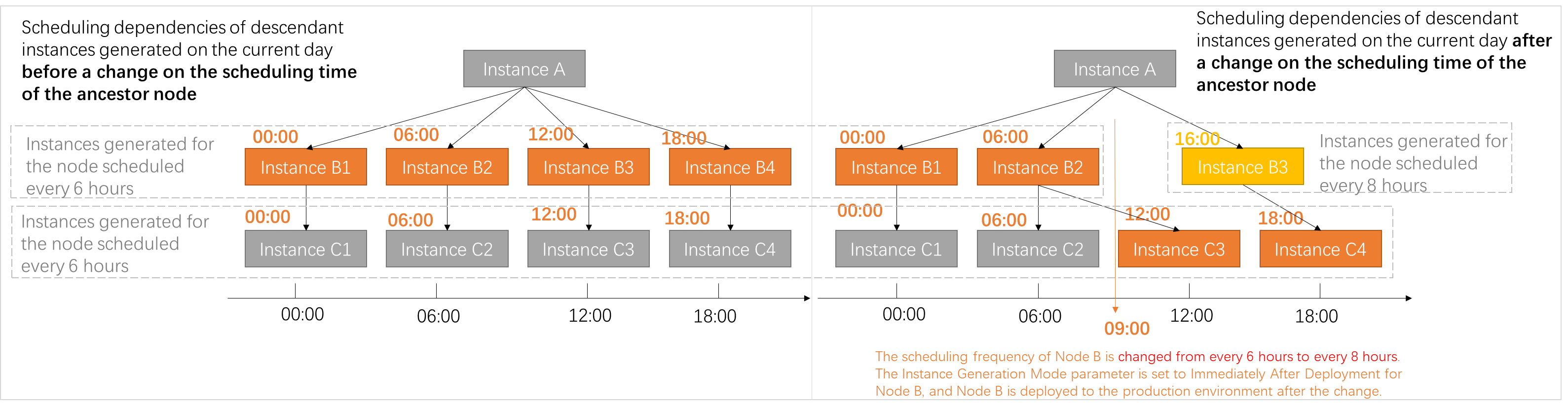
Scenario 1: The schedule of an ancestor task is changed from every 6 hours to every 8 hours (00:00, 08:00, 16:00), and the Immediately After Deployment mode is selected.
-
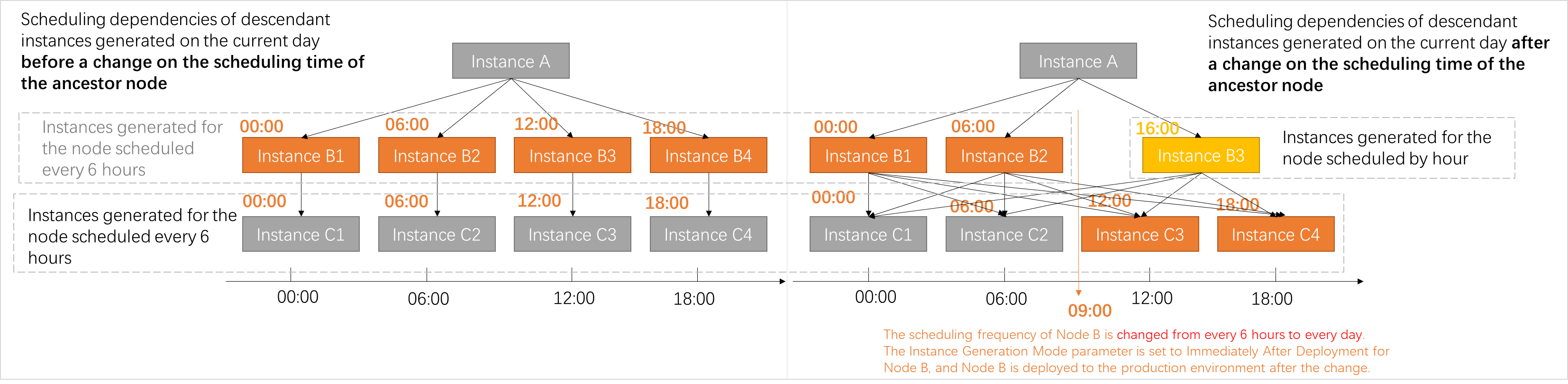
Scenario 2: The schedule of an ancestor task is changed from every 6 hours to 16:00 daily, and the Immediately After Deployment mode is selected.