Build a complete data pipeline in DataWorks — from ingesting raw data and orchestrating business workflows to scheduling periodic tasks and visualizing results — using an e-commerce scenario as an example.
Getting started
This tutorial uses an e-commerce scenario to demonstrate how to build a complete data pipeline, from raw data ingestion and processing to data visualization. By following a standardized development process, you can quickly create reusable workflows with reliable scheduling and operational observability.
You will complete the following tasks:
Data synchronization: Use the Data Integration module in DataWorks to create a single-table batch synchronization task that synchronizes business data to a big data platform like MaxCompute.
Data cleansing: Use the Data Studio module in DataWorks to process, analyze, and mine business data.
Data visualization: Use the Data Analysis module in DataWorks to convert analysis results into easy-to-understand charts for business users.
Periodic scheduling: Configure periodic scheduling for the data synchronization and data cleansing workflows.
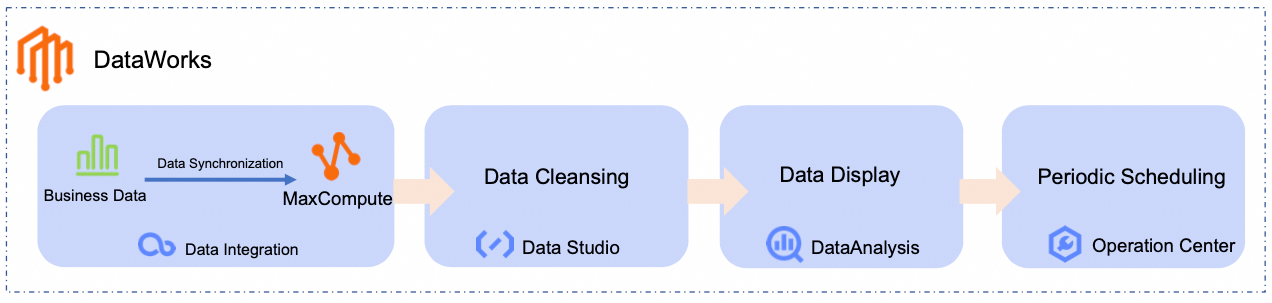
In this tutorial, you will synchronize raw product and order data from a public data source to MaxCompute. You will then use the following workflow to generate a daily ranking of best-selling product categories:

Prerequisites
To complete this tutorial, you need an Alibaba Cloud account or a RAM user with the AliyunDataWorksFullAccess permission. For instructions, see Prepare an Alibaba Cloud account or Prepare a RAM user.
DataWorks provides a comprehensive permission system for access control at the product and module levels. If you need more fine-grained access control, see Overview of the DataWorks permission management system.
Prerequisites
Activate DataWorks
Create a workspace
Create a resource group and associate it with a workspace
Enable public network access for the resource group
Create and associate a MaxCompute compute resource
Procedure
The following scenario guides you through the core DataWorks features:
Assume that an e-commerce platform stores product information and order information in a MySQL database. The platform needs to regularly analyze order data and visualize a daily ranking of best-selling product categories.
Step 1: Data synchronization
Create a data source
DataWorks connects to data sources and destinations through data source connections. Create a MySQL data source to connect to the MySQL database that stores the business data used in this tutorial.
You do not need to prepare the raw business data used in this tutorial. For testing and learning purposes, DataWorks provides test datasets. The relevant table data is stored in a public MySQL database. You only need to create a MySQL data source connection.
Go to the DataWorks Administration page, switch to the China (Shanghai) region, select the workspace you created from the drop-down list, and click Go to Management Center.
In the left-side navigation pane, click Data Sources to go to the Data Sources page. Click Add Connection, select the MySQL type, and configure the MySQL data source parameters.
NoteRetain the default values for parameters not described in the table.
When you add a data source for the first time, you need to complete Cross-service authorization. Follow the on-screen instructions to grant access to the service-linked role AliyunDIDefaultRole.
Parameter
Description
Data Source Name
In this example, set this parameter to MySQL_Source.
Configuration Mode
Select User-created Data Store with Public IP Addresses.
Connection Address
Host IP address:
rm-bp1z69dodhh85z9qa.mysql.rds.aliyuncs.comPort:
3306.
ImportantThe data provided in this tutorial is intended only for hands-on practice with the Alibaba Cloud DataWorks platform. All data is test data and can only be read in the Data Integration module.
Database Name
Set this parameter to
retail_e_commerce.Username
Enter the username
workshop.Password
Enter the password
workshop#2017.In the Connection Configuration section, switch to the Data Integration tab, find the resource group associated with the workspace, and click Test Connectivity in the Connected state column.
NoteIf the MySQL data source connectivity test fails, perform the following operations:
Follow the instructions of the connectivity diagnosis tool.
Check whether an EIP is configured for the VPC associated with the resource group. The MySQL data source requires that the resource group has public network access. For more information, see Enable public network access for the resource group.
Click Complete Creation.
Build the synchronization pipeline
Build a synchronization pipeline to synchronize e-commerce product and order data to MaxCompute tables for subsequent data processing.
Click the
 icon in the upper-left corner, and select All Products > Data Development and O&M > DataStudio to go to the data development page.
At the top of the page, switch to the workspace you created for this tutorial. In the left-side navigation pane, click
 to go to the Data Development - Project Directory page.
In the Project Directory section, click
 and select Create Workflow. Set the workflow name. In this tutorial, the name is set to
 dw_quickstart.On the workflow orchestration page, drag a Zero-Load Node and Data Integration nodes from the left side to the canvas to create nodes. Configure the Data Integration nodes as follows:
Data Source Type:
MySQL.Data Source Type:
MaxCompute.
Set the node names. The following table lists the example node names and their purposes in this tutorial:
Node type
Node name
Node purpose
 Virtual node
workshopUsed to manage the entire workflow. It makes the data flow path clearer. This node is a Dry-run Task and does not require code editing.
 Single-table batch synchronization node
ods_item_infoUsed to synchronize the product information source table
item_infofrom MySQL to the MaxCompute tableods_item_info. Single-table batch synchronization nodeods_trade_orderUsed to synchronize the order information source table
trade_orderfrom MySQL to the MaxCompute tableods_trade_order.Manually drag lines to connect the nodes and set the
workshopnode as the upstream node of the two single-table batch synchronization nodes. The final result is as follows:
Workflow schedule settings.
On the right side of the workflow orchestration page, click Scheduling Settings and configure the relevant parameters. The following are the key parameters for this tutorial. Retain the default values for parameters not described.
Schedule settings parameter
Description
Scheduling Parameter
Set scheduling parameters for the entire workflow. Internal nodes in the workflow can use these parameters directly.
In this tutorial, set this parameter to
bizdate=$[yyyymmdd-1]to get the date of the previous day.NoteDataWorks provides scheduling parameters that enable dynamic parameter passing in code. You can define variables in SQL code by using the
${variable_name}format and assign values to the variables in Scheduling Settings > Scheduling Parameter. For more information about the supported formats for scheduling parameters, see Configure scheduling parameters.Scheduling Frequency
In this tutorial, set this parameter to
Day.Data Timestamp
In this tutorial, set Data Timestamp to
00:30. The workflow will start at00:30every day.Cross-cycle dependency
The workflow has no upstream dependency. You can leave this unset. For easier management, you can click Add Root Node to attach the workflow to the workspace root node.
The workspace root node is named in the format:
workspace_name_root.
Configure synchronization tasks
Configure the initial node
Configure the product information synchronization pipeline (ods_item_info)
Configure the order data synchronization pipeline ( ods_trade_order)
Step 2: Data cleansing
After data is synchronized from MySQL to MaxCompute, two tables are available: the product information table ods_item_info and the order information table ods_trade_order. Use Data Studio to cleanse, process, and analyze this data to generate the daily ranking of best-selling product categories.
Build the data processing pipeline
In the left-side navigation pane of Data Studio, click
 to go to the data development page. Then, in the Project Directory section, find the workflow you created, click it to go to the workflow orchestration page, and drag MaxCompute SQL nodes from the left side to the canvas. Set the node names.
The following table lists the example node names and their purposes in this tutorial:
Node type
Node name
Node purpose
 MaxCompute SQL
dim_item_infoBased on the
ods_item_infotable, processes product dimension data and produces the product basic information dimension tabledim_item_info. MaxCompute SQLdwd_trade_orderBased on the
ods_trade_ordertable, performs initial data cleansing, transformation, and business logic processing on detailed order transaction data and produces the order detail fact tabledwd_trade_order. MaxCompute SQLdws_daily_category_salesBased on the
dwd_trade_ordertable and thedim_item_infotable, aggregates the cleansed and standardized detail data from the DWD layer and produces the daily product category sales aggregate tabledws_daily_category_sales. MaxCompute SQLads_top_selling_categoriesBased on the
dws_daily_category_salestable, produces the daily ranking of best-selling product categories tableads_top_selling_categories.Manually drag lines to connect the nodes and set the upstream nodes for each node. The final result is as follows:
 Note
NoteIn a workflow, you can set upstream and downstream dependencies between nodes by manually drawing connections. You can also use code parsing to automatically identify node dependencies in child nodes. This tutorial uses manual connections. For more information about code parsing, see Auto-parse dependencies.
Configure data processing nodes
Configure the dim_item_info node
Configure the dwd_trade_order node
Configure the dws_daily_category_sales node
Configure the ads_top_selling_categories node
Step 3: Debug and run
Run the entire workflow to verify that the configuration is correct before deploying it to the production environment.
In the left-side navigation pane of Data Studio, click
to go to the data development page. Then, in the Project Directory section, find the workflow you created.On the node toolbar, click Run. In Fill in the operation parameters, enter the date of the previous day (for example,
20250416).NoteThe workflow node configuration uses the scheduling parameters provided by DataWorks for dynamic parameter passing in code. During debugging, you need to assign a constant value to the parameter for testing.
Click Determine to go to the debug and run page.
Wait for the run to complete. The expected result is as follows:

Step 4: Data query and visualization
The processed results are now in the ads_top_selling_categories table. Query this table to view the analysis results.
Click the
 icon in the upper-left corner. In the pop-up page, click All Products > DataAnalysis > SQL Query.
After My Files, click
 > Create File. Specify a custom File Name and click Determine.
On the SQL query page, enter the following SQL statement.
SELECT * FROM ads_top_selling_categories WHERE pt=${bizdate};In the upper-right corner, select the MaxCompute data source and click Determine.
Click the Run button at the top. On the Estimate Costs page, click Run.
In the query results, click
 to view the visual chart results. You can click
  in the upper-right corner of the chart to customize the chart style.
 The visual chart results are displayed in the Copilot section in chart format (such as a donut chart) showing the distribution of order count, sales amount, and other metrics by category.
You can also click Save in the upper-right corner of the chart to save the chart as a card. Then, in the left-side navigation pane, click Card (
 ) to view it.
Step 5: Periodic scheduling
To obtain the latest sales data every day, deploy the workflow to the production environment so that it runs periodically on a schedule.
When configuring data synchronization and data processing, you have already configured the schedule-related parameters for the workflow, synchronization nodes, and data processing nodes. No additional configuration is needed. You only need to deploy the workflow to the production environment. For more information about schedule settings, see Configure schedule settings.
Click the
icon in the upper-left corner. In the pop-up page, click All Products > Data Development and O&M > DataStudio.In the left-side navigation pane of Data Studio, click
to go to the data development page. Switch to the workspace used in this tutorial. Then, in the Project Directory section, find the workflow you created.On the node toolbar, click Publish. In the deploy panel, click Start Release Production. After Deploy Package Build and Production Checker are complete, click Create Deploy Task.
After the Deploy to Production status changes to Completed, click Go to Operation Center to go to Operation Center.
In , you can see the scheduled tasks for the workflow (the workflow in this tutorial is named
dw_quickstart).To view the details of scheduled tasks for child nodes within the workflow, right-click the scheduled task of the workflow and select View Internal Tasks.
The expected result is as follows:

Next steps
For more details and parameter descriptions of the modules used in this tutorial, see Data Integration overview, Data Studio overview, Data Analysis overview, and Configure schedule settings.
In addition to the modules described in this tutorial, DataWorks also supports Data Quality, Data Map, Data Security, Data Service, and other modules to provide one-stop data monitoring and O&M.
You can also explore more DataWorks tutorials. For more information, see DataWorks tutorials.
Appendix: Resource release and cleanup
To release the resources created in this tutorial, perform the following steps:
Stop scheduled tasks.
Log on to the DataWorks console. In the target region, click in the left-side navigation pane. Select a workspace from the drop-down list and click Go to Operation Center.
In , select all the scheduled tasks you created previously (the workspace root node does not need to be undeployed), and then click at the bottom.
Delete data development nodes and disassociate the MaxCompute compute resource.
Go to the Workspaces page in the DataWorks console. In the top navigation bar, select a desired region. Find the desired workspace and choose in the Actions column.
In the left-side navigation pane of Data Studio, click
to go to the data development page. Then, in the Project Directory section, find the workflow you created, right-click it, and click Delete.In the left-side navigation pane, click
 > Computing Resource Management. Find the associated MaxCompute compute resource and click Disassociate. In the confirmation dialog, select the options and follow the instructions to complete the disassociation.
Delete the MySQL data source.
Log on to the DataWorks console. In the target region, click in the left-side navigation pane. Select a workspace from the drop-down list and click Go to Management Center.
In the left-side navigation pane, click Data Sources to go to the Data Sources page. Find the MySQL data source you created and click Delete in the Operation column. Follow the instructions to complete the deletion.
Delete the MaxCompute project.
Go to the MaxCompute project management page. Find the MaxCompute project you created and click Delete in the Operation column. Follow the instructions to complete the deletion.
Delete the Internet NAT Gateway and release the EIP.
Go to the VPC console - Internet NAT Gateway, and switch to the China (Shanghai) region in the top menu bar.
Find the Internet NAT Gateway you created and click
 > Delete in the Operation column. In the confirmation dialog, select Forcibly Delete, and then click Determine.
In the left-side navigation pane, click Public Access > Elastic IP Address. Find the EIP you created and click
> Instance Management > Release in the Operation column. In the confirmation dialog, click Determine.