You can publish a data dashboard and share it with third parties, and use snapshots to manage and roll back canvas versions.
Prerequisites
-
You have logged on to the DataV console.
-
You are on the canvas editor page.
Publish a data dashboard
-
Click Publish in the upper-right corner of the Canvas Editor page to navigate to the publishing page.
-
In the Publish dialog box, select Publish Screen.
NoteAfter publishing, the content on the publish page is locked. To synchronize updates, use Snapshot Management.
-
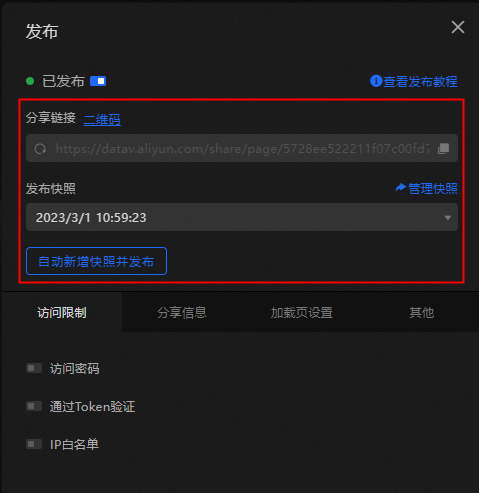
On the publish page, share the data dashboard with third parties by distributing a QR Code or Share Link. You can also save the dashboard as a snapshot. For details, see Snapshot Management.
-
Optionally, after the data dashboard is shared, configure the Publish Snapshot parameters, Access Restrictions, Share Information, and Loading Page Settings.
Access restrictions
-
Access Password
-
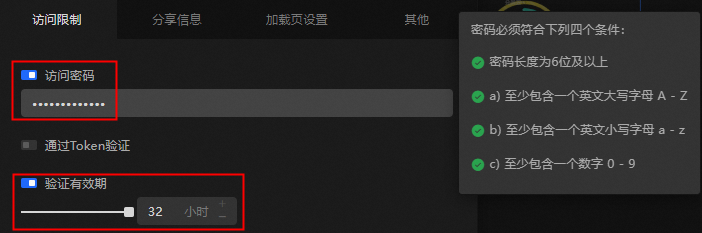
In the Publish dialog box, enable the Access Password option.
-
Enter your authentication password in the Access Password field.
The password must be at least 6 characters long and meet the following criteria:
-
Include at least one uppercase letter A–Z.
-
Include at least one lowercase letter a–z.
-
Include at least one number 0–9.
NoteAfter the password is set, the system displays a prompt indicating Access Restriction Set.
-
-
Optional: Set the Verification Validity Period.
ImportantYou can configure the Verification Validity Period only after successfully setting the password or enabling Token verification.
-
Select Verification Validity Period to set how long the password remains valid, up to 32 hours. After a visitor enters the password, they can access the visualization application during this period without re-entering it.
-
To require a password each time you access, deselect the Verification Validity Period option.
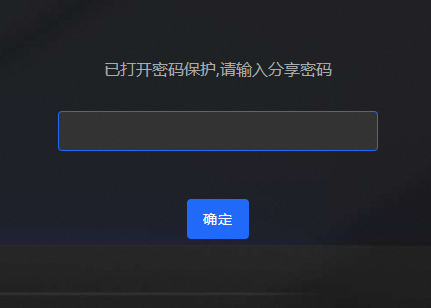
After the password is set, visitors who open the share link are prompted to enter the password.
-
-
-
Token Verification: Integrate the access control of your visualization application with your own permission system by using Token verification.
-
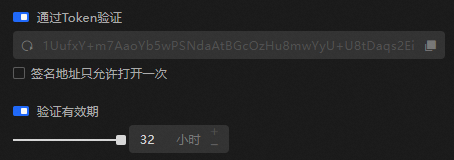
In the Publish dialog box, activate the Token Verification feature.
-
Copy the Token link and save it. You can also click the refresh icon
 to reset the Token.
 -
Select Verification Validity Period to set how long the Token remains valid, up to 32 hours. After a visitor enters the Token and accesses the data dashboard, they can continue to access it during this period without re-entering the Token.
-
To require a password each time you access, deselect the Verification Validity Period option.
-
-
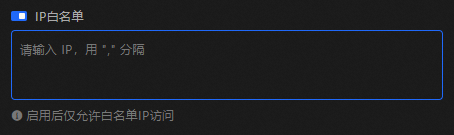
IP Whitelist: Restrict access to the published visualization application to only the IP addresses in the whitelist.
-
In the Publish dialog box, access the IP Whitelist.
-
In the IP Whitelist field, enter your IP address and separate multiple entries with commas.
-
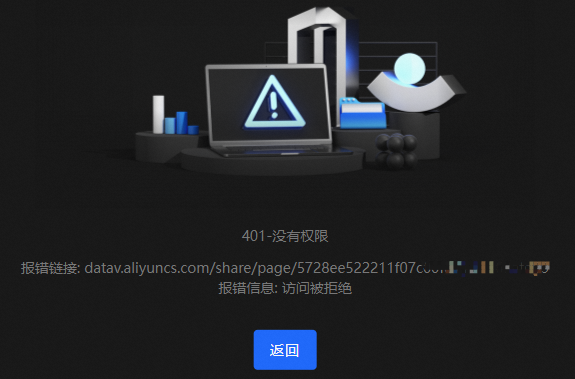
After the IP whitelist is set, access from non-whitelisted IP addresses is denied.
-
Share information
Customize the share information that appears when you share the DataV data dashboard publish link in the DingTalk client. The parameters are described below.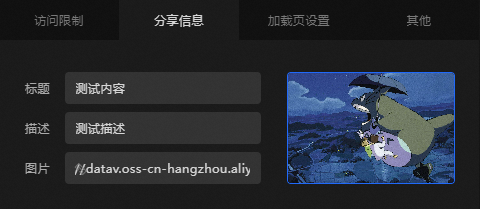

|
Configuration Parameter |
Description |
|
Title |
Set the title of the shared data dashboard link. The default title is the name assigned when the dashboard was created. |
|
Description |
Add a brief description for the shared data dashboard link. |
|
Image |
Set an image for the shared data dashboard by entering a custom image URL or dragging a local image into the image area on the right. Important
Both static and dynamic images can be added, but they will be displayed statically in the share link. |
If the shared card does not update, the DingTalk client cache may be the cause. Restart the DingTalk client and share the link again.
Loading page settings
The Loading Page Configuration feature is supported only by the Professional Edition .
Customize the loading page that appears when visitors open the shared data dashboard link. The parameters are described below.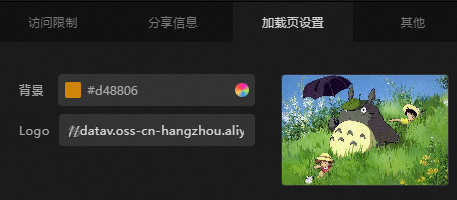
|
Configuration Parameter |
Description |
|
Background |
Set the background color of the loading page. Both solid and gradient colors are supported. |
|
Logo |
Set a logo image for the loading page by entering a custom image URL or dragging a local image into the image area on the right. Important
Both static and dynamic images can be added. If a dynamic image is set, it will be displayed dynamically on the loading page. |
Snapshot management
-
In the upper-right corner of the Canvas Editor, click Snapshot to open the Snapshot Management panel. To close the panel, click any blank area.
Note-
The Personal Edition allows the creation of up to 1 snapshot, the Enterprise Edition up to 3 snapshots, and the Professional Edition And Above up to 10 snapshots.
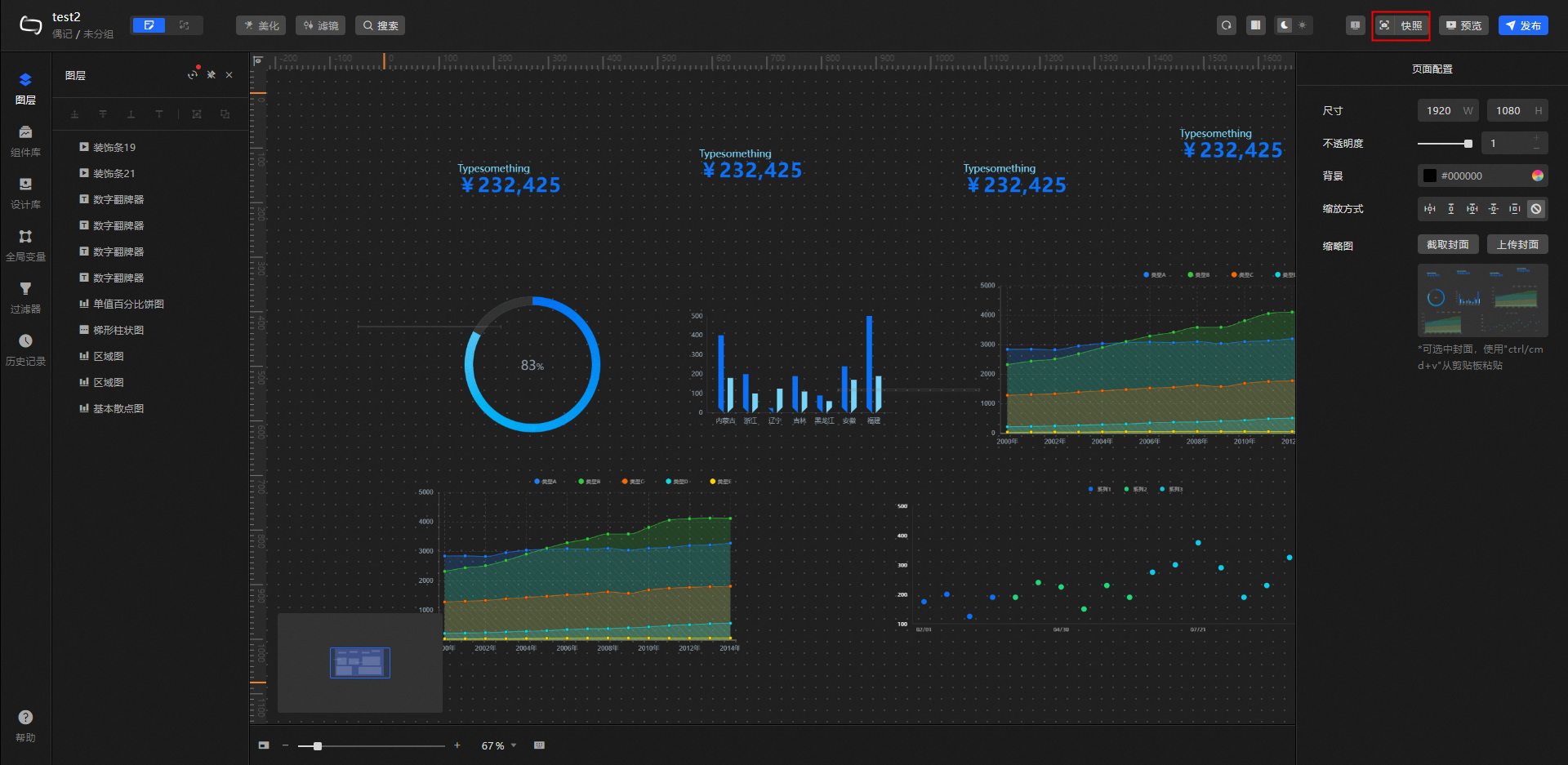
-
-
You can perform the following operations as needed:
-
Add a Snapshot
Click Add A Snapshot to capture and save the current canvas content as the latest snapshot. You can also click the
 icon on the canvas editor page to create a snapshot.
 -
Delete a Snapshot
Click the
 icon on the right side to delete a snapshot. To delete multiple snapshots, click Snapshot Management at the bottom left of the panel, then click Select All.
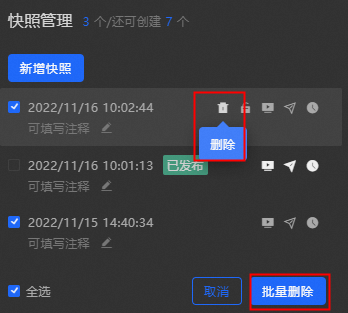 Note
NotePublished snapshots cannot be deleted. Click the
 icon to unpublish a snapshot before deleting it.
 -
Locking/Unlocking a Snapshot
Click the
 and
and  icons on the right side of a snapshot to lock or unlock it. A locked snapshot cannot be edited or selected.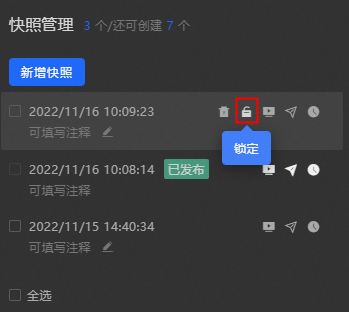
-
Preview a Snapshot
Click the
 icon on the right side of any snapshot for a quick preview.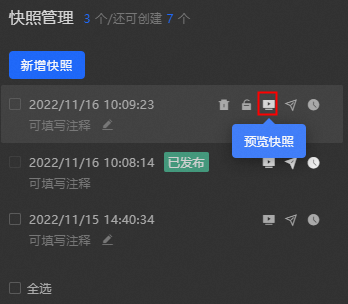
-
Publish/Close a Snapshot
Click the
 and
and  icons on the right side of a snapshot to publish or unpublish it.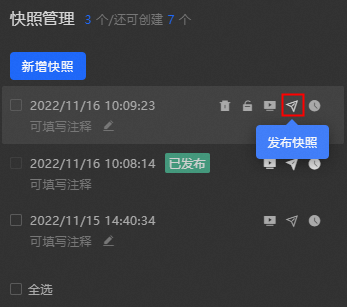
-
Rollback a Snapshot
Click the
 icon on the right side of a snapshot to roll back the canvas to that snapshot.
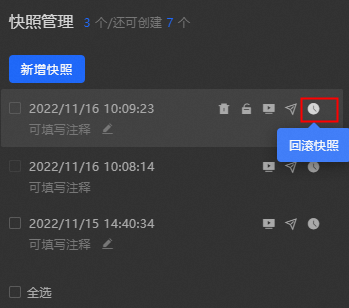 Note
Note-
If the snapshot matches the current canvas content, refresh the canvas.
-
If the snapshot differs from the current canvas, the canvas is rolled back to that snapshot. The original canvas content cannot be recovered after the rollback. Save it as a snapshot first if you need to retain it.
-
-
Fill in Comments
Click the
 icon beneath a snapshot to add a comment. After entering your comment, press the Enter key.
-