This topic describes the steps and basic functions of the map widget management panel.
Procedure
Log on to the DataV console.
On the console page, select a dashboard and click Edit. The Canvas Editor page appears.
On the left-side navigation pane, click the Component Library tab. On the Component Library tab, select a component in the Map section and click Add to Canvas.
The Basic Flat Map component is used as an example.
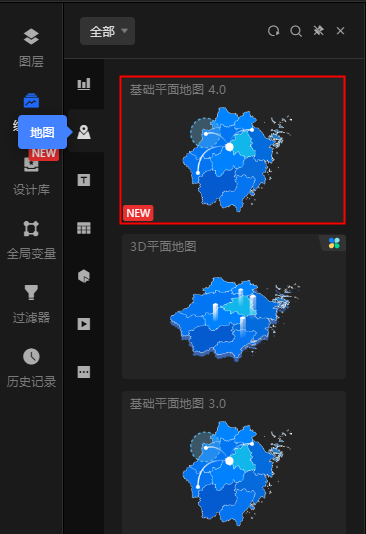
On the canvas, click the Basic Flat Map widget. In the right-side configuration pane or in the Layers panel, click the
 icon to show the widget. The Sub-component Panel and Sub-component Management Panel are opened. You can also click the
  icon in the sub-widget management panel to open the sub-widget panel.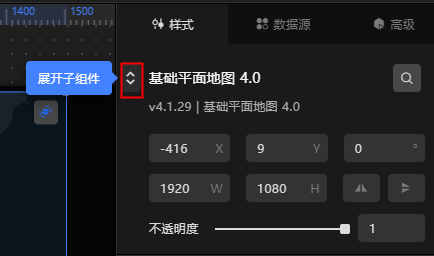
On the Sub-Components page, you can click any sub-component to add the sub-component. On the Sub-Component Management page, you can add sub-components, sort sub-components by color, control whether sub-components appear or appear, copy sub-components, rename sub-components, and delete sub-components.
Add a component
On the Components page, click the thumbnail of a component. 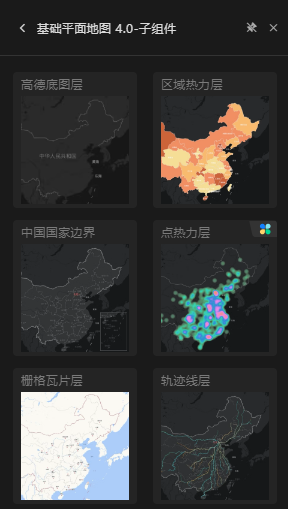
Categorize components by color
On the Add-ons page, select one or more add-ons at the same level.
Click the
 icon to set the label color for the selected child widget.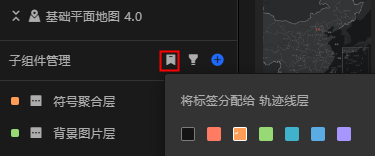
Click the
 icon to filter sub-widgets of the corresponding color tag category based on the tag color.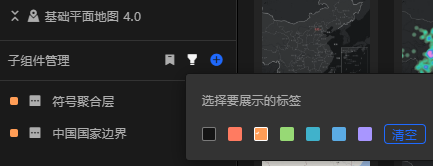
Show or hide a component
Move the pointer over a widget in the Widgets list and click the  icon to show or hide the widget in the map. You can also right-click the widget and select Hide to hide the widget.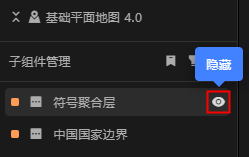
Replicate child component ID
Move the pointer over a component in the Components list, right-click the component, and select Copy ID to copy the ID of the selected component. 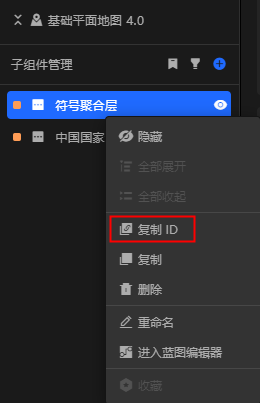
Copy a component
Move the pointer over a component in the Components list, right-click the component, and select Copy. 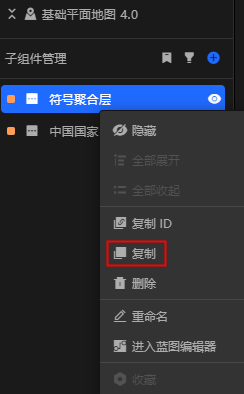
Delete a component
A deleted component cannot be restored. Exercise caution when you perform this operation.
Move the pointer over a component in the Component Management list, right-click the component, and select Delete. 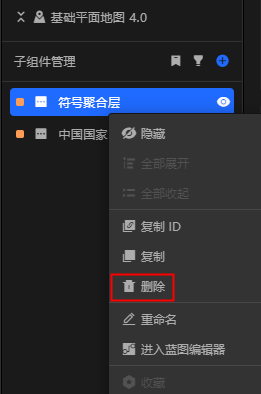
Rename a component
Move the pointer over a widget in the Widgets list, double-click the widget name, or right-click the widget name and select Rename, and enter text in the widget name field to rename the selected widget. 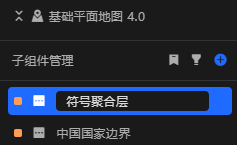
Sort components
Move the pointer over a component in the Component Management list and drag it up or down to adjust the hierarchical position of the component in the hierarchical area.
A map widget has three layers of components: top layer, intermediate layer, and bottom layer. Each layer contains different components.
Top Layer: the carousel tag layer.
Intermediate layers: grid aggregation layer, flying line layer, animated bubbles layer layer, isosurface layer, information label layer, custom region drill-down layer, icon scatter layer, frame animation layer, vector scatter layer, background image layer, symbol aggregation layer, trajectory line layer, raster tile layer, point heat layer, China national boundary layer, and regional heat layer.
Bottom Layer: the bottom layer.
You can move a component only within the layer to which the component belongs. You cannot move the component to another layer.