This topic describes how to create, search for, rename, edit, and delete a data source.
Create a data source
For more information, see Add a data source.
Search data sources
Log on to the DataV console.
In the Feature Navigation section, click Data Source to go to the Data Source page.
In the upper-right corner of the Data Source Card page, you can perform the following operations.
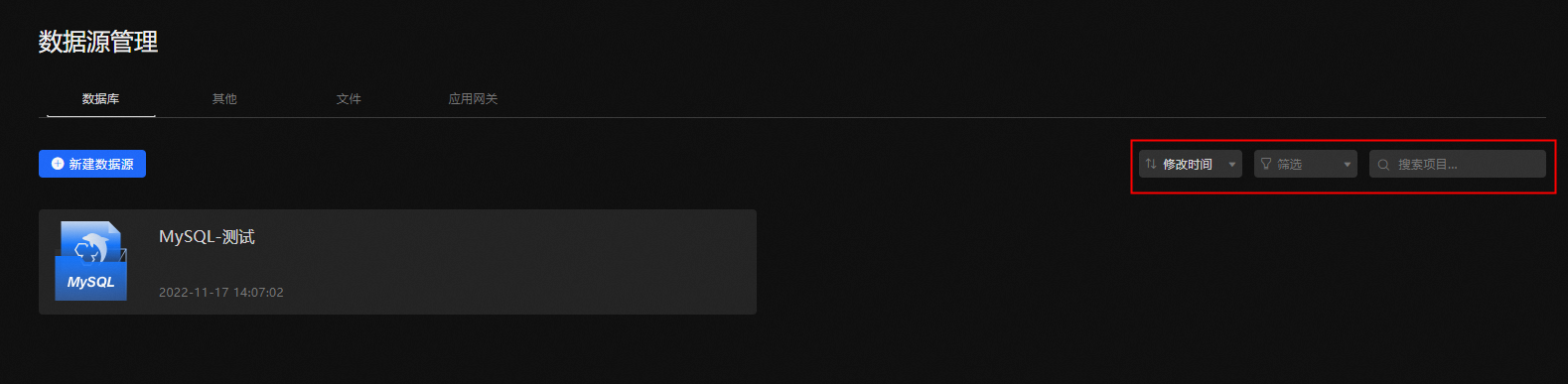
You can click Modified At to sort the data sources by Name, Modified At, or Created At.
Click Filter to filter specific data sources as needed.
Click the search box and enter a data source name to quickly locate the required data source.
Rename a data source
Log on to the DataV console.
In the Feature Navigation section, click Data Source to go to the Data Source page.
Move the pointer over the data source that you want to edit and click the
 icon.
icon. Click Enter.
Edit Data Source
Log on to the DataV console.
In the Feature Navigation section, click Data Source to go to the Data Source page.
Move the pointer over the data source that you want to edit and click the
 icon.
icon. The MySQL data source is used as an example. Different data sources have different parameter fields.
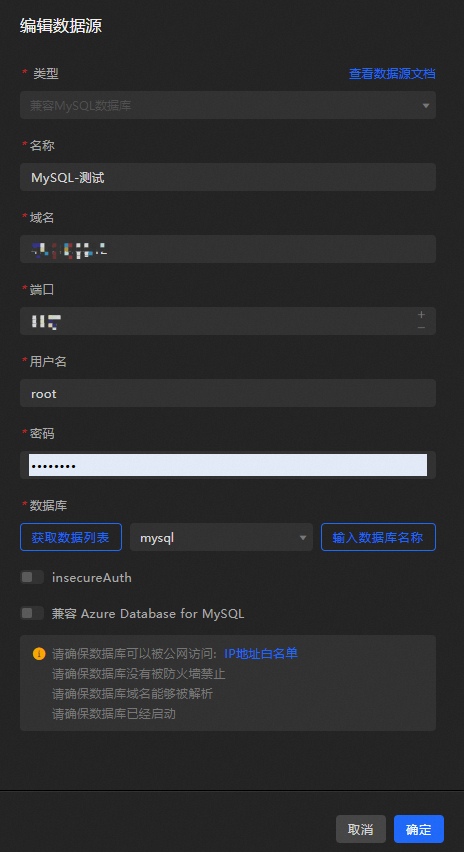
In the Create/Modify Event-triggered Alert Rule panel, configure the parameters based on your business requirements and click OK.
Delete a data source
Log on to the DataV console.
In the Feature Navigation section, click Data Source to go to the Data Source page.
Move the pointer over the data source that you want to edit and click the
 icon.
icon.
Data sources cannot be restored after they are deleted. Exercise caution when you perform this operation.