The visual application center is a comprehensive management platform for DataV data visualization. It primarily serves for centralized management and display of visualization studios and data dashboards. This topic describes the basic features and usage methods of this module.
Terms
Kanban
Kanban refers to data dashboards. The thumbnails of data dashboards published on the workspace page are displayed in the visual application center.
Presentation plan
A presentation plan is a serialized overall display of data dashboards. By serializing and integrating data dashboards, then adding carousel settings and security settings, they become presentation plans. Projecting these plans can quickly enhance data processing and work reports.
Projection
Projection displays presentation plans on a large screen in slideshow format. You only need to open the projection player and use the console for autoplay, page navigation, or share the console QR code with third parties to start the projection.
Function introduction
Visual application center
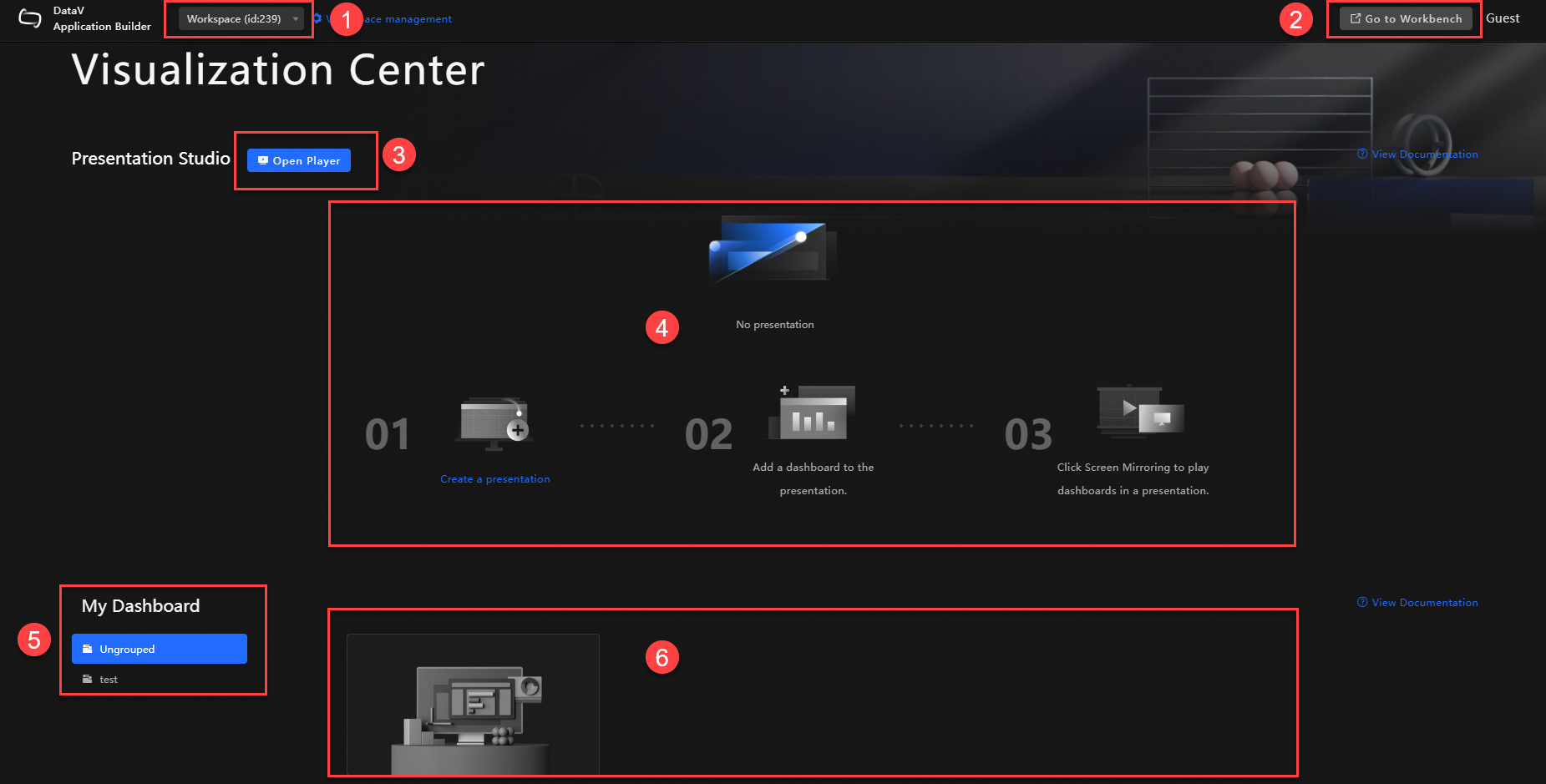
Ordinal number | Name | Description |
1 | Workspace | Click here to switch workspaces and enter different visual application centers. |
2 | Go to workspace | Click here to navigate to the visualization workspace page where you can edit your kanban. |
3 | Open projection page | Click here to navigate to the projection player page. You can project your kanban by entering the projection code of the current page in the presentation page. |
4 | Presentation plan display | This area displays the presentation plans created in the current workspace. |
5 | Kanban grouping | This area displays the grouping status of data dashboards published in the workspace page. |
6 | Kanban display | This area displays the details of data dashboards published in the workspace page. |
Visualization studio - Management page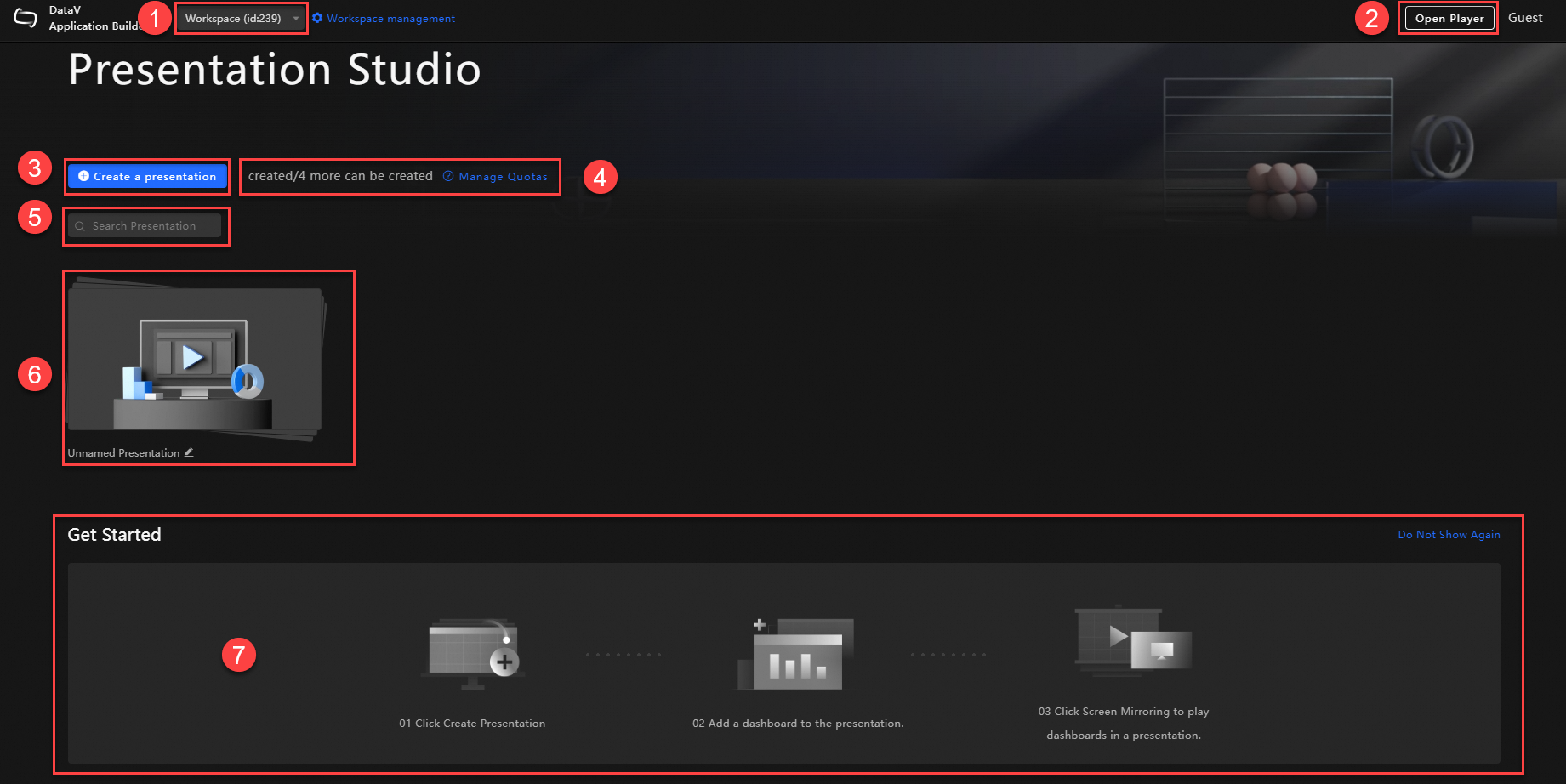
Ordinal number | Name | Description |
1 | Workspace | Click here to switch workspaces and enter different visualization studios. |
2 | Open projection player | Click here to navigate to the projection player page. You can view your kanban projection by entering the projection code of the current page in the presentation page. |
3 | Add presentation plan | Click here to navigate to the create presentation plan page. You can add a new presentation plan by adding published data dashboards to the presentation sequence, then configuring automatic carousel and security settings. |
4 | Plan quota management | This area displays the number of created plans and the number of plans that can be created in the current workspace. |
5 | Search plans | Enter the plan name in this input box to quickly find the required plan. |
6 | Manage plans | This area allows you to perform operations on created plans, such as projection, preview, edit, rename, and delete. |
7 | Quick start | This area displays the basic steps for plan projection, making it easy to quickly use the plans. |
Visualization studio - Quick preview page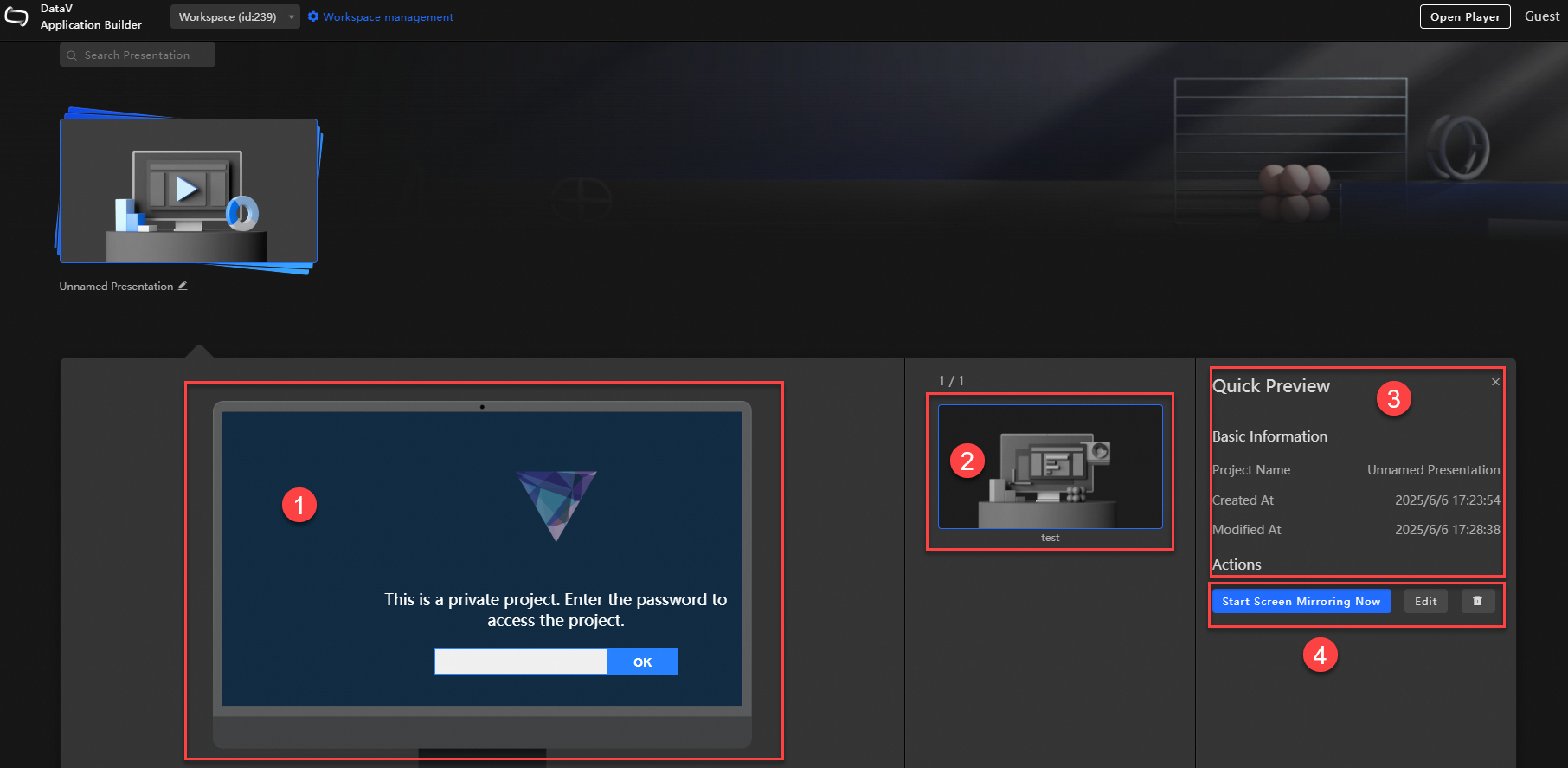
Ordinal number | Name | Description |
1 | Kanban preview | Preview the currently selected kanban by selecting the corresponding kanban in the kanban sequence display page. |
2 | Kanban sequence | This area allows you to select different kanbans to view in the kanban preview area. |
3 | Basic information | This area displays the basic information of the current plan, including project name, creation time, modification time, and more. |
4 | Plan operations | This area allows you to perform projection, edit, and delete operations on the selected plan. |
Visualization studio - Plan creation page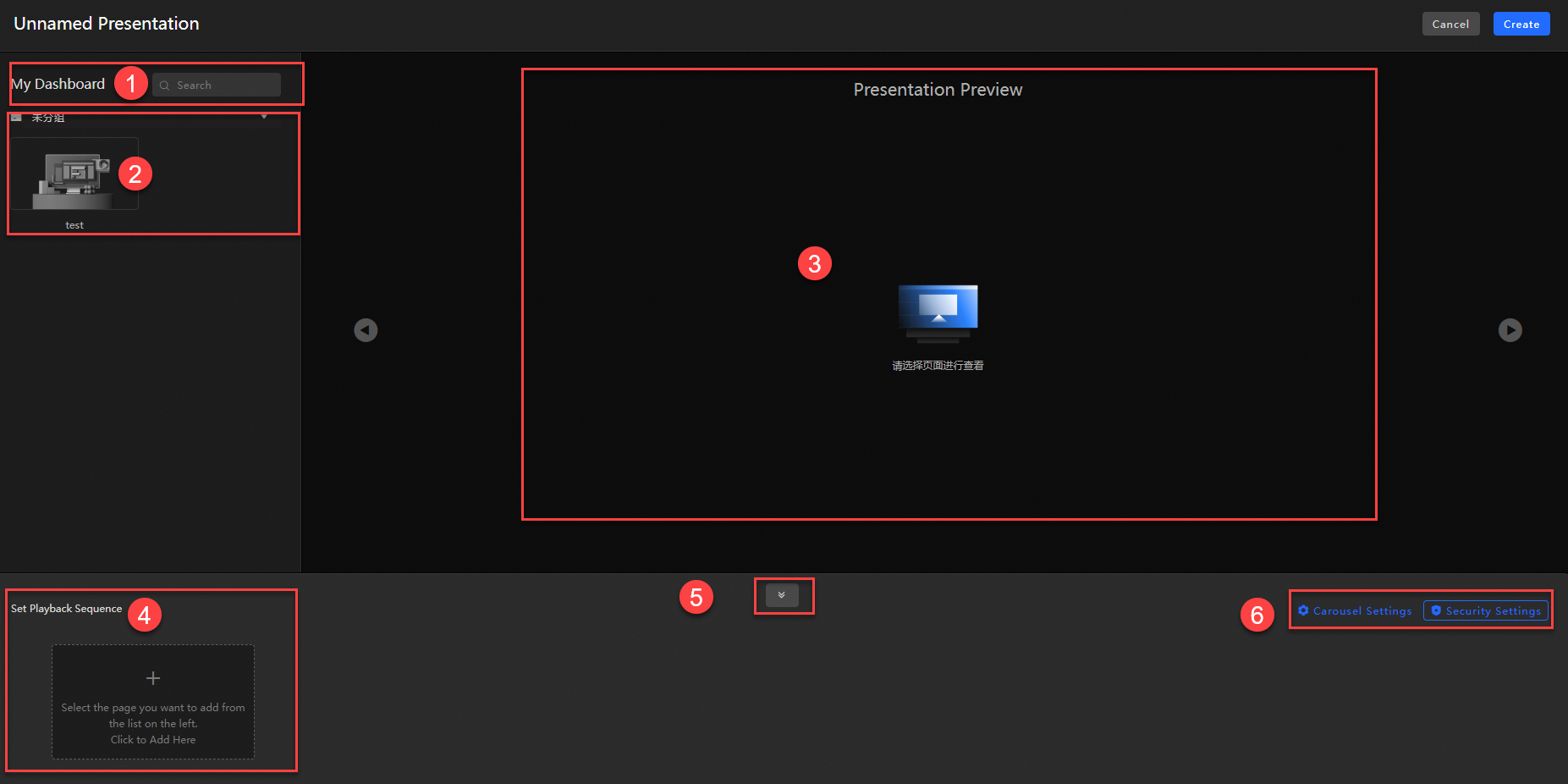
Ordinal number | Name | Description |
1 | Search kanban | Enter the kanban name in this input box or change the group to quickly find the required kanban. |
2 | My kanban | This area displays all kanbans in the current group. |
3 | Plan preview | This area displays the preview page of the data dashboard selected in the playback sequence. |
4 | Playback sequence | This area displays the sequence of the plan presentation. You can change the sequence order of kanbans by dragging. You can also remove kanbans from the sequence. |
5 | Hide sequence | This area allows you to hide the playback sequence. You can switch between left and right to immersively view the preview kanban. |
6 | Carousel and security settings | This area allows you to configure automatic carousel settings and security settings for the current plan by setting the carousel interval for each kanban and the control terminal password for projection. |
Visualization studio
visual-studio is a professional data visualization presentation platform in DataV that supports plan creation, projection, and full process management.
My kanban
Data dashboards published in the workspace are automatically displayed here. Unpublished data dashboards will not be shown. To modify a kanban, click Go To Workbench in the upper right corner of the visual application center to edit and publish it. Refresh the page after completion for the changes to take effect.
If no kanban exists, first create a data dashboard and publish it. You can then view it in My Dashboard.
Preview data dashboard: Move your mouse over the target data dashboard and click to view it in a new page.
View access statistics: Move your mouse over the target data dashboard and click the
 icon to view the access statistics details of the current data dashboard.