You can unsubscribe from DataV-Board 7.0 (Data Dashboard) when you no longer need the service.
Unsubscription Impact
-
After unsubscription, your instance is released immediately and all saved visualization projects and other content become inaccessible. The associated data is retained for 15 days. If you purchase a new instance during this period, the data automatically syncs to the new instance. If no new purchase occurs within 15 days, the project data is permanently deleted and cannot be restored.
ImportantBefore unsubscribing, make sure you have migrated or backed up all necessary data.
-
Professional Edition Trial can be purchased once per new user and is valid for one month. Once unsubscribed, this edition cannot be repurchased, so evaluate your needs carefully before proceeding.
Unsubscription Types
DataV-Board 7.0 supports two unsubscription options: Five-day No-reason Unsubscription and Partial Unsubscription.
-
Five-day No-reason Unsubscription: You can receive a full refund within five days of purchase.
-
Partial Unsubscription: If you unsubscribe after using the product for some time, the platform refunds the fees for the remaining active period based on the actual interface. For billing details of each edition, see Billing Methods.
Unsubscription Operation
You can unsubscribe from DataV-Board 7.0 by using either Self-service Unsubscription via Console or Manual Unsubscription by Submitting a Ticket.
Self-service Unsubscription
-
Navigate to Billing and Cost.
-
In the left-side navigation pane, click Resource Unsubscription to access the Resource Unsubscription page.
-
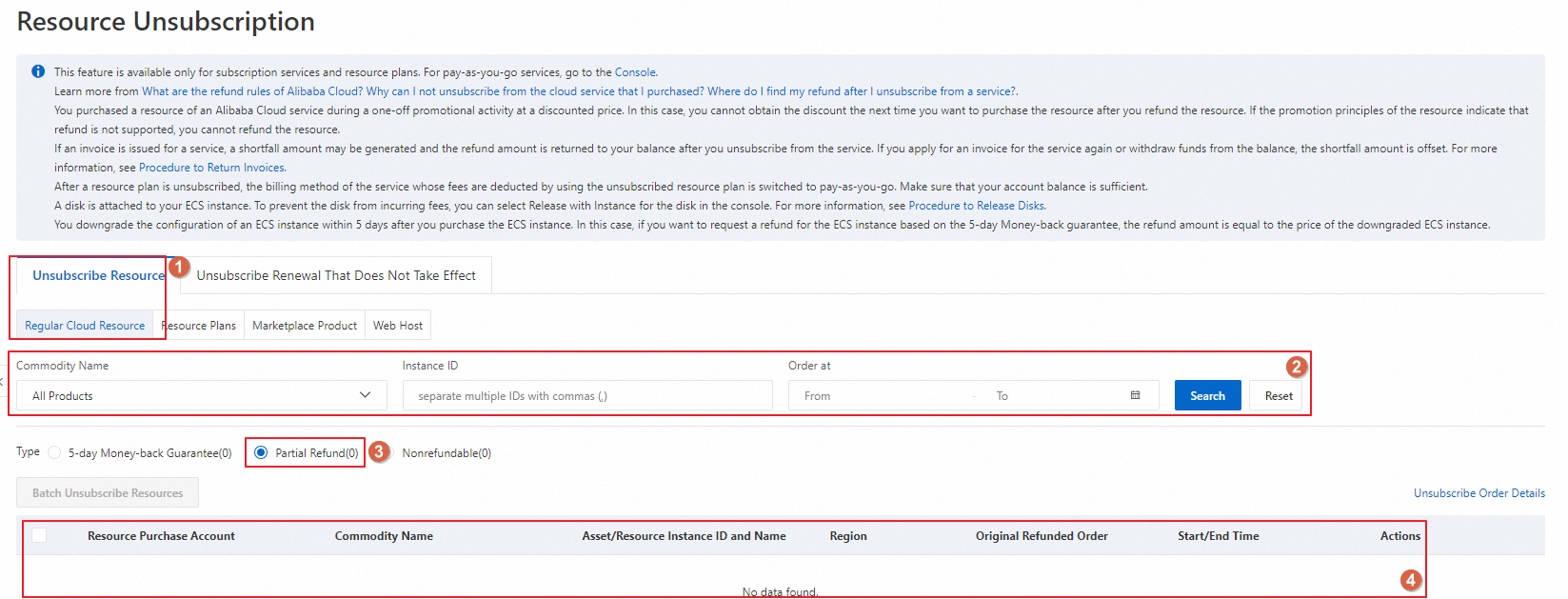
On the Unsubscribe Resource tab, use filters such as product name and instance ID to locate the instance. Select the desired unsubscription type and click Unsubscribe Resource in the Operation column for the relevant instance.
The following example shows a partial unsubscription.
-
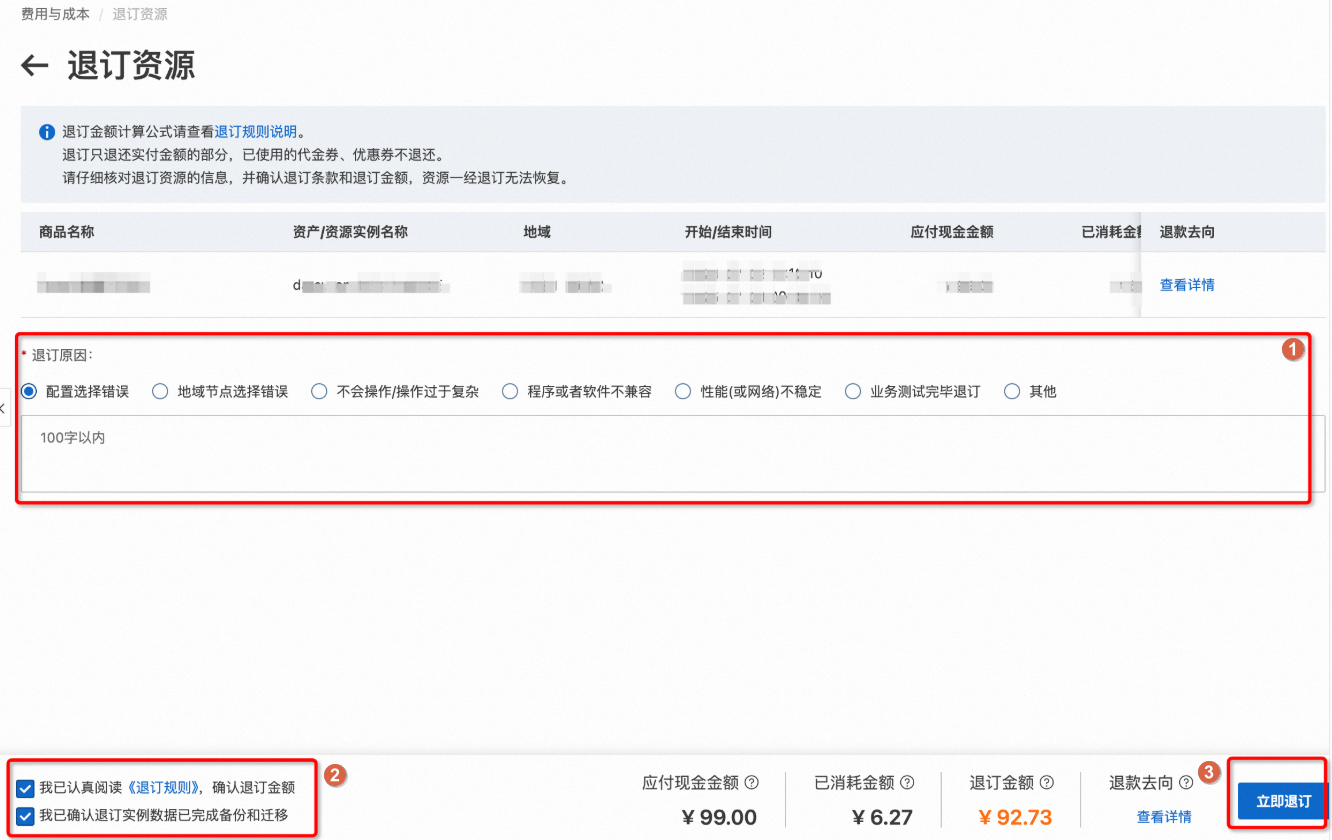
Select the unsubscription reason, review the unsubscription rules, click Unsubscribe Now, and follow the prompts to complete the process.
Important-
After unsubscription, the instance is released immediately, and the data cannot be retrieved. Ensure you have migrated or backed up all necessary data.
-
Refunds will be processed to the original Alipay account, online banking channel, or Alibaba Cloud account within 2 to 3 working days. Please verify receipt. You can also monitor the progress in .
-
Manual Unsubscription
References
For more information, see the referenced document.