The bottom layer is also called the map tile layer. It is a sub-component of the basic flat map. It can use a custom tile service to set the background of the basic flat map. Supports independent styles and data configurations, including the tile type or address, color, and filter of the bottom layer. This topic describes the meaning of each configuration items of the bottom layer.
Click Basemap Layer under Widget Management. In the Basemap Layer panel, configure the style and data of the bottom layer.
Note If Basemap Layer is not available in Manage Widgets, you have not added Basemap Layer. For more information, see Map Container.
Settings
- Search for Configurations: In the right-side panel of Canvas Editor, click the Settings tab, and click Search for Configurations in the upper-right corner. Enter the required configuration item in the search box, and click the search icon to quickly locate the configuration item. Fuzzy match is supported. For more information, see Search for widget configuration items.
- Visibility Level: specifies the visibility level of the bottom layer. The bottom layer is visible within the specified level range, but not outside the level.
- Mask Color: The mask color of the bottom layer. See the color picker description to modify it.
- Opacity: the transparency of the bottom layer. Valid values: 0 to 1.
- Tile URL: the service type of the tile. Select Road Map(AMAP) and Satellite Map(AMAP) from the drop-down list. If you want to use other tile services, you can directly
enter the tile address and press the Enter key to confirm. The following table lists the map tile services that DataV supports.
Map type Tile service type Tile address AMAP Gaud electronic map http://webst02.is.autonavi.com/appmaptile?style=7&x={x}&y={y}&z={z}Gaode satellite map http://webst02.is.autonavi.com/appmaptile?style=6&x={x}&y={y}&z={z}Gaode satellite map (road network, note) http://webst02.is.autonavi.com/appmaptile?style=8&x={x}&y={y}&z={z}Sky Map Sky Map_Vector Slice https://t1.tianditu.gov.cn/DataServer?T=vec_w&x={x}&y={y}&l={z}&tk=Your keySky Map_Vector Slice_Note https://t1.tianditu.gov.cn/DataServer?T=cva_w&x={x}&y={y}&l={z}&tk=Your keySky Map_Image https://t5.tianditu.gov.cn/DataServer?T=img_w&x={x}&y={y}&l={z}&tk=Your keySky Map_Image_Boundary Road Network https://t3.tianditu.gov.cn/DataServer?T=ibo_w&x={x}&y={y}&l={z}&tk=Your keySky Map_Image_Note https://t3.tianditu.gov.cn/DataServer?T=cia_w&x={x}&y={y}&l={z}&tk=Your key - Tile Size: 256 and 512 specifications are available. By default, this option does not need to be modified. In special cases, please refer to the output tile size of your tile service.
- Auto Refresh: If you turn on the switch, the system automatically refreshes the tile data based
on the specified Refresh Interval.
Note If the tile service you are using is AutoNavi or AutoNavi real-time road conditions, you must turn on this option to automatically refresh to obtain the latest tile data.
Refresh Interval: the interval at which the tile is automatically refreshed. Unit: minutes.
- Filter: Click the
 icon on the left to enable filter configuration. After you enable this feature, you
can add a filter effect to the bottom layer. You can set the Brightness, Contrast, Grayscale, Hue Rotate, Inversion, Saturation, and Sepia of the filter.
icon on the left to enable filter configuration. After you enable this feature, you
can add a filter effect to the bottom layer. You can set the Brightness, Contrast, Grayscale, Hue Rotate, Inversion, Saturation, and Sepia of the filter.
Data
This component does not support data configuration.
Interaction
This widget does not support interaction events.
Configure interactions in Blueprint Editor
- On the Canvas Editor page, click the
 icon to the right of the Basemap Layer in the Basic Plat Map subcomponent management list.
- Click the
 icon in the upper-left corner of the page.
- On the Blueprint Editor page, click the Basemap Layer component in the Import Nodes pane. You can view the parameters of the bottom layer
in the Blueprint Editor pane, as shown in the following figure.
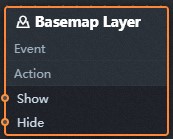
- Event: The earth layer does not support events.
- Action
Action Description Show A widget is shown without the need to specify parameters. Hide A widget is hidden without the need to specify parameters.