This topic describes the chart style and configuration panel of a 3D line chart.
Chart style
A three-dimensional line chart is a type of line chart. Compared with traditional two-dimensional line charts, a three-dimensional line chart displays the changes of different data in the same category in 3D. It intelligently displays the data change trend in three-dimensional effect. 
Configuration Panel 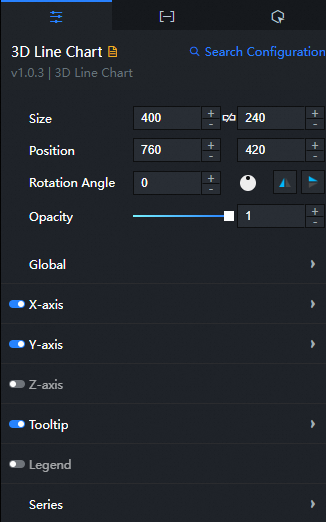
Search Configuration: Click Search Configuration in the upper-right corner of the Configuration panel. In the Search Configuration panel, enter the name of the configuration items that you want to search for to quickly locate the configuration items. Fuzzy match is supported. For more information, see Search for asset configurations.
- Size: indicates the size of a widget, including its pixel width and height. You can click the
 icon to lock the aspect ratio of the widget and modify the width and height of the widget in equal proportion. After you click this icon again, you can adjust the width and height as needed.
 - Position: the position of a widget, which is indicated by pixel X and Y coordinates. X-coordinate indicates the pixel distance between the upper-left corner of the widget and the left border of the canvas. Y-coordinate indicates the pixel distance between the upper-left corner of the widget and the upper border of the canvas.
- Rotation Angle: the angle of a rotation that uses the center point of a widget as the rotation point. The unit is degrees (°). You can use one of the following methods to control the rotation angle of a widget:
- Directly enter the degrees in the Rotation Angle spin box or click the plus sign (+) or minus sign (-) to increase or decrease the value in the Rotation Angle spin box.
- Drag the
 black dot in the icon to control the rotation angle of the widget.
 - Click the
 icon to flip the widget style.
 - Click the
 icon to flip the widget style.
- Opacity: Valid values: 0 to 1. If this parameter is set to 0, the widget is hidden. If this parameter is set to 1, the widget is completely displayed. Default value: 1.
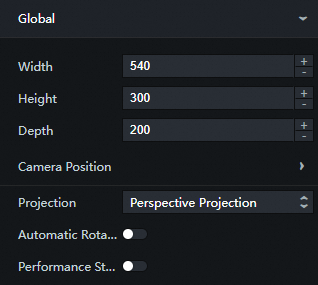
Global
Parameter
Description
Scene Width
The width value under the 3D stereoscopic effect of the component.
Scene Height
The height value under the 3D stereoscopic effect of the component.
Scene Depth
The depth value under the 3D stereo effect of the component.
Camera Position
The camera position contains three parameters: Vertical Direction, Horizontal Direction, and Distance. You can adjust these parameters based on the camera principle to display the 3D line chart in the desired size and orientation.
Vertical: the rotation angle of the camera in the vertical direction. Valid values: -90 to 90.
Horizontal: the rotation angle of the camera in the horizontal direction. Valid values: -180 to 180.
Distance: the distance between the camera and the 3D line chart. The greater the distance, the smaller the line chart displays.
Projection mode
The projection mode of the 3D scene, including perspective projection and orthographic projection.
Automatic rotation
If you turn on the switch, the component enables the auto-rotation style. If you turn off the switch, the component disables auto-rotation.
Rotation speed
The speed at which the widget automatically rotates. This setting takes effect only after the Auto Rotate feature is enabled.
Performance monitoring
If you turn on the switch, the performance monitoring feature is enabled in the upper-right corner of the widget. If you turn off the switch, the performance monitoring feature is disabled.
X Axis: Click the
 icon to display the x-axis.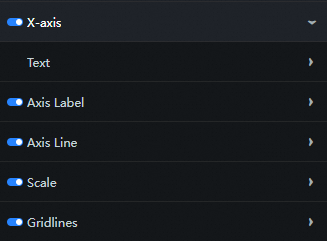
Text: the style of the text along the x-axis.
Parameter
Description
Font size
The font size of the text on the x-axis.
Color
The color of the text on the x-axis.
Font weight
The font weight of the text on the x-axis.
Axis Label: the style of the x-axis label. Click the
icon to control the x-axis label style. NoteIf the data format and setting formats are not uniform, the widget will be displayed abnormally.
Parameter
Description
Data Format
Please refer to
%m/%d%Y%H:%M:%Sfor time-based data format.Display Format
Expected data format to be displayed, please refer to
%m/%d/%Y%H:%M:%Stime, integer referenced, floating point reference.1f.Quantity
The number of x-axis labels.
Label Offset
The up-down displacement distance of the x-axis labels. Unit: px.
Axis: the style of the x-axis. You can click the
icon to display the x-axis. Parameter
Description
Color
The color of the x axis.
Transparency
The transparency of the x-axis.
Width
The width of the x-axis.
Tick mark: the style of the tick mark on the x-axis. You can click the
icon to show or hide the tick mark on the x-axis. Parameter
Description
Length
The length value of the x-axis tick mark.
Color
The color of the x-axis tick marks.
Transparency
The transparency of the x-axis tick marks.
Width
The width of the x-axis tick mark.
Gridlines: the style of the x-axis gridlines. You can click the
icon to display or hide the x-axis gridlines. Parameter
Description
Color
The color of the x-axis grid lines.
Transparency
The transparency of the x-axis scale grid lines.
Width
The width of the x-axis grid lines.
Y-axis: The configuration is similar to that of the x-axis. For more information, see the X-axis section.
z-axis: The configuration is similar to that of the x-axis. For more information, see the x-axis section.
dialog box: The style of the dialog box that appears when you mouse over or click a polyline on a preview or publish page. You can click
the icon to control the display of the dialog box. 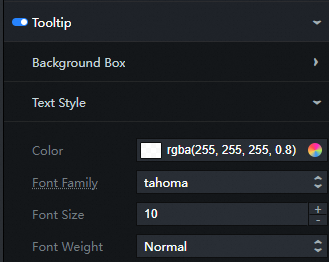
Background Box Style
Parameter
Description
Width
The width of the dialog box.
Height
The height of the dialog box.
Background color
The background color of the dialog box.
Interior Margin
The inner margin of the dialog box. Unit: px.
Horizontal Offset
The horizontal offset of the dialog box relative to the position of the mouse arrow. Unit: px.
Vertical Offset
The vertical offset of the dialog box relative to the position of the mouse arrow. Unit: px.
Border Color
The border color of the dialog box.
Border thickness
The border thickness of the dialog box. Unit: pixels.
Text Style: the style of the text in the dialog box, including the font style, weight, font size, and color.
Legend: the legend style of the chart. You can click the
icon to display or hide the legend. 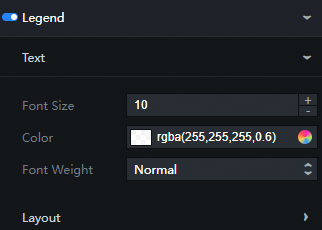
Text: Set the font size, font color, and font weight of the legend text. For more information, see color picker description.
Layout
Parameter
Description
Left Spacing
The distance between the legend and the left side of the widget.
Top Spacing
The distance between the legend and the top of the component.
Inner Spacing
The distance between the left and right sides of adjacent legends. This configuration items is only valid when there are multiple series.
Series
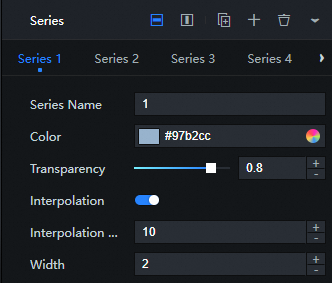
Click the
 or
or  icon on the right to add or remove a data series. Click the
  or
or  icon to configure the arrangement style of multiple data series. Click the
  icon to copy the selected data series configuration and add a data series with the same configuration.
 Parameter
Description
Series Name
The name of the data series, which can be customized. If this parameter is empty, the system displays s field values in the component data as series names. If this parameter is not empty, you must ensure the order in which data is returned.
Color
The color of this data series.
Transparency
The transparency of this data series.
Approximate curve
Turn on the switch to turn on the style of this series of lower polylines as approximate curves. Turn off the switch to turn off the style of approximate curves.
Interpolation factor
The interpolation in this data series is quantity, the more interpolation, the smoother the polyline. This parameter takes effect only after Approximate Curve is enabled.
Width
The line width of this data series polyline.
Data tab
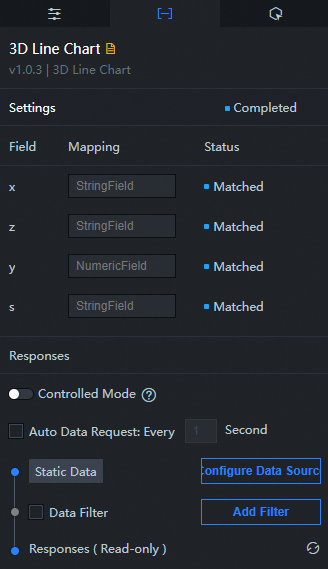
Configuration field description
Field | Description |
| The value of the x-axis in the line chart. The field type and format must be consistent with the label data type and format on the x-axis in the configuration items. |
| The value of the z-axis in the line chart. The type and format of this field must be consistent with the type and format of the label data on the z axis in the configuration items. |
| The value of the y-axis in a line chart. |
| The series value. If the content of the series name in the configuration items series is empty, this field value is used. |
Feature | Description |
Controlled Mode | If you turn on the switch, data is not requested when the asset is in the Initialization state. Data is requested only by using the callback ID or the method configured in Blueprint Editor. If you turn off the switch, you can use Automatic Update to request data. By default, the switch is turned off. |
Auto Data Request | After you select the Auto Data Request check box, you can enable dynamic polling, and manually specify the polling interval. If you clear the check box, the data is not automatically updated. You must manually refresh the page or use the Blueprint Editor and callback ID events to trigger a request to update the data. |
Data Source | Click Configure Data Source. In the Configure Data Source panel, modify the data source type and query code, preview the response of the data source, and view the response results. For more information, see Configure asset data. |
Data Filter | If you select the Data Filter check box, you can convert the data structure, filter data, and perform simple calculations. Click Add Filter. In the Set Data Source panel, configure a data filter script. For more information, see Filter instructions. |
Data Response Result | The response to a data request. If the data source changes, you can click the |
 icon on the right to view the response results in real time.
 Interaction tab
This widget does not support interaction events.
Configure interactions in Blueprint Editor
- In Canvas Editor, right-click a widget in the Layer panel and select Add to Blueprint Editor.
- Click the
 icon in the upper-left corner.
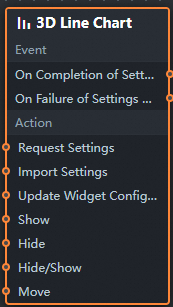
 In Blueprint Editor, click the 3D Line Chart widget in the Import Nodes pane. On the canvas, you can configure the parameters for the 3D line chart, as shown in the following figure.
Event
Event
Description
When the interface description request is completed
The event is triggered with the processed JSON data after a data interface request is responded and processed by a filter. For more information about specific data examples, see the Data Response Result section of the Data tab in the right-side configuration panel of the canvas editor.
When the interface description request fails
The event that is returned when a data interface request fails (such as network problems or interface errors) and is processed by the filter. The event also throws the processed JSON data. For more information about specific data examples, see the Data Response Result section of the Data tab in the right-side configuration panel of the canvas editor.
Action
Action
Description
Request API Description
This action is performed to request the server data again. The data sent by an upstream data processing node or layer node is used as a parameter. For example, for a 3D line chart, the API data source is
https://api.test, and the data that is transferred to the request interface to describe the action is{ id: '1'}. Then, the final request interface ishttps://api.test?id=1.Import Interface Description
After data of a widget is processed in accordance with its drawing format, the widget is imported for redrawing. You do not need to request server data again. For more information about specific data examples, see the Data Response Result section of the Data tab in the right-side configuration panel of the canvas editor.
Update component configurations
Style configurations of widgets are dynamically updated. Before this action is executed, you must click the widget in Canvas Editor, click the Settings tab in the right-side panel, and click Copy Configurations to... to obtain widget configurations. After that, change the style field for the data processing node in Blueprint Editor.
Display
Displays the widget. The following example shows the reference data.
return{
  "animationType": "",
  "animationDuration": 1000,
  "animationEasing": "linear"
}
Hide
The following example shows how to hide a widget.
return{
  "animationType": "",
  "animationDuration": 1000,
  "animationEasing": "linear"
}
Switch to the implicit state
Specifies whether to show or hide a widget. The following example shows the reference data.
return {
  "animationIn": {
    "animationType": "",
    "animationDuration": 1000,
    "animationEasing": "linear"
  },
  "animationOut": {
    "animationType": "",
    "animationDuration": 1000,
    "animationEasing": "linear"
  }
}
China Mobile
A widget is moved to a specified location. Examples of reference data are as follows.
return{
      // The positioning type. to indicates absolute positioning, whereas by indicates relative positioning. The default value is to.
        "positionType": "to",
      // The location, which is indicated by the x and y coordinates.
      "attr": {
        "x": 0,
        "y": 0
      },
      // The animation type.
      "animation": {
        "enable": false,
        // The duration in which animation is displayed.
        "animationDuration": 1000,
        // The animation curve, which can be set to linear|easeInOutQuad|easeInOutExpo.
        "animationEasing": "linear"
      }
    }