You can upgrade or downgrade your DataV edition to match your current business needs. This topic covers the procedure and impact of each operation.
Product Upgrade
As your project grows, you may need a higher-tier edition to accommodate additional resource requirements. The following example shows how to upgrade from Enterprise Edition to Professional Edition.
-
Log on to the DataV console.
-
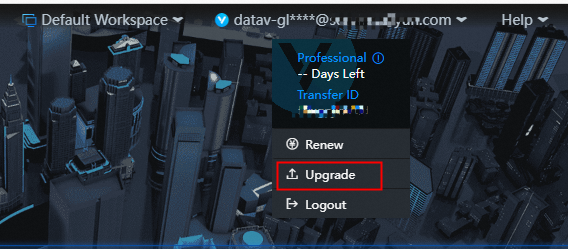
In the upper-right corner of the page, click Upgrade in the Account drop-down list to go to the Change Configuration page.
-
On the current page, select Professional Edition.
NoteThe upgrade fee and the remaining validity period are calculated based on the remaining time and proportion of the time that you have purchased the Enterprise Edition.
-
After the upgrade to Professional Edition, all content you created in Enterprise Edition is preserved and remains available.
NoteThe procedure for upgrading to the exclusive edition is similar. We recommend that you also join the DataV local deployment and exclusive edition official group on DingTalk (group number: 23326006) for further assistance.
Downgrade
-
To unsubscribe from a higher-edition instance, see Procedure.
-
To activate a new DataV instance, see Activate DataV.
ImportantAfter you unsubscribe from an instance, its content is not immediately deleted. By default, the content is retained for 15 days. When you purchase a new instance, the previously retained content is automatically synchronized. However, some features or content may be locked if the new edition includes different specifications, such as project quotas or workspace limits. Proceed with caution.