Compliance assessment details display monitoring results for mapped relationships from two perspectives: the standard perspective and the asset object perspective.
Accessing compliance details
-
On the Dataphin home page, choose Governance > Standard from the top menu bar.
-
In the navigation pane on the left, choose Compliance Assessment > Compliance Assessment Details. The Standard Perspective page appears by default.
View compliance details from the standard perspective
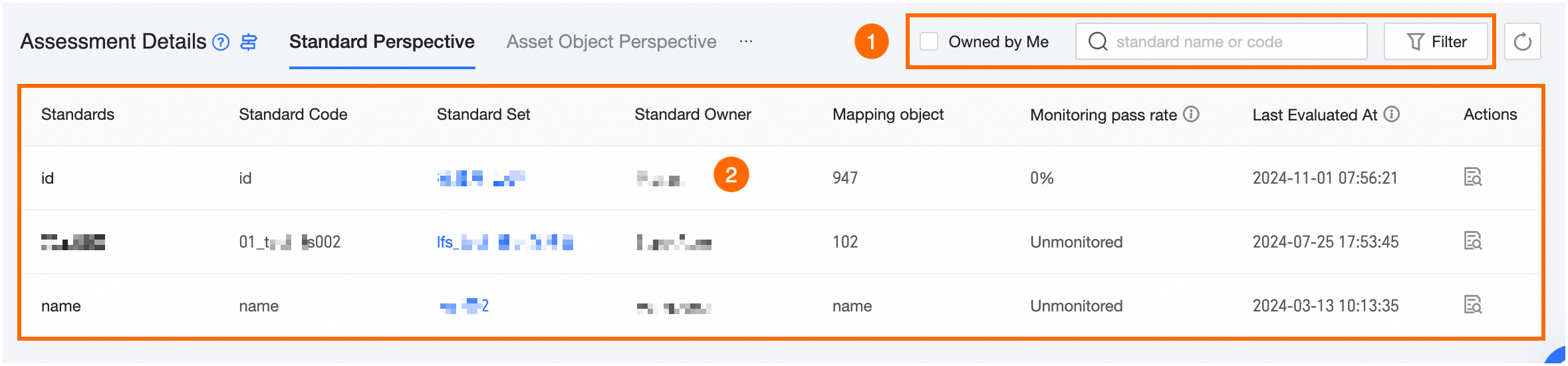
The standard perspective displays asset objects mapped to each data standard and their compliance monitoring details, based on the latest mapping rule execution results. Only published standards that you have permission to view are included.
|
No. |
Description |
|
① Filter and search area |
Filter compliance assessment details for data standards that I own. You can also click the
Search by standard name or encoding. |
|
② List area |
View the Standard, Standard Code, Parent Standard Set, Standard Owner, Mapping Object, Monitoring Pass Rate, and Last Evaluation Time. You can also click the
|
 icon to filter by Data Standard Set, Standard Owner, or Monitoring Pass Rate. For Monitoring Pass Rate, enter a value between 0.00 and 100.00.
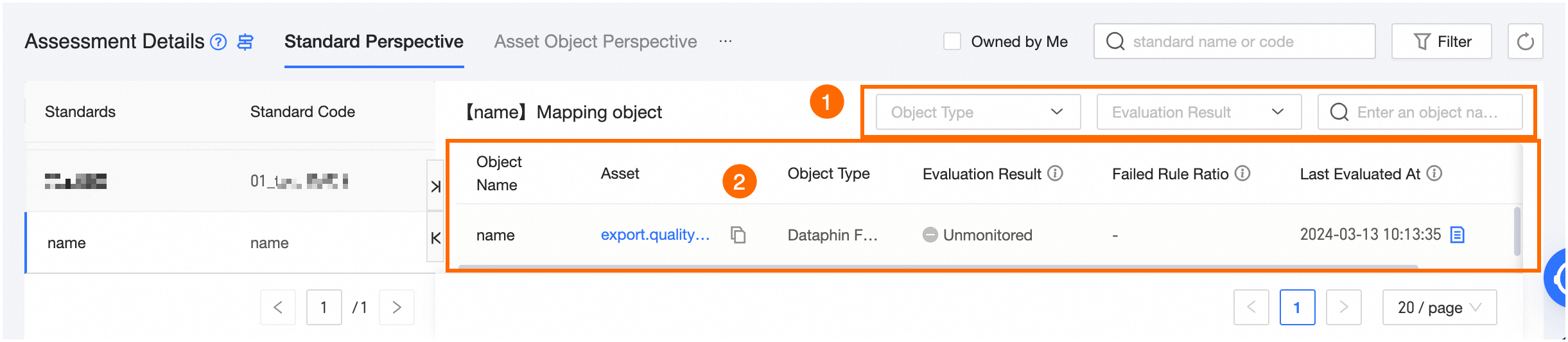
Mapped object list
|
No. |
Description |
|
① Filter and search area |
Filter by Object Type or Assessment Result (Failed, Passed, Not Monitored, Pending Assessment). Search by object name or path. |
|
② List area |
Displays the Object Name, Associated Asset, File Format, Assessment Result, Number Of Failed Rules, and Last Assessment Time. You can also click the
|
Assessment details
Assessment details cover monitoring rules added to the mapping, including built-in metadata monitoring for properties and data quality monitoring rules manually added from the mapped list.
-
Metadata monitoring: For mappings automatically generated by compliance mapping rules, assessment results update when the mapping rule executes. For manually added mappings—including batch imports and manual associations in the development module—results update when the global compliance assessment task on the mapping page executes. For more information about compliance assessment configuration, see Compliance assessment configuration.
-
Data quality monitoring rules: A data quality rule executes according to its scheduling configuration. Monitoring results update when the global compliance assessment task on the mapping page executes. To view the latest execution status of a rule, go directly to the data quality page. For more information about compliance assessment configuration, see Compliance assessment configuration.
ImportantIf a single mapping corresponds to multiple assessment details, monitoring results update each time the corresponding task—either a compliance mapping rule task or the global compliance assessment task—executes. Only the most recent results appear.
On the Assessment Details page, view assessment information for the standard’s mapped objects, including the data standard, data standard set, asset object, asset, rule name, associated standard property, assessment result, assessment details, and rule type.
You can also click the  icon in the Actions column to view rule details.
-
For data quality monitoring, click to open the data quality rule list, which navigates to the rule details page for that asset.
-
For a data classification property—which requires the security module to be enabled—if the assessment result is Failed, click Edit to perform a one-click modification of the data classification and level.
NoteIf the data level for the same data classification differs between the standard definition and the security module, the modification uses the level from the security module.
View bid award details from the Asset object perspective
-
On the Compliance Assessment Details page, click the Asset Object Perspective tab.
-
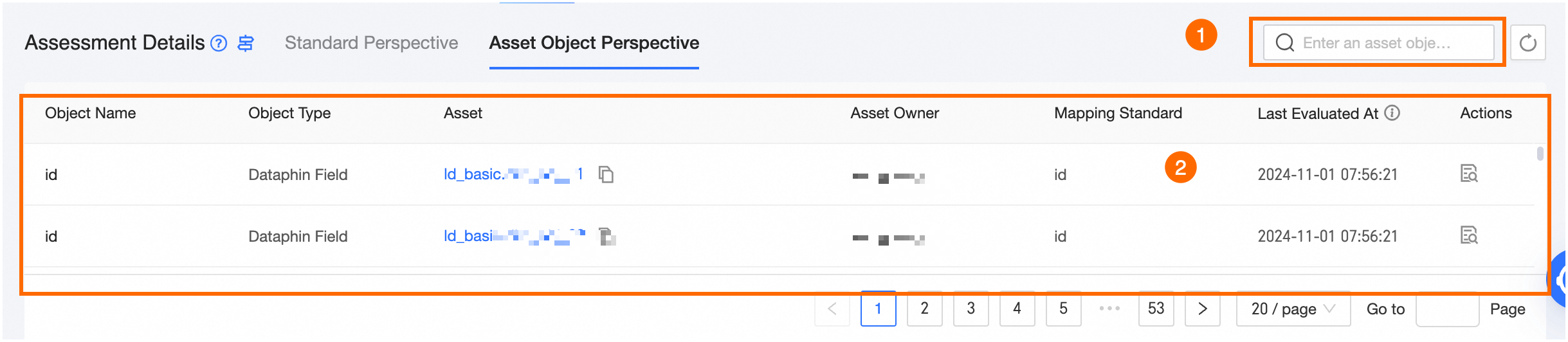
The asset object perspective displays all metadata mapped to each asset object and its compliance monitoring details, based on the latest mapping rule execution results. Only compliance details for all mapped metadata appear.
No.
Description
① Search area
Search by asset object name or object path.
② List area
Displays Object Name, File Format, Asset, Asset Owner, Mapping Standard, and Last Assessment Time. You can click the
 icon in the Actions column to view mapping details.
-
Asset: Click the object's path to go to the details page for that table in the asset directory. Click the
 icon after the path to quickly copy the name.
 -
Mapped Standards: The total number of standards mapped to the current asset object based on compliance mapping rules.
-
Last Assessment Time: The completion time of the most recent check for all monitoring rules associated with the mappings of the current asset object.
-
View Mapping Details: You can click the Standard Name, Number of Mapped Objects, or the
icon in the Actions column to view the details of asset objects mapped to the current standard and monitoring results. You can click to view bid evaluation details only if the Number of Mapped Objects is not empty. For more information, see Mapping Object List.
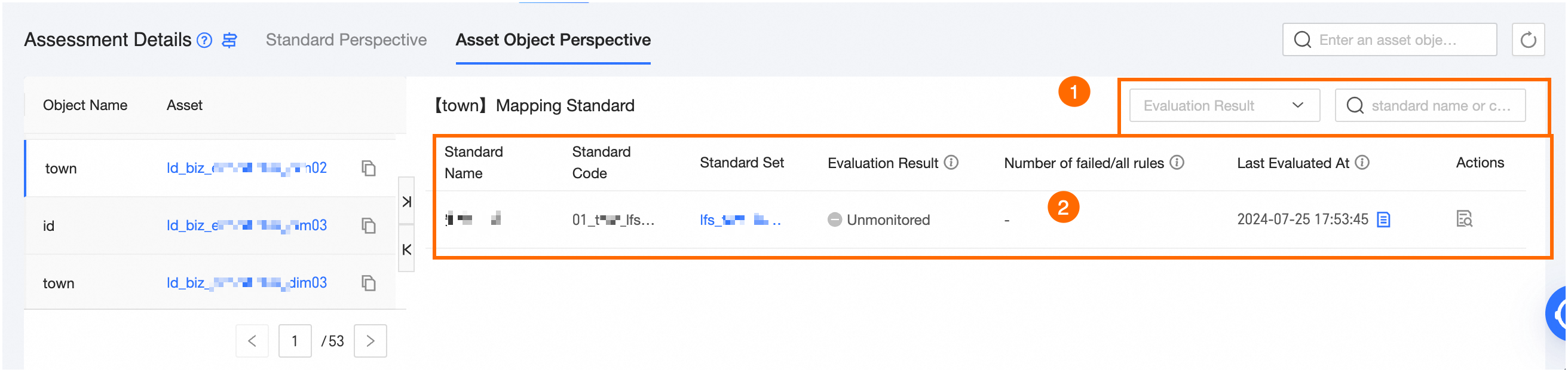
Mapped object list
The mapped object list shows the standards mapped to the selected asset. For more information, see Mapped object list.
Assessment details
Assessment details cover monitoring rules added to the mapping, including built-in metadata monitoring for properties and data quality monitoring rules manually added from the mapped list. For more information, see Assessment details.
-