Submitted instances are executable instances generated by a backfill data operation on a periodic task or from a pending instance. You can rerun, terminate, pause, resume, or Set to Successful and Continue Scheduling submitted instances.
Access submitted instances
-
In the top menu bar of the Dataphin homepage, choose Develop > Task O&M.
-
In the navigation pane on the left, choose Instance O&M > Backfill Instances.
-
In the top menu bar, select the production environment or development environment.
-
On the Backfill Instances page, click the Submitted Instances tab.
Submitted instances page
The Submitted Instances page lets you monitor and manage generated backfill data instances.
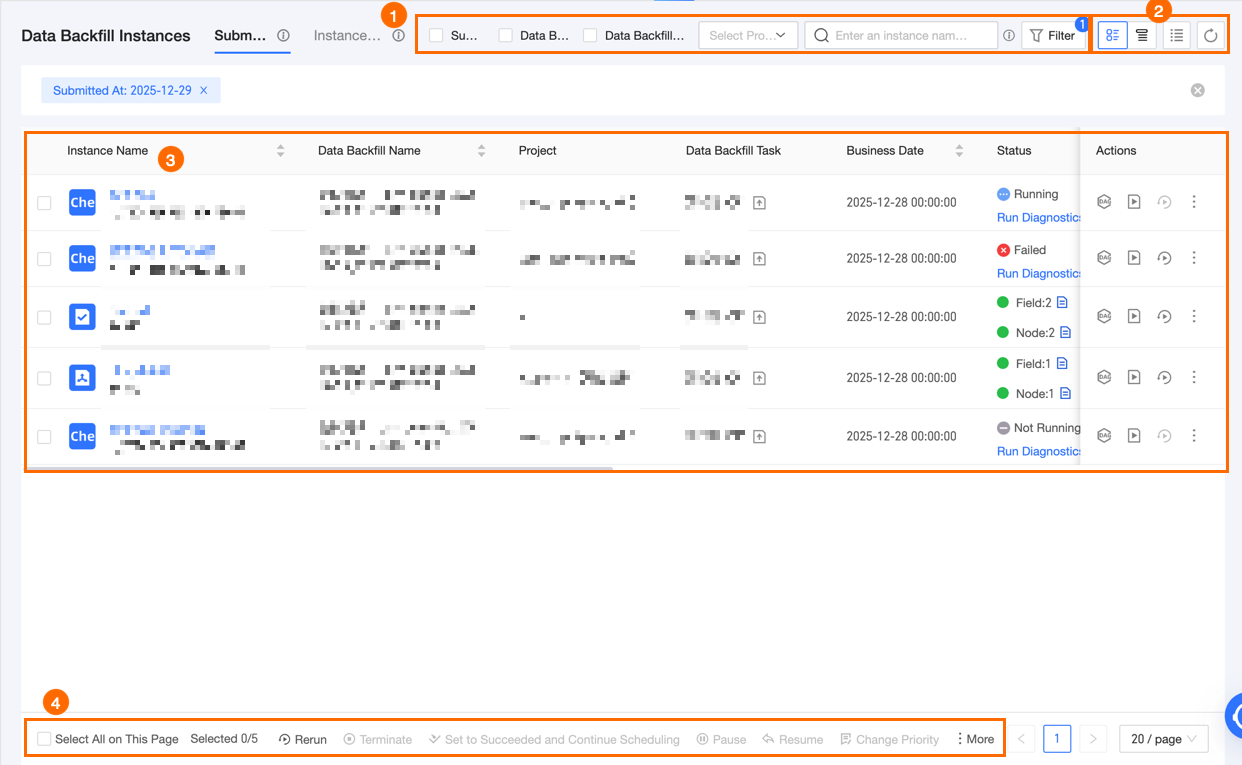
|
Section |
Description |
|
① Filter and search area |
Filter submitted instances by entering an instance object name or ID.
|
|
② List operations |
|
|
③ Submitted instance list |
The Submitted Instances page lists instances generated by |
|
④ Batch operation area |
Process multiple |
 icon to group instances with the same backfill task name and categorize them by
  icon to display all
  icon to select which columns to display and to reorder them.
 icon to refresh the current list.
Backfill data instance status
The status of a backfill data instance is determined by consolidating the statuses of its individual business date runs as described in the following table.
If a backfill data instance contains paused instances, the Backfill status reflects this. If some instances are paused, the status shows as Partially Paused. If all instances are paused, the status shows as All Paused.
|
Evaluation order |
Consolidated status |
Logic |
|
1 |
Not started |
If the |
|
2 |
Running |
If there are instances that are |
|
3 |
Failed |
If any |
|
4 |
Success |
If all instances have a status of |
Submitted instance tree view
The backfill instance list page displays the Backfill name-business date, Backfill status, Backfill task, Submitter/time, Business date, Runtime, Number of nodes, and supported actions.
The tree view for submitted instances has three levels, as shown below.
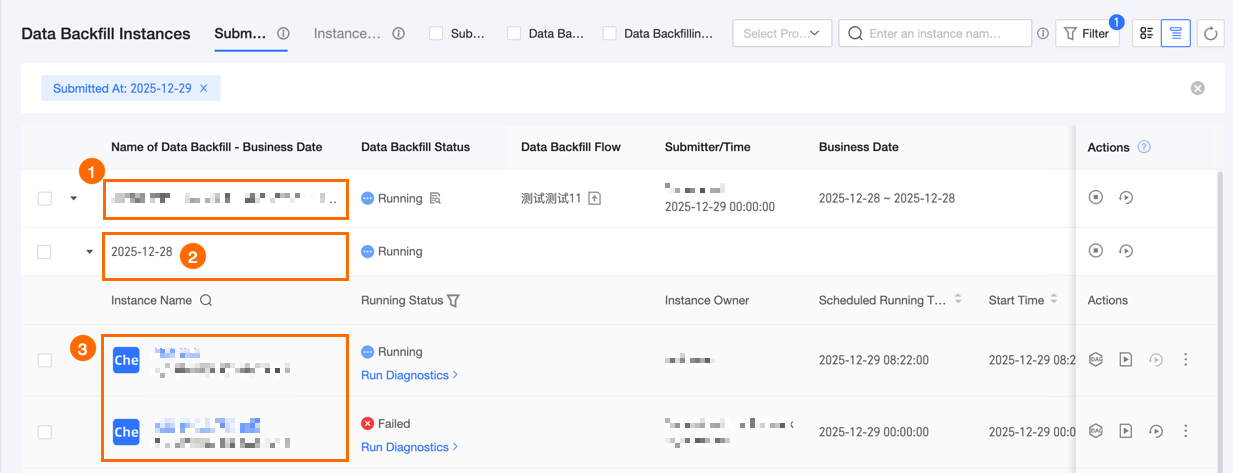
|
Level |
Description |
|
① Level 1 |
Backfill task level: Represents the backfill task. The name is the |
|
② Level 2 |
Business date level: Shows all business dates that require data backfilling under the |
|
③ Level 3 |
Backfill data instance level: Displays the instances generated after performing a |
-
Level 1 and Level 2: Supported actions for a single
backfill datainstance.Actions
Description
View backfill status details
Click the
 icon next to the Level 1 backfill status to view status statistics for all
 backfill datainstances under the current backfill task.Terminate all
Dataphin automatically selects and terminates nodes in the current folder with a status of waiting or running, as well as logical table fields and their dependencies with a status of not started, running, or waiting. Nodes or logical table fields with other statuses are not affected.
Rerun all failed instances
Dataphin automatically selects and reruns nodes or logical table fields in the current folder with a
failedstatus. Nodes or logical table fields with other statuses are not affected. -
Level 3: Supported actions for a single
backfill datainstance.Note-
Click the
 button in the Running status column to quickly filter instances by their running status. Running statuses include: success, failed, running, waiting for scheduling time, throttling, not started, and waiting for scheduling resources.
 -
Click the
 button in the Instance name column to search for
 backfill datainstances within the current backfill task. -
Click the
 icon in the Scheduled Time, End Time, or Runtime column to sort the backfill data instances by Scheduled Time, End Time, or Runtime in ascending or descending order.
The operations supported for
backfill datainstances of integration, compute, and modeling tasks are the same as for their corresponding periodic instances. For more information, see: -
Batch operations for submitted instances
Batch operations for submitted instances differ from those for periodic instances. The following table describes the available batch operations.
|
Actions |
Description |
|
Rerun |
After selecting multiple
|
|
Terminate |
Instances in any state except success or not started can be terminated. After termination, the Note
If your selection includes instances with a success or not started status, the batch The
|
|
Set to Successful and Continue Scheduling |
Manually set the status of multiple Important
Downstream instances that depend on data from the current |
|
Pause |
Only instances with a status of not started, waiting for scheduling time, or throttling can be paused. Note
When you use the |
|
Resume |
Only paused instances can be resumed. Note
When you use the |
|
Modify priority |
Click the |
|
Download all |
After selecting multiple instances, click the |
 icon and select Modify Priority. In the Batch modify priority dialog box, change the priority of the selected tasks. You can choose Highest, High, Medium, Low, or Lowest.
Operations for backfill DAG nodes
Click the name of a backfill data instance to open its DAG. The DAG shows the relationships between backfill nodes and their dependencies for each business date.
Dataphin supports cross-project node management. To manage a backfill data instance node from another project, you need view and operational permissions for the project where the instance resides.
When viewing a DAG, the instance object list displays the object name and scheduled run time. Hovering over an instance object shows the node name, node ID, scheduled time, and runtime.
The operations supported for backfill DAG nodes are the same as for periodic instances. For more information, see: