Dataphin allows you to install and manage Python third-party packages for use in Python computing tasks.
Python module entry
-
Navigate to the Management Center from the Dataphin home page.
-
To access the Python Module page, follow the steps below:
Select System settings > Python third-party package > Python Module in sequence.
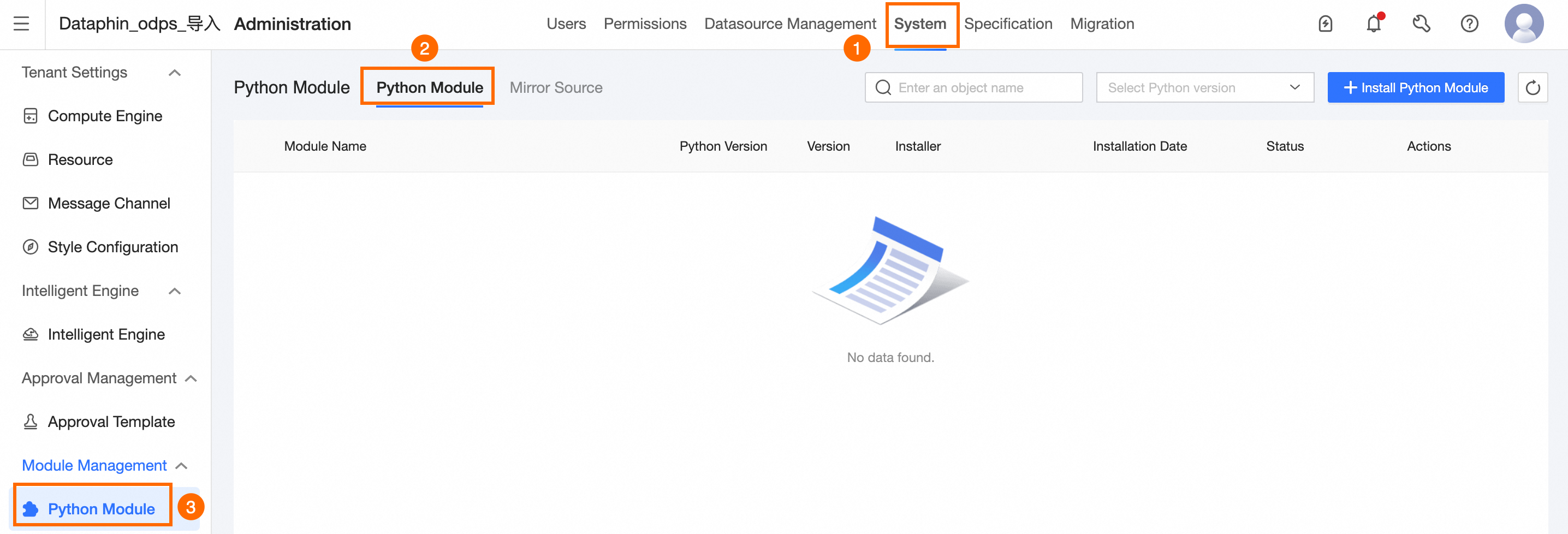
Introduction to the Python third-party package page
The Python third-party package page consists of Python Module and traffic mirror source.
-
Python Module: Install and manage Python third-party packages.
-
Traffic mirror source: Specifies the source from which Dataphin retrieves and installs Python third-party packages during online installation.
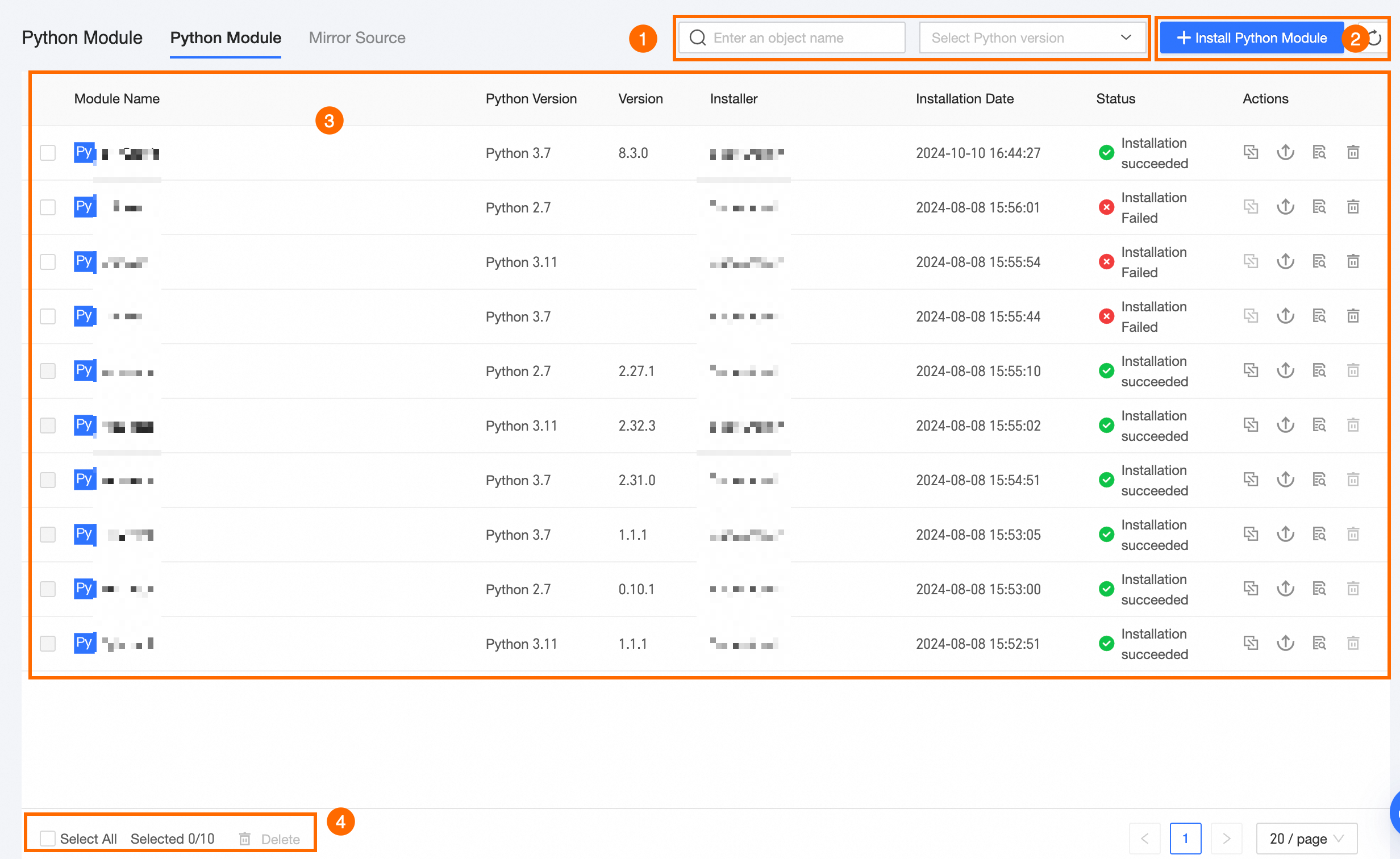
Introduction to the Python Module page
|
Parameter |
Description |
|
①Search and Filter Area |
|
|
②Function Area |
|
|
③Python Module List |
Displays Module names, Python versions, version numbers, installers, installation dates, statuses, and management operations: Note
Default system Python Modules are listed and do not support management operations.
|
|
④Batch Operations |
Delete multiple selected Python Modules at once. Modules that are installing, upgrading, or have dependencies cannot be deleted. |
 .
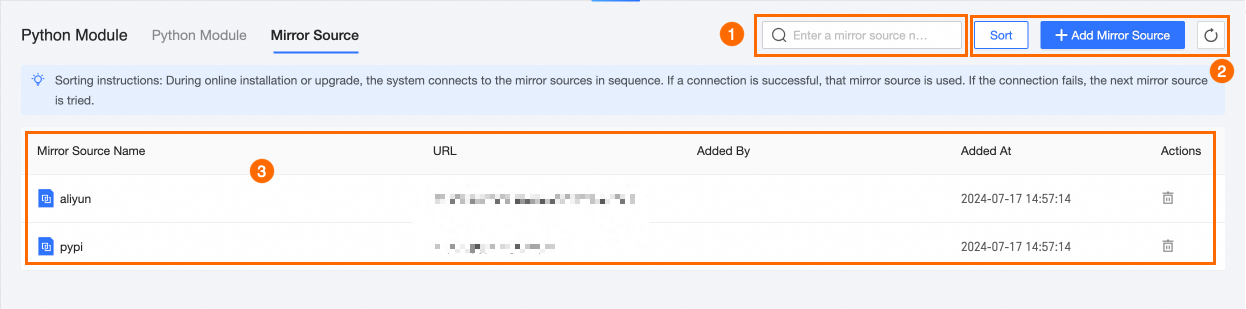
.Introduction to the traffic mirror source page
|
Parameter |
Description |
|
①Search Area |
Search for traffic mirror sources by name. |
|
②Function Area |
|
|
③Traffic Mirror Source List |
Displays traffic mirror source names, URLs, adders, addition times, and management operations:
|
 and drag
  to reorder traffic mirror sources. During online installation or upgrade of Python Modules, the system connects to traffic mirror sources in top-down order and falls back to the next source if the connection fails.
 icon to modify traffic mirror source settings.
 icon to delete the traffic mirror source. At least one traffic mirror source must be retained.