A periodic instance is an instance generated when a periodic task runs based on its scheduling configuration. Each scheduled run generates one instance. You can perform O&M on generated instances, such as viewing their run status, rerunning them, and viewing node code. This topic describes the general features of periodic instances.
Instance generation and run rules
Every day at 23:00, Dataphin generates the periodic instances for the following day. By default, these instances are in the not started state.
After all of an instance's upstream dependencies succeed, its status changes from not started to waiting for scheduling time.
The status of the periodic instance changes from waiting for scheduling time to running when its scheduled time is reached, sufficient resources are available, and it passes all throttling rule checks.
NotePausing an instance affects only the current run and does not affect other instances of the same task. To suspend multiple periodic instances, you can change the task's scheduling property to pause scheduling. For more information, see Manage integration and compute tasks.
Access periodic instances
In the top menu bar of the Dataphin homepage, choose Develop > O&M.
In the top menu bar, select the production or development environment.
In the left-side navigation pane, choose Instance O&M > Periodic instances.
Periodic instances page
The Periodic instances page displays lists of Integration and Compute Tasks and Modeling Tasks. You can perform O&M operations on the listed instances from this page.
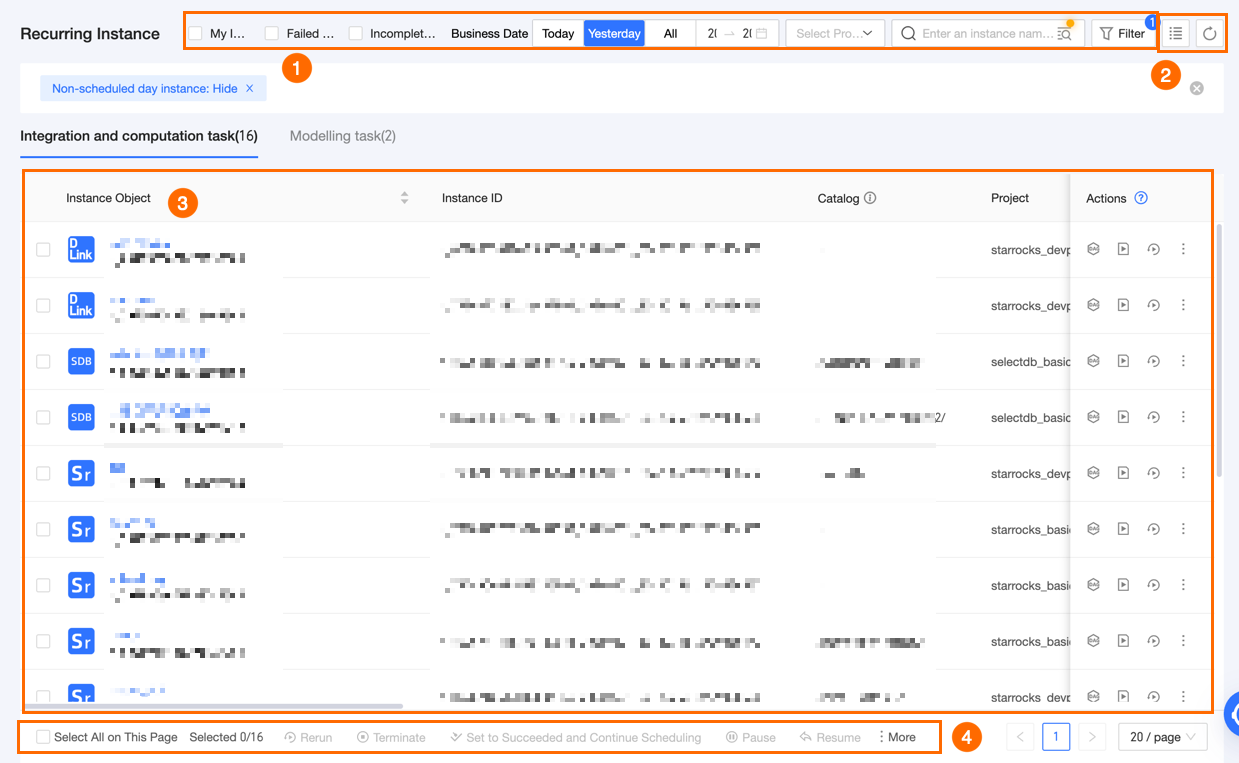
Area | Description |
① Search and filter area |
|
② List operations |
|
③ Periodic instance list | The Periodic Instance page lists all periodic tasks from projects for which you have O&M - Access Directory permissions. These tasks are divided into Integration and Calculation Tasks and Modeling Tasks. The Actions column displays the supported O&M operations for each periodic instance. You can adjust the width of each column. Your settings are saved in your local browser and are cleared if you clear your browser history and cookies. The O&M operations supported for each periodic instance type are as follows:
Note The periodic instance list displays only instances from the current tenant. |
④ Batch Actions | You can use the batch actions area to perform operations such as rerun, terminate, mark as succeeded and continue, pause, resume, modify scheduling resource group, and modify priority on multiple periodic instances.
|
⑤ Time zone conversion | When the scheduling time zone of a tenant and the system time zone (which is the time zone displayed in the User Center) do not match, you can use time zone conversion to view the Scheduled Run Time, Start Run Time, and End Run Time under either the scheduling time zone or the system time zone. Note The Start Time, End Time, and Scheduled Time filters only support filtering based on the System Time Zone. |
 icon in the search box to open the Batch Search dialog box. In the Batch Search dialog box, you can search by manually entering multiple task IDs or uploading a document. You can combine a batch search with other filter conditions.
 icon to select the columns to display and adjust their order.
 icon to refresh the current list.
Periodic instance indicators
Icon | Label | Description |
| Delayed | For an event fact logical table with data latency detection enabled, this indicator appears on a successful periodic instance when data latency is detected. |
| Dry run | The scheduling property of this periodic instance task is set to dry run. |
| Paused | The scheduling property of this periodic instance task is set to pause scheduling. |


Periodic instance run status
Status icon | Run status | Description |
| Not started | An instance that has not started running. |
| Waiting for scheduling resources | All upstream node dependencies have succeeded, and the instance is waiting for scheduling resources. |
| Throttling | The instance is being throttled. |
| Waiting for scheduling time | All upstream node dependencies have succeeded, and the instance is waiting for its scheduled time. |
| Running | The instance is currently running. |
| Failed | The instance failed to run. If you terminate an instance that is waiting or running, its status changes to failed. |
| Succeeded | The instance ran successfully. An instance from a dry run is automatically marked as succeeded by the system. |


Periodic instance DAG
Click an instance object name in the periodic instance list to display a DAG on the right, centered on the corresponding node. The DAG provides a dynamic, visual representation of the node's upstream and downstream dependencies. By default, it shows the Main node (the selected node) and its immediate upstream and downstream nodes. If an instance has no upstream or downstream nodes, the DAG shows only the current Main node. You can also perform O&M on upstream and downstream nodes.
You can adjust the DAG view:
Click the
 icon to hide the instance list and enlarge the DAG.
Click the
 icon to hide the DAG.
Hover over the
 icon and drag to expand or shrink the DAG view.
The DAG interface for modeling task instances is the same as for integration and compute task instances. The following figure uses an integration and compute task instance as an example:
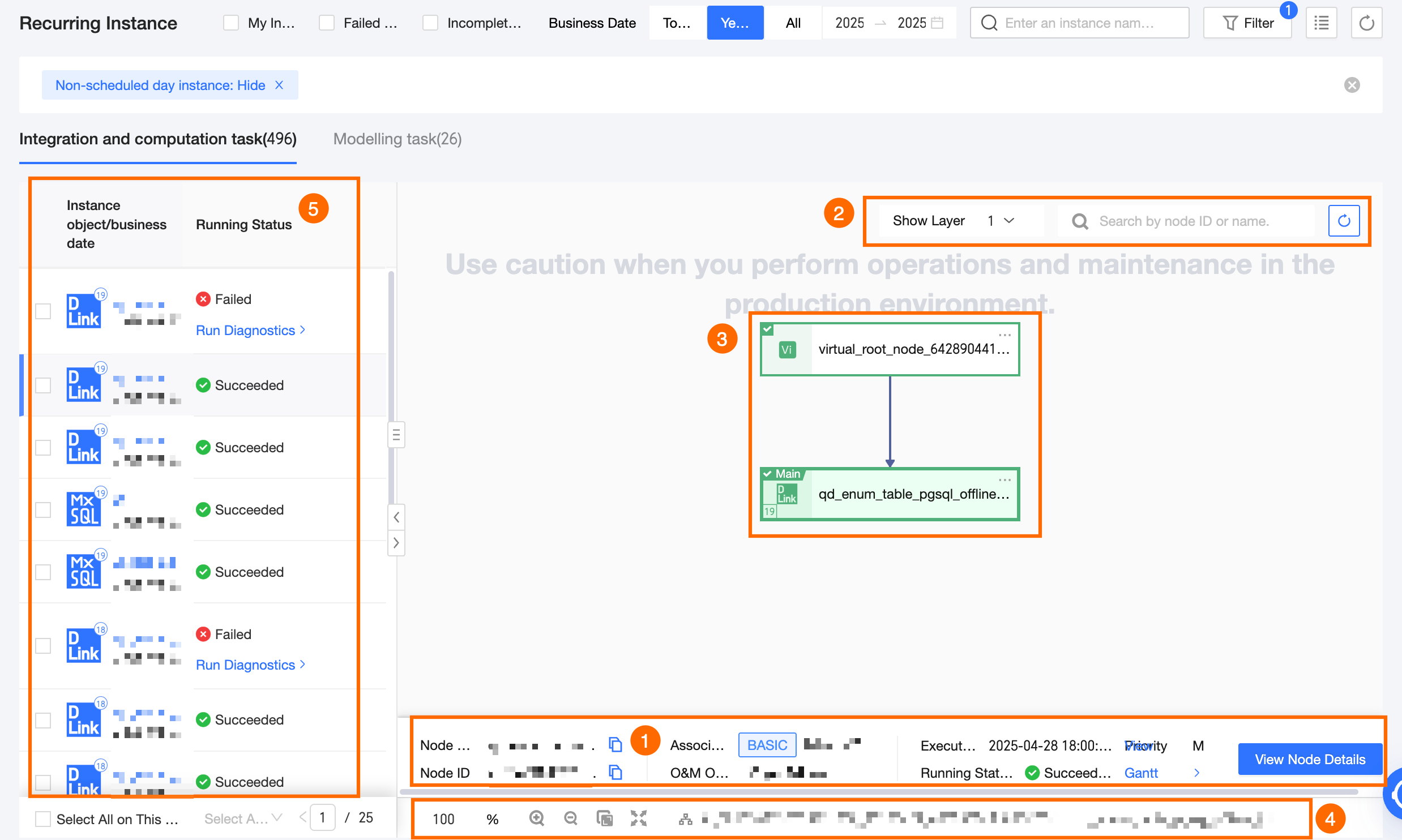
Area | Description |
① Node information | Displays summary information for the currently selected node. Click View Node Details to view more node information, including instance probability, run diagnostics, run logs, operation logs, node code, and task parameters.
Integration and compute task instances: Includes Instance Overview, Run Diagnosis, Run Log, Operation Log, and Node Code. Modeling task instances: Includes Instance Overview, Run Diagnosis, Run Log, Operation Log, and Materialized Code. External tenant node (a node not in the current tenant): Displays only the Instance Overview. |
② Node filter area | If the view becomes crowded, you can search by node name to locate a specific node. |
③ Scheduling dependency graph | Displays the scheduling dependency graph for the instance. You can expand more upstream and downstream nodes and perform O&M operations on them. Hover over a DAG node to view its name, type, scheduling cycle, owner, and description. Nodes from other tenants are marked with a cross-tenant label and only support expanding their parent and child nodes.
|
④ Canvas controls | You can quickly adjust the display scale of the DAG by setting the scale (100% by default), zooming in (up to 200%), zooming out (down to 20%), fitting the DAG to the canvas, or enabling a full-screen display. Additionally, the node ID and name of the Main node in the current DAG are displayed. |
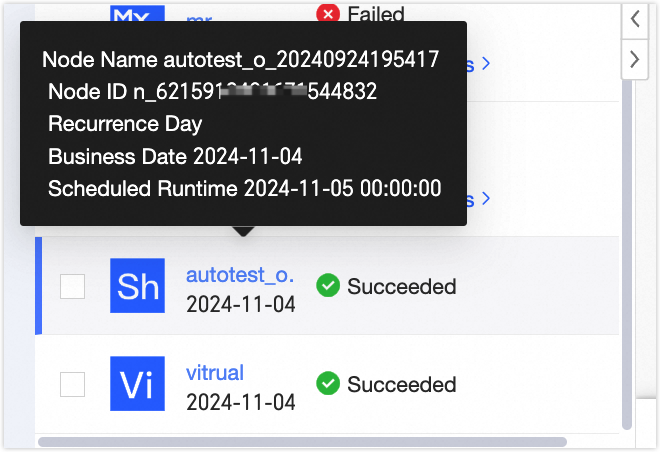
⑤ Instance object list | When you view the DAG, the instance object list displays the instance object name and business date. Hover over an instance object to view its node name, node ID, scheduling cycle, business date, and scheduled run time. See the following figure: |