View key details, grant access, and revoke key permissions to maintain effective permission control.
Permission Description
-
The super administrator has full key permissions, including viewing, granting, revoking, and editing.
-
Regular users can manage keys they own, with permissions to view, grant, and revoke access.
-
The owner-only management feature restricts key management permissions. When enabled, the super administrator can manage keys without approval, while the key owner can edit, grant, and change ownership of regular keys. When disabled, both the security administrator and the key owner can view, grant, revoke, and edit regular keys.
Key Permission Entry
-
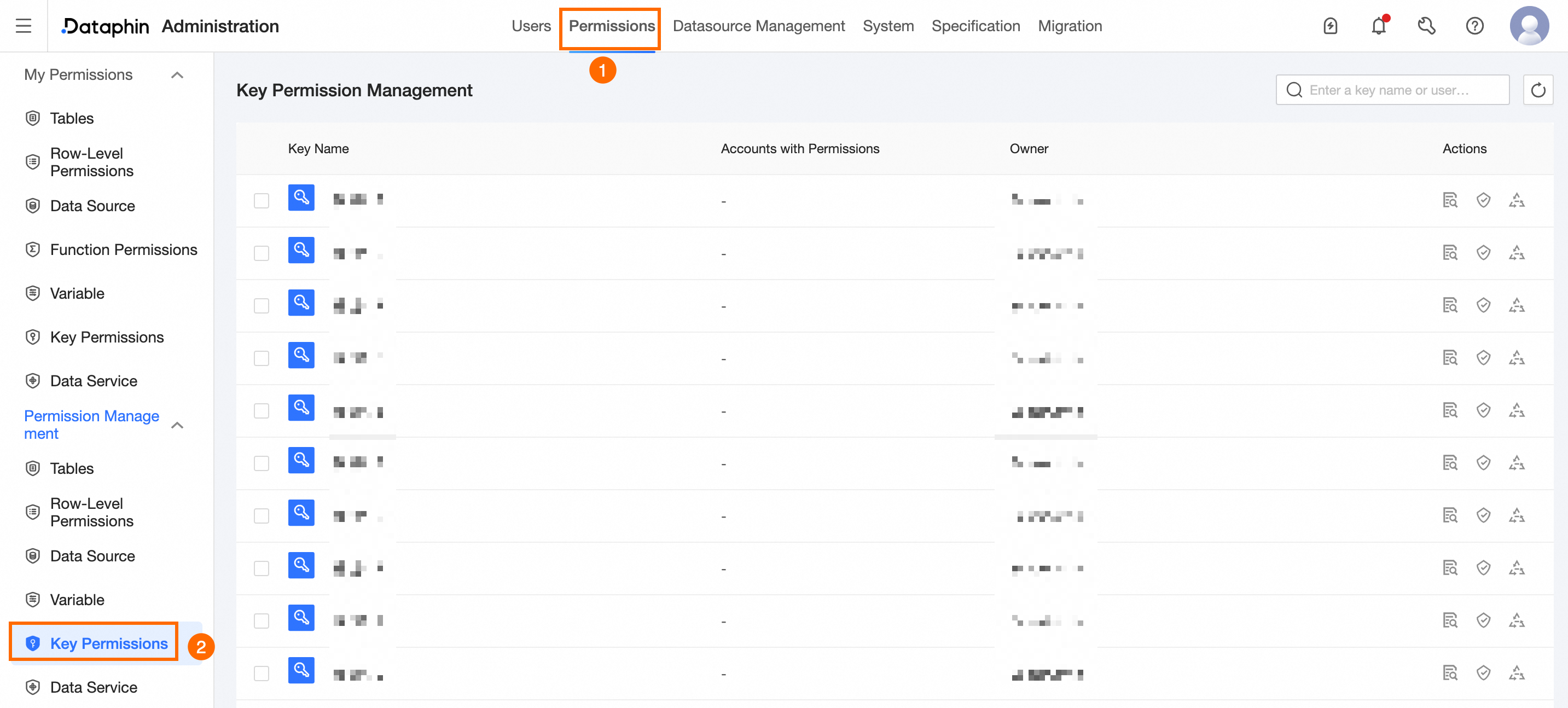
On the Dataphin home page, click Management Center in the top menu bar.
-
Refer to the image below to navigate to the Key Permission Management page.
View Key Permission Management List
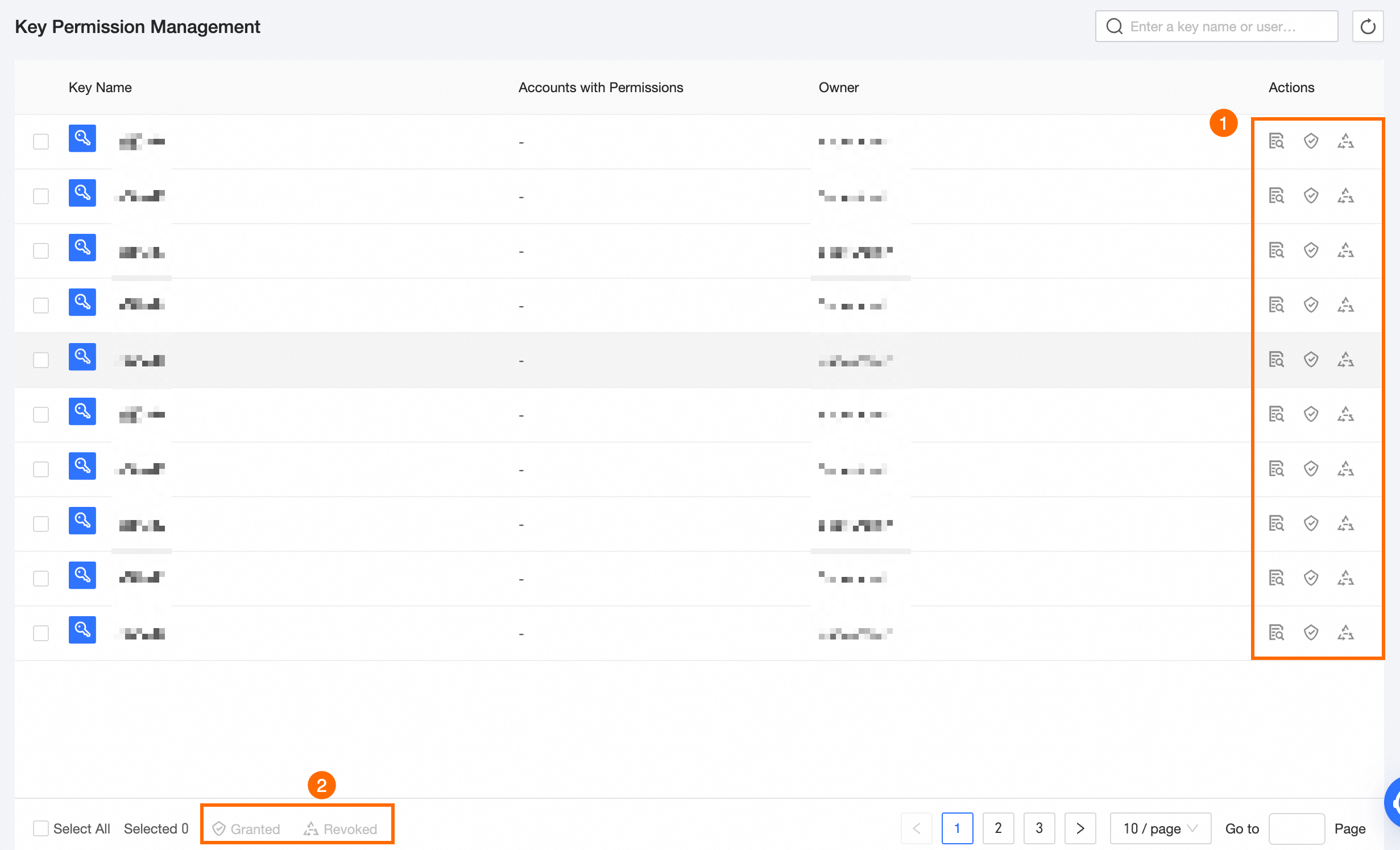
The key permission management list displays all registered keys.

|
Area |
Description |
|
① Search Area |
Search for keys using the key name keyword. |
|
② List Area |
Displays the key name, the number of accounts with permissions, and owner details. |
Manage Key Permissions
You can view, grant, and revoke key permissions.
|
Description Item |
Single Operation |
Batch Operation |
|
Key Permission Management Page |
Accounts with the appropriate permissions can perform operations on the current key. Available operations include View, Grant, and Revoke. |
You can batch Grant or Revoke permissions for selected keys. |
|
Key Permission Details Page |
Revoke permissions from accounts associated with the current key. |
You can batch Revoke permissions for selected keys. |
|
Operation Item |
Description |
|
View |
Click the key name or the View icon in the operation column to access key permission details on the Key Permission Details page. |
|
Grant |
To grant a key to a personal or tenant account, click the Actions column or the Grant icon at the bottom of the page. The key granting configuration is consistent with key request permissions. For more information, see the referenced document or . |
|
Revoke |
Click the Actions column or the Revoke icon to start the revocation process. In the Key Permission Revoke dialog box, select the user, specify the permission type, and provide a reason for revocation. Click OK to confirm. |