Categories classify and organize tags. Dataphin supports multi-level categories for tags and audience groups in each marketplace.
Prerequisites
Before managing marketplace categories, create an asset marketplace. For more information, see Create a marketplace.
Add a marketplace category
-
On the Dataphin home page, click Planning in the top menu bar.
The Data Architecture page is displayed by default.
-
On the Data Architecture page, go to the Tag Architecture page. Select the card for the marketplace where you want to create a category, and click
 Set Category.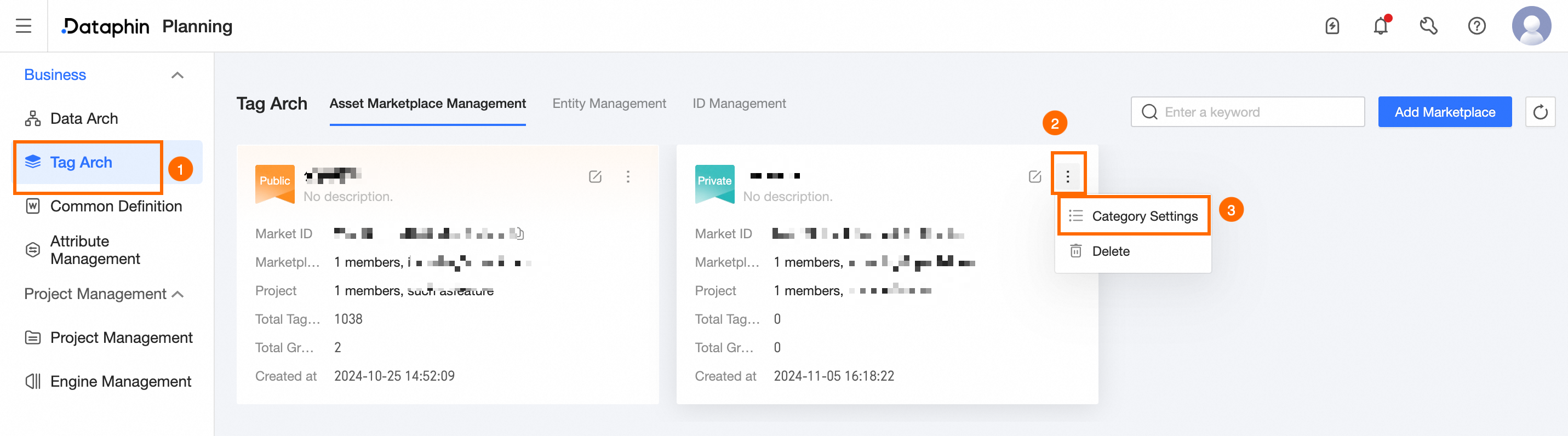
-
In the Set Category dialog box, select Tag Category or Audience Group Category, and click Add Root Category.
NoteTo add a subcategory, click
 Add Subcategory for the parent category.
 -
In the Add Root Category dialog box, configure the category information.
Category Name: The name can contain letters, digits, underscores (_), and hyphens (-). The name must be 64 characters or less.
-
Click OK to create the marketplace category.
Import marketplace categories
-
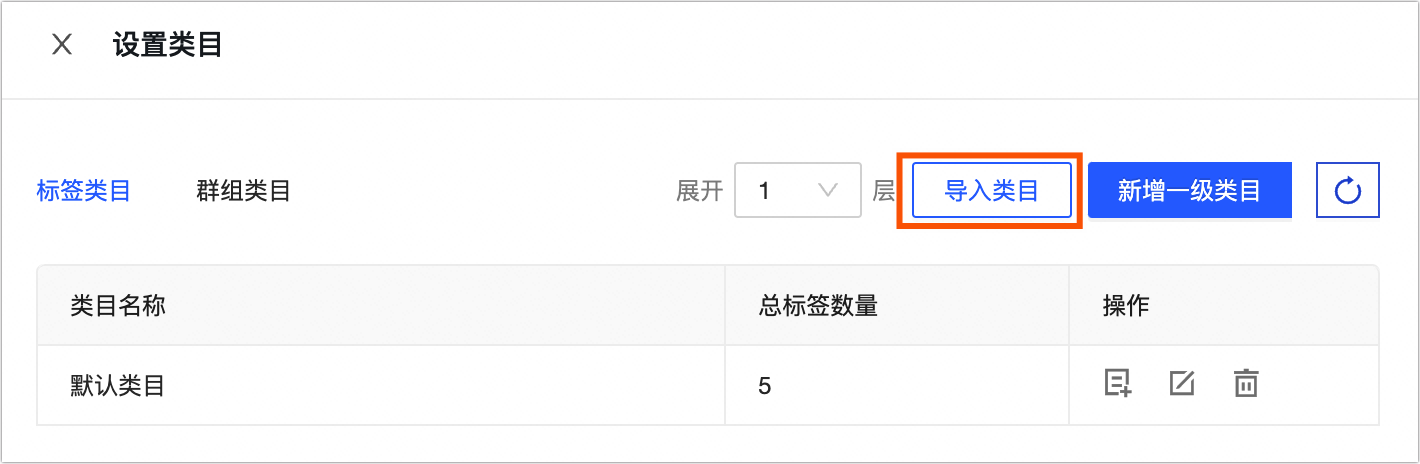
In the Set Category dialog box, select Tag Category or Audience Group Category, and click Import Category.
-
In the Import Category dialog box, click Upload to select your category file.
You can also click Download Template, fill out the template, and then upload it. The file must be in .csv format and no larger than 300 MB.
-
Click OK.
What to do next
After you create marketplace categories, you can add tags and audience groups to them. For more information, see Manage tags, Manage audience groups.