Dataphin allows you to integrate with internal corporate approval workflows, including DingTalk OA. This provides unified IT management and a familiar corporate process system, offering users an approval experience consistent with their existing systems. You can also customize approval rules. For example, you can configure automatic approval for permission requests on low-sensitivity assets, while requiring designated approvers for high-sensitivity assets. This document describes how to integrate with an external approval system.
Related documents
When you select Third-party Approval for the Select approval system setting, you can use a third-party approval workflow. For more information, see Custom Approval System Integration Interface.
Background information
When integrating Dataphin with an external approval system, you often need to develop a proxy application to connect Dataphin APIs with the approval system's APIs. This is necessary because user accounts need to be mapped between the systems, different approval systems have unique APIs, and data formats might require conversion. The approval system SDK is designed to simplify the development of this proxy application and help you quickly establish a basic workflow.
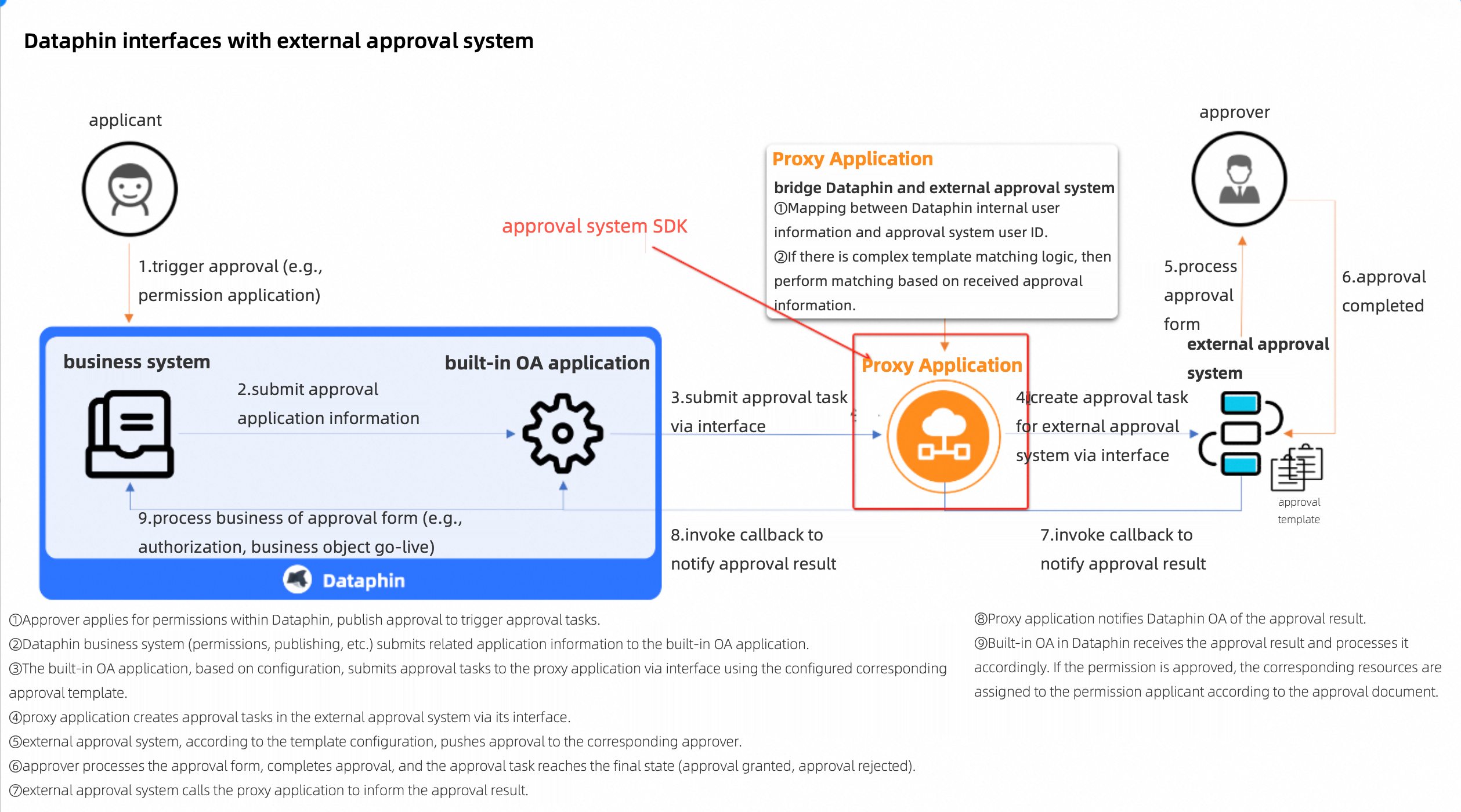
Limitations
Only users with the Super Administrator or System Administrator role can configure approval settings.
Usage notes
When you change approval workflow settings, note the following effects on approval requests that are already in progress:
If you switch from Dataphin's built-in approval workflow to an external one, in-flight approval requests (those initiated but not yet completed) can still be processed within Dataphin.
If you switch from one external approval workflow to another or change the workflow's parameters, in-flight approval requests will follow the new process. If the Callback URL or its authentication information changes, callbacks might fail. This prevents the approval status from being synchronized with Dataphin. In this case, you must submit a new approval request. The original request can be closed by withdrawing it (or by using force withdraw).
If you switch from an external approval workflow to the built-in one, Dataphin cannot synchronize the results of in-flight approvals from the external system. The original approval request can be closed by withdrawing it (or by using force withdraw).
Configure approval settings
Log in to the Dataphin tenant as a Super Administrator or System Administrator.
On the Dataphin homepage, choose Management Center > System Settings from the top menu bar.
In the left-side navigation pane, choose System Settings > Approval Settings to open the Approval Settings page.
Configure the Default approval system.
When the External approval system toggle is off, the default is the built-in approval system. When the External approval system toggle is on, you can select either the built-in approval system or a third-party approval system as the default. If you enable an external system, you must also configure the external approval system and its approval service.
NoteAfter you select a default approval system here, it becomes the default selection for the Approval system setting in an approval template.
Configure the External Approval System Configuration and Approval Service Configuration.
Approval system name: Enter a custom name for the approval system. All characters are supported. The name can be up to 128 characters long.
Select approval system: You can choose DingTalk OA or Others. Different systems require different approval service configurations.
DingTalk OA
Parameter
Description
API address
Enter the API address for DingTalk OA.
AppKey
Enter the AppKey for DingTalk OA.
AppSecret
Enter the AppSecret for DingTalk OA.
Click Test Connection to test the connection between Dataphin and the external approval system. If the test fails, follow the on-screen error messages to troubleshoot the issue.
DingTalk account mapping
For users without a configured DingTalk UID, Dataphin automatically attempts to match their Source_UID (the user UID from SSO). If the match fails, Dataphin reports an error. In addition to using the batch update feature, you can also manage an individual member's DingTalk UID in Management Center > Member Management.
Click Batch Update. In the Batch Update dialog box, follow the configuration steps to import.
Download data: Exports data for the first 10,000 users in Dataphin. The exported file includes User Name, Dataphin_UID, Source_UID, Phone, Email, and DingTalk UserID.
Upload Excel file: Only .xlsx files with a maximum of 10,000 rows are supported.
Import Configuration: Ignores users in the uploaded file if they do not exist. Updates the DingTalk UID if a value is provided, but does not update email addresses or mobile numbers.
Callback URL
The system automatically generates the Callback URL that Dataphin uses to receive results from DingTalk OA. You can also customize the URL in the following format:
https://{Dataphin deployment domain}/task/callback.Encoding AES Key
Enter the key for encryption and decryption.
Click the
 icon to automatically generate an Encoding AES Key.
Token
Enter the token for authenticating with the DingTalk OA client.
Click the
icon to automatically generate a token.AgentId
Enter the AgentId for DingTalk OA.
Others
For information about how parameters from an external approval system are displayed in Dataphin, see Parameter value mapping for external approval systems.
Parameter
Description
Integration method
Choose either Show only the final approval result or Show all nodes of third-party approval. The default is Show only the final approval result.
Show only the final approval result: The external approval system returns only the final result, and Dataphin displays only the start and end nodes of the workflow.
Show all nodes of third-party approval: The external system returns details from every node in the approval process, and Dataphin displays all synchronized approval nodes.
Submit approval application URL
The URL of the external approval system to which Dataphin sends user-submitted approval requests.
Access Token
The Access Token is the credential used to authenticate with the external approval system. Dataphin includes this token when submitting an approval request.
Click Test Connection to test the connection between Dataphin and the external approval system. If the test fails, follow the on-screen error messages to troubleshoot the issue.
Callback URL
The URL for Dataphin to receive callback results from an external approval system. The system automatically generates the Callback URL. You can customize the URL. The format is
https://<Dataphin deployment domain>/api/oa/bpms/integration/thirdparty/callback.Encoding AES Key
Enter the key for encryption and decryption.
Click the
icon to automatically generate an Encoding AES Key.Value mapping for external systems
Field name
Condition
Value
Operation
No specific condition
The value of
node_name.Result
"node_status": "PENDING"
Pending approval"node_status": "APPROVED"
Approved"node_status": "REJECTED"
Reject"node_status": "DELEGATED"
add approver ${UserName}"node_status": "TRANSFERRED"
Transfer to ${UserName}Operator
"node_status": "PENDING"
"approverRelation": "or"
All pending approvers are retrieved from the
user_nameinpending_approvers."node_status": "PENDING"
"approverRelation": "and"
Pending approval:
${approver01}, ${approver02}, ${approver03}Approved by:
${Approver01}, ${Approver02}, ${Approver03}Other cases
OperatorOperation description
"node_status": "PENDING"
"approverRelation": "or"
Approval from any single approver is sufficient.
"node_status": "PENDING"
"approverRelation": "and"
"operator" is empty
Approval from all approvers is required.
"node_status": "PENDING"
"approverRelation": "and"
"operator" is not empty
Some approvers have approved: ${Approving User}(${Reason}), ${Approving User}(${Reason})...
Example: Some approvers have approved: John Doe (Agreed), Jane Smith (Requirement is reasonable, approved for release).
Other cases
The operator's
reason.
After you configure the parameters, click Save.