To use an asset, you must apply for its consumption permission to query table data. This topic describes the application process for tables.
Prerequisites
You have purchased the Asset Operations value-added service, and the Asset Operations module is enabled for the current tenant.
Limitations
You can apply for consumption permission for Dataphin tables and for tables from the following data source types: MySQL (excluding version 5.1.43), Oracle, MaxCompute, or Hive (excluding CDH 5.x Hive 1.1.0).
If a rule restricts certain fields from permission applications, you cannot apply for table-level permission. Instead, you can apply for field-level permission. The system automatically ignores requests for any restricted fields. For more information about data permission approval rules, see Data Permission Approval Configuration.
Approval process
Modifying approval process settings (such as disabling permission applications) does not affect pending applications. You will receive the permission only after your pending application is approved.
Apply for table consumption permission
You can apply for consumption permission for a single asset. You can also add multiple assets to the application basket to apply for permissions in batches. To move an asset from the application basket to the permission application page, click the  icon in the Actions column of the Application Basket panel.
Single asset
On the Dataphin homepage, choose Assets > Asset Catalog from the top menu bar.
Select the target asset and click Apply for Permissions to open the application page.
On the Apply for Permissions page, configure the parameters.
Parameter
Description
Application Scope
Asset Information
Displays the asset name, its highest sensitivity level (requires the data security module), and row-level permission information.
Row-level permission: If the data table or account in the application is subject to row-level permission controls, you can click Row-level permission or hover over the
 icon next to a field to view the control details.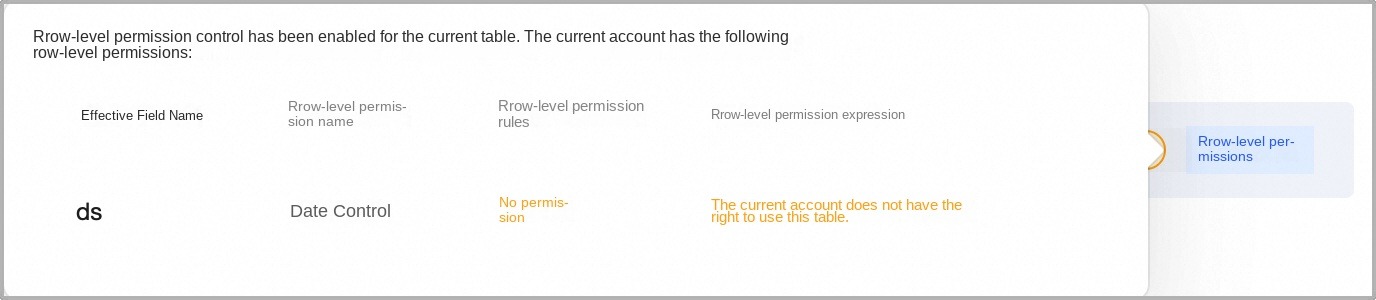
Application Configuration
Displays the available consumption channels for the asset, including Notebook analysis, Quick BI dashboards, and Quick BI self-service data retrieval.
Permission Granularity
By default, table-level permission is selected. You can change this to field-level permission.
Table-level permission: If approved, this permission covers the entire table, including all current and future fields. This authorization method is more efficient and is recommended for tables without sensitive data. You can evaluate this based on the table's highest sensitivity level (requires the data security module).
Field-level permission: Apply for permission for specific fields only, in line with the principle of least privilege.
Select by data classification: Requires the data security module. This option allows you to quickly select fields of a specific classification based on their highest sensitivity level.
If the project, business segment, or data source to which the table belongs has a custom approval policy and permission application is enabled, the approval template is determined by the table's highest sensitivity level. If the table has no data classification, the default approval template is used.
Field List
By default, all fields in the table are selected. You can use the Data classification (requires the data security module), All Fields, Selected Fields, Unselected Fields, or Batch Select options to quickly filter fields. You can also search by field display name or field name.
The field list displays the serial number, field name, field display name, field description, data type, data category, data classification, and custom attributes.
Row-level permission selection
Displays the row-level permissions associated with the selected table, including the row-level permission name, description, associated table, application requirement, and control rules.
Application Required: This indicates whether the selected account has the required control rule permissions for the row-level permissions on the current table.
If Yes, the selected account does not have control rule permissions for the row-level permissions on the current associated table, so an application is recommended. Click the View icon to see which accounts require control rule permissions in the Control Rule Permissions for the Selected Account: dialog box.
If No, the selected account already has permission for one or more control rules for row-level permissions on the current associated table. You can add other control rules. Click the View icon to see the control rules for which permission has already been granted in the Control Rule Permissions for the Selected Account: dialog box.
Control Rule: Allows you to select from the control rules configured for the current row-level permission.
Application Information
Validity Period
Select the validity period for the consumption permission. Options include 30 days, 90 days, 180 days, long-term, and a custom time frame.
Reason for Application
Enter the reason for applying for the consumption permission. This helps approvers review the request. The reason can be up to 500 characters long.
Click Submit. You can view the details of the approval task under Task Center > My Requests.
Batch application
On the Dataphin homepage, choose Assets > Asset Catalog from the top menu bar.
Select the target assets, click Add to Application Basket, and then click Application Basket to open the Application Basket dialog box.
In the application basket, you can select the assets for which you want to apply for permission. You can select up to 50 assets for a single batch application. After making your selections, click Apply at the bottom.
On the Apply for Permissions page, configure the parameters.
Parameter
Description
Application Scope
Configure application scope in batches
This configuration applies to all assets in the current application. If you enable batch configuration, you cannot modify the permission settings for individual assets.
Table-level permission: If approved, this permission covers the entire table, including all current and future fields. This authorization method is more efficient and is recommended for tables without sensitive data. You can evaluate this based on the table's highest sensitivity level (requires the data security module).
Field-level permission: Apply for permission for specific fields only, in line with the principle of least privilege.
Select by data classification: If you have enabled the data security module, you can quickly select fields of a specific classification based on their highest sensitivity level.
NoteYou must enable the data security module to select fields by data classification and apply for field-level permission.
Asset List
You can click an asset name to view its field details. To remove an asset from the application list, click the remove
 icon.
icon.Asset Information
Displays the asset name, its highest sensitivity level (requires the data security module), and row-level permission information.
Row-level permission: If the data table or account in the application is subject to row-level permission controls, you can click Row-level permission or hover over the
icon next to a field to view the control details.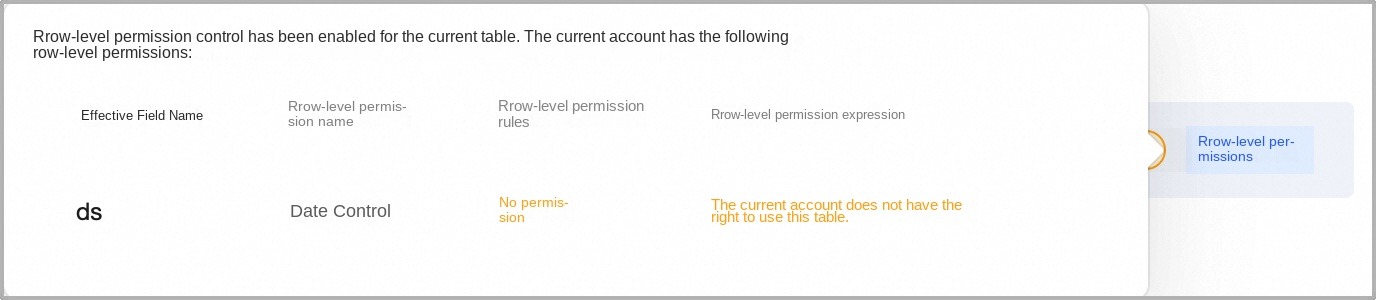
Application Configuration
Displays the available consumption channels for the asset, including Notebook analysis, Quick BI dashboards, and Quick BI self-service data retrieval.
Permission Granularity
By default, table-level permission is selected. You can change this to field-level permission.
Table-level permission: If approved, this permission covers the entire table, including all current and future fields. This authorization method is more efficient and is recommended for tables without sensitive data. You can evaluate this based on the table's highest sensitivity level (requires the data security module).
Field-level permission: Apply for permission for specific fields only, in line with the principle of least privilege.
Select by data classification: If you have enabled the data security module, you can quickly select fields of a specific classification based on their highest sensitivity level.
If the project, business segment, or data source to which the table belongs has a custom approval policy and permission application is enabled, the approval template is determined by the table's highest sensitivity level. If the table has no data classification, the default approval template is used.
Field List
By default, all fields in the table are selected. You can use the Data classification (requires the data security module), All Fields, Selected Fields, Unselected Fields, or Batch Select options to quickly filter fields. You can also search by field display name or field name.
The field list displays the serial number, field name, field display name, field description, data type, data category, data classification, and custom attributes.
Row-level permission selection
Displays the row-level permissions associated with the selected table, including the row-level permission name, description, associated table, application requirement, and control rules.
Application Required: This indicates whether the selected account has the required control rule permissions for the row-level permissions on the current table.
If Yes, the selected account does not have control rule permissions for the row-level permissions on the current associated table, so an application is recommended. Click the View icon to see which accounts require control rule permissions in the Control Rule Permissions for the Selected Account: dialog box.
If No, the selected account already has permission for one or more control rules for row-level permissions on the current associated table. You can add other control rules. Click the View icon to see the control rules for which permission has already been granted in the Control Rule Permissions for the Selected Account: dialog box.
Control Rule: Allows you to select from the control rules configured for the current row-level permission.
Application Information
Validity Period
Select the validity period for the consumption permission. Options include 30 days, 90 days, 180 days, long-term, and a custom time frame.
Reason for Application
Enter the reason for applying for the consumption permission. This helps approvers review the request. The reason can be up to 500 characters long.
Click Submit. You can view the details of the approval task under Task Center > My Requests.
Next steps
After your consumption permission application is approved, the assets appear in the Available to Me list. For more information, see View and Manage My Available Assets.