Request new, renew existing, or return unused variable permissions.
Prerequisites
A variable group is created in global variables. Create a global variable.
Request variable permissions
-
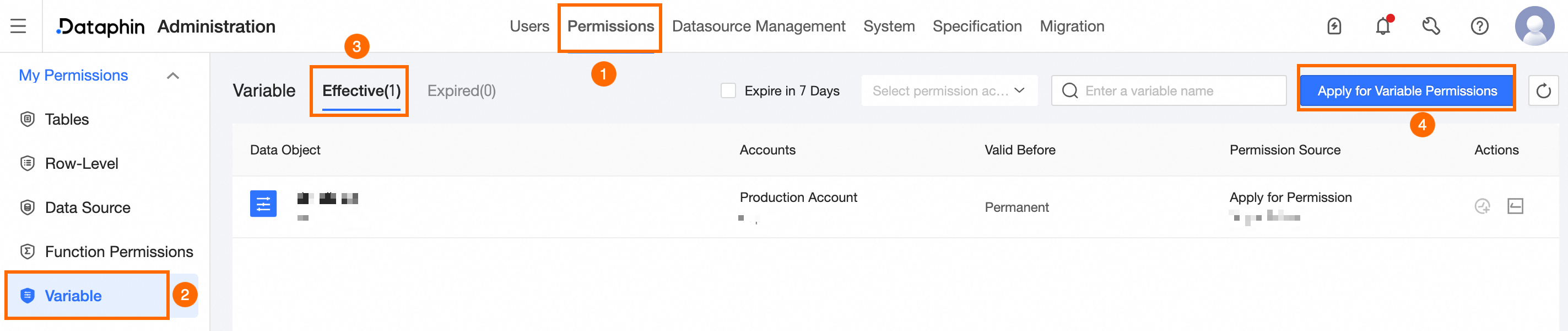
On the Dataphin home page, click Management Center in the top menu bar.
-
Navigate to the Request Variable Permissions dialog box as shown.
-
In the Request Variable Permissions dialog box, set the following parameters:
Parameter
Description
Variable
Select the target variable.
Account Type
Account Type supports User Account and Project Account. If you select Project Account, select the project. If you select User Account, set a permission expiration time.
-
User Account: For data modeling and development, with results published to production.
-
Project Account: For managing and running tasks in production.
Reason For Application
Enter the application reason. Maximum: 128 characters.
-
-
Click OK to submit the request.
View variable permissions
The variable permission list shows In Effect and Out Of Effect permissions. To view the details of the variable application record, refer to the or Task Center.
In effect list

|
Area |
Description |
|
①Filter and search area |
Search by variable name or filter by Expiring Within Seven Days and Permission Account. |
|
②List area |
Shows Data Object, Permission Account, Valid Until, and Permission Source. You can perform Renewal and Return operations.
|
Out of effect list

|
Area |
Description |
|
①Filter and search area |
Search by variable name or filter by Expiring Within Seven Days and Permission Account. |
|
②List area |
Shows Data Object, Permission Account, Expiration Date, and Expiration Reason. You can perform Request Permissions operations. Request Permissions: Select the variable and reapply. Request Variable Permissions or . |