Renew your Dataphin semi-managed instance before or after expiration to avoid service interruption.
Renewal policy
-
After Dataphin expires, complete renewal within 15 days. During this period, all tasks are paused but data and resources are retained. After 15 days, all tasks are cleared and Dataphin becomes unavailable. the expiration reminder and shutdown policy--semi-managed.
NoteYou cannot change configurations during renewal.
-
If you selected auto-renewal at purchase, only Dataphin software renews automatically. Renew underlying resources manually:
-
Log on to the Compute Nest Management Console with your Alibaba Cloud account.
-
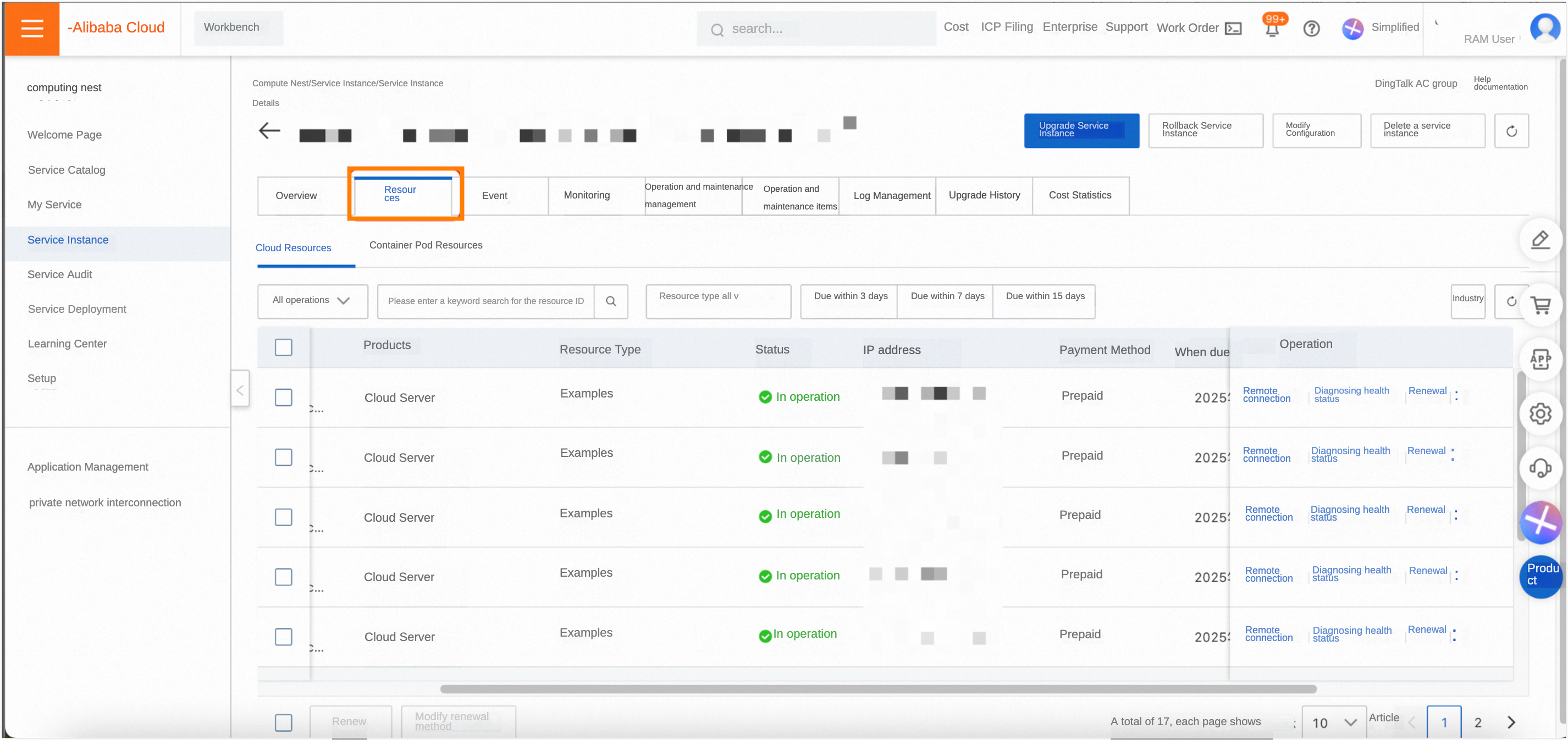
In the left-side navigation pane, click Service Instances. On the Service Instances page, select the My Service Instances tab, then the Private Service tab. Click your target instance.
-
On the product page, click the Resource tab. In the Actions column, click Renew for the target resource.
-
Manual renewal
You can only renew the originally purchased configuration.
-
Log on to the Alibaba Cloud official website with your primary account.
-
Hover over Products > Big Data Computing, and click Data Development And Service under Dataphin.
-
On the Dataphin product page, click Management Console or Activate Now (semi-managed Edition).
-
The console displays different renewal options based on your instance status.
-
If your instance is active, click Renew next to the instance lifetime, or click Renew next to Activate Other Regions.
-
If your instance has expired but is within the 15-day grace period, click Dataphin Workspace under Renew.
You can also access the Renew page as follows:
-
Click Cost > Renewal Management to enter the Renewal Management page.
-
On the Expenses And Costs page, click Subscription Orders under Resource Renewal in the left-side navigation pane.
-
The Resource Renewal page defaults to the Manual Renewal tab. Click Renew in the Actions column for the Dataphin instance.
-
-
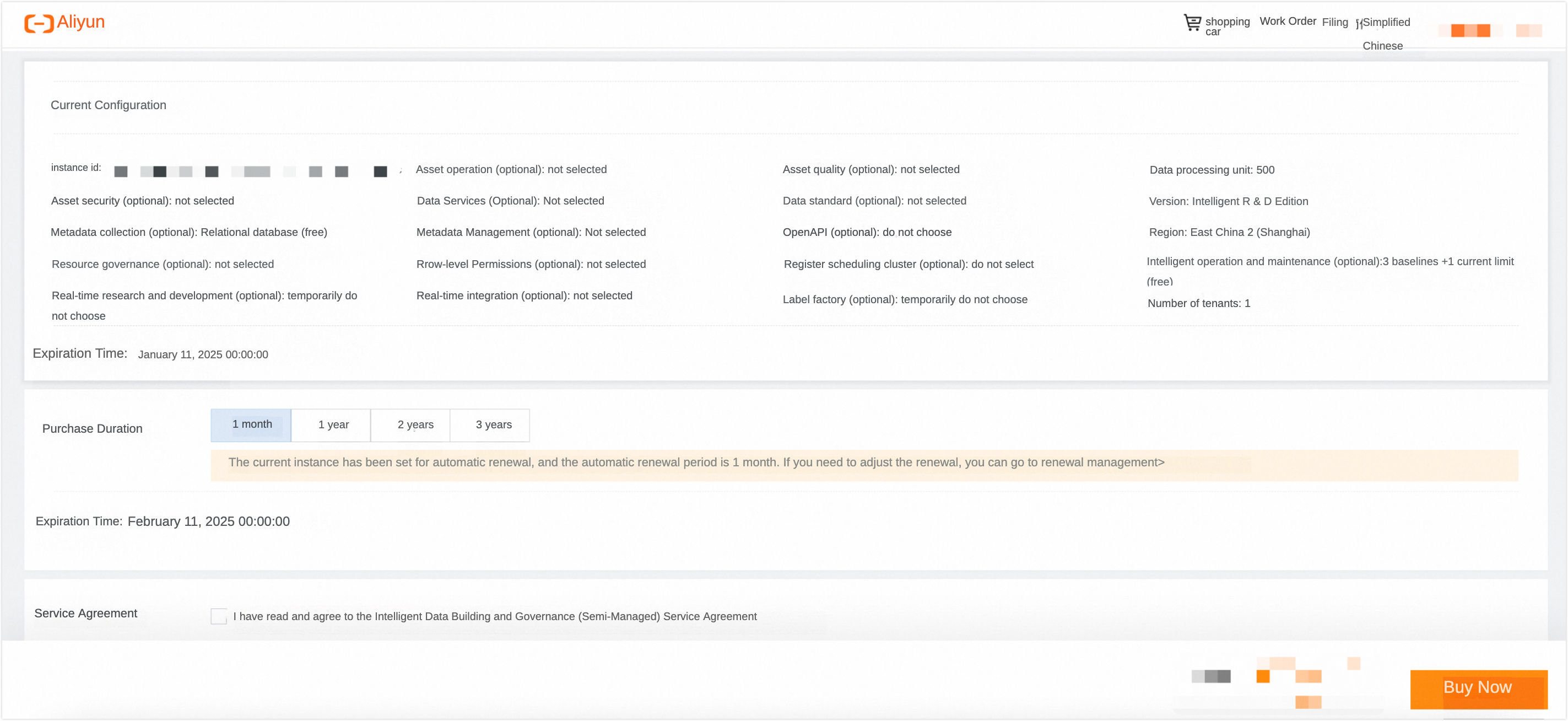
On the Renewal page, select a Renewal Duration: 1 Month,1 Year,2 Years, or 3 Years.
-
-
Review the purchase information and read the Dataphin Intelligent Data Construction and Administration Service Level Agreement (Semi-managed). Verify the details and click "Intelligent Data Construction and Management Service Agreement" to confirm.
-
Click Buy Now and complete payment to finalize renewal.
Auto-renewal
-
Enabling auto-renewal does not trigger immediate renewal. The cycle takes effect the next day. Deductions start 9 days before expiration and retry daily until successful or 1 day before the resource expires.
-
If your instance expires the next day, auto-renewal does not apply. Renew it manually.
-
Click Cost > Renewal Management to enter the Renewal Management page.
-
On the Expenses And Costs page, click Subscription Orders under Resource Renewal in the left-side navigation pane.
-
The Resource Renewal page defaults to the Manual Renewal tab. Select your Dataphin instance.
-
Click Actions for the chosen instance, then select Enable Auto-renewal.
-
On the Enable Auto-renewal page, select a cycle and click Enable Auto-renewal.
-
The Auto-renewal tab shows the auto-renewal status of your instances.
To modify or cancel auto-renewal, click Renew,Modify Auto-renewal,Do Not Renew, or Resume Manual Renewal as needed.