To migrate data from a remote file system, such as a remote Windows file system, remote Linux file system, or Network-Attached Storage (NAS) server, you must mount the remote file system to a Data Transport device. This topic describes how to configure a service IP address and mount a remote file system to a Data Transport device.
Prerequisites
The source device is connected to the Ethernet or optical port of the Data Transport device, either directly or through a switch. The Ethernet cable, optical fiber, and optical transceiver module are connected correctly, and the LED indicator for the port is normal.
A service IP address is configured. For more information, see Step 2: Configure the service IP address.
Step 1: Prepare the data source
Data Transport devices support the following remote file systems as data sources: NAS servers, remote Windows file systems, and remote Linux file systems.
Remote Windows file system
In Windows, share a folder or drive letter. This example uses the local disk (D:).
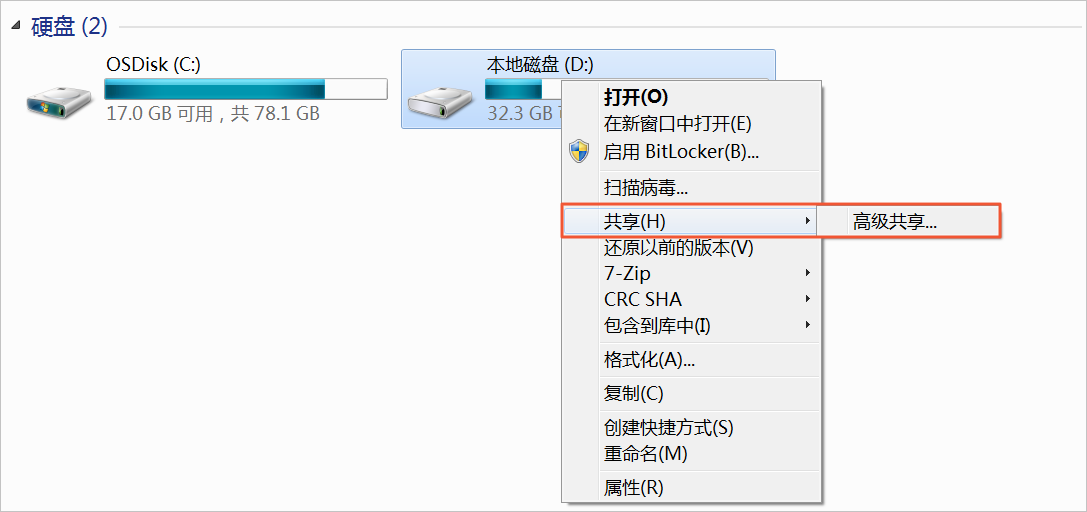
Right-click the local disk (D:) and select Sharing > Advanced Sharing.
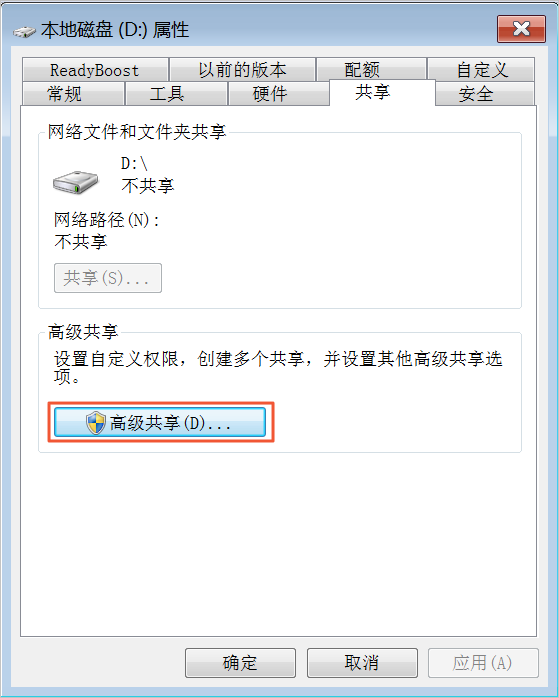
Click Advanced Sharing (D).
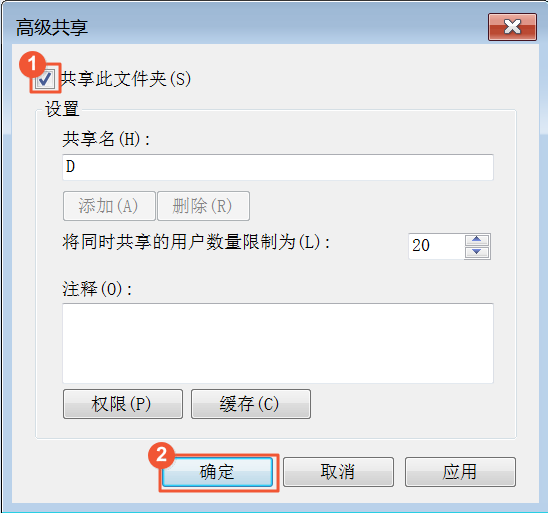
Select Share this folder and click OK to share the folder.
 Note
NoteAfter you share the folder, add an inbound firewall rule to allow the Data Transport device to access port 445. Then, confirm connectivity by running a telnet command to port 445. Alternatively, you can temporarily disable the firewall until the data migration is complete.
Mount the remote Windows file system to the Data Transport device.
The mount commands vary depending on the operating system version.
Remote Linux file system
To share files from a remote Linux system, you must first create a Network File System (NFS).
Create an NFS file system. This example uses CentOS 7.
Install the NFS file system.
yum install -y nfs-utilsModify the /etc/exports file.
/data *(rw,no_root_squash)Start the NFS file system.
systemctl start nfs.serviceCheck the NFS status.
systemctl status nfs.serviceConfigure automatic startup.
systemctl enable nfs.serviceNoteYou must add a firewall rule to allow access from the Data Transport device to the NFS file system. Alternatively, you can temporarily disable the firewall until the data migration is complete.
Mount the remote NFS file system to the Data Transport device.
The mount commands vary depending on the operating system version.
NAS server
A NAS server typically includes an NFS file system by default. You can mount the NAS file system directly to the compute node without any additional configuration. If your NAS server does not have an NFS file system, you can create one by following the instructions in Step 1 of the Remote Linux file system section.
Step 2: Mount the data source to the Data Transport device
This topic uses the src_data directory as an example. The following mount commands are for reference only and might not be the most current.
Before you create and run a data migration task, you must mount the data source to the Data Transport device.
Log on to the Data Transport device as the root user.
Run the following command to create a local mount directory.
mkdir /mnt/src_dataMount the data source to the Data Transport device. Replace the placeholder values with your actual information.
If the data source is an NFS or NAS server, use the following command format:
sudo mount -t nfs -o vers=3,nordirplus <source_service_IP_address>:<shared_folder_name> /mnt/src_data
Example:
sudo mount -t nfs -o vers=3,nordirplus 127.0.0.0:src_data /mnt/src_dataIf the data source is a Server Message Block (SMB) share, use the following command format:
mount -t cifs //<source_service_IP_address>/<shared_folder_name> /mnt/src_data -o username=noUsername,password=noPasswordExample:
mount -t cifs //127.0.0.0/src_data/ /mnt/src_data -o username=noUsername,password=noPassword
Run the
df -hcommand to verify the mount. If/mnt/src_datais displayed in the command output, the mount was successful.