Transfer data from an OSS bucket to on-premises servers for backup, disaster recovery, or local processing. Learn how to create a migration tunnel, configure data addresses, create migration tasks, and verify data transfer.
Prerequisites
Before you begin, ensure that you have:
-
OSS bucket access: You have read and list permissions for the source OSS bucket.
-
Local storage path: The destination directory exists and is valid. Set the Directory To Be Migrated parameter to an absolute path. The path must start and end with a forward slash (/) and cannot contain environment variables or special characters.
-
Network connectivity: Your local server has network access to the migration service and can establish a tunnel connection.
-
Resource planning: The migration task consumes resources at both source and destination. Enable bandwidth throttling or schedule migrations during off-peak hours to reduce business impact.
-
Data protection: If you need to preserve existing files at the destination, rename or back up files before migration. When same-name files exist and Overwrite Mode is set to Overwrite All or Overwrite based on the last modification time, the destination file is overwritten.
You must verify the migrated data at the destination data address after the migration task is complete to ensure that the migrated data is correct. If you delete the data at the source data address before you verify the migrated data at the destination data address, you are liable for the losses and consequences caused by any data loss.
Limitations
-
Static website hosting scan behavior: If static website hosting is enabled for source files, migration scans may detect directory objects that do not actually exist. For example, if myapp/resource/1.jpg exists, the scan may also return myapp/ and myapp/resource/. Non-existent directory objects fail to migrate, while myapp/resource/1.jpg is migrated as expected.
-
Trailing-slash object behavior: If an object that ends with a forward slash (/) exists in the source bucket, migration maps its attributes to the corresponding directory attributes in the destination local file system. In this case, the task overwrite mode is ignored.
-
Trailing-slash file rendering: If files whose names end with a forward slash (/) exist at the source data address, they are displayed as directories after migration. For example, if a/, a/b/, and a/b/c/ exist at the source data address, they are displayed as the a/b/c/ directory after migration.
-
Task scope: Each migration task migrates data from only one bucket. To migrate multiple buckets, create separate tasks.
-
Cloud environment support: Data Online Migration does not support data migration on Alibaba Finance Cloud or Alibaba Gov Cloud.
-
Attribute migration support: Only specific attributes are migrated from OSS to local file systems.
-
Migrated attributes: LastModifyTime, which corresponds to ModifyTime in a local file system.
-
Attributes not migrated (including but not limited to): x-oss-meta-*, Content-Type, Cache-Control, Content-Encoding, Content-Disposition, Content-Language, Expires, x-oss-storage-class, x-oss-object-acl, x-oss-server-side-encryption, x-oss-tagging, and x-oss-persistent-header.
NoteThe preceding list is not exhaustive. Verify actual migration results to identify additional attributes that are not migrated.
-
Step 1: Select a region
-
Log on to the Data Online Migration console as the Resource Access Management (RAM) user that you created for data migration.
-
In the upper-left corner of the top navigation bar, select the region in which the agent that you want to use resides.
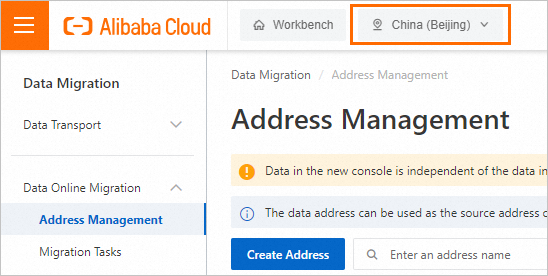 Important
-
The tunnels, agents, data addresses, and migration tasks that you create in a region cannot be used in another region. Select a region with caution.
-
Select the region in which the agent resides. If that region is not supported by Data Online Migration, select the closest supported region.
-
Step 2: Create a tunnel
-
In the left-side navigation pane, choose Data Online Migration > Tunnel Management. On the Tunnel Management page, click Create Tunnel.
-
In the Create Tunnel dialog box, configure the parameters and click OK. The following table describes the parameters.
Parameter
Required
Description
Name
Yes
The name of the tunnel.
The name cannot be empty and can be up to 100 characters in length.
The name can contain letters, digits, hyphens (-), and underscores (_).
Maximum Bandwidth
Yes
The maximum bandwidth that the tunnel can use.
If you do not configure this parameter, the default value 0 is used, which indicates that the bandwidth for the tunnel is not limited.
If you configure this parameter, enter a value based on the note in the console.
ImportantThe bandwidth that is available for the tunnel depends on the actual bandwidth of the network connection.
Requests/s
Yes
The maximum number of requests per second over the tunnel.
If you do not configure this parameter, the default value 0 is used, which indicates that the number of requests per second over the tunnel is not limited.
If you configure this parameter, enter a value based on the note in the console.
WarningWe recommend that you evaluate the capabilities of the storage system of the data source before you configure this parameter. If you set this parameter to a great value, your business is affected. We recommend that you enter a value based on the note in the console.
For more information about tunnels, see Manage tunnels.
Step 3: Create an agent
-
In the left-side navigation pane, choose Data Online Migration > Agent Management. On the Agent Management page, click New Agent.
-
In the New Agent dialog box, configure the parameters and click OK. The following table describes the parameters.
Parameter
Required
Description
Name
Yes
The name of the agent.
The name cannot be empty and must be 3 to 63 characters in length.
It can contain lowercase English letters, digits, hyphens (-), and underscores (_). The name is case-sensitive.
The name must be in UTF-8 encoding and cannot start with a hyphen (-) or an underscore (_).
Network Type
Yes
The network connection method for the agent. It includes the following two types:
VPC (recommended): The agent connects to the Data Online Migration service through a VPC. This method requires the machine where the agent is deployed to be able to access the internal same-region endpoint of the Data Online Migration service in the corresponding region. For example, if you use the migration service in the China (Beijing) region, the agent machine must be able to access the internal same-region endpoint {TunnelId}.cn-beijing.mgw-tc-internal.aliyuncs.com. Use an ECS instance in the same region as the Data Online Migration console to deploy the agent.
Internet: The agent connects to the Data Online Migration service over the Internet. This method requires the machine where the agent is deployed to be able to access the public endpoint of the Data Online Migration service in the corresponding region. For example, if you use the migration service in the China (Beijing) region, the agent machine must be able to access the public endpoint {TunnelId}.cn-beijing.mgw-tc.aliyuncs.com.
NoteTunnelId indicates the tunnel ID.
Use the ping command to test network connectivity between the agent and the migration service.
Deployment Method
Yes
The deployment method of the agent. Currently, only the Independent process mode is supported.
Tunnel
Yes
The tunnel to which the agent belongs. Each agent can be associated with only one tunnel, and agent bandwidth is affected by the tunnel's total bandwidth.
For example, a tunnel named tunnel-1 has a maximum bandwidth of 10 Gbit/s and is associated with three agents: agent-1, agent-2, and agent-3. The total bandwidth of the three agents cannot exceed 10 Gbit/s. If you set the bandwidth of agent-1 to 3 Gbit/s, only 7 Gbit/s is available for agent-2 and agent-3. Plan bandwidth allocation carefully.
-
Generate the command used to deploy the agent. For more information, see the "Generate the command to deploy an agent" section of the Manage agents topic.
For more information about agents, see Manage agents.
Step 4: Create a source data address
-
In the left-side navigation pane, choose Data Online Migration > Address Management. On the Address Management page, click Create Address.
-
In the Create Address panel, configure the parameters and click OK. The following table describes the parameters.
Parameter
Required
Description
Name
Yes
The name of the source data address. The name must meet the following requirements:
3 to 63 characters in length.
Case-sensitive and can contain lowercase letters, digits, hyphens (-), and underscores (_).
Eencoded in the UTF-8 format and cannot start with a hyphen (-) or an underscore (_).
Type
Yes
The type of the source data address. Select Alibaba OSS.
Region
Yes
The region in which the source data address resides. Example: China (Hangzhou).
Authorize Role
Yes
-
The source bucket belongs to the Alibaba Cloud account that is used to log on to the Data Online Migration console
-
Create and authorize a RAM role in the Data Online Migration console. For more information, see Authorize a RAM role in the Data Online Migration console.
-
To manually attach policies to a RAM role, see the "Step 2: Grant permissions on the source bucket to a RAM role" section in the RAM console. For more information, see the Preparations topic.
-
-
The source bucket does not belong to the Alibaba Cloud account that is used to log on to the Data Online Migration console
-
Attach policies to a RAM role in the OSS console. For more information, see the "Step 2: Grant permissions on the source bucket to a RAM role" section of the Preparations topic.
-
Bucket
Yes
The name of the OSS bucket that stores the source data. The OSS bucket belongs to the current account that is used to log on to the console.
Agent
No
The name of the agent that you want to use.
ImportantThis parameter is required only when you migrate data to the cloud by using Express Connect circuits or VPN gateways or migrate data from self-managed databases to the cloud.
Select up to 200 agents for a specific tunnel at a time.
Step 5: Create a destination data address
-
In the left-side navigation pane, choose Data Online Migration > Address Management. On the Address Management page, click Create Address.
-
In the Create Address panel, configure the parameters and click OK. The following table describes the parameters.
Parameter
Required
Description
Name
Yes
The name of the destination data address. The name must meet the following requirements:
3 to 63 characters in length.
Case-sensitive and can contain lowercase letters, digits, hyphens (-), and underscores (_).
Eencoded in the UTF-8 format and cannot start with a hyphen (-) or an underscore (_).
Type
Yes
The type of the destination data address. Select LocalFS.
Directory To Be Migrated
Yes
The prefix of the destination data address. Specify a prefix to migrate specific data.
You must enter an absolute path. The path must start and end with a forward slash (/) and cannot contain environment variables or special characters.
For example, you set the prefix of the source data address to
/example/src/, store a file named example.jpg in /example/src/, and set the prefix of the destination data address to/example/dest/. After the example.jpg file is migrated to the destination data address, the full path of the file is/example/dest/example.jpg.ImportantIf a data address is associated with multiple agents, you must make sure that each agent can access the directory. Otherwise, specific data may not be migrated.
Tunnel
Yes
The name of the tunnel that you want to use.
ImportantThis parameter is required only when you migrate data to the cloud by using Express Connect circuits or VPN gateways or migrate data from self-managed databases to the cloud.
If data at the destination data address is stored in a local file system or you need to migrate data over an Express Connect circuit in an environment such as Alibaba Finance Cloud or Apsara Stack, you must create and deploy an agent.
Agent
Yes
The name of the agent that you want to use.
ImportantThis parameter is required only when you migrate data to the cloud by using Express Connect circuits or VPN gateways or migrate data from self-managed databases to the cloud.
Select up to 200 agents for a specific tunnel at a time.
Step 6: Create a migration task
-
In the left-side navigation pane, choose Data Online Migration > Migration Tasks. On the Migration Tasks page, click Create Task.
In the Select Address step,configure the parameters. The following table describes the parameters.
Parameter
Required
Description
Name
Yes
The name of the migration task. The name must meet the following requirements:
3 to 63 characters in length.
Case-sensitive and can contain lowercase letters, digits, hyphens (-), and underscores (_).
Eencoded in the UTF-8 format and cannot start with a hyphen (-) or an underscore (_).
Source Address
Yes
The source data address that you created.
Destination Address
Yes
The destination data address that you created.
-
In the Task Configurations step, configure the parameters that are described in the following table.
Parameter
Required
Description
Migration Bandwidth
No
The maximum bandwidth that is available to the migration task. Valid values:
Default: Use the default upper limit for the migration bandwidth. The actual migration bandwidth depends on the file size and the number of files.
Specify an upper limit: Specify a custom upper limit for the migration bandwidth as prompted.
ImportantActual migration speed depends on multiple factors, such as the source data address, network conditions, throttling at the destination data address, and file size. As a result, actual speed may not reach the specified upper limit.
Specify a reasonable value for the upper limit of the migration bandwidth based on the evaluation of the source data address, migration purpose, business situation, and network bandwidth. Inappropriate throttling may affect business performance.
Files Migrated Per Second
No
The maximum number of files that can be migrated per second. Valid values:
Default: Use the default upper limit for the number of files that can be migrated per second.
Specify an upper limit: Specify a custom upper limit as prompted for the number of files that can be migrated per second.
ImportantActual migration speed depends on multiple factors, such as the source data address, network conditions, throttling at the destination data address, and file size. As a result, actual speed may not reach the specified upper limit.
Specify a reasonable value for the upper limit of the migration bandwidth based on the evaluation of the source data address, migration purpose, business situation, and network bandwidth. Inappropriate throttling may affect business performance.
Overwrite Mode
No
Specifies whether to overwrite a file at the destination data address if the file has the same name as a file at the source data address. Valid values:
Do not overwrite: does not migrate the file at the source data address.
Overwrite All: overwrites the file at the destination data address.
Overwrite based on the last modification time:
If the last modification time of the file at the source data address is later than that of the file at the destination data address, the file at the destination data address is overwritten.
If the last modification time of the file at the source data address is the same as that of the file at the destination data address, the file at the destination data address is overwritten if the files differ from one of the following aspects: size and Content-Type header.
If you select Overwrite based on the last modification time, there is no guarantee that newer files won’t be overwritten by older ones, which creates a risk of losing recent updates.
If you select Overwrite based on the last modification time, ensure that files at the source data address contain the last modification time, size, and Content-Type header. Otherwise, the overwrite policy may be ineffective and result in unexpected migration outcomes.
If you select Do not overwrite or Overwrite based on the last modification time, the system sends a request to the source and destination data addresses to obtain the meta information and determines whether to overwrite a file. Therefore, request fees are generated for the source and destination data addresses.
WarningMigration Report
Yes
Specifies whether to push a migration report.
-
Do not push: does not push the migration report to the destination local file system. This is the default value.
-
Push: pushes the migration report to the destination file system. For more information, see What to do next.
Important-
The migration report occupies storage space at the destination data address.
-
The migration report may be pushed with a delay. Wait until the migration report is generated.
-
A unique ID is generated for each execution of a task. A migration report is pushed only once. Exercise caution when you delete the migration report.
Migration Logs
Yes
Specifies whether to push migration logs to Simple Log Service (SLS). Valid values:
Do not push (default): Does not push migration logs.
Push: Pushes migration logs to SLS. View the migration logs in the SLS console.
Push only file error logs: Pushes only error migration logs to SLS. View the error migration logs in the SLS console.
If you select Push or Push only file error logs, Data Online Migration creates a project in SLS. The name of the project is in the aliyun-oss-import-log-Alibaba Cloud account ID-Region of the Data Online Migration console format. Example: aliyun-oss-import-log-137918634953****-cn-hangzhou.
ImportantTo prevent migration task errors, ensure that the following requirements are met before you select Push or Push only file error logs:
SLS is activated.
You have confirmed the authorization on the Authorize page.
Authorize
No
This parameter is displayed if you set the Migration Logs parameter to Push or Push only file error logs.
Click Authorize to go to the Cloud Resource Access Authorization page. On this page, click Confirm Authorization Policy. The RAM role AliyunOSSImportSlsAuditRole is created and permissions are granted to the RAM role.
File Name
No
The filter based on the file name.
Both inclusion and exclusion rules are supported. However, only the syntax of specific regular expressions is supported. For more information about the syntax of regular expressions, visit re2. Example:
.*\.jpg$ indicates all files whose names end with .jpg.
By default, ^file.* indicates all files whose names start with file in the root directory.
If a prefix is configured for the source data address and the prefix is data/to/oss/, you need to use the ^data/to/oss/file.* filter to match all files whose names start with file in the specified directory.
.*/picture/.* indicates files whose paths contain a subdirectory called picture.
ImportantIf an inclusion rule is configured, all files that meet the inclusion rule are migrated. If multiple inclusion rules are configured, files are migrated as long as one of the inclusion rules is met.
For example, the picture.jpg and picture.png files exist and the inclusion rule .*\.jpg$ is configured. Only the picture.jpg file is migrated. If the inclusion rule .*\.png$ is configured at the same time, both files are migrated.
If an exclusion rule is configured, all files that meet the exclusion rule are not migrated. If multiple exclusion rules are configured, files are not migrated as long as one of the exclusion rules is met.
For example, the picture.jpg and picture.png files exist and the exclusion rule .*\.jpg$ is configured. Only the picture.png file is migrated. If the exclusion rule .*\.png$ is configured at the same time, neither file is migrated.
Exclusion rules take precedence over inclusion rules. If a file meets both an exclusion rule and an inclusion rule, the file is not migrated.
For example, the file.txt file exists, and the exclusion rule .*\.txt$ and the inclusion rule file.* are configured. In this case, the file is not migrated.
File Modification Time
No
The filter based on the last modification time of files.
Specify the last modification time as a filter rule. If you specify a time period, only files whose last modification time falls within that period are migrated. Examples:
If you specify January 1, 2019 as the start time and do not specify the end time, only the files whose last modification time is not earlier than January 1, 2019 are migrated.
If you specify January 1, 2022 as the end time and do not specify the start time, only the files whose last modification time is not later than January 1, 2022 are migrated.
If you specify January 1, 2019 as the start time and January 1, 2022 as the end time, only the files whose last modification time is not earlier than January 1, 2019 and not later than January 1, 2022 are migrated.
Whether to Migrate
No
Specifies whether to migrate special entities. If you select the check box, special entities are migrated. If you clear the check box, special entities are not migrated.
symlink
-
If you select Whether to Migrate, all the symbolic links at the source data address are to be migrated. In addition, the statistics about symbolic links are included in the values of the Files and Volume of Stored Data parameters for the migration task. The system creates corresponding symbolic links at the destination data address, and sets the attributes that support migration in the UserMeta parameter of the destination symbolic links to be consistent with those of the source symbolic links. The Target attribute value of the destination symbolic links depends on the value of the Convert Destination Path Or Not parameter.
-
If you clear Whether to Migrate, all the symbolic links at the source data address are ignored. In addition, the statistics about symbolic links are excluded from the values of the Files and Volume of Stored Data parameters for the migration task.
ImportantThe objects to which the symbolic links at the source data address point are not migrated, unless the objects are already included in the data to be migrated.
Convert Destination Path Or Not
No
Specifies whether to convert the Target attribute value of the symbolic links at the source data address to ensure that the symbolic links at the destination data address can point to their objects as expected. If you select the check box, the Target attribute value is converted. If you clear the check box, the Target attribute value is not converted.
Important-
This parameter is available only if you select symlink for the Whether to Migrate parameter.
-
Regardless of whether the Target attribute value is converted or not, the system does not check whether the object to which a symbolic link points exists, whether the type of the object is valid, or whether the object can be accessed.
If you select Convert Destination Path Or Not, the prefix of the source data address in the Target attribute value is converted to the prefix of the destination data address.
NoteExample: In a migration task, the prefix of the source data address is cloud_base/, the prefix of the destination data address is /mnt/nas1/, and cloud_base/links/a.lnk is a symbolic link at the source data address.
-
If the Target attribute value of the source symbolic link is cloud_base/data/a.txt, the value matches the prefix of the source data address. In this case, the Target attribute value of the destination symbolic link is converted to /mnt/nas1/data/a.txt.
-
If the Target attribute value of the source symbolic link is cloud_outer/data/a.txt, the value does not match the prefix of the source data address. In this case, the Target attribute value of the destination symbolic link remains cloud_outer/data/a.txt.
If you clear Convert Destination Path Or Not, the Target attribute value is not converted and the Target attribute value of the destination symbolic link is the same as that of the source symbolic link.
Execution Time
No
ImportantIf the current execution of a migration task is not complete by the next scheduled start time, the task starts its next execution at the subsequent scheduled start time after the current migration is complete. This process continues until the task is run the specified number of times.
The number of supported concurrent tasks for Data Online Migration depends on the deployment region: up to 10 in China and up to 5 outside of China. Exceeding these limits may cause task delays or prevent tasks from completing on schedule.
The time when the migration task is run. Valid values:
Immediately: The task is immediately run.
Scheduled Task: The task is run within the specified time period every day. By default, the task is started at the specified start time and stopped at the specified stop time.
Periodic Scheduling: The task is run based on the execution frequency and number of execution times that you specify.
Execution Frequency: Specify the execution frequency of the task. Valid values: Every Hour, Every Day, Every Week, Certain Days of the Week, and Custom. For more information, see the Supported execution frequencies section of this topic.
Executions: Specify the maximum number of execution times of the task as prompted. By default, if you do not specify this parameter, the task is run once.
ImportantYou may manually start and stop tasks at any time. This action is not affected by custom task execution times.
Read and confirm the Data Online Migration Agreement. Then click Next.
Verify that the configurations are correct and click OK. The migration task is created.
Supported execution frequencies
|
Execution frequency |
Description |
Example |
|
Hourly |
Select an hourly frequency. You can use this with the maximum number of runs. |
The current time is 8:05. You set the frequency to hourly and the number of runs to 3. The first task starts at the next hour, 9:00.
|
|
Daily |
When you select a daily frequency, you must set a specific hour (0–23) for the task to start. You can use this with the maximum number of runs. |
The current time is 8:05. You set the task to run daily at 10:00 for 5 runs. The first task starts at 10:00 on the same day.
|
|
Weekly |
When you select a weekly frequency, you must specify a day of the week and an hour (0–23) for the task to start. You can use this with the maximum number of runs. |
The current time is Monday at 8:05. You set the task to run every Monday at 10:00 for 10 runs. The first task starts at 10:00 on the same day.
|
|
Specific days of the week |
When you select specific days of the week, you can choose any days of the week and set an hour (0–23) for the task to start. |
The current time is Wednesday at 8:05. You set the task to run every Monday, Wednesday, and Friday at 10:00. The first task starts at 10:00 on the same day.
|
|
Custom |
Use a cron expression to set a custom start time for the task. |
Note
A cron expression consists of six fields separated by spaces. They represent the execution time rule for the task: second, minute, hour, day of the month, month, and day of the week. The minimum interval is 1 hour. The following cron expression examples are for reference only. For more information, see a cron expression generator:
|
Step 7: Verify data
Data Online Migration only transfers data and does not guarantee data consistency or integrity. After a migration task is complete, review all migrated data and verify consistency between the source and destination data addresses.
Verify migrated data at the destination data address after the migration task is complete. If you delete source data before verification is complete, you are responsible for any resulting data loss and consequences.