This topic describes how to deploy an on-premises file gateway from an image, including how to download and install the image, configure the network, and activate the gateway.
Prerequisites
An Alibaba Cloud account is created and real-name verification for the account is complete. For more information, see Create an Alibaba Cloud account.
NoteCreate a RAM user and log on to the CSG console as the RAM user.
The Cloud Storage Gateway service is activated. When you log on to the Cloud Storage Gateway console for the first time, follow the on-screen instructions to activate the service.
-
Create an AccessKey pair. You can log on to the AccessKey Management page to obtain your AccessKey pair.
Background information
You can deploy Cloud Storage Gateway (CSG) in an on-premises data center. Supported deployment platforms include VMware vSphere, Hyper-V, and KVM. You can download the gateway image for your platform from the CSG console and deploy it on-premises.
-
You can deploy OVA images for gateway version 1.0.30 and later only from the vCenter Web Client in vCenter 6.0 and later.
-
Images downloaded from the CSG console cannot be imported into Elastic Compute Service (ECS).
Virtual machine configuration requirements
The virtual machine for the on-premises file gateway must meet the following hardware requirements.
-
Allocate 4 virtual CPUs (vCPUs) to the virtual machine.
-
Allocate at least 8 GB of memory to the virtual machine.
-
Provide at least 100 GB of disk space to install the virtual machine image and store system data.
-
We recommend using thick provision to deploy the cache disk for better I/O performance. The size of a single cache disk must be 40 GB or larger.
Installation methods
The installation method and installation file vary by hypervisor. You can obtain the installation file when you create an on-premises file gateway.
|
Hypervisor |
Installation method |
File format |
|
VMware vSphere |
Import an OVA file. |
ova |
|
KVM |
Use Virt-Manager to install from a qcow2 file. |
qcow2 |
|
Hyper-V |
Import a VHD file. |
vhd |
Step 1: Download the image
-
On the Gateways page of the Cloud Storage Gateway console, click Create.
-
On the Gateway Information tab, configure the following parameters and click Next.
Parameter
Description
Name
Enter a name for the gateway.
The name must be up to 60 characters in length and start with a letter or a Chinese character. It can contain letters, Chinese characters, digits, underscores (_), hyphens (-), and periods (.).
Location
Select On-premises.
Region
Select the region where you want to create the file gateway.
Category
Select Cloud Storage Gateway.
NoteThis parameter is available only if you set Location to On-premises.
Type
Select File Gateway.
-
On the Billing tab, configure the following parameters and click Next.
Parameter
Description
Billing method
Valid values: Pay-as-you-go and Subscription. For more information, see Billable items.
If you select Subscription, you are redirected to a checkout page to complete the payment. For more information, see Purchase a Cloud Storage Gateway.
Expiration policy
Valid values: Switch to pay-as-you-go and Release.
-
On the Image download tab, download the required image to your local machine.
Step 2: Install the image
After you download the image, deploy Cloud Storage Gateway in your on-premises data center. For more information, see How to deploy a Cloud Storage Gateway in an on-premises data center.
Step 3: Configure the network
After you install the gateway image, use the gateway command-line interface to configure the gateway's IP address.
-
Start Cloud Storage Gateway and go to the Linux console terminal.
-
Enter the username and password to access the gateway command-line interface.
The default username is root, and the default password is Alibaba#sgw#1030.
-
Select a language.
Some virtual machine versions do not fully support Chinese. We recommend that you select English for configuration.
In the Language dialog box, select English and click OK.
-
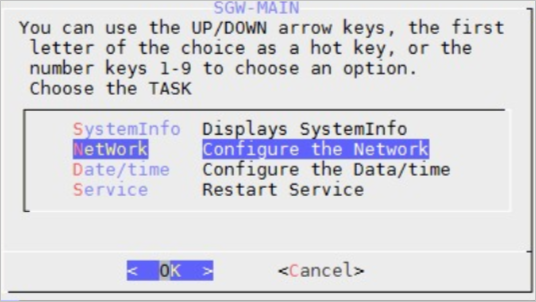
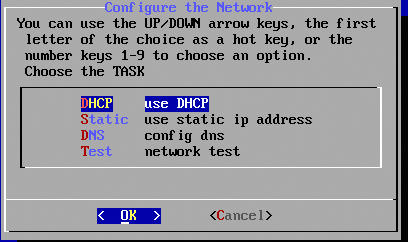
Select Configure the Network.
-
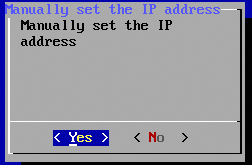
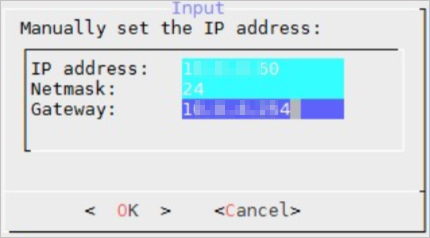
Select Use static ip address.
NoteThe netmask must be an integer from 1 to 32. For example, if the subnet mask is 255.255.255.0, you must enter 24.
-
Select Config dns.
In the Input dialog box that appears, enter a DNS server address, such as
xxx.xxx.xxx.xxx, and click OK. -
Select Network test to verify the network configuration.
If the following information appears, the network is configured correctly.
The Network Test Results dialog box shows the following 'passed' messages: Gateway ping test passed, DNS ping test passed, and Alibaba Cloud Business URL Test Passed.
-
-
Select Configure the Date/time.
NoteBy default, the Alibaba Cloud NTP server (ntp.aliyun.com) is used. You can also select LocalTime (manually enter the time). The time must be synchronized with Alibaba Cloud time. In the How to set the time dialog box, select a time setting method: NTPServer (use an NTP server) or LocalTime (manually enter the time), and then click OK.
Step 4: Activate the gateway
-
Log on to the Cloud Storage Gateway console.
-
Activate the gateway.
-
Find the target file gateway and click Download Certificate.
-
In a browser, go to
https://<IP address of the file gateway>to open the gateway's on-premises console. -
On the Cloud Storage Gateway register page, configure the following parameters and click Submit.
-
Upload Certificate: Click Upload Certificate and select the certificate that you downloaded.
NoteTo register the gateway, you must provide an AccessKey pair from your Alibaba Cloud account. You can obtain this pair from the AccessKey Management page.
-
AccessKey ID: Enter your Alibaba Cloud account's AccessKey ID.
-
AccessKey Secret: Enter your Alibaba Cloud account's AccessKey Secret.
-
Username: Enter a username for the on-premises console.
-
Password: Enter a password for the on-premises console.
-
Confirm Password: Enter the password again.
-
-
After the gateway is activated, log on to the gateway's on-premises console.
-
Related operations
On the Gateways page, you can also perform the following operations.
|
Actions |
Description |
|
Delete Gateway |
Find the target file gateway and click Delete. Note
You can delete only pay-as-you-go file gateways. |
|
Rename a gateway |
Find the target file gateway, click . |
|
Switch to subscription |
After a pay-as-you-go gateway is created, you can change its billing method to subscription. Click . You are redirected to a subscription purchase page. Purchase a subscription plan based on your business requirements. For more information, see Change the billing method from pay-as-you-go to subscription. |
|
Reset password |
To reset the password for the on-premises console, find the target file gateway, click . |