You can delete clusters that you no longer need from the ACK console. The Delete Cluster panel displays the existing resources in the cluster. You can view the resources that will be deleted and choose whether to retain them. Read the prompts on the page carefully to ensure that you understand the risks before you delete the cluster.
Before you begin
Disable deletion protection (if enabled). If deletion protection is enabled for the cluster, the console blocks the delete operation. To disable it: on the Clusters page, locate the cluster, then choose More > Disable Deletion Protection in the Actions column.
Review billing impact. Cloud resources that are not released continue to incur charges. See Billing impact for details.
Delete a cluster
Log on to the ACK console. In the left navigation pane, click Clusters.
On the Clusters page, find the target cluster. In that row, choose More > Delete.
In the Delete Cluster panel, review the resources that will be automatically deleted, such as ECS, ECI, and ACS instances. Deselect any resources you want to retain, read the notes about resource deletion and billing, and follow the on-screen instructions to delete the cluster.
Node release rules
When you delete a cluster, its node pools are deleted sequentially. The release behavior depends on whether a desired number of nodes is specified for the node pool.
Condition | Pay-as-you-go nodes | Subscription nodes | System disk |
Desired number of nodes specified | Released | Not released | Released with the node |
Desired number of nodes not specified | Released (except manually or automatically added nodes) | Not released | Released with the node |
To release subscription nodes after cluster deletion, convert them to pay-as-you-go nodes in the ECS console, and then release them. For more information, see Change the billing method of an instance from subscription to pay-as-you-go.
To check whether a desired number of nodes is specified for a node pool, go to the ACK console, navigate to the cluster's Nodes > Node Pools page, click the node pool name, and look for a quantity value in the Scaling Configurations section on the Overview tab.
Clean up remaining resources
After cluster deletion, some resources may remain. Check the resource prompts in the console and release any resources you no longer need. Use the Resource Management console to view all resources under your account.
Resource | Console method | API method |
Subscription ECS nodes | ||
Virtual private cloud (VPC) | ||
Simple Log Service (SLS) project | ||
NAT Gateway | ||
vSwitch | ||
Security group | ||
MSE cloud-native gateway |
Billing impact
Cloud resources that are not released continue to incur charges after the cluster is deleted or enters the Deletion Failed state.
Cluster type | Cluster management fee | Cloud resource fee |
ACK managed Basic | Not applicable | Continues until resources are released |
ACK dedicated | Not applicable | Continues until resources are released |
ACK managed Pro | Stops during Deleting and Deletion Failed states | Continues until resources are released |
For ACK managed Pro clusters, the cluster management fee also stops in the following states: Initializing, Failed, Inactive, Unavailable, and Deleted. Clusters in the Deleted state are not visible in the console.
ACK managed Basic and ACK dedicated clusters are not charged a cluster management fee. Only ACK managed Pro clusters incur this fee.
When an ACK managed Pro cluster enters the Inactive or Unavailable state, ACK scales in the control plane. After the scale-in completes, the cluster management fee stops, but cloud resource fees continue.
For more information, see Cluster lifecycle and Billing rules.
Troubleshoot deletion failures
If cluster deletion fails, the cluster status changes to Deletion Failed.
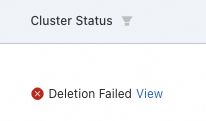
Deletion typically fails because of resource dependency conflicts. When ACK releases the resources you selected for deletion, it checks dependencies. If a resource scheduled for deletion depends on another resource not created by the cluster, the deletion fails.
Example: A NAT Gateway automatically created by the cluster contains SNAT or DNAT entries added outside the cluster. These external entries block the deletion.

To view the failure cause, click View in the Cluster Status column.
To resolve the issue:
Retain the resource and clean up later. Retry the deletion and deselect the resource that failed to release. After the cluster is deleted, manage the resource manually.
Fix the dependency and retry. Remove the entries or resources blocking the deletion, then retry.
If deletion fails for other reasons, submit a ticket.