As a service provider, package your software into an Elastic Compute Service (ECS) custom image, then publish that image as a deployment package in Compute Nest. This lets you deliver a fully configured ECS environment to your customers as a managed service.
Prerequisites
Before you begin, make sure you have:
-
An Alibaba Cloud account registered as a Compute Nest service provider
-
Access to the ECS console and the Compute Nest console
-
The applications or software you want to bundle into the image
Step 1: Create an ECS instance and install your applications
-
Create an ECS instance. For details, see Create an instance.
Note: If your applications require internet access during installation, select Assign Public IPv4 Address
-
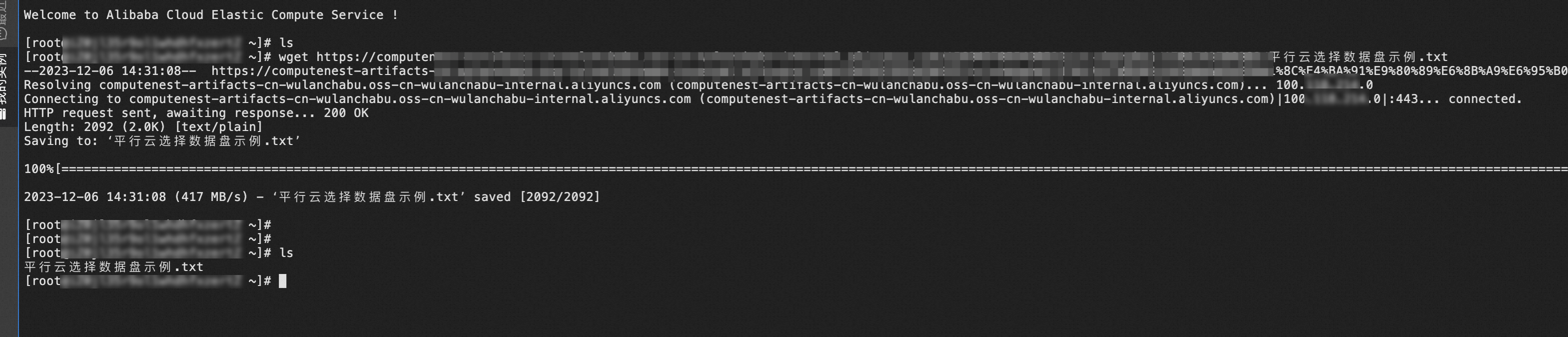
Log in to the instance and install your applications or software. In this example, a file is downloaded.
Step 2: Create a custom image from the ECS instance
-
Log on to the ECS console. On the Instances page, click the ID of the instance you created.
-
On the Instance Details tab, go to the Configuration Information section and click Create Custom Image
-
In the Create Custom Image dialog box, configure the parameters as prompted. In this example, the image is named
Created_from_computeNest -
Click OK.
After the image is created, go to the Images page to confirm it appears in the list.
Step 3: Create a deployment package of the ECS image type
-
Log on to the Compute Nest console.
-
In the left-side navigation pane, click Service Deployment Package. On the Packages tab, click Create Deployment Package.
-
On the Create Deployment Package page, set the following parameters:
Parameter Value Deployment Package Type ECS Image Type Custom Images Image Select the custom image you created in step 2 -
Click Publish Deployment Package.
Step 4: Create a service and service instance using the deployment package
For a full walkthrough of using an ECS image deployment package to create a service, see ECS image deployment packages.
-
In your service template, define an
ALIYUN::ECS::InstanceGroup -
In the Set ECS Image Association
-
Click Create Service.
-
Create a service instance. For details, see Create a private service instance.
The ECS instance in the service instance is provisioned from your custom image and already contains the applications you installed. In this example, the downloaded file is present in the image and visible when you open it.