When you build or update software in a continuous integration (CI) environment, you can incorporate Compute Nest deployment package updates into your CI pipeline. This ensures that every time you publish a verified software version, the corresponding Elastic Compute Service (ECS) image deployment package in Compute Nest is automatically updated and released in the same workflow.
This topic walks you through the end-to-end process: creating a custom ECS image with CloudOps Orchestration Service (OOS), packaging it as a Compute Nest deployment package (called an Artifact in API operations), and releasing it -- all from within your CI pipeline.
How it works
The CI pipeline performs three actions in sequence:
Build the image -- OOS launches a temporary ECS instance from a source image, runs your customization commands (for example, installing software), and creates a new ECS image from the result.
Create the deployment package version -- The Alibaba Cloud CLI calls the Compute Nest
CreateArtifactAPI to register the new image as a deployment package version.Release the deployment package -- The CLI calls
ReleaseArtifactto publish the updated deployment package so that end users receive the latest version.
Prerequisites
Before you begin, make sure the following requirements are met:
Permissions -- Your account has the AliyunComputeNestSupplierFullAccess and AliyunECSFullAccess policies attached, which grant access to manage Compute Nest services as a service provider and manage ECS resources. For more information, see View the permissions of a RAM user.
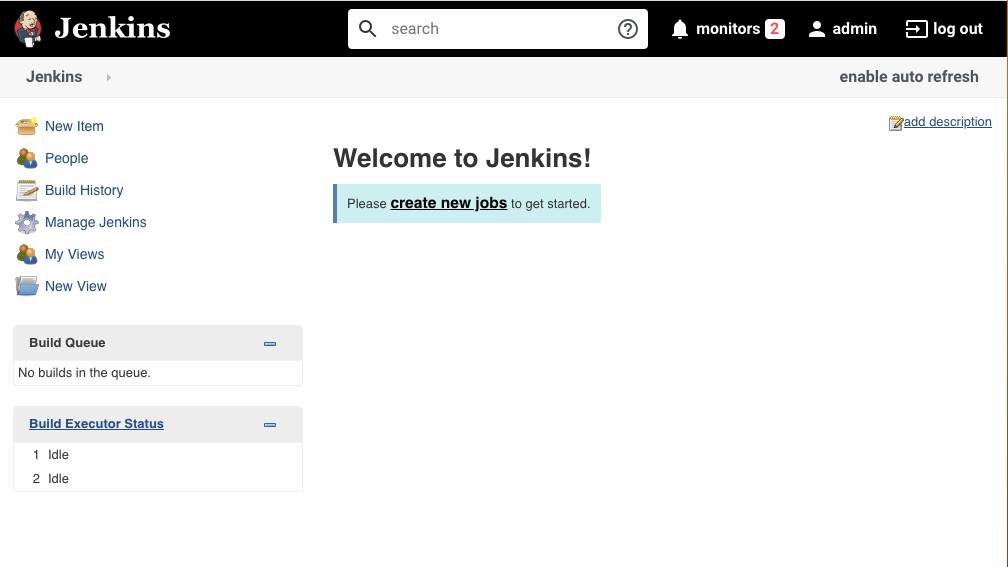
CI environment -- A CI server such as Jenkins is set up and running. For a setup example, see Appendix: Set up a Jenkins CI environment at the end of this topic.
Alibaba Cloud CLI -- Alibaba Cloud CLI 3.0.141 or later is installed in the CI environment.
jq -- The jq command-line JSON processor is installed in the CI environment.
Deployment package -- A deployment package has been created in the Compute Nest console. For more information, see Overview.
Networking resources -- A virtual private cloud (VPC), vSwitch, and security group are available for creating the ECS image. OOS uses these resources to launch a temporary instance during image creation. For more information, see Create and manage a VPC, Create and manage vSwitches, and Create a security group.
Procedure
Step 1: Configure environment variables
Set the Alibaba Cloud CLI credentials in your CI environment:
export ALIBABACLOUD_ACCESS_KEY_ID=yourAccessKeyID
export ALIBABACLOUD_ACCESS_KEY_SECRET=yourAccessKeySecret
export ALIBABACLOUD_REGION_ID=cn-hangzhou # Set the environment variable to cn-hangzhou or ap-southeast-1.
Step 2: Create an ECS image
Use the ACS-ECS-UpdateImage public template provided by OOS to create a custom ECS image. This template launches a temporary ECS instance, runs your commands on it, and captures the result as a new image.
Define the template parameters
# Region and networking
regionId="cn-hangzhou"  # The region ID of the execution.
securityGroupId="sg-8vb9b*****wvnuqy6" # The security group that is used to create a temporary instance.
vSwitchId="vsw-8vb5p1******zv01c" # The vSwitch that is used to create a temporary instance.
instanceType="ecs.g5.large" # The instance type of the temporary instance.

# Source image
sourceImageId="centos_7_8_x64_20G_alibase_20200622.vhd" # The source image to be updated.

# Customization commands
commandType="RunShellScript"  # The type of the command.

# The command content. The following sample command installs MySQL.
# Replace this with the command used to install your software.
commandContent='yum install mysql -y'
For the full list of template parameters, see the ACS-ECS-UpdateImage template details.
Start the OOS execution
Build the parameters JSON and start the execution:
parameters="{
  \"securityGroupId\": \"$securityGroupId\",
  \"commandType\": \"$commandType\",
  \"sourceImageId\": \"$sourceImageId\",
  \"regionId\": \"$regionId\",
  \"vSwitchId\": \"$vSwitchId\",
  \"instanceType\": \"$instanceType\",
  \"commandContent\": \"$commandContent\",
  \"ramRoleName\": \"\"
}"

# Start the execution.
execution_id=`aliyun oos StartExecution --TemplateName ACS-ECS-UpdateImage --Parameters "${parameters}" | jq -r ".Execution.ExecutionId"`
Wait for the execution to complete
The following loop polls the execution status every 10 seconds and exits on success, failure, or timeout:
# Wait until the execution is complete (timeout after 30 minutes).
timeout=1800
elapsed=0
while true
do
    status=`aliyun oos ListExecutions --ExecutionId ${execution_id} |jq -r '.Executions[0].Status'`
    if [ "$status" == "Success" ]; then
        echo "Image creation succeeded."
        break
    elif [ "$status" == "Failed" ]; then
        echo "Image creation failed. Check OOS execution ${execution_id} for details."
        exit 1
    fi
    if [ $elapsed -ge $timeout ]; then
        echo "Timeout: image creation did not complete within 30 minutes."
        exit 1
    fi
    sleep 10
    elapsed=$((elapsed + 10))
done
Retrieve the new image ID
Extract the image ID from the execution output:
# Obtain the image ID.
image_id=`aliyun oos ListExecutions --ExecutionId ${execution_id} |jq -r '.Executions[0].Outputs | fromjson | .imageId'`
Step 3: Update and release the deployment package
With the new image ready, create a new version of the deployment package (Artifact) and release it. Replace <your_artifact_id> with the ID of your deployment package.
# Specify the ID of the deployment package.
artifact_id=<your_artifact_id>

# Create a new deployment package version.
aliyun computenestsupplier CreateArtifact --ArtifactId ${artifact_id} --ArtifactType EcsImage --Name 'Deployment package of the ECS image type for CI' --VersionName 'NewVersion' --ArtifactProperty "{\"ImageId\":\"${image_id}\",\"RegionId\":\"cn-hangzhou\"}" --SupportRegionIds.1 null

# Release the deployment package.
aliyun computenestsupplier ReleaseArtifact --ArtifactId ${artifact_id}
Step 4: Verify the release
After the release command completes, confirm that the deployment package was updated successfully:
# Verify the deployment package status.
aliyun computenestsupplier GetArtifact --ArtifactId ${artifact_id}
Check the output to confirm that the latest version name and image ID match the values you specified.
Appendix: Set up a Jenkins CI environment
The following example shows how to use Resource Orchestration Service (ROS) to create an ECS instance with Jenkins installed and complete the initial Jenkins configuration. This example uses the Alibaba Cloud Linux operating system.
Log on to the ROS console.
In the left-side navigation pane, choose .
Find the template named Installs Jenkins on an ECS instance (Existing VPC) and click Create Stack.
Configure the parameters as prompted and click Create. For more information, see Create a stack.
After the stack is created, you can view the output information on the Outputs tab of the stack details page.
After the stack is created, obtain the Jenkins URL on the Outputs tab of the stack details page and open the URL in a browser. Example:
http://39.**.**.168:8080.On the Unlock Jenkins page, enter the password in the Administrator password field. The password is the value of the InitialAdminPassword output keyword displayed on the Outputs tab of the stack details page.
On the Customize Jenkins page, click Install suggested plugins.
After the plug-ins are installed, specify the username and password on the Create First Admin User page to create an administrator user. Then, log on to Jenkins as the created user.