If you use a continuous integration (CI) environment to build or update software as a service provider, you can add the updates on file deployment packages in Compute Nest to the CI process. This way, if you publish a verified software version to Compute Nest, the version and content of the file deployment package are simultaneously updated and published. This topic describes how to add the updates on a file deployment package in Compute Nest to the CI process as a service provider.
Preparations
Prepare the following items before you begin:
Build a CI environment. In this example, a CI environment is built by using Jenkins. For more information, see the Example of building a CI environment section of this topic.
Install Alibaba Cloud CLI V3.0.141 or later.
After you build a CI environment, install the jq command-line JSON processor.
In the Compute Nest console, create a deployment package to be added to the CI process.
Step 1: Create a file deployment package
Run the packaging command on your on-premises device to package your software into a file. The following example shows how to package gs-spring-boot in Spring Boot to create a file deployment package required for the CI process.
The following commands are for reference only. When you create a file deployment package, replace the sample commands with the commands used to package your software.
cd $WORKSPACE/initial
mvn install
Step 2: Upload the created file deployment package to the CI environment
Before you upload the file deployment package, configure environment variables that are used by Alibaba Cloud CLI and make sure that the AliyunComputeNestSupplierFullAccess policy is attached to your account. This policy allows you to manage Compute Nest services as a service provider.
Configure environment variables.
export ALIBABACLOUD_ACCESS_KEY_ID=LTAI****************
export ALIBABACLOUD_ACCESS_KEY_SECRET=yourAccessKeySecret
export ALIBABACLOUD_REGION_ID=cn-hangzhou # Set the environment variable to cn-hangzhou or ap-southeast-1.
Obtain the upload information and upload the deployment package.
When you run the integration commands, replace
<source_file>and<target_file>in the code with actual values.# Specify cn-hangzhou as the ID of the region to which the deployment package is uploaded. credentials_response=`aliyun computenestsupplier GetArtifactRepositoryCredentials --ArtifactType File --DeployRegionId cn-hangzhou` # Obtain the key information used to upload the deployment package. file_access_key_id=`echo $credentials_response |jq -r '.Credentials.AccessKeyId'` file_access_key_secret=`echo $credentials_response |jq -r '.Credentials.AccessKeySecret'` file_security_token=`echo $credentials_response |jq -r '.Credentials.SecurityToken'` # Obtain the information about the Object Storage Service (OSS) bucket to which the deployment package is uploaded. oss_bucket_name=`echo $credentials_response |jq -r '.AvailableResources[0].RepositoryName'` oss_path=`echo $credentials_response |jq -r '.AvailableResources[0].Path'` oss_region_id=`echo $credentials_response |jq -r '.AvailableResources[0].RegionId'` # Upload the deployment package. aliyun oss cp <source_file> oss://${oss_bucket_name}/${oss_path}/<target_file> -e oss-${oss_region_id}.aliyuncs.com --region ${oss_region_id} --mode StsToken --access-key-id ${file_access_key_id} --access-key-secret ${file_access_key_secret} --sts-token ${file_security_token} # If you use the CI environment over the Alibaba Cloud internal network, you can upload the deployment package at a faster speed. # aliyun oss cp <source_file> oss://${oss_bucket_name}/${oss_path}/<target_file> -e oss-${oss_region_id}-internal.aliyuncs.com --region ${oss_region_id} --mode StsToken --access-key-id ${file_access_key_id} --access-key-secret ${file_access_key_secret} --sts-token ${file_security_token} # Generate the HTTPS URL of the uploaded deployment package. file_url=https://${oss_bucket_name}.oss-${oss_region_id}.aliyuncs.com/${oss_path}/<target_file>Continuously integrate the file deployment package.
When you run the integration commands, replace
<your_artifact_id>in the code with the ID of your deployment package.# Specify the ID of the deployment package. artifact_id=<your_artifact_id> # Create a deployment package. version=`date +%s` aliyun computenestsupplier CreateArtifact --ArtifactId ${artifact_id} --ArtifactType File --Name 'File deployment package for CI' --VersionName ${version} --ArtifactProperty "{\"Url\":\"${file_url}\",\"FileScriptMetadata\":\"{\\\"WorkDir\\\":\\\"/root\\\",\\\"CommandType\\\":\\\"RunShellScript\\\",\\\"Platform\\\":\\\"Linux\\\",\\\"Script\\\":\\\"echo hello\\\"}\"}" --SupportRegionIds.1 null # Publish the deployment package. aliyun computenestsupplier ReleaseArtifact --ArtifactId ${artifact_id}
Example of building a CI environment
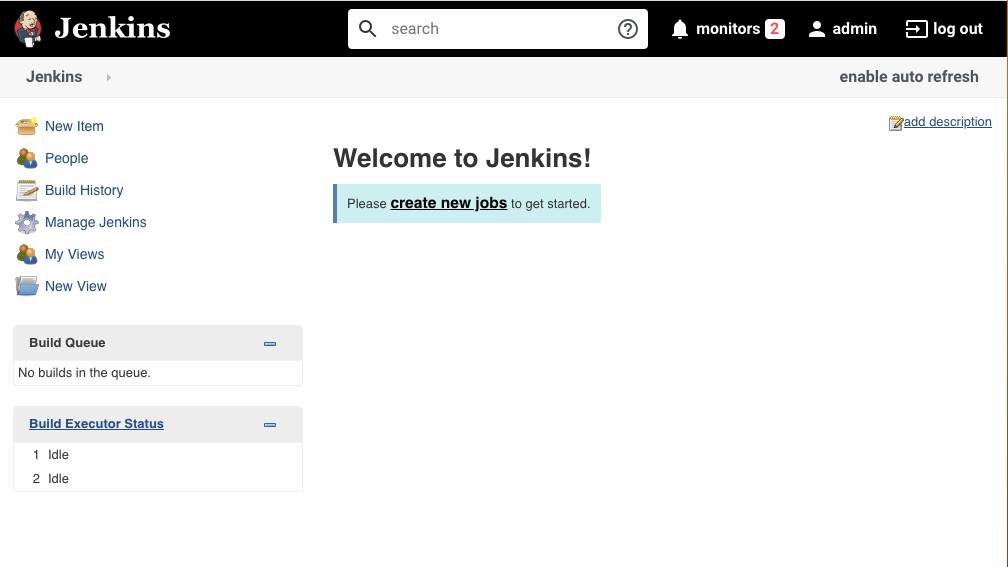
The following example shows how to create an Elastic Compute Service (ECS) instance with Jenkins installed and complete the initial configurations of Jenkins by using Resource Orchestration Service (ROS) to build a CI environment. In this example, the Alibaba Cloud Linux operating system is used.
Log on to the ROS console.
In the left-side navigation pane, choose .
Find the template named Installs Jenkins on an ECS instance (Existing VPC) and click Create Stack.
Configure the parameters as prompted and click Create. For more information, see Create a stack.
After the stack is created, you can view the output information on the Outputs tab of the stack details page.
After the stack is created, obtain the Jenkins URL on the Outputs tab of the stack details page and open the URL in a browser. Example: http://39.**.**.168:8080.
On the Unlock Jenkins page, enter the password in the Administrator password field. The password is the value of the InitialAdminPassword output keyword displayed on the Outputs tab of the stack details page.
On the Customize Jenkins page, click Install suggested plugins.
After the plug-ins are installed, specify the username and password on the Create First Admin User page to create an administrator user. Then, log on to Jenkins as the created user.