When a service provider releases a new service version, you can upgrade your service instances to it.
Prerequisites
The service has at least two versions, and the new service version must support service instance upgrades. For more information about how to create a new service version, see Update a service. For more information about how to configure service upgrades, see Configure service upgrades.
You have deployed a service instance using an earlier service version. For more information, see Deploy a service instance.
Upgrade a single service instance
When a new service version is available, you can upgrade a service instance. This section explains the process.
Log on to the Compute Nest console.
In the left-side navigation pane, click Service Instance.
On the Service Instance page, find the service instance to upgrade and click its ID to open the details page.
In the upper-right corner, click Upgrade Service Instance.
In the Upgrade Service Instance dialog box, select a target version from the Upgrade Version drop-down list. Then, confirm the required permissions, such as
AliyunComputeNestPolicyForFullAccess, select the checkbox to grant permissions to the service provider, and click Start Upgrade.After the upgrade starts, the Status field in the Overview section of the service instance details page displays Upgrading. When the upgrade is complete, the Status changes to Deployed, and Service Version updates to the version you selected in Step 5.
Batch upgrade
When a new service version is available, service providers can batch-upgrade private deployment and fully managed single-tenant service instances that have been granted upgrade permissions.
How it works
The batch upgrade feature uses CloudOps Orchestration Service (OOS) and its BulkyUpgradeServiceInstance template.
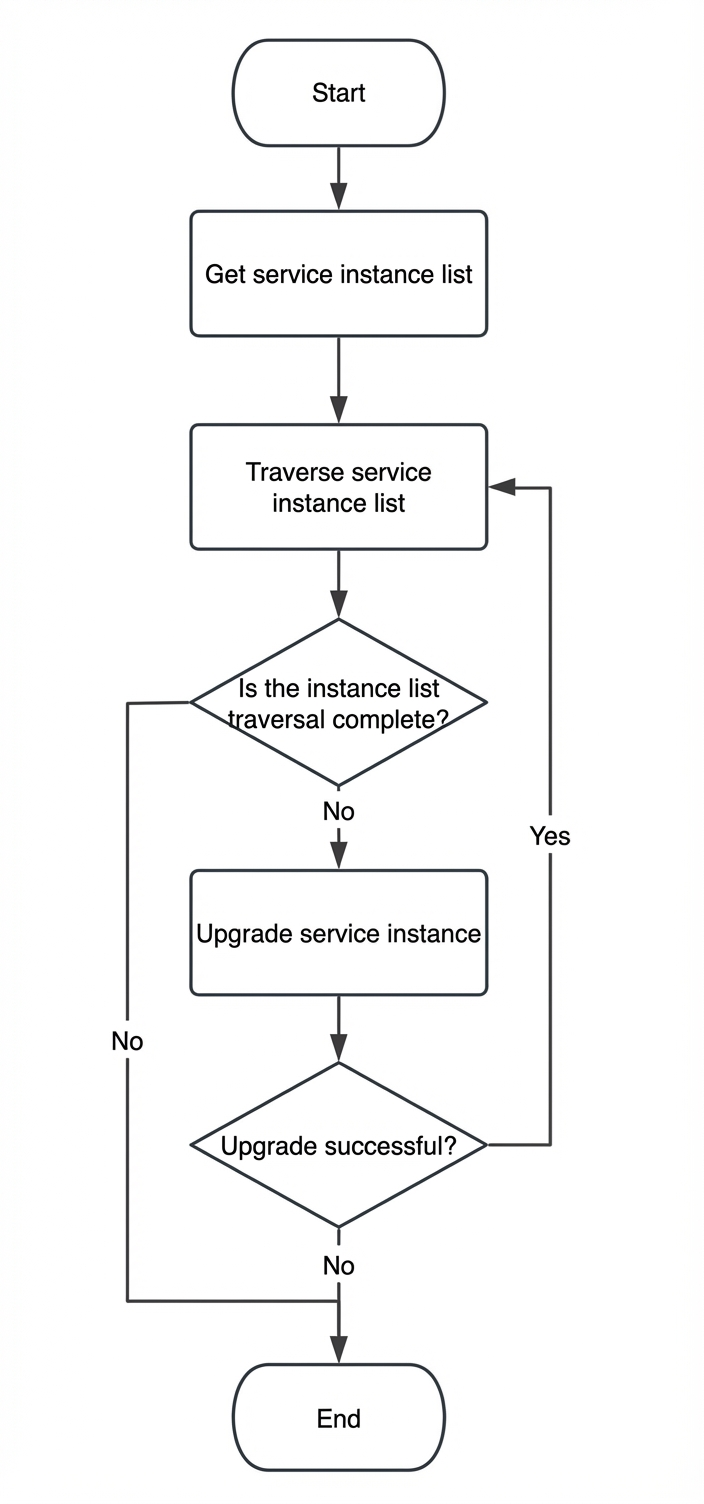
The system uses the parameters selected on the batch upgrade page to call the Compute Nest API and retrieve a list of eligible service instances.
The system iterates through the list and calls the Compute Nest API to upgrade each service instance. You can configure the number of service instances to upgrade concurrently.
If any service instance fails to upgrade, the entire task stops.
Procedure
Log on to the Compute Nest console.
In the left-side navigation pane, click Service Instance, and then select the My Service Instance tab.
Find the service whose instances you want to batch-upgrade, and click the service name or ID to open the Service Details page.
Click the O&M Management tab.
In the Batch O&M section, click Batch Upgrade.
In the dialog box that appears, configure the batch upgrade parameters.
Parameter | Description |
Parameter configuration | In the Parameter Configurations section, set the Target Instance and Upgrade service version parameters.
|
Advanced options | In the Advanced Options section, set the RateControl and OOSAssumeRole parameters. Note These parameters are optional. If left unconfigured, Compute Nest applies the default settings.
|
Task settings | In the Task Description field, enter a brief description. |
Click Next.
On the OK tab, review the basic information and resource preview for the batch upgrade.
After confirming the information, click Create.
Click Create. You can then view the task's execution status on the O&M Management tab.
After the batch task is submitted, the execution record is displayed in the Batch O&M section on the O&M management tab. The list includes columns such as Execution ID, Task Type/Custom Template, Execution Status (Running, Failed, Succeeded), Execution Input, Execution Output, and Actions.
In the Actions column, click Details to view the OOS task execution details.
After you submit the task, you can monitor the upgrade progress on the Execution Steps and Results page. Click the Upgrade Service Instances on Compute Nest Service Provider Side step and select the Loop Task List tab to view details for each service instance, including the batch number, target object, execution status, start time, end time, and output results.