ARMS tags let you organize and observe application monitoring metrics, traces, and logs. You can add tags to applications for filtering and permission management, and use instance tags to filter monitoring data on the application details and Grafana view pages.
Prerequisites
Your application must be connected to Application Monitoring. For more information, see Application Monitoring overview.
For Java applications, the following requirements must also be met:
-
For applications that run in container clusters, the ack-onepilot component must be v3.0.4 or later and the ARMS agent is v2.7.3.5 or later.
-
For applications that run in other environments, make sure that the ARMS agent is v2.7.3.5 or later. You can download the latest ARMS agent installation package from the Agent Release Notes tab on the page of the ARMS console.
Tag types
Application Monitoring provides two types of tags: application tags and instance tags. Both are key-value pairs, and you can add multiple key-value pairs for each type. Choose the tag type that best suits your use case.
Application tags
Application tags are applied at the application level. You can view or modify them on the page in the ARMS console. Use application tags to filter applications, manage permissions, and allocate costs.
Instance tags
In ARMS, an application can contain multiple instances. Each instance represents an application process, and all instances share the same application name. Unlike application tags, instance tags are applied at the instance level, so different instances within the same application can have different tags.
For application instances automatically connected to Application Monitoring from a Kubernetes environment, ARMS adds the following default tags:
|
Tag key |
Description |
|
workloadKind |
The workload type, such as Deployment. |
|
workloadName |
The name of the workload to which the application instance belongs. |
|
clusterName |
The name of the Kubernetes cluster where the application instance is located. |
|
namespace |
The Kubernetes namespace where the application instance is located. |
|
version |
The image tag. This can be overridden by a custom instance tag. |
|
agentVersion |
The agent version. |
In addition to the default tags, you can add custom ones. Instance tags also inherit application tags. All monitoring data generated by ARMS for an application instance includes the corresponding instance tags.
We recommend that the keys for custom instance tags follow Prometheus naming conventions. The keys must match the regular expression ^[a-zA-Z_][a-zA-Z0-9_]*$. For keys that do not match this rule, the ARMS agent replaces non-compliant characters with underscores (_). For example, 1key:1value is converted to _key:1value.
Example:
The application my-app has two instances. The monitoring data generated for Instance B includes the following tags: {env: Dev, team: Observability, app: my-app, workloadKind: Deployment, workloadName: my-app, clusterName: ClusterA, namespace: nsA, gitVersion: 1.0.1}.

Add custom instance tags
For applications in a Kubernetes cluster
Method 1 (Recommended): Use pod labels
For applications deployed in a Kubernetes environment where the ARMS agent is automatically installed, you can add custom instance tags by using a pod label.
This method works for applications deployed in both Alibaba Cloud Container Service for Kubernetes (ACK) and self-managed Kubernetes environments. For information about how to automatically install the agent, see Application Monitoring overview.
The following example shows how to add a tag to an application in an ACK environment.
In the ACK console, navigate to the target cluster. On the Deployment or StatefulSet page, select the target namespace at the top of the page. Find the target application and choose  > Edit YAML. In the Edit YAML dialog box, add a custom instance tag, such as
 gitVersion: '1.0.2', under spec.template.metadata.labels and click Update. The application instance then restarts with the new tag. The following snippet is an example:
    name: mall-gateway
    namespace: arms-apm-demo
    resourceVersion: '943537'
    uid: xxx
  spec:
    progressDeadlineSeconds: 600
    replicas: 1
    revisionHistoryLimit: 10
    selector:
      matchLabels:
        app: mall-gateway
    strategy:
      rollingUpdate:
        maxSurge: 25%
        maxUnavailable: 25%
      type: RollingUpdate
    template:
      metadata:
        labels:
          gitVersion: '1.0.2'
          app: mall-gateway
          armsPilotAutoEnable: 'on'
          armsPilotCreateAppName: mall-gateway
      spec:
        containers:
        - env:
          - name: SERVICE_NAME
Method 2: Use pod environment variables
-
For Java applications, this method requires agent v4.0.0 or later.
-
For Go applications, this method requires agent v1.5.0 or later.
-
For Python applications, this method requires agent v1.3.0 or later.
For some custom tags that can only be obtained after a pod is created, such as podName, you can inject them by adding an operating system environment variable in the application container's startup script. Follow these steps:
-
Add an environment variable named ARMS_HOST_TAGS to your application container. Set its value to your instance tags. Use the format
key1:value1&key2:value2to separate multiple tags. Example:export ARMS_HOST_TAGS="gitVersion:1.0.2&ip:192.168.1.101". -
After the environment variable takes effect, start the application process.
For applications with a manually installed agent
Java applications
Method 1: Use the -D parameter
Add -Darms.host.tags="${yourLabel}" to your Java application's startup parameters.
Replace ${yourLabel} with your instance tags. Use the format key1:value1&key2:value2 to separate multiple tags. Example: -Darms.host.tags="gitVersion:1.0.2&ip:192.168.1.101".
Method 2: Use a configuration file
Agent v4.0.0 or later
-
Follow the instructions in Modify the Java agent configuration file and the default reporting region to create a configuration file with a .properties extension in any directory. In the file, add the profiler.tags.customtags field, and set its value to your instance tags. Use the format
key1:value1&key2:value2to separate multiple tags. Example:#profiler.tags.customtags=key1:value1&key2:value2 profiler.tags.customtags=gitVersion:1.0.2&ip:192.168.1.101 -
Add
-Dotel.javaagent.configuration-file=${path/to/config/file}to the startup parameters of your Java application, or set theOTEL_JAVAAGENT_CONFIGURATION_FILE=${path/to/config/file}environment variable.Note-
Replace
${path/to/config/file}with the full path of the configuration file you created. Example:-Dotel.javaagent.configuration-file=/home/admin/config/agent-config.propertiesorOTEL_JAVAAGENT_CONFIGURATION_FILE=/home/admin/config/agent-config.properties. -
If you configure both the startup command and the environment variable, the startup command takes precedence.
-
-
Restart the application process.
Agent earlier than v4.0.0
-
Modify the profiler.tags.customtags field in the arms-agent.config file within the agent installation package. For more information, see Modify the Java agent configuration file and the default reporting region. You can add custom instance tags in the
key1:value1&key2:value2format. Example:#profiler.tags.customtags=key1:value1&key2:value2 profiler.tags.customtags=gitVersion:1.0.2&ip:192.168.1.101 -
Restart the application process.
Golang applications
Set the environment variable, and then restart the application process.
#export ARMS_HOST_TAGS=key1:value1&key2:value2
export ARMS_HOST_TAGS="gitVersion:1.0.2&ip:192.168.1.101"
Python applications
Set the environment variable, and then restart the application process.
#export ARMS_HOST_TAGS=key1:value1&key2:value2
export ARMS_HOST_TAGS="gitVersion:1.0.2&ip:192.168.1.101"
Use pod labels for application tags
-
For Java applications, only ack-onepilot v3.0.16 or later supports injecting application tags by using a pod label.
-
For Go applications, only ack-onepilot v3.2.0 or later supports injecting application tags by using a pod label.
-
For Python applications, only ack-onepilot v4.1.1 or later supports injecting application tags by using a pod label.
-
Only ack-onepilot v4.1.2 or later supports injecting application tags by using Method 2.
Method 1
If a pod label has the app.customAppKey. prefix, ARMS recognizes it as an application tag instead of an instance tag.
For example, in the following code, ARMS adds the application tag env: dev to the application associated with this workload.
  template:
    metadata:
      labels:
        app.customAppKey.env: dev
        app: mall-gateway
        armsPilotAutoEnable: 'on'
        aliyun.com/app-language: golang  # Required for Go applications to identify the application language. Not required for Java applications.
        armsPilotCreateAppName: mall-gateway
Method 2
To reuse existing pod labels as application tags, you can configure the ack-onepilot component.
Prerequisites
The ack-onepilot component version is 4.1.2 or later.
Procedure
-
Find the Deployment of the ack-onepilot component. It is typically named ack-onepilot-ack-onepilot and located in the ack-onepilot namespace.
-
Add the ARMS_APP_LABELS environment variable to the ack-onepilot Deployment. The value of this variable is a comma-separated string. After this configuration, any key under
/spec/template/metadata/labelsthat is also listed in the ARMS_APP_LABELS variable is recognized as an application tag.For example, set the value of the ARMS_APP_LABELS environment variable to
env,group. -
Wait for the ack-onepilot component to restart and pass its health checks. Then, restart your business application to apply the application tags.
You can check the status of ack-onepilot on the Deployment details page in the ACK console. Verify that the number of ready pods is 2/2 and the status of all pods in the pod group is Running.
-
In ARMS, an application is a collection of application instances. One application can have multiple instances and can span multiple workloads or Kubernetes clusters. Injecting application tags through pod labels is convenient for DevOps scenarios, but has limitations.
-
Application tags injected through pod labels can only be added, not removed. To modify or delete an existing tag key, you must do so in the ARMS console or by using OpenAPI.
-
If multiple workloads are connected to the same ARMS application, application tags injected through pod labels can conflict. You must ensure application tags stay consistent across workloads.
Use application tags
Filter applications
On the application list page in the ARMS console and when creating alert rules, you can use application tags to quickly filter applications.
Tag-based permission management
To manage RAM permissions with application tags, see Customize RAM authorization policies for Application Monitoring.
Use instance tags
Filter data on the application details page
-
Log on to the ARMS console. In the navigation pane on the left, choose .
-
On the Applications page, select a region at the top and click the name of the target application.
NoteThe icons in the Language column indicate the following:
 : A Java application connected to Application Monitoring.
 : A Golang application connected to Application Monitoring.
 : A Python application connected to Application Monitoring.
-: An application connected to Managed Service for OpenTelemetry.
-
On various pages of the application details, you can filter monitoring data by instance tag. For example, compare and analyze data based on image version numbers.
Query metrics on the Grafana view page
-
Log on to the ARMS console. In the navigation pane on the left, choose .
-
On the Applications page, select a region at the top and click the name of the target application.
NoteThe icons in the Language column indicate the following:
: A Java application connected to Application Monitoring.: A Golang application connected to Application Monitoring.: A Python application connected to Application Monitoring.-: An application connected to Managed Service for OpenTelemetry.
-
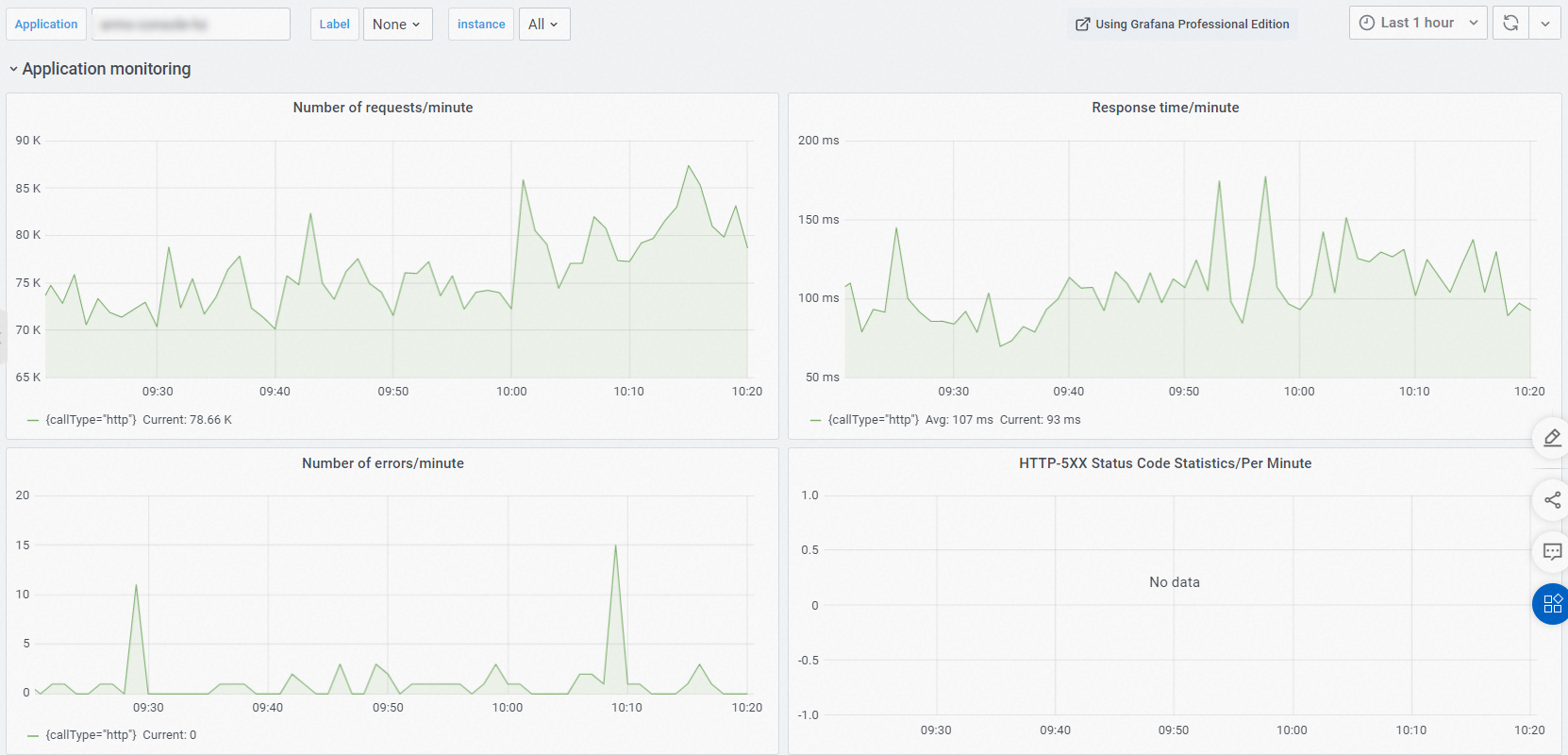
In the navigation pane on the left, click Grafana view. At the top of the page, select different tags to view the corresponding monitoring metrics.