This page answers common questions about using Cloud Firewall access control policies to manage business traffic.
FAQ about features
FAQ about operations
How do I allow access only to a specific subdomain while blocking the rest of a domain?
How do I use Cloud Firewall to strengthen access control on the domain names of a bastion host?
Does an access control policy take effect if the recurrence time range spans two calendar days?
Why does a high-priority access control policy not match traffic?
Why does a configured access control policy not take effect?
FAQ about features
If I enable both WAF in transparent proxy mode and the Internet firewall, can traffic over forwarding ports be controlled by access control policies of Cloud Firewall? {#waf-transparent-proxy}
Yes. When both Web Application Firewall (WAF) in transparent proxy mode and the Internet firewall are enabled, the access control policies you create for the Internet firewall apply to traffic over forwarding ports.
Note that log audit, log analysis, and traffic statistics are not available for forwarding port traffic. Traffic over other ports is not affected.
Are the authorization limits for access control policies extendable?
For the legacy subscription 1.0 billing method, if the quota for access control policies for the Internet Border, NAT Border, and VPC Border is insufficient, you can purchase Quota for Additional Policy on the the Cloud Firewall purchase page to extend the quota.
For the legacy pay-as-you-go 1.0 billing method, you cannot extend the quota for access control policies.
For the new 2.0 billing method, there is no additional charge for Quota for Additional Policy.
For more information, see Legacy billing method 1.0 and upgrade instructions.
Can I increase the protected VPC traffic bandwidth? {#vpc-bandwidth}
Yes. If the default protected VPC traffic capacity doesn't meet your needs, configure the Protected VPC Traffic parameter to increase the peak cross-VPC traffic limit:
Edition | Default | Maximum |
Enterprise Edition | 200 Mbit/s | 5,000 Mbit/s |
Ultimate Edition | 1,000 Mbit/s | 10,000 Mbit/s |
Can Cloud Firewall block traffic of IPv6 CIDR blocks? {#ipv6}
Yes. Create access control policies for the Internet firewall to control IPv6 CIDR block traffic. IPv6 support is available in all Cloud Firewall editions. For details, see Create access control policies for the Internet firewall.
What are the differences between Cloud Firewall and security groups? {#cloud-firewall-vs-security-groups}
Cloud Firewall and security groups are complementary: security groups provide host-level traffic filtering between Elastic Compute Service (ECS) instances, while Cloud Firewall provides centralized protection at network boundaries and at the inter-instance level. Use both for defense in depth.
Specifically:
A security group is a virtual host firewall provided by ECS that controls traffic between ECS instances.
Cloud Firewall operates at multiple network boundaries:
Internet firewall: controls traffic at the Internet boundary
NAT firewalls: controls traffic at the NAT boundary
VPC firewalls: controls traffic at the VPC boundary
Internal firewalls: controls traffic between ECS instances
Beyond what security groups offer, Cloud Firewall adds:
Application-based access control — control traffic by protocol (such as HTTP) without specifying ports
Domain name-based access control — allow ECS instances to send requests only to specific domain names
Intrusion prevention — preemptive protection against common vulnerabilities and brute-force attacks
Monitor mode — observe traffic without blocking, useful for policy validation
Complete traffic logs and real-time analysis
Centralized security management — policies for internal firewalls in the Cloud Firewall console are automatically synchronized to ECS security groups
Traffic matching order: For inbound traffic, Cloud Firewall evaluates first, then security groups. For outbound traffic, security groups evaluate first, then Cloud Firewall. Traffic is allowed only if it passes both Cloud Firewall policies and security group rules.
What are the differences between common policy groups and enterprise policy groups? {#common-vs-enterprise-policy-groups}
Policy groups for internal firewalls map to ECS security groups and control inbound and outbound traffic between ECS instances. The two types differ in capacity and cross-group behavior:
Feature | Common policy group | Enterprise policy group |
Corresponding ECS type | Basic security group | Advanced security group |
Intra-group communication | Allowed by default | Not allowed |
Use as authorization object in other security groups | Supported | Not supported |
Private IP address capacity | Lower | Higher |
For details, see Basic security groups and advanced security groups.
Will disabling system default policies affect Alibaba Cloud internal access? {#disable-system-default-policies}
No. Disabling the system default policies in the middle of the policy list (such as "System default. Allow ICMP requests") does not affect normal Alibaba Cloud internal access. You can enable only the first allow policy and the last Drop policy to achieve your intended access control behavior.
FAQ about operations
I configured an outbound HTTP or HTTPS access control policy for a domain name. How do I check whether the policy is valid? {#check-http-https-policy}
Use the curl command to send a real HTTP or HTTPS request to the domain, then check the policy hit count and audit logs in the Cloud Firewall console.
For example:
curl -k "https://www.aliyundoc.com"Do not use telnet to test HTTP or HTTPS policies. A telnet command (such as telnet example.com 80) only generates a TCP handshake — it does not simulate a complete HTTP or HTTPS request. Cloud Firewall identifies this traffic as application type Unknown, so it will not hit a policy whose application type is HTTP or HTTPS.
When I apply the default Allow policies, the system prompts that a conflict cannot be resolved. How do I fix this? {#conflict-cannot-be-resolved}
This happens when the security group rules associated with the target IP address have the same priority, protocol type, port range, and authorization objects as the default Allow policies you're applying.
Go to the Security Groups page of the ECS console and adjust the priorities of the conflicting rules. For guidance, see Modify a security group rule. If you need help, submit a ticket.
Why is the Quick Apply icon unavailable? {#quick-apply-unavailable}
The Quick Apply icon is unavailable when conflicting security group rules exist for the target IP address. Resolve the rule conflicts in the ECS security groups associated with the IP address before applying the default Allow policies. For details, see Internet firewall.
The Quick Apply icon may also be unavailable for these reasons:
The security groups associated with the IP address are advanced security groups. Advanced security groups do not support default Allow policies.
The Internet firewall is disabled for the IP address.
To protect your assets, avoid applying default Allow policies to resources whose firewalls are disabled, and avoid disabling firewalls for resources that already have default Allow policies applied.
How do I eliminate false positives for suspicious outbound connections caused by Internet-based scans? {#false-positives}
This is a known behavior when inbound access is not restricted to required ports.
Why it happens: When an attacker scans a closed port on your server, the server (or a NAT gateway) returns an Internet Control Message Protocol (ICMP) packet indicating the port is unreachable. Cloud Firewall cannot correlate this ICMP packet to an incoming request, so it treats the packet as an outbound connection initiated by your server. If the scanner's IP address appears in the threat intelligence library, Cloud Firewall generates an alert.
By contrast, when a SYN packet reaches an open port, the server returns a SYN-ACK packet and Cloud Firewall treats both as part of the same connection — no alert is generated.

Solution: Create an inbound access control policy that allows traffic only over the ports required by your workloads. This prevents closed-port scan responses from triggering false alerts. For details, see Create access control policies for the Internet firewall.
I configured an outbound Drop policy for 0.0.0.0/0 on the Internet firewall, but some traffic is still allowed. Why? {#deny-not-blocking-all}
Cloud Firewall temporarily allows traffic when it cannot yet identify the traffic's domain name or application type, so that subsequent policies can complete the identification. This applies in two scenarios:
Domain name not yet identified: A domain name-based policy with high priority exists, and Cloud Firewall has identified the source IP, destination IP, and application type — but not the domain name. Cloud Firewall allows the traffic to continue so the domain name can be resolved by subsequent policies.
Application type not yet identified: An application-based policy with high priority exists, and Cloud Firewall has identified the source IP, destination IP, and port — but not the application type. Cloud Firewall allows the traffic to continue so the application type can be identified.
To prevent this behavior, use one of the following approaches:
Option 1: Enable strict mode
In strict mode, Cloud Firewall continues evaluating policies until the application type or domain name is identified. If a Drop policy is configured, traffic identified as Unknown is denied. For details, see Configure the mode of the access control engine.
Option 2: Use only Layer 4 policies
Create Layer 4 access control policies with Application set to ANY and no domain names specified for Destination. When traffic matches a Layer 4 policy, Cloud Firewall applies the policy action immediately, without waiting for application-layer identification. For details, see Create access control policies for the Internet firewall.
Why does a high-priority access control policy not match traffic? {#high-priority-policy-not-matching}
If a high-priority access control policy does not match traffic as expected, check the following common causes:
Cause 1: Source restriction mismatch
The high-priority policy specifies a source IP restriction, but the actual source IP in the traffic logs does not fall within the allowed range. Review the source IP in the logs and update the policy's source IP configuration accordingly.
Cause 2: Missing catch-all Drop policy
A precise allow policy (for example, permitting only a specific IP to access SSH) is configured, but other IP addresses can still reach the service because a lower-priority allow rule or a default allow rule exists. Add a catch-all Drop policy at the lowest priority (placed last in the policy list): set Protocol to ANY, Port to 0/0, and both source and destination IP addresses to 0.0.0.0/0. This blocks all traffic not matched by earlier policies.
To verify the policy takes effect, test connectivity from a host that is not in the same VPC or the same region as the protected resource.
Cause 3: Address book missing entries
A policy is configured to use an address book for source IP addresses, but expected traffic is not matched because the traffic's source IP is not listed in the address book. In the Cloud Firewall console, go to to check the address book entries and add the missing IP addresses.
Cause 4: System default policy interference
After configuring both an allowlist policy and a Drop policy, non-allowlisted IP addresses can still reach ICMP (ping) targets. This typically occurs because the built-in "System default. Allow ICMP requests" policy has higher priority than your Drop policy. To resolve this, change the source IP address of your last Drop policy to 0.0.0.0/0.
How do I allow access only to a specific subdomain while blocking the rest of a domain? {#subdomain-access-control}
Use two policies with different priorities — an allow policy for the target subdomain and a Drop policy for the wildcard pattern. The allow policy must have a higher priority than the Drop policy.
Using xyz.com as an example to allow only abc.xyz.com:
Create a Drop policy for
*.xyz.comand set its priority to Lowest.Create a policy to allow access to
abc.xyz.comand set its priority to Highest.
Because the allow policy for abc.xyz.com has the highest priority, it is evaluated before the wildcard block. All other subdomains hit the wildcard block policy. For details, see Create access control policies for the Internet firewall.
How do I use Cloud Firewall to strengthen access control on the domain names of a bastion host? {#bastionhost}
Bastionhost is an operations and maintenance (O&M) management platform that handles identity authentication, account management, and audit. Because it stores sensitive account information and supports domain name-based access, unauthorized users who reach the bastion host login page could potentially access a large number of assets.
When you purchase both Bastionhost and Cloud Firewall, Bastionhost is automatically added as an asset type in Cloud Firewall, and the purchased bastion host is automatically synced to the Cloud Firewall asset list. This lets you apply access control, intrusion prevention, and network traffic analysis to the bastion host's public IP addresses from a single location.
Configure the following policies:
Inbound access control (Internet firewall): Allow traffic from the Internet or the Internet in specified areas to the open ports of the bastion host.
Outbound access control (Internet firewall): Allow traffic from the bastion host to required public IP addresses only.
Intrusion prevention: Enable the firewall for the bastion host to redirect its inbound and outbound traffic through Cloud Firewall for protection.
For a complete configuration walkthrough, see Configure access control policies in scenarios in which Cloud Firewall is deployed together with Bastionhost.
Does an access control policy take effect if the recurrence time range spans two calendar days? {#spanning-two-days}
Yes. When the Recurrence Cycle spans two calendar days (for example, 18:00 to 08:00 the next day) and the start time of the Effective Date falls within that range, the policy's end time rolls over to the specified time on the following day.
Example: Recurrence Cycle = Every Tuesday 18:00–08:00 (+1), Effective Date = 2024.08.20–2024.08.22.
The policy takes effect from 18:00 on August 20, 2024 to 08:00 on August 21, 2024.
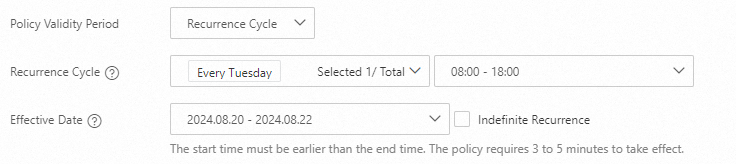
When Policy Validity Period is set to Single Time Range or Recurrence Cycle, the Status button is grayed out. This indicates that an automatic recurring policy is in effect. The Status button is interactive and green only when Policy Validity Period is set to Always.
What do I do if unidirectional traffic on a VPC firewall for a transit router is blocked when I change its traffic redirection scenario? {#unidirectional-traffic-blocked}
This is caused by a routing asymmetry that occurs during the transition when you enable or disable a traffic redirection scenario.
Why it happens: If you have an allow policy for VPC 1 → VPC 2 traffic and a default Drop policy, enabling or disabling a redirection scenario temporarily creates asymmetric routing. Response packets for ICMP and UDP traffic are treated as new, unsolicited traffic and redirected to Cloud Firewall. Because the source and destination IPs are reversed in these response packets, they don't match the allow policy and are blocked by the Drop policy. TCP traffic is not affected.

Solution: If short-term traffic disruption is not acceptable, configure a temporary 0.0.0.0/0 Allow policy with the highest priority on the VPC firewall for the Cloud Enterprise Network (CEN) transit router before enabling or disabling the firewall. This allows reverse traffic during the transition. After the firewall is fully enabled or disabled, delete the temporary policy.
How to handle unknown traffic and perform policy convergence?
When the app_name field in access control logs is unknown, it means the traffic is not from a known application protocol. To prevent policy gaps where this unidentified traffic is allowed by default during policy convergence, follow these steps:
Enable strict mode: Internet Border and NAT border firewalls support engine mode configuration. Switch the mode of the access control engine to Strict Mode. In strict mode, traffic from unidentified applications or domain names is not immediately allowed. Instead, the traffic is matched against subsequent policies. For more information, see Access control engine modes.
Configure a catch-all policy: In strict mode, configure a policy at the bottom of the network access control policy list, which gives it the lowest priority. Set Application Protocol to
ANYfor this policy. Based on your security requirements, set the action to Drop to block all traffic that is not explicitly allowed, including unidentified traffic.
Why does a configured access control policy not take effect? {#troubleshoot-not-effective}
If a configured access control policy does not take effect, check the following in order:
Protocol match: Confirm that the protocol configured in the policy matches the actual protocol of your traffic. For example, if you intend to block ICMP traffic but configure the policy for TCP, the protocol mismatch causes the policy not to take effect.
Address and port: Check whether the source address, source port, destination address, destination port, and traffic direction match what you expect.
Policy priority: Confirm that no broader or redundant policy takes precedence. A smaller priority number indicates a higher priority. You can verify this by checking the policy hit count and audit logs in the Cloud Firewall console.
Default policy consistency: Confirm that the default policy action does not conflict with the logic of the configured policy. For example, if the default policy allows all traffic and the configured policy also allows the traffic, the configured policy will not take effect.
Does deleting a default policy, such as System default. Allow ICMP, affect service access?
No, it does not. In the default loose mode, no policies have the Drop action. The access control engine does not block any traffic. Therefore, deleting a default policy does not affect service access.
Recommended configuration:
We recommend that you use a whitelist for access control:
Configure a lowest-priority Drop All policy as a catch-all rule.
Above this catch-all rule, configure specific allow policies.
For more information, see Step 4: Configure access control list (ACL) policies.