Compliance Report delivers scheduled audit reports for your account, account group, or custom scope to a specified email address. Create reusable templates to define report content and subscribe for periodic results.
Overview
Compliance Report replaces the legacy Compliance Check Report with these capabilities:
-
Custom report scope: Include all rules, or filter by account group, compliance package, or rule.
-
Multi-account data aggregation: Resource directory management accounts or delegated administrators can aggregate reports across member accounts or generate separate reports per account group or member account.
-
Automated subscription: Schedule daily, weekly, or monthly delivery by email or internal message for unattended compliance inspections.
-
Rich statistical analysis: Excel reports include charts and summaries for resource compliance rate and non-compliant risk distribution.
Create a Compliance Report Template
Create a reusable template to define the data scope, aggregation method, and subscription settings.
-
Log on to the Alibaba Cloud CloudConfig console.
-
In the left navigation pane, click Compliance Report.
-
On the Compliance Report page, click Create Template.
-
On the Create Template page, configure the following settings:
-
Basic Information:
-
Template Name: Enter a clear, descriptive name, such as "Group Monthly Security Compliance Overview."
-
Description: Briefly describe the purpose of the template.
-
-
Report Granularity Type (visible only to Resource Directory management accounts or delegated administrators): Define how the report processes data from multiple accounts.
Aggregation Method
Report Output
Description
Merge all accounts into one report
One aggregated report
Generates a single report with data from all member accounts in existing account groups.
Generate one report per account group
One report per account group, plus one report for the current account
Generates one report per account group, plus one for the current account.
Generate one report per account
One report per account
Generates one report per member account. Only member accounts in existing account groups are included.
On the Create Template page, enter a Template Name (required) and Description (optional). The default Format is Excel.
-
Report Scope: Define which rule evaluation results to include.
-
Include All: Includes all rules in the current account and all account groups (if any).
-
Custom Scope: Filter by the following conditions:
-
Current Account: Filter by compliance packages or rules in the current account.
-
Account Group: Filter by compliance packages or rules in a specified account group. Visible only after you create an account group.
In the Select report scope cascading selector, choose the account, compliance package, and rules to include.
-
-
-
Subscription Settings (Optional): Enable the subscription here or configure it later. Subscribe to Reports and Manage Notifications.
After enabling the subscription, configure Delivery Frequency (Daily, Weekly, or Monthly) and Delivery Time. Configure recipients and channels in Message Hub.
-
-
Click Submit to create the template.
Subscribe to Reports and Manage Notifications
Subscribe to a report template to receive scheduled reports through Message Hub.
Configure Subscription in the Template
-
On the Compliance Report page, click the target template to go to its details page.
-
On the template details page, find the Subscription Information section.
-
Turn on the Subscription toggle. In the Subscription Settings dialog box, configure the following settings:
-
Delivery Frequency: Choose daily, weekly, or monthly.
-
Delivery Time: Set the exact time for report generation.
Configure recipients and channels (email or internal message) in Message Hub.
NoteReport generation time is in UTC+8. Adjust for your local time zone.
-
-
Click Submit to save the settings.
Configure Message Delivery Channels and Contacts
Reports are delivered through Alibaba Cloud Message Hub. Verify your delivery channels and contacts.
-
Go to .
-
On the Basic Receiving Management page, click the Service Messages tab.
-
In the Message Type column, find Inspection Report.
The Inspection Report row shows available channels (Internal Message, SMS, Email). Click Edit in the Actions column to configure them.
-
Ensure your preferred delivery channel (Internal Message or Email) is enabled.
ImportantMessage types in Message Hub are often shared across services. Disabling Internal Message stops CloudConfig notifications and may affect other services.
-
Click Edit in the Actions column. On the Message Recipients tab, verify that the correct recipients are set. By default, recipients are the account contacts.
The default receiving rule is None. Click Edit to configure it.
To add or change message recipients, click the Manage Message Recipients button. On the Manage Message Recipients page, add recipients, complete email verification, and then return to the Edit Message Recipients page to assign them.
Test Your Subscription Channel
Use Test Send to verify the full notification path.
-
On the Compliance Report page, find the target template.
-
Click Trigger Send.
-
The system sends the latest successful report to your configured channel. Check your internal messages or email inbox to confirm delivery.
For a quick test, select a single rule with few resources. After the report generates, click Test Send to verify delivery.
Download Reports
Download from the Compliance Report Page
Generate a one-time compliance report and download it for local analysis.
-
On the Compliance Report page, find the target template.
-
Click Download Report.
-
The report downloads automatically. If it does not start, check your browser's pop-up settings.
Download from Internal Messages
After you trigger a report subscription, find the Service Message – Inspection Report internal message and click the download link.
The message contains a compliance summary: report date, detection scope (accounts, rules, resources), resource compliance rate, and non-compliant resource count.
Download links expire in 24 hours. An InvalidAccessKeyId error means the link expired. Click Test Send on the Compliance Report page to resend, or click Download Report to regenerate.
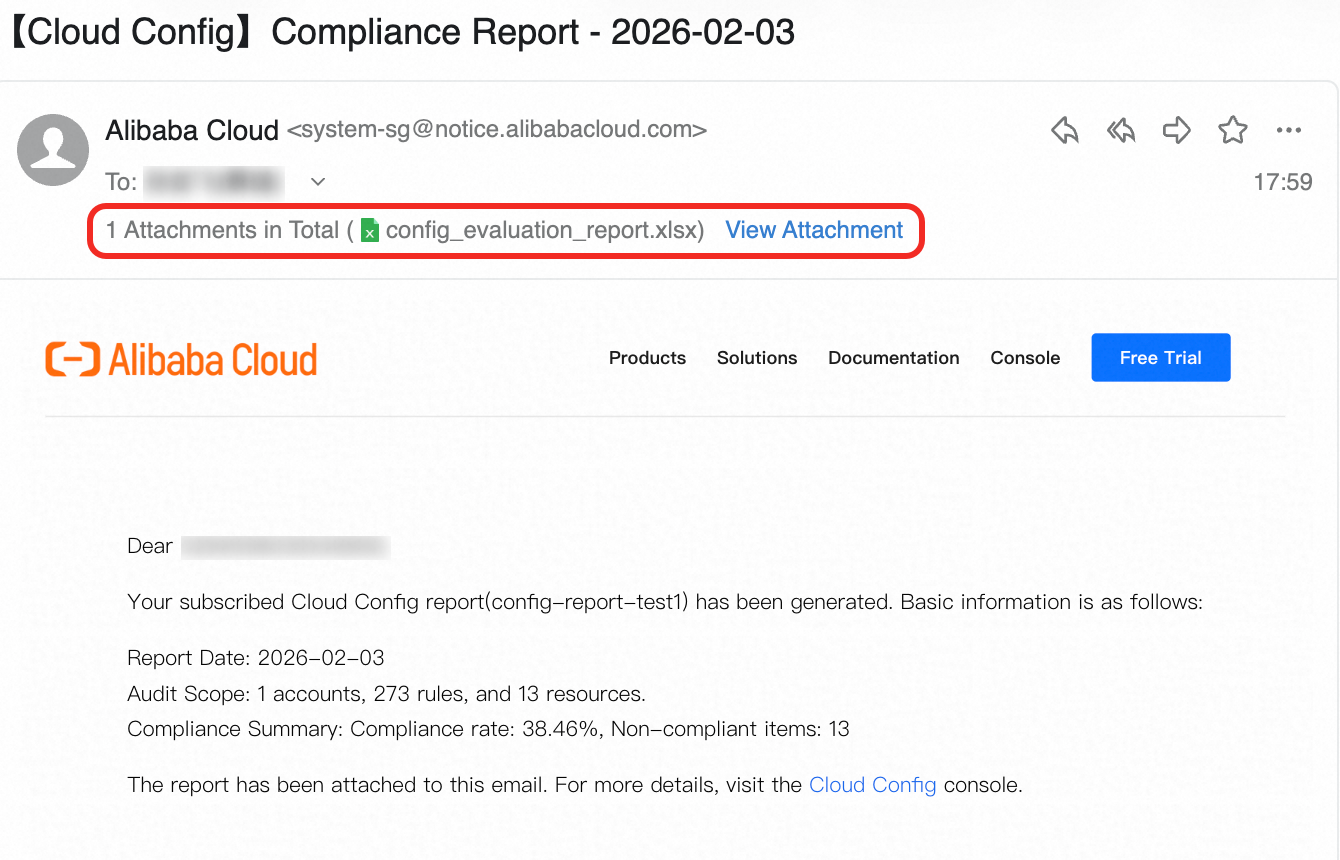
Download from Email
After you trigger a report subscription, the compliance report arrives as an email attachment.
View Report Content
Compliance reports are Excel files with the following worksheets:
|
Worksheet Name |
Description |
|
Overview |
High-level summary including:
|
|
Rule List |
Lists all rules in scope. Columns include: Rule ID, Rule Name, risk level, run status, number of compliant/not applicable/excluded resources, creation time, Remediation Settings, Remediation Suggestions, and more. |
|
Non-Compliant Resources |
Lists non-compliant resources. Typically includes: Resource Type, Resource ID, Resource Name, Audit Rule Name, Rule ID, Reason for Non-Compliance, and Link to Remediation Suggestion. |
|
Compliant Resources |
Lists compliant resources. Typically includes: Resource Type, Resource ID, Resource Name, Audit Rule Name, and Rule ID. |
|
Excluded Resources |
Lists excluded resources. Typically includes: Resource Type, Resource ID, Resource Name, Audit Rule Name, and Rule ID. |
FAQ
Why does my report show data only for the current account?
Multi-account report aggregation requires an account group. Create an account group in CloudConfig to aggregate member account data. Verify:
-
Confirm account group rules: Verify that compliance packages or rules are assigned to the account group.
-
Check report scope: Verify that your template scope is not filtered to only the current account.
Why did I not receive my subscribed report?
Check the following in order:
-
Check report generation status: Confirm that the report generated successfully. If the subscription triggers shortly after creation, the report may not be ready.
-
Check Message Hub settings: Follow the steps in Configure Message Delivery Channels and Contacts to confirm that the Inspection Report delivery channels (Internal Message or Email) are enabled.
-
Check message recipient settings: Follow the steps in Configure Message Delivery Channels and Contacts to confirm that the recipients are set correctly.
-
Check message limits: Each account can receive up to 20 messages per day per channel (email or internal message). Excess messages are not delivered.
If all settings are correct but you still do not receive reports, submit a ticket.
What do I do if report generation fails?
Report generation may fail with FAILED or TIMEOUT errors when the scope is too large.
-
Suggestion: Reduce the report scope (fewer rules or a smaller account group) and try again.
-
If the issue persists, submit a ticket.