Storage vaults are cloud repositories where Cloud Backup stores backup and archive data. On the Storage Vaults page in the Cloud Backup console, view vault details, set tags, configure cross-region backup, and manage settings and permissions.
Access the Storage Vaults page
Access the Storage Vaults page in the Cloud Backup console to manage vaults.
Log on to the Cloud Backup console.
In the top navigation bar, select a region.
-
In the navigation pane on the left, click Storage Vaults.
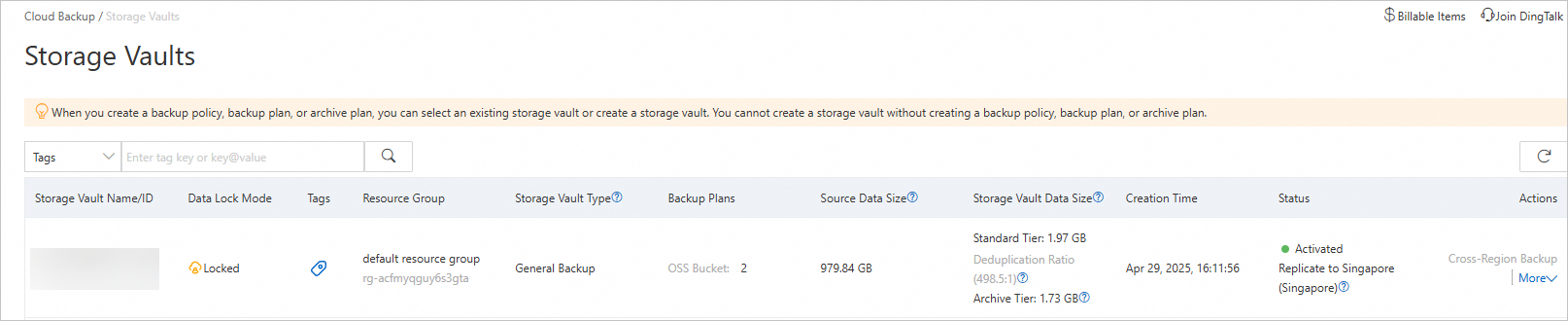
The Storage Vaults page lists all backup and archive vaults with details such as vault name, ID, type, backup plans, source data size, stored data size, and status. Storage vault types.
Manage tags
Tags are key-value pairs that organize and manage storage vaults. Group vaults by purpose, owner, or other criteria to search and perform batch operations.
Set tags for a storage vault
Usage notes
Each tag consists of a key-value pair.
A tag key must be unique on a single resource.
For example, the
company:atag has been added to a backup vault. If you add thecompany:btag to the backup vault, thecompany:atag is replaced by thecompany:btag.Tags are not shared across regions. For example, tags that are created in the China (Hangzhou) region are invisible to the China (Shanghai) region.
Limits
Item | Limit |
The maximum length of a key | 128 characters |
The maximum length of a value | 128 characters |
The maximum number of custom tags that can be added to a resource | 20 |
The key of a tag |
|
The value of a tag | A tag value cannot contain |
-
In the Tag column of the target storage vault, click the
 icon.
icon. In the dialog box that appears, click Edit.
In the Key and Value fields, enter the key-value pair of a tag and click Save.
If you want to create more than one tag, click Add a Row to specify the key-value pair of a new tag.
Search for storage vaults by tag
On the Storage Vaults page, select Tags from the search filter, enter the tag value, and click the  icon to search.
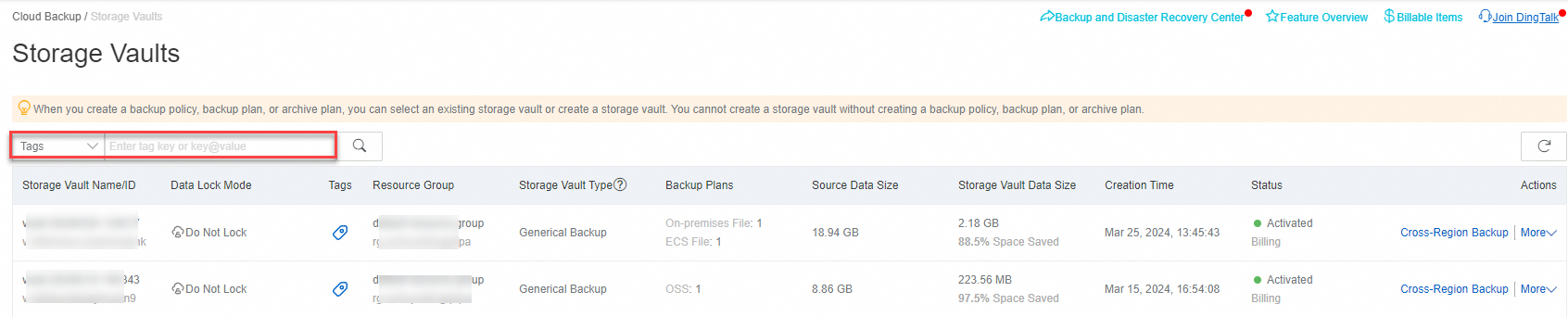
Search for a resource by using a key. Example:
aaaSearch for a resource by using a key-value pair. Example:
aaa@bbbSearch for a resource by using multiple key-value pairs. Example:
aaa@bbb,ccc@ddd
Configure vault features
Enable advanced features for data protection and compliance, including cross-region backup for disaster recovery, immutable backup, and immutable archive.
Configure cross-region backup
Create a mirror backup vault in another region for disaster recovery. Cloud Backup automatically replicates data from the source to the mirror vault. For more information, see Cross-region backup.
Cross-region backup is not supported for archive vaults.
Enable immutable backup
Immutable backup prevents the backup vault and its backups from being modified or deleted during the retention period. For more information, see Immutable backup.
-
Immutable backup is available only for backup vaults whose Storage Vault Type is General Backup. Once enabled, this feature cannot be disabled.
-
Enabling immutable backup does not affect normal backup and restore operations.
In the Actions column of the backup vault, click . In the dialog box, update the vault name and enable immutable backup.
Enable immutable archive
Immutable archive prevents the archive vault and its data from being modified or deleted during the retention period.
-
Immutable archive is available only for archive vaults whose Storage Vault Type is Archive. Once enabled, this feature cannot be disabled.
-
Enabling immutable archive does not affect normal data archiving operations.
In the Actions column of the archive vault, click ⋮ > Configure Archive Vault. In the dialog box, update the vault name and enable immutable archive.
Manage vault settings
Adjust vault settings such as alert notifications and data retention periods.
Configure alert settings
In the Actions column of the storage vault, click to configure alerts. Cloud Backup emails your Alibaba Cloud account by default when a backup fails or a client disconnects.
-
Disabled: No alert notifications are sent.
-
Notify Alibaba Cloud Account: Send email notifications to your Alibaba Cloud account (default).
-
Custom: Select specific contacts or contact groups to receive alert notifications.
Set the retention period
-
Available only when Storage Vault Type is Database Backup. Backup data is automatically deleted after the retention period expires.
-
For archive vaults, set the retention period only when creating an archive plan. It cannot be modified later.
In the Actions column of the database backup vault, click to set the retention period. Retain backup data for a specific duration or permanently.
-
Setting the retention period to 0 permanently retains backup data.
-
Changes apply to all existing backups and may take up to 24 hours to take effect.
-
Incremental, cumulative incremental, and log backups require a complete backup chain. The entire chain is retained until the last backup expires.
Manage vault permissions
Configure RAM user permissions for storage vaults to delegate backup, restore, or archive operations without granting full account access.
Configure permissions for a backup vault
-
In the Actions column of the backup vault, click .
-
Grant a RAM user permissions for backup and restore operations on this vault.
-
Click the
 icon to copy the access policy template. Create a custom policy in the RAM console and attach it to the RAM user. For more information, see Create a custom policy.
Configure permissions for an archive vault
-
In the Actions column of the archive vault, click .
-
Grant a RAM user permissions for data archiving and retrieval on this vault.
-
Click the
icon to copy the access policy template. Create a custom policy in the RAM console and attach it to the RAM user. For more information, see Create a custom policy.
Delete a storage vault
Deleting a storage vault permanently removes all backup and archive data in the vault. This action cannot be undone. Proceed with caution.
In the Actions column of the storage vault, click and confirm the deletion.