You can use a Cloud Backup client to back up Server Message Block (SMB) NAS files from an on-premises data center.
Prerequisites
Ensure that you have completed the preparations.
Create a backup plan
Log on to the Cloud Backup console.
-
In the navigation pane on the left, choose .
-
In the upper-left corner of the top navigation bar, select a region.
-
Select the version of the backup client.
-
If you use the old backup client, click Old Version on the On-Premises File Backup page.
-
If you use the new backup client, click New Version on the On-Premises File Backup page.
-
-
Find the client where the NAS file system is mounted, and in the Actions column, click Back Up.
-
In the Create Backup Plan panel, configure the parameters as described in the following table and click OK.
Parameter
Description
Backup Vault
Select or create a backup vault to store the backup data.
-
Create a vault: Create a new backup vault. If you do not specify a name, a random name is assigned.
-
Select a vault: Select an existing backup vault from the drop-down list.
ImportantYou are charged for backup vaults after creation, even if they do not contain any backup data. For more information, see Billing methods and billable items.
Cloud Backup defaults to zone-redundant storage (ZRS) in supported regions for maximum data redundancy, and falls back to locally redundant storage (LRS) elsewhere. The storage type is selected automatically.
Vault Name
Enter a name for the backup vault.
Vault Resource Group
The resource group for the new backup vault. Required only when you create a new backup vault.
Resource groups help you manage and organize resources and permissions across your Alibaba Cloud account. For more information, see Create a resource group.
Vault Encryption Method
Required only when you create a new backup vault. Specifies the encryption method for the vault.
-
Cloud Backup-managed (default): Uses the default encryption method of Cloud Backup.
-
KMS: Uses a custom key from Key Management Service (KMS) to encrypt data. You must specify the KMS KeyId parameter.
Important-
After you use KMS to encrypt data, you cannot change the KMS key.
-
To use a KMS key to encrypt a backup vault, you must first create a KMS key ID in the KMS console. For more information, see Create a key.
Plan Name
Optional. Enter a name for the backup plan. If you do not specify a name, a random name is assigned.
Backup Folder Rule
Select All Folders or Specified Folders. In this scenario, select Specified Folders and enter the shared directory of the NAS instance to be backed up. For example,
\\00a0e4******q63.cn-hangzhou.nas.aliyuncs.com\myshare.The path can contain Chinese characters, uppercase and lowercase letters, digits, and the following special characters:
,-_=/.:\Exclude System Folders
Enable this option to prevent system folders from being backed up.
Backup File Type
Select All Types or Specified Type.
If you select All Types, all file types are backed up.
If you select Specified Type, you must select the file types to back up in the Select File Type box.
Start Time
Select the time to start the backup. The time is accurate to the second.
Backup Interval
Select the frequency for incremental backups. The unit can be hours, days, or weeks.
Retention Policy
Select Limited or Permanent.
If you select Limited, specify the types of files to be backed up in the Select File Type box.
If you select Permanent, backup files are retained permanently.
Retention Period
This parameter is required only if you set Retention Policy to Limited. The unit can be days, weeks, months, or years.
Use VSS
Windows only. Enable this option to use the Volume Shadow Copy Service (VSS) for backups. VSS does not support multiple paths, UNC paths, wildcards, or file exclusion.
Enable Bandwidth Throttling
Bandwidth throttling controls backup traffic during peak hours to avoid affecting normal business operations.
If you use bandwidth throttling, select a Time Range, enter the Maximum Bandwidth for backups within the specified time range, and then click Add.
After the backup plan is created, view it on the Backup Plans tab.
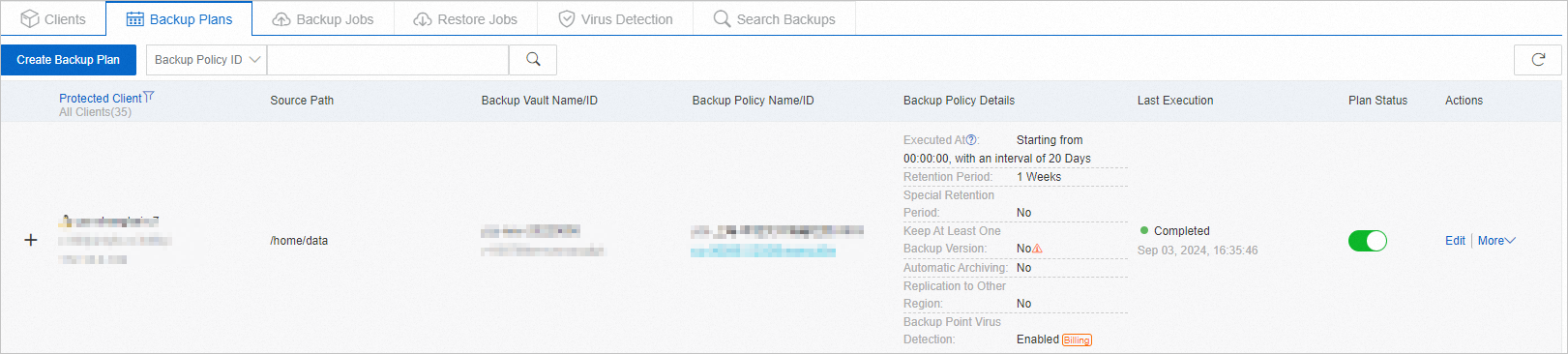
-
-
Click Run Now.
View the progress of the backup job on the Backup Jobs tab.
NoteThe job list displays only the backup jobs from the last six months. To view older jobs, export them from the Reports page.
