Agent-lens is an Agent observability feature of ApsaraDB for ClickHouse Enterprise Edition, built on ClickHouse and Langfuse. It provides end-to-end tracing, prompt management, and automated evaluation to help you trace Agent behavior, quantify costs, and assess performance. This allows you to address common production issues like unpredictable outputs, invisible costs, and uncertain risks. This topic describes how to enable the Agent-lens service and send your first observability data.
For more information about the features and use cases of Agent-lens, see What is Agent-lens?.
Prerequisites
Python 3.9 or later is required.
You have created an ApsaraDB for ClickHouse Enterprise Edition instance to store observability data for the Langfuse service. For more information, see Create a cluster.
The Agent-lens service is currently in beta testing. To enable the service, you must submit a ticket. For more information, see [Beta Test Announcement] Agent-lens for ApsaraDB for ClickHouse Enterprise Edition.
Quick start
Step 1: Enable the Agent-lens service
Log on to the ApsaraDB for ClickHouse console.
On the Clusters page, select Enterprise Edition Clusters, and then click the ID of the target instance to open its details page.
In the left-side navigation pane of the instance details page, click Agent Observability Suite.
In the dialog box that appears, click OK to enable the Agent-lens service.
Enabling the service takes about 10 to 20 minutes. After it is enabled, you can view the service details on the Agent Observability Suite page, including the Cluster Version, VPC Endpoint, Public Address, and Whitelist Settings.
The service creates a database table and a user in your ApsaraDB for ClickHouse Enterprise Edition instance for storing observability data. It also adds the IP addresses of the service to the access whitelist of the instance.
Step 2: Configure the whitelist
The first time you access the Langfuse service page, you must add your local machine's IP address to the service's whitelist.
Wait until the Instance Status changes to Running. Confirm whether the IP address displayed in the dialog box is your local machine's IP address. If it is, click OK. If not, you must manually add the IP address to the whitelist.
Step 3: Create a user
Click Public Address to open the Langfuse service page.
On your first visit, click Sign up, and enter your name, email address, and password to create a Langfuse user.
Step 4: Create an organization and a project
You can select an existing organization at the top of the page or follow these steps to create a new one.
Click New Organization.
Enter an organization name and click Create.
Click Next.
Enter a project name and click Create.
Step 5: Create an API key
A Langfuse API key is used to send observability data to Langfuse.
Click Create new API key to create a new API key.
The secret key is displayed only once. Store the API key securely. If you forget the secret key, you must create a new API key.
You can click the Settings button in the lower-left corner to go to the settings page and manage your API keys.
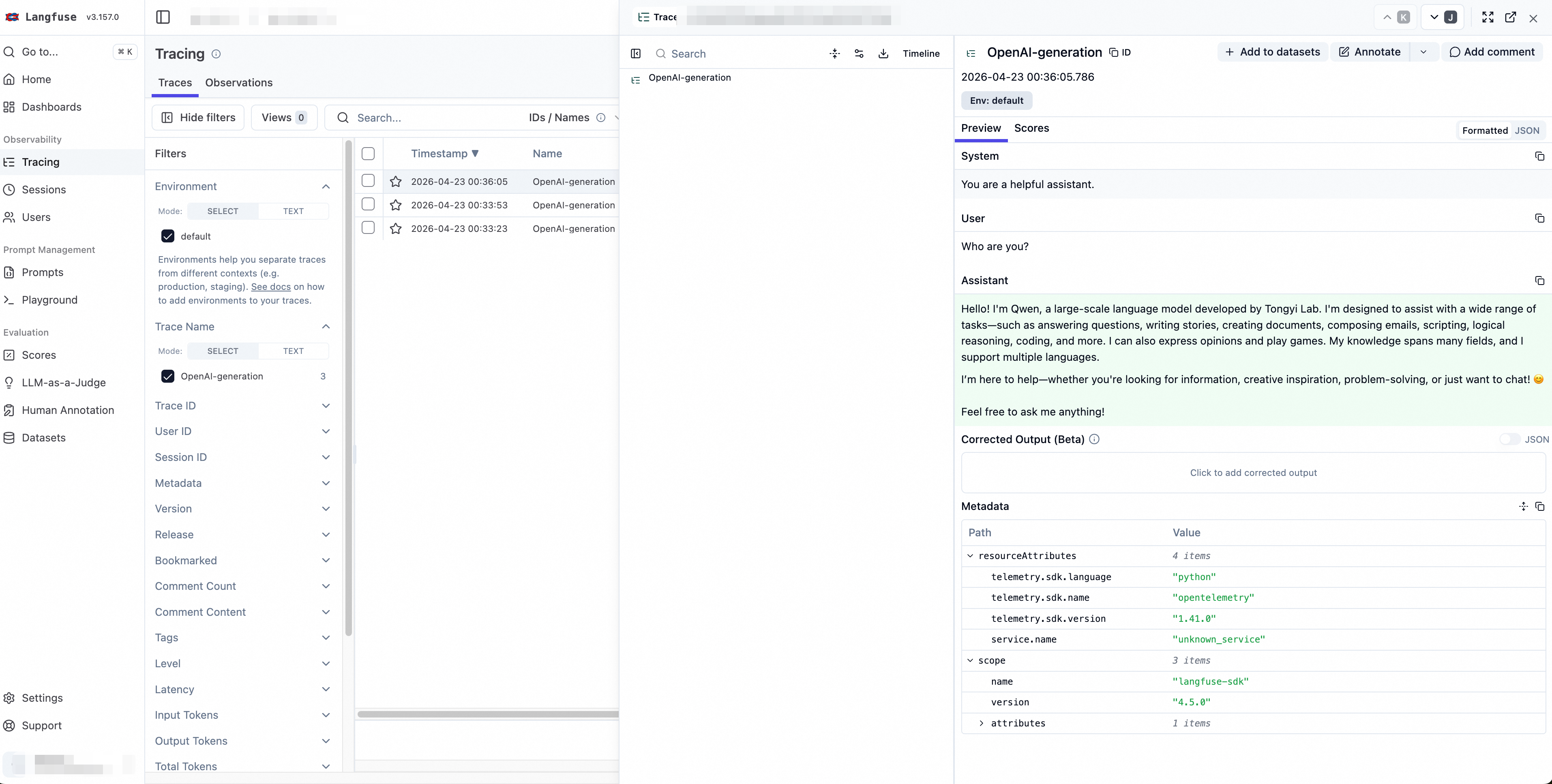
Step 6: Send your first observability data
Langfuse seamlessly integrates with model providers such as Alibaba Cloud Model Studio, OpenAI, and Anthropic. The following example uses Alibaba Cloud Model Studio to demonstrate how to send your first observability data.
Install the Langfuse SDK.
pip install langfuseSet environment variables.
Set the Langfuse API key and service endpoint as environment variables to direct the SDK to the correct Langfuse project. Also, set the Alibaba Cloud Model Studio API key as an environment variable to allow the application to call the Model Studio model service.
NoteBefore sending data, ensure that the IP address of the host where the SDK is running has been added to the Langfuse service whitelist.
export LANGFUSE_SECRET_KEY="sk-lf-..."
export LANGFUSE_PUBLIC_KEY="pk-lf-..."
export LANGFUSE_BASE_URL="http://{your_langfuse_endpoint}:3000"
export DASHSCOPE_API_KEY="sk-..."
Create a file named
quick_start.pyand add the following code.import os from langfuse.openai import OpenAI try: client = OpenAI( api_key=os.getenv("DASHSCOPE_API_KEY"), base_url="https://dashscope-intl.aliyuncs.com/compatible-mode/v1", ) completion = client.chat.completions.create( model="qwen-plus", messages=[ {'role': 'system', 'content': 'You are a helpful assistant.'}, {'role': 'user', 'content': 'Who are you?'} ] ) print(completion.choices[0].message.content) except Exception as e: print(f"Error: {e}") print("For more information, see the documentation at: https://www.alibabacloud.com/help/en/model-studio/error-code")Run the
quick_start.pyfile to send the observability data to the Langfuse service.python quick_start.pyExample output:
Hello! I am Qwen, a large-scale language model from Alibaba Group. I can answer questions, create text such as stories, official documents, emails, and scripts, perform logical reasoning, write code, express opinions, and play games. If you have any questions or need help, feel free to ask me at any time!You can view the collected observability data on the Langfuse service page: