If you plan to switch the version of an ApsaraDB for ClickHouse Community-compatible Edition cluster, you can use the instance migration feature in the ApsaraDB for ClickHouse console to migrate the data. This feature supports full and incremental data migration to ensure data integrity.
Prerequisites
Both the source and destination clusters must meet the following requirements:
Both clusters must be Community-compatible Edition clusters.
NoteTo migrate a Community-compatible Edition cluster to an Enterprise Edition cluster, or vice versa, see Migrate a ClickHouse Community-compatible Edition cluster to an Enterprise Edition cluster.
The status of all is Running.
Each now has a database account and a password.
The tiered storage status for hot and cold data is the same for both.
Both clusters must be in the same region and use the same VPC. The IP address of each cluster must be added to the other's whitelist. If these conditions are not met, you must resolve the network issues first. For more information, see How to resolve network connectivity issues between a destination cluster and a data source.
NoteYou can run the
SELECT * FROM system.clusters;command to view the IP address of an ApsaraDB for ClickHouse instance. For more information about configuring a whitelist, see Set a whitelist.
The destination cluster must also meet the following requirements:
The version is later than or the same as the source cluster version. For the latest version, see Community-compatible Edition.
The available disk storage space (excluding cold storage) is at least 1.2 × the used disk storage space (excluding cold storage) of the source cluster.
Each local table in the source cluster must have a unique distributed table.
Usage notes
Migration speed: The migration speed for a single node in the destination cluster is typically greater than 20 MB/s. If the write speed for a single node in the source cluster also exceeds 20 MB/s, you must verify that the destination cluster's migration speed can keep up with the source cluster's write speed. If it cannot, the migration might never be completed.
During the migration, the destination cluster pauses merge operations, but the source cluster does not.
You can migrate clusters, databases, tables, data dictionaries, materialized views, user permissions, and cluster configurations.
Only data dictionaries created using SQL can be migrated. Data dictionaries created using XML are not supported.
To check, run the following command:
SELECT * FROM system.dictionaries WHERE (database = '') OR isNull(database);. If the command returns a result, this indicates that data dictionaries created using XML exist.If a data dictionary accesses an external service, ensure the service is available and its whitelist allows access from the cluster. If a data dictionary uses an internal table from the current ClickHouse instance as its data source and the
HOSTparameter is set to an IP address, access might fail after migration because the IP address changes. In this case, you must confirm the newHOSTIP address for the ClickHouse instance and manually recreate the data dictionary.
Kafka and RabbitMQ engine tables cannot be migrated.
Data volume:
Cold data: Cold data migrates slowly. We recommend that you clear the cold data in the source cluster to ensure its total size does not exceed 1 TB. Otherwise, the migration might fail due to the long duration.
Hot data: If the hot data exceeds 10 TB, the migration task has a high failure rate. We do not recommend using this method for migration.
If your data does not meet the preceding conditions, you can choose to perform a manual migration.
Migration content:
To ensure that Kafka and RabbitMQ data is not split, clear the Kafka and RabbitMQ engine tables from the source cluster and then create them in the destination cluster. Alternatively, you can use different consumer groups.
Only the table schemas of non-MergeTree tables, such as external tables and Log tables, can be migrated.
If the source cluster contains non-MergeTree tables, these tables in the destination cluster will only have their schemas after migration, without any business data. To migrate the business data, you can use the remote function. For more information, see Use the remote function to migrate data.
Impacts on clusters
Source cluster: During data migration, you can read from and write to tables in the source cluster. However, you cannot perform Data Definition Language (DDL) operations, such as adding, deleting, or modifying the metadata of databases and tables.
ImportantTo ensure the migration task completes, the source cluster automatically pauses data writes within the preset write-stop time window when the estimated remaining migration time in the console is 10 minutes or less.
The source cluster automatically resumes data writes when either all data is migrated within the preset time window, or the time window ends before the migration is complete.
Destination cluster: After the migration, the destination cluster performs frequent merge operations for a period of time. This increases I/O usage and can cause higher latency for service requests. Plan ahead for the potential impact of this increased latency. You must calculate the duration of the merge operations yourself. For information about calculating the duration, see Calculate the merge duration after migration.
Procedure
Perform the following steps on the destination cluster, not the source cluster.
Step 1: Create a migration task
Log on to the ApsaraDB for ClickHouse console.
On the Clusters page, select the Clusters of Community-compatible Edition tab, and then click the ID of the destination cluster.
In the navigation pane on the left, click .
On the migration page, click Create Migration Task.
Configure the source and destination instances.
Configure the following information and click Test Connectivity and Proceed.
NoteAfter the connection test succeeds, continue to the next step. If the test fails, reconfigure the source and destination instances as prompted.
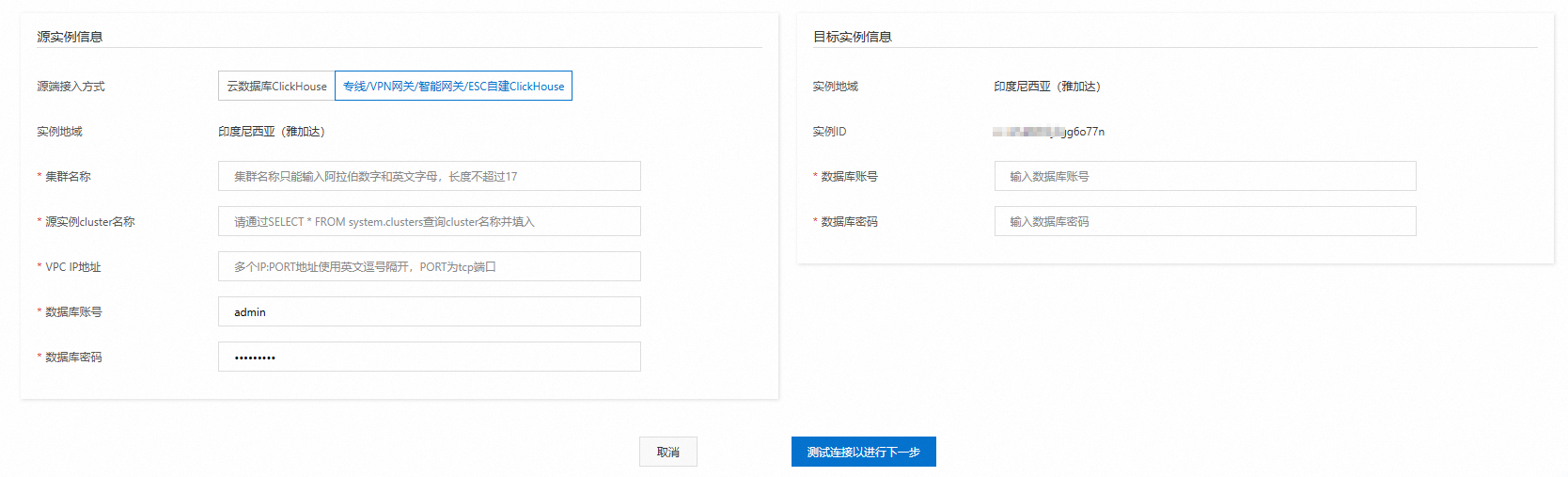
Confirm the migration content.
Carefully read the information about the migration content on the page, and then click Next: Pre-detect and Start Synchronization.
The system performs a precheck and starts the task.
The system performs an Instance Status Detection, Storage Space Detection, and Local Table and Distributed Table Detection on the source and destination instances.
If the check is successful:
Carefully read the information on the page about the impact on the instances during migration.
Set the Time of Stopping Data Writing.
NoteThe source cluster must stop writes during the last 10 minutes of the migration to ensure data consistency.
To ensure a high success rate for the migration, we recommend that you set the write-stop time to at least 30 minutes.
A migration task must end within five days of its creation. Therefore, the end date for Time of Stopping Data Writing must be no later than
current date + 5 days.To reduce the impact on your business, we recommend that you set the write-stop time window to your off-peak hours.
Click Completed.
NoteWhen you click Complete, the task is created and started.
If the check fails: Follow the prompts to resolve the issues and then retry the data migration. The check items and requirements are as follows.
Check item
Requirement
Instance Status Check
When the migration starts, no management tasks, such as scale-out or configuration changes, can be running on the source or destination clusters. If a management task is running, you cannot start the migration task.
Storage Space Check
Before the migration, the system checks the storage space. The storage space of the destination cluster must be at least 1.2 times the storage space of the source cluster.
Local Table and Distributed Table Check
The check fails if a local table in the source cluster does not have a distributed table, or if its distributed table is not unique. You must delete the extra distributed tables or create a unique distributed table.
Step 2: Assess whether the migration can be completed
If the write speed of the source cluster is less than 20 MB/s, you can skip this step.
If the source cluster's write speed is greater than 20 MB/s, you must check the destination cluster's actual write speed to assess whether the migration can be completed. The destination cluster's write speed must be able to keep up with that of the source cluster. Perform the following steps:
Check the Disk throughput of the destination cluster to determine its actual write speed. For more information about how to view the Disk throughput, see View cluster monitoring information.
Compare the write speeds of the destination and source clusters.
If the destination cluster's write speed is greater than the source cluster's write speed: The migration has a high success rate. You can proceed to Step 3.
If the write speed of the destination cluster is lower than that of the source cluster, the migration may fail. We recommend that you cancel the migration task and perform a manual migration.
Step 3: View the migration task
On the Clusters page, select the Clusters of Community-compatible Edition tab, and then click the ID of the destination cluster.
In the navigation pane on the left, click Migration from ClickHouse.
On the instance migration list page, you can view the Migration Status, Running Information, and Data Write-Stop Window of the migration task.
NoteWhen the estimated remaining time in the Running Information column is 10 minutes or less and the migration status is Migrating, the source cluster write-stop is triggered to ensure data consistency. The rules are as follows:
If the trigger time is within the preset write-stop time window for the source cluster, the source cluster stops writes.
If the trigger time is not within the predefined write-stop time window of the source cluster and is less than or equal to
the task creation date + 5 days, you can modify the write-stop time window to continue the migration task.If the trigger time is not within the predefined write-stop time window of the source cluster and is greater than
the task creation date + 5 days, the migration fails. You must cancel the migration task, clear the migrated data in the destination cluster, and recreate the migration task.
Step 4: (Optional) Cancel the migration task
On the Clusters page, select the Clusters of Community-compatible Edition tab, and then click the ID of the destination cluster.
In the navigation pane on the left, click Migration from ClickHouse.
In the Actions column of the target migration task, click Stop Migration.
In the Stop Migration dialog box, click OK.
NoteAfter you cancel the migration, the task list is not updated immediately. We recommend that you refresh the page periodically to check the task status.
After the task is canceled, its Migration Status changes to Completed.
Before you start a new migration, you must clear the migrated data from the destination cluster to avoid data duplication.
Step 5: (Optional) Modify the write-stop time window
On the Clusters page, select the Clusters of Community-compatible Edition tab, and then click the ID of the destination cluster.
In the navigation pane on the left, click Migration from ClickHouse.
In the Actions column of the target migration task, click Modify Data Write-Stop Time Window.
In the Modify Data Write-Stop Time Window dialog box, select a Write-stop Time.
NoteThe rules for setting the data write stop time are the same as those used when creating a migration task.
Click OK.
References
To learn how to migrate data from a self-managed ClickHouse cluster to ApsaraDB for ClickHouse, see Migrate data from a self-managed ClickHouse cluster to an ApsaraDB for ClickHouse Community-compatible Edition cluster.