This topic describes how to install, verify, update, and uninstall Alibaba Cloud CLI on Linux, macOS, and Windows.
Version information
Alibaba Cloud CLI releases new versions regularly. We recommend that you always use the latest version for the best experience. Run aliyun version to check your current version. Visit the GitHub Releases page for the latest version and release notes.
Versions earlier than 3.3.0 have reached end of life (EOL) and no longer receive feature updates or security fixes. If your version is below 3.3.0, see the migration guide to upgrade.
Prerequisites
You have an Alibaba Cloud account.
(Optional) The
curlcommand-line tool. Most macOS and Linux distributions include it by default. You can skip this requirement if you install through a package manager or a graphical installer.
Supported operating systems
Operating system | Supported versions | Supported architectures |
Linux | CentOS 8+, RHEL 8+, Ubuntu 16.04+, Debian 9+, and other major distributions. CentOS 7 has reached EOL and is not recommended. | x86_64 (64-bit), ARM64 |
macOS | macOS 11 (Big Sur) or later | Intel and Apple silicon (Universal binary) |
Windows | Windows 10 and later (64-bit) | x86_64 only. 32-bit and ARM64 are not supported. |
Install Alibaba Cloud CLI
Select your operating system, then choose an installation method.
Linux
Use the Bash script for a quick one-command install, or use the .tar.gz package for air-gapped environments or custom install paths.
Use a Bash script (recommended)
The script detects your system architecture, downloads the correct package, and places the aliyun binary in /usr/local/bin/.
Install the latest version
/bin/bash -c "$(curl -fsSL https://aliyuncli.alicdn.com/install.sh)"Install a specific version
Use the
-Vflag to specify a version. Check GitHub Releases for available versions./bin/bash -c "$(curl -fsSL https://aliyuncli.alicdn.com/install.sh)" -- -V 3.3.18
Use a .tar.gz package
Download the package that matches your system architecture.
NoteRun
uname -mto check your architecture.arm64oraarch64indicates ARM64; other output indicates x86_64.x86_64 (64-bit):
curl https://aliyuncli.alicdn.com/aliyun-cli-linux-latest-amd64.tgz -o aliyun-cli-linux-latest.tgzARM64:
curl https://aliyuncli.alicdn.com/aliyun-cli-linux-latest-arm64.tgz -o aliyun-cli-linux-latest.tgzTo download a specific version, visit the GitHub Releases page. Package names follow the format
aliyun-cli-linux-<version>-<arch>.tgz, where<arch>isamd64orarm64.
Extract the package.
tar xzvf aliyun-cli-linux-latest.tgzMove the binary to a directory in your PATH.
sudo mv ./aliyun /usr/local/bin/
macOS
Use Homebrew (recommended)
Homebrew must be installed before you proceed.
Install the latest version:
brew install aliyun-cliUse the macOS installer (.pkg)
Download the installer.
Latest version: Download from https://aliyuncli.alicdn.com/aliyun-cli-latest.pkg.
Specific version: Visit the GitHub Releases page. Installer names follow the format
aliyun-cli-<version>.pkg.
Double-click the downloaded
.pkgfile and follow the on-screen instructions.NoteIf macOS blocks the installer with a security warning, open System Settings > Privacy & Security and click Open Anyway to proceed.
Use a Bash script
The script detects macOS and downloads the universal binary automatically. The commands are the same as on Linux.
Install the latest version
/bin/bash -c "$(curl -fsSL https://aliyuncli.alicdn.com/install.sh)"Install a specific version
Check GitHub Releases for available versions.
/bin/bash -c "$(curl -fsSL https://aliyuncli.alicdn.com/install.sh)" -- -V 3.3.18
Use a .tar.gz package
Download the package.
Latest version:
curl https://aliyuncli.alicdn.com/aliyun-cli-macosx-latest-universal.tgz -o aliyun-cli-macosx-latest-universal.tgzSpecific version: Visit the GitHub Releases page. Package names follow the format
aliyun-cli-macosx-<version>-universal.tgz.
Extract the package.
tar xzvf aliyun-cli-macosx-latest-universal.tgzMove the binary to a directory in your PATH.
sudo mv ./aliyun /usr/local/bin
Windows
Alibaba Cloud CLI supports only x86_64 (64-bit) Windows systems. 32-bit and ARM64 systems are not supported.
Use the ZIP package for a quick manual install, or use the PowerShell script for automated installs.
Use a ZIP package
Download the package.
Latest version: Download from https://aliyuncli.alicdn.com/aliyun-cli-windows-latest-amd64.zip.
Specific version: Visit the GitHub Releases page. Package names follow the format
aliyun-cli-windows-<version>-amd64.zip.
Extract
aliyun.exeto a directory of your choice. For example,C:\AliyunCLI.Notealiyun.exeis a command-line tool. Double-clicking it has no effect. Run it from a terminal (Command Prompt or PowerShell).Press Windows + S and search for environment variables.
Click Edit the environment variables for your account.
Under User variables, select
Pathand click Edit.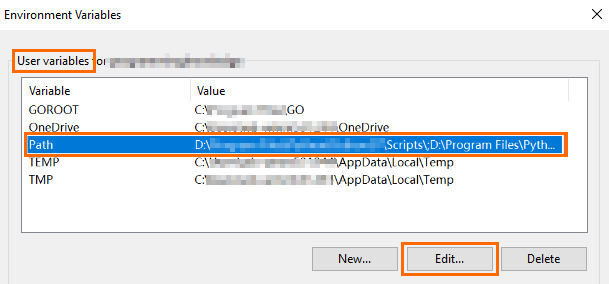
Click New and enter the directory path (for example,
C:\AliyunCLI).
Click OK in each dialog to save.
Restart your terminal for the change to take effect.
Use a PowerShell script
Create a file named
Install-CLI-Windows.ps1and paste the following script into it.Run the script to install Alibaba Cloud CLI.
NoteThe example script path is
C:\Example\Install-CLI-Windows.ps1. Replace it with your actual script path.Install the latest version. The default installation path is
C:\Users\<USERNAME>\AppData\Local\AliyunCLI.powershell.exe -ExecutionPolicy Bypass -File C:\Example\Install-CLI-Windows.ps1Specify a version (from GitHub Releases) and installation directory.
powershell.exe -ExecutionPolicy Bypass -File C:\Example\Install-CLI-Windows.ps1 -Version 3.3.18 -InstallDir "C:\ExampleDir\AliyunCLI"
Verify the installation
Open a new terminal and run:
aliyun versionA version number such as 3.3.18 confirms a successful installation.
To further verify that the CLI works correctly:
aliyun configure listThis displays your credential profiles, even if the list is empty.
If the command returns command not found, see Troubleshooting.
After installation, configure your access credentials to start using Alibaba Cloud CLI:
Get started quickly: Configure credentials and run your first command.
Configure and manage credentials: Set up access keys, RAM roles, or other identity types.
Update Alibaba Cloud CLI
Run aliyun version to check your current version, then follow the appropriate upgrade path.
Determine your installation method
If you are unsure how the CLI was installed, locate the binary:
Linux/macOS: Run
which aliyun.Path contains
/homebrew/or/linuxbrew/→ Homebrew.Path is
/usr/local/bin/aliyun→ Bash script or .tar.gz package.Other path → .tar.gz package to a custom directory.
Windows: Run
where aliyun.exein Command Prompt.Path is
%LOCALAPPDATA%\AliyunCLI\aliyun.exe→ PowerShell script (default path).Other path → ZIP package to a custom directory.
Check your version
Run aliyun version to check your current version, then follow the appropriate upgrade path:
Version 3.3.5 or later: Use
aliyun upgrade(recommended) or reinstall.Version 3.3.0 to 3.3.4: Reinstall to update. After reaching 3.3.5+, use
aliyun upgradefor future updates.Version earlier than 3.3.0: See the migration guide to upgrade first.
Use aliyun upgrade (recommended)
Available in version 3.3.5 and later. This command downloads and installs the latest version.
Update to the latest version:
aliyun upgradeTo skip the confirmation prompt:
aliyun upgrade --yes
aliyun upgrade does not apply to Homebrew installations. Use brew upgrade aliyun-cli instead.
Update by reinstalling
Choose the method that matches your original installation:
Bash script (Linux/macOS): Re-run the installation script to update to the latest version.
/bin/bash -c "$(curl -fsSL https://aliyuncli.alicdn.com/install.sh)"Homebrew (macOS):
brew update && brew upgrade aliyun-cli && brew cleanup aliyun-climacOS installer (.pkg) / ZIP package (Windows):
macOS installer (.pkg): Download the latest .pkg and run it. The new binary overwrites the previous installation.
ZIP package (Windows): Download the latest .zip, extract
aliyun.exe, and replace the existing binary. No PATH changes needed.
.tar.gz package (Linux/macOS): Download the latest package, extract, and move the binary to the same directory as your original installation.
PowerShell script (Windows): Re-run the script with the same parameters. Add
-Version <version>to install a specific version.powershell.exe -ExecutionPolicy Bypass -File <script_path> [-InstallDir <install_path>]NoteAdd
-Version <version>to update to a specific version. Omit it to install the latest release. Check GitHub Releases for available versions.
Notes
If you used a custom installation directory, specify the same directory when updating.
If you need to switch installation methods or change the install directory, fully uninstall first, then reinstall.
Verify the update
Confirm the update was successful:
aliyun versionUninstall Alibaba Cloud CLI
Linux
Use the command line
Locate and remove the binary:
sudo rm -v "$(which aliyun)"If you installed to a custom directory and added it to PATH, remove that entry from your shell configuration file (
~/.bashrcfor Bash or~/.zshrcfor Zsh) and reload:source ~/.bashrcNoteReplace
~/.bashrcwith~/.zshrcif your default shell is Zsh.
Use a Bash script
Create a script file and paste the following content into it.
Run the script:
# Uninstall only the executable file
bash <script_path>

# Uninstall the executable file and delete the configuration file
bash <script_path> -C

# View script help
bash <script_path> -h
macOS
Use Homebrew
Uninstall Alibaba Cloud CLI:
brew uninstall aliyun-cliUse the command line
Remove the
aliyunbinary:BINARY=$(which aliyun 2>/dev/null) && [ -n "$BINARY" ] && sudo rm -v "$BINARY"If you installed to a custom directory and added it to PATH, remove that entry from
~/.zshrc(or~/.bashrc) and reload:source ~/.zshrcNoteReplace
~/.zshrcwith~/.bashrcif you use Bash.
Windows
Use File Explorer
Navigate to the installation directory and delete
aliyun.exe.Press Windows + S and search for environment variables.
Click Edit the environment variables for your account.
Under User variables, select
Pathand click Edit.Select the Alibaba Cloud CLI directory entry and click Delete.

Click OK in each dialog to save.
Use a PowerShell script
Create a script file and paste the following content into it.
Run the script:
# Uninstall only the executable file
powershell.exe -ExecutionPolicy Bypass -File <script_path>

# Uninstall the executable file and delete the configuration file
powershell.exe -ExecutionPolicy Bypass -File <script_path> -Clean

# View script help
powershell.exe -ExecutionPolicy Bypass -File <script_path> -Help
Remove configuration files (optional)
Alibaba Cloud CLI stores configuration in the .aliyun directory under your user home directory. Delete it to fully remove all CLI data:
Linux/macOS:
~/.aliyunWindows:
C:\Users\<USERNAME>\.aliyun
Troubleshooting
The aliyun command returns "command not found"
The aliyun binary is not in your PATH or was not installed correctly.
Linux/macOS: Run
which aliyun. If a path is returned, the binary exists but its directory is not inPATH. If no path is returned, the binary was not installed. Retry the installation using one of the methods in the Install section.Windows: Run
where aliyunin Command Prompt. If a path is returned, the binary exists but its directory is not inPATH. If no path is returned, the binary was not installed. Retry the installation using one of the methods in the Install section.
If the binary is found, add its directory to PATH for your shell:
Bash: Add
export PATH="$PATH:/your/install/dir"to~/.bashrc, then runsource ~/.bashrc.Zsh: Add the same line to
~/.zshrc, then runsource ~/.zshrc.Windows: Follow steps 3–8 in the Windows > Use a ZIP package installation section to add the installation directory to the
Pathenvironment variable, then restart your terminal.
aliyun version shows a different version than expected
Multiple aliyun binaries may exist on your system. Run which aliyun (Linux/macOS) or where aliyun (Windows) to check which binary your shell resolves. If it points to an older installation, delete the old binary or reorder your PATH directories so the new installation takes precedence. Restart your terminal and run aliyun version again.
Installation fails with "Permission denied"
System directories such as /usr/local/bin require administrator privileges. On Linux and macOS, prefix the command with sudo (for example, sudo mv ./aliyun /usr/local/bin/). On Windows, run PowerShell as an administrator.
Homebrew installation or update times out on macOS
This typically happens due to slow network access to the GitHub CDN. Configure a domestic Homebrew mirror such as USTC, as described in the Homebrew installation section. To persist the mirror settings, add the export lines to ~/.zshrc (or ~/.bashrc) and run source ~/.zshrc.
Double-clicking aliyun.exe on Windows has no effect
Alibaba Cloud CLI is a command-line tool with no graphical interface. Open Command Prompt or PowerShell, navigate to the directory containing aliyun.exe (or ensure it is in your PATH), and run commands from there.