Connect a VBR and VPC instances to a transit router to enable communication between your on-premises IDC and same-region Virtual Private Cloud (VPC) instances, and between VPC instances in the same region.
Scenario
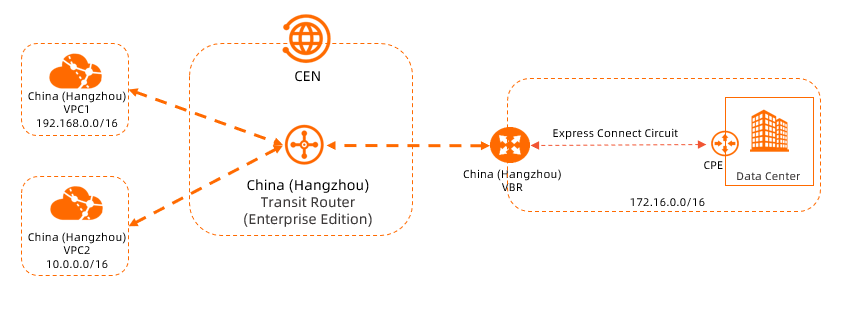
A company has an on-premises IDC in Hangzhou connected to Alibaba Cloud through an Express Connect circuit and a VBR. The company also has two VPCs (VPC1 and VPC2) in the China (Hangzhou) region, each running applications on ECS instances. The IDC and VPCs cannot communicate, but business growth requires them to share resources.
By using CEN to connect the two VPCs and VBR to a transit router in the China (Hangzhou) region, the company enables mutual access between the IDC and both VPCs.
Prerequisites
Your on-premises IDC is connected to Alibaba Cloud through an Express Connect circuit and a VBR. Access an ECS instance from an on-premises IDC by using an Express Connect circuit.
You have created two VPCs in the China (Hangzhou) region. ECS instances are deployed in both VPCs to host applications. For more information, see Create an IPv4 VPC.
Each VPC has vSwitches in the Enterprise Edition transit router zones, each with at least one idle IP address.
For single-zone regions such as China (Nanjing-Local Region), the VPC must have at least one vSwitch in that zone.
For multi-zone regions such as China (Shanghai), the VPC must have at least two vSwitches in different zones.
If the transit router does not support the zone of your existing resources but supports other zones in the same region, create a vSwitch in a supported zone and create a VPC connection using that vSwitch.
The following table shows the network plan for the two VPCs, VBR, and on-premises IDC. Ensure that CIDR blocks of connected networks do not overlap.
Property
VPC1
VPC2
VBR
On-premises IDC
Region of network instance
China (Hangzhou)
China (Hangzhou)
China (Hangzhou)
Hangzhou
CIDR block of network instance
VPC CIDR block: 192.168.0.0/16
vSwitch 1 CIDR block: 192.168.20.0/24
vSwitch 2 CIDR block: 192.168.21.0/24
VPC CIDR block: 10.0.0.0/16
vSwitch 1 CIDR block: 10.0.0.0/24
vSwitch 2 CIDR block: 10.0.1.0/24
VLAN ID: 0
IPv4 address on the Alibaba Cloud side: 172.16.1.2. The subnet mask is 255.255.255.252.
IPv4 address on the on-premises side: 172.16.1.1. The subnet mask is 255.255.255.252.
On-premises network CIDR block: 172.16.0.0/16
Zone of vSwitches
vSwitch 1 is in Zone H
vSwitch 2 is in Zone I
vSwitch 1 is in Zone H
vSwitch 2 is in Zone I
Not applicable
Not applicable
Server IP address
ECS1 IP address: 192.168.20.161
ECS2 IP address: 10.0.0.33
Not applicable
On-premises server IP address: 172.16.0.89
You have reviewed the security group rules for the ECS instances in both VPCs and the access control rules for the on-premises IDC server. Ensure that these rules permit access between all connected networks. For more information, see Query security group rules and Add a security group rule.
Procedure

Step 1: Create a CEN instance
A CEN instance is the foundational resource for managing your network. Create one before establishing network connections.
Log on to the CEN console.
-
On the Instances page, click Create CEN Instance.
In the Create CEN Instance dialog box, configure the following parameters and click OK.
Name: Enter a name for the CEN instance.
Description: Enter a description for the CEN instance.
Resource Group: Select a resource group for the CEN instance.
In this tutorial, leave this empty. The instance is added to the default resource group.
Tag: Add a tag to the CEN instance. In this tutorial, this parameter is left empty.
Step 2: Create a transit router
Create a transit router in the region where the network instances are deployed.
Log on to the CEN console.
On the CEN Instance page, click the ID of the CEN instance that you created in Step 1.
On the tab, click Create Transit Router.
In the Create Transit Router dialog box, configure the parameters for the transit router and click OK.
Parameter
Description
Configuration
Region
The region to deploy the transit router.
In this tutorial, select China (Hangzhou).
Edition
The edition of the transit router.
Automatically determined based on the current region.
Enable Multicast
Whether to enable multicast for the transit router.
In this tutorial, keep the default (disabled).
Name
Enter a name for the transit router.
Enter a custom name.
Description
Enter a description for the transit router.
Enter a custom description.
Tag
Enter a tag for the transit router.
In this tutorial, this parameter is left empty.
Transit Router CIDR
Enter a CIDR block for the transit router.
For more information, see Transit router CIDR blocks.
Not required in this tutorial.
Step 3: Connect the VPCs
Connect VPC1 and VPC2 to the transit router in the China (Hangzhou) region.
On the CEN Instance page, click the ID of the CEN instance that you created in Step 1.
Go to the tab, find the transit router that you want to manage, and then click Create Connection in the Actions column.
On the Connection with Peer Network Instance page, configure the parameters and click OK.
The following table describes parameters for VPC1 and VPC2.
NoteThis operation automatically creates a service-linked role named AliyunServiceRoleForCEN, which grants the transit router permissions to create an ENI on a vSwitch in the VPC. For more information, see AliyunServiceRoleForCEN.
Parameter
Description
VPC1
VPC2
Network Type
The type of network instance to connect.
VPC
VPC
Region
Region of the network instance.
China (Hangzhou)
China (Hangzhou)
Transit Router
Automatically displays the transit router ID in this region.
Account
Account type of the network instance owner.
Your Account
Your Account
Billing Method
The default value is Pay-As-You-Go.
For more information about billing, see Billing overview.
Attachment Name
Enter a name for the network connection.
VPC1-test
VPC2-test
Tag
Add a tag to the network connection.
In this tutorial, this parameter is left empty.
In this tutorial, this parameter is left empty.
Networks
Select the network instance to connect.
Select VPC1.
Select VPC2.
VSwitch
Select a vSwitch in a transit router-supported zone.
Select vSwitches in multiple supported zones for zone-level disaster recovery.
Hangzhou Zone H: Select vSwitch 1.
Hangzhou Zone I: Select vSwitch 2.
Hangzhou Zone H: Select vSwitch 1.
Hangzhou Zone I: Select vSwitch 2.
Advanced Settings
The following three advanced features are selected by default. Clear options as needed.
For both VPC1 and VPC2, keep all defaults selected.
Associate with Default Route Table of Transit Router
If enabled, the VPC connection is associated with the system route table of the transit router, which forwards the VPC's traffic.
Propagate system routes to transit router route table
If enabled, the VPC advertises its system routes to the transit router's system route table, allowing network instances to communicate.
Auto-add transit router routes to all VPC route tables
If enabled, the system adds three route entries (10.0.0.0/8, 172.16.0.0/12, and 192.168.0.0/16) to all VPC route tables with the next hop pointing to the VPC connection, directing traffic to the transit router. The transit router does not advertise routes to the VPC by default.
ImportantFor IPv6 traffic, after creating the VPC connection, enable route synchronization or manually add IPv6 route entries pointing to the VPC connection in the VPC.
Click Back to list to return to the details page of the CEN instance.
Step 4: Connect the VBR
On the CEN Instance page, click the ID of the CEN instance that you created in Step 1.
Go to the tab, find the transit router that you want to manage, and then click Create Connection in the Actions column.
On the Connection with Peer Network Instance page, configure the following parameters and click OK.
Network Type: Select Virtual Border Router (VBR).
Region: Select the region where the network instance is deployed. In this tutorial, select China (Hangzhou).
Transit Router: The ID of the transit router in the current region is automatically displayed.
Account: Select the type of account to which the network instance belongs. In this tutorial, use the default value Your Account.
Attachment Name: Enter a name for the network connection. In this tutorial, enter VBR.
Tag: Add a tag to the network connection. In this tutorial, this parameter is left empty.
Networks: Select the ID of the network instance to connect. In this tutorial, select the VBR.
Advanced Settings: The system selects the following advanced features by default. In this tutorial, keep the default settings.
Associate with Default Route Table of Transit Router
With this option selected, the VBR connection is automatically associated with the system route table of the transit router, and the transit router forwards traffic based on the system route table.
Propagate system routes to transit router route table
With this option selected, the VBR propogates its system route entries to the system route table of the transit router.
Propagate Routes to VBR
With this option selected, the route entries in the transit router route table with which the VBR connection is associated are automatically propogated to the VBR.
Click Back to list to return to the details page of the CEN instance.
Step 5: Test the connectivity
After completing the preceding steps, VPC1, VPC2, and the on-premises IDC can communicate. Test connectivity between the VPCs and between each VPC and the IDC.
Before you begin, make sure that the security group rules of the ECS instances allow ICMP access. For more information, see Query security group rules and Add a security group rule.
Test the connectivity between VPC1 and VPC2.
Log on to the ECS instance in VPC1. Connect to an ECS instance.
From the ECS instance in VPC1, run the ping command to try to access the ECS instance in VPC2.
ping <IP address of the ECS instance in VPC2>A reply indicates that VPC1 and VPC2 can communicate.
[root@VPC1 ~]# ping 10.0.0.33
PING 10.0.0.33 (10.0.0.33) 56(84) bytes of data.
64 bytes from 10.0.0.33: icmp_seq=1 ttl=63 time=2.14 ms
64 bytes from 10.0.0.33: icmp_seq=2 ttl=63 time=2.00 ms
64 bytes from 10.0.0.33: icmp_seq=3 ttl=63 time=2.01 ms
64 bytes from 10.0.0.33: icmp_seq=4 ttl=63 time=6.22 ms
^Z
[1]+  Stopped                 ping 10.0.0.33
[root@VPC1 ~]#
Test the connectivity between VPC1 and the on-premises IDC.
Log on to the ECS instance in VPC1.
Run the ping command from the ECS instance in VPC1 to access the server in the on-premises IDC.
ping <IP address of the on-premises server>A reply indicates that VPC1 and the on-premises IDC can communicate.
Test the connectivity between VPC2 and the on-premises IDC.
Log on to the ECS instance in VPC2.
From the ECS instance in VPC2, run the ping command to access the server in the on-premises IDC.
ping <IP address of the on-premises server>A reply indicates that VPC2 and the on-premises IDC can communicate.
Routes
After you connect VPC1, VPC2, and the VBR, CEN automatically advertises and learns routes to enable communication between all connected networks:
The transit router in the China (Hangzhou) region automatically learns the route entries from VPC1, VPC2, and the VBR.
The VBR automatically learns the route entries to VPC1 and VPC2 from the transit router.
CEN adds three route entries to the system route tables of VPC1 and VPC2: 10.0.0.0/8, 172.16.0.0/12, and 192.168.0.0/16. The next hop points to the transit router.
The VPCs use these routes to send traffic to the transit router, which enables communication between the VPCs and between the VPCs and the IDC.
The following content shows the route entries for the transit router, VPC1, VPC2, and the VBR. You can view route entries in the CEN console: View the route table of an Enterprise Edition transit router and View the route table of a network instance.
The default route table (type: system, status: available) of the transit router in the China (Hangzhou) region contains the following automatically learned route entries:
Destination CIDR block 10.0.1.0/24, next hop: VPC2 connection
Destination CIDR block 10.0.2.0/24, next hop: VPC2 connection
Destination CIDR block 172.16.1.0/24, next hop: VBR connection
Destination CIDR block 192.168.20.0/24, next hop: VPC1 connection
Destination CIDR block 192.168.21.0/24, next hop: VPC1 connection
The VPC1 route table contains the following route entries:
Destination CIDR block
10.0.0.0/8, route type: custom, next hop: VPC2 connectionDestination CIDR block
172.16.0.0/12, route type: custom, next hop: VBR connectionDestination CIDR block
192.168.0.0/16, route type: custom, next hop: VPC1 connectionDestination CIDR block
100.64.0.0/10, route type: systemDestination CIDR block
192.168.20.0/24, route type: systemDestination CIDR block
192.168.21.0/24, route type: system
The VPC2 route table contains the following route entries:
Destination CIDR block
10.0.0.0/8, route type: custom, next hop: VPC2 connectionDestination CIDR block
172.16.0.0/12, route type: custom, next hop: VBR connectionDestination CIDR block
192.168.0.0/16, route type: custom, next hop: VPC1 connectionDestination CIDR block
100.64.0.0/10, route type: systemDestination CIDR block
10.0.1.0/24, route type: systemDestination CIDR block
10.0.2.0/24, route type: system
The VBR route table contains the following route entries:
Destination CIDR block
10.0.1.0/24, route type: CEN, next hop: China (Hangzhou) VPCDestination CIDR block
10.0.2.0/24, route type: CEN, next hop: China (Hangzhou) VPCDestination CIDR block
172.16.1.0/24, route type: custom, next hop: Express Connect circuitDestination CIDR block
192.168.20.0/24, route type: CEN, next hop: China (Hangzhou) VPCDestination CIDR block
192.168.21.0/24, route type: CEN, next hop: China (Hangzhou) VPC
FAQ
Do I need to purchase ECS instances in the transit region when connecting an on-premises IDC to a cloud VPC across regions?
No. The transit region (for example, China (Hong Kong)) does not require ECS instances. You only need to create a VPC and a vSwitch in the transit region, and then connect the VPC to CEN to enable traffic forwarding.
Example scenario: Your on-premises server is deployed in Taiwan, and your database is deployed in an Alibaba Cloud VPC in the China (Shenzhen) region. To enable the Taiwan server to access the Shenzhen database:
Connect the Taiwan server to a nearby Alibaba Cloud region (for example, China (Hong Kong)) through VPN Gateway or Express Connect.
Configure an inter-region connection between China (Hong Kong) and China (Shenzhen) through CEN.
The Taiwan server can then access the Shenzhen VPC database over the private network. The transit region (China (Hong Kong)) serves only as a traffic relay — no ECS instances are required there.