After you create an application and configure relevant resource parameters in Cloud Architect Design Tool (CADT), you can open the application architecture and verify the availability of resources. CADT checks whether the cloud services that you configure are activated, whether the resource inventory is sufficient, and whether the resource parameters and connection lines are correctly configured.
Prerequisites
The CADT permissions are configured. For more information, see Introduction to CADT permissions.
An application architecture is created and relevant resource parameters are configured. For more information, see Create a custom application, Create an application based on an official solution, and Configure resource parameters.
Procedure
Log on to the CADT console.
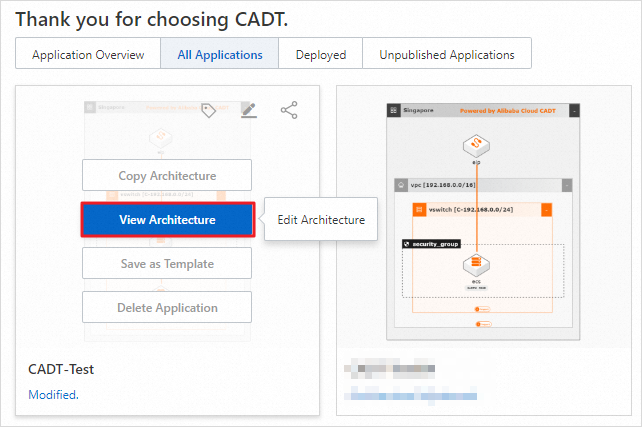
In the navigation bar, choose Application > My Applications. On the page that appears, find the application that you want to deploy, move the pointer over the application, and then click View Architecture.
NoteIf you have opened the application architecture on the canvas, skip this step.
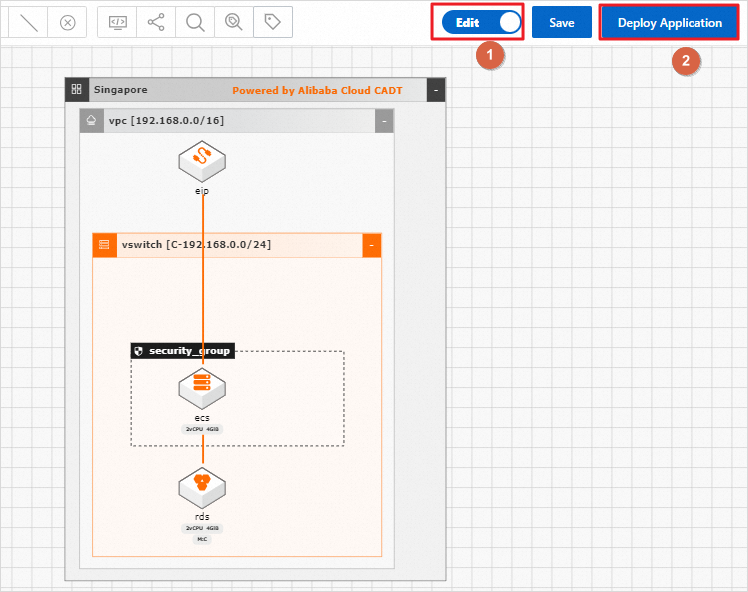
Turn on the Edit mode and click Deploy Application.
Verify the availability of resources. CADT checks whether the cloud services that you configure are activated, whether the resource inventory is sufficient, and whether the resource parameters and connection lines are correctly configured.
The verification is successful.
In this case, all resources and their configurations in the application pass the verification, and you can click Next: Price List.

The verification fails.
In this case, one or more resources in the application are incorrectly configured. You must modify the resource configurations as prompted and perform resource verification again.