Cloud Architect Design Tools (CADT) lets you design a custom application architecture by dragging cloud resources onto a canvas and connecting them.
Example application architecture
The following example architecture consists of one ECS instance, one EIP, and one ApsaraDB RDS instance in the Singapore region. The EIP is bound to the ECS instance, and CADT automatically adds the private IP address of the ECS instance to the ApsaraDB RDS whitelist.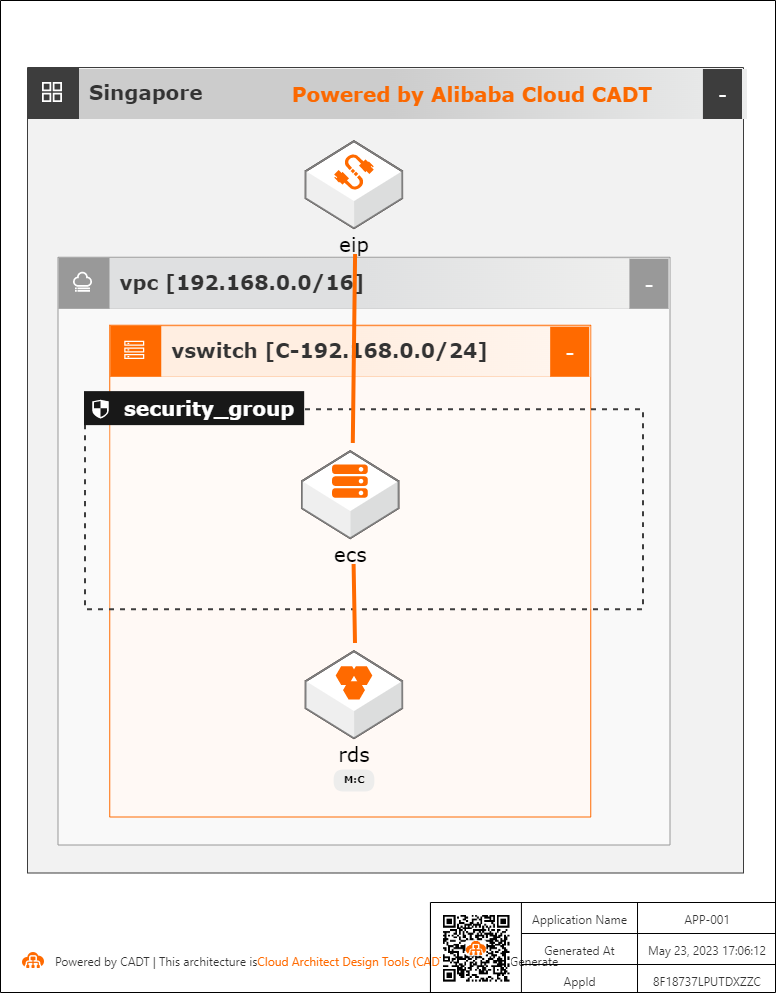
Create a CADT application
-
Log on to the Cloud Architect Design Tools (CADT) console. The left navigation pane shows the feature menu, and the middle area shows the application workspace.
-
In the menu bar, click Create > Application. A drop-down menu appears.
-
Build the network environment. CADT provides draggable network topology templates. This topic uses the single region, single zone network topology. Click Quick Start, select Single Region, Single Zone, and drag it onto the canvas. CADT automatically generates a network topology that contains a VPC and a vSwitch.
-
Refer to the architecture diagram in the Example application architecture section. From the product list on the left or by searching for keywords, find ECS, security group, ApsaraDB RDS, and EIP, and then drag them to their corresponding positions on the canvas.
NoteWhen you drag resources, CADT indicates valid placement areas by changing the background colors of the region, VPC, and vSwitch containers. In the product search bar on the left, search for
ecs, and drag Elastic Compute Service (ECS) from the search results onto the canvas inside the vSwitch. -
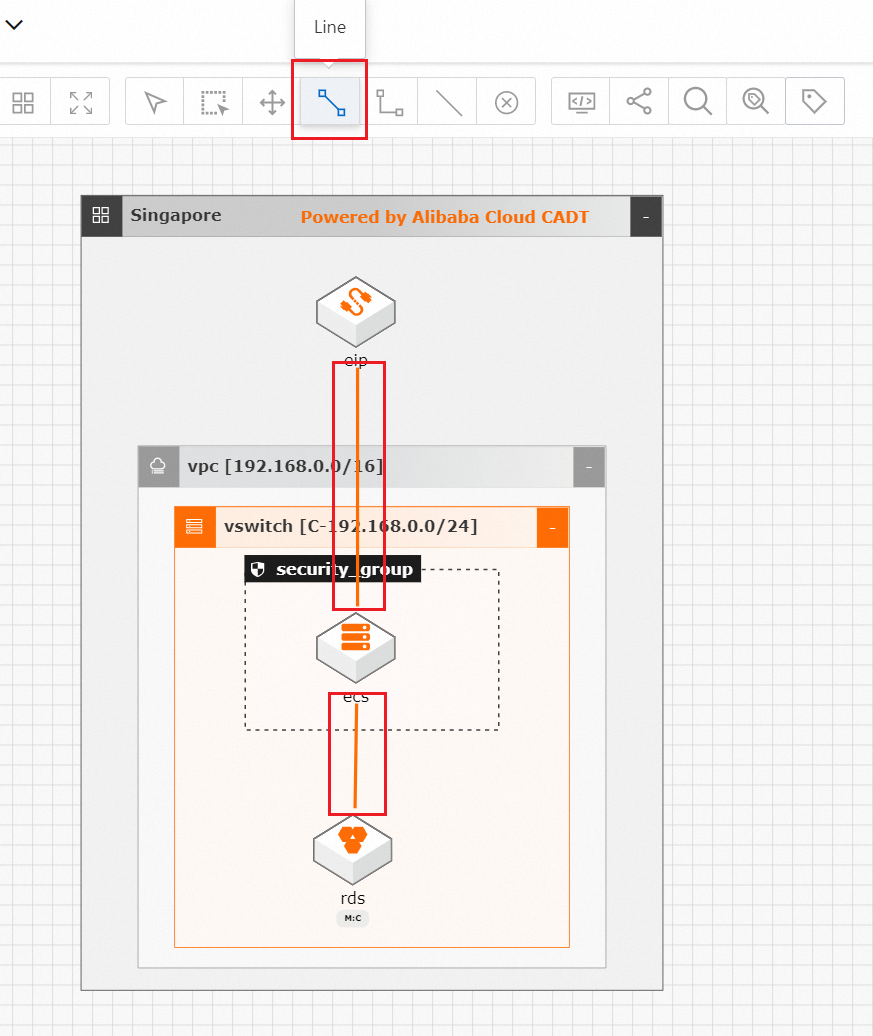
In the top toolbar, click Line to connect the EIP to the ECS instance and the ECS instance to the ApsaraDB RDS instance.
NoteConnections enable automatic resource association. After deployment, CADT automatically associates the EIP with the ECS instance based on the connection and adds the private IP address of the ECS instance to the ApsaraDB RDS whitelist.
-
After designing the application architecture, click Save in the upper-right corner, enter an application name, and then click OK.
Note-
The application name must be unique within your current account.
-
The name must be 2 to 128 characters long and can be in English or Chinese. It must start with an uppercase or lowercase letter or a Chinese character, and cannot start with
http://orhttps://. It can contain digits, underscores (_), and hyphens (-).
The Save dialog box appears.
-
-
After you save the application, its status changes to Modified in the upper-left corner of the console.
-
The application architecture design is complete.
NoteAt this stage, you have only saved an architecture diagram. No actual cloud resources have been deployed.
After the architecture design is complete, the canvas displays the architecture topology of the Singapore region. The components from top to bottom are: eip (Elastic IP Address) → vpc (192.168.0.0/16) → vswitch (192.168.0.0/24) → security_group (security group) → ecs (ECS instance) → rds (ApsaraDB RDS instance). Connectors indicate the associations between components.
-
On the Application > My Applications page, you can find the application.
-
Click View Architecture to open the application on the CADT canvas.
-
By default, an application opened from the Application > My Applications page is in View mode to prevent accidental changes. To edit the architecture, click Edit in the upper-right corner. After you switch, the mode changes to Edit.