Search
Cloud Architect Design Tool (CADT) provides the abnormal nodes clearing feature to resolve the issue that resources fail to be deployed. You can use this feature to remove the node that fails to be deployed or that is released in the console of the node. In addition, this feature can be used to retain the node icon to help you redeploy the node.
This topic provides an example on how to deploy an Elastic Compute Service (ECS) node of which the ECS instance family is out of stock. You can also perform the operations described in this example to clear the nodes that are abnormal for any other reason.
If an ECS instance family is out of stock in Zone K, an error occurs when you deploy an ECS node of the ECS instance. The following figure shows the CADT architecture when an ECS node fails to be deployed.
In the upper-right corner of the CADT page, click the icon next to Save to change the mode to Edit. You can manage the resources only in Edit mode.
Right-click the abnormal node and choose Action > Clear up abnormal state nodes.
Important
After you clear the abnormal node, the corresponding failed resource is not released. If a resource fails to be deployed but an instance ID is generated for the resource, you must go to the console of the resource to release the resource.


In the Clear up abnormal state nodes message, click OK. The message "The task has been submitted" appears. Then, the architecture is automatically reloaded. The sign on the abnormal node is removed.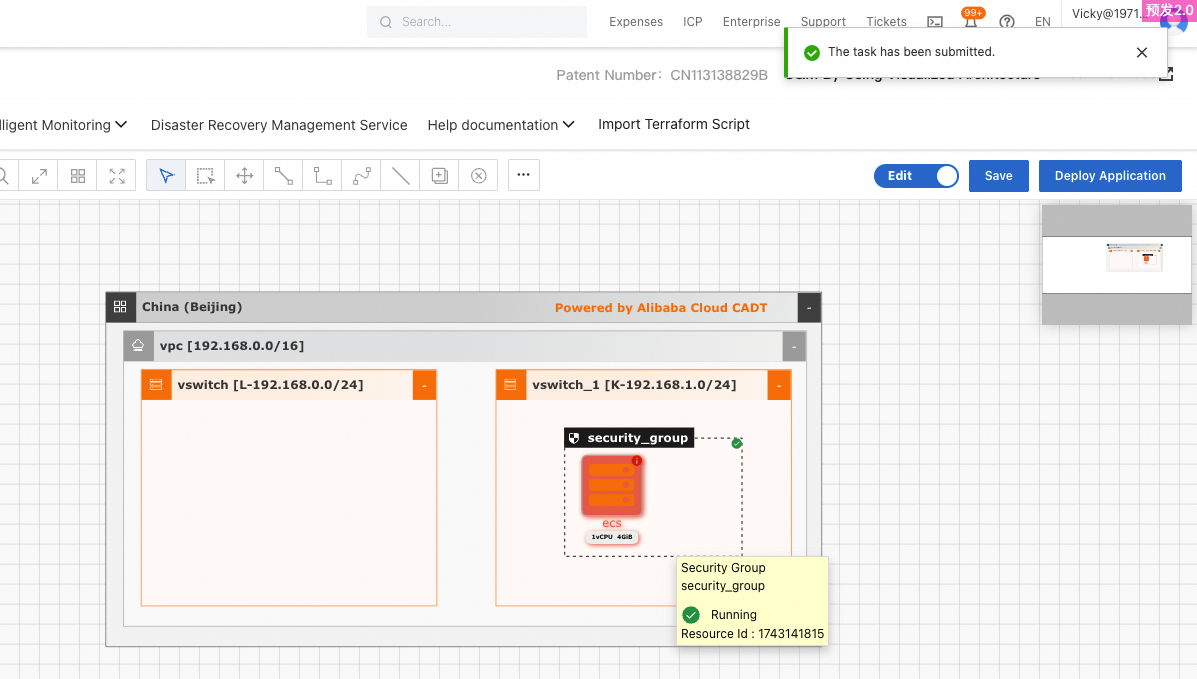
After the node status is changed, perform the following operations. Change the mode to Edit before you perform any operation.
a. Save the application. Drag the node to another zone. In the message that appears, click Move. Save and deploy the application again.

b. Double-click the node icon to change the node configurations. For example, you can change the ECS instance family. Save and deploy the application again.
Turn on the Edit mode and click Deploy Application.
Thank you! We've received your feedback.