If you have configured a predictive scaling rule for a scaling group, use this topic to evaluate its performance in Auto Scaling.
Background
After you configure a predictive scaling rule for a scaling group, you can view the rule's calculated results on its details page. You can then evaluate whether the predictions meet your expectations and determine if adjustments are needed. For more information about scaling rules, see Scaling rule types.
For example, the Predictive Mode of the current scaling rule is Forecast Only. After you verify that the results of the predictive scaling rule meet your expectations, you can enable Forecast and Scale to allow the scaling group to automatically adjust the maximum instance count and minimum instance count.
Procedure
Log on to the Auto Scaling console.
In the navigation pane on the left, click Scaling Groups.
In the top navigation bar, select a region.
Find the scaling group that you want to manage and open its details page in one of the following ways:
In the Scaling Group Name/ID column, click the ID of the scaling group.
In the Actions column, click Details.
-
At the top of the page, click the Scaling Rules and Tasks tab.
-
On the Scaling Rules tab, find the predictive scaling rule and click its ID in the Scaling Rule ID/Name column.
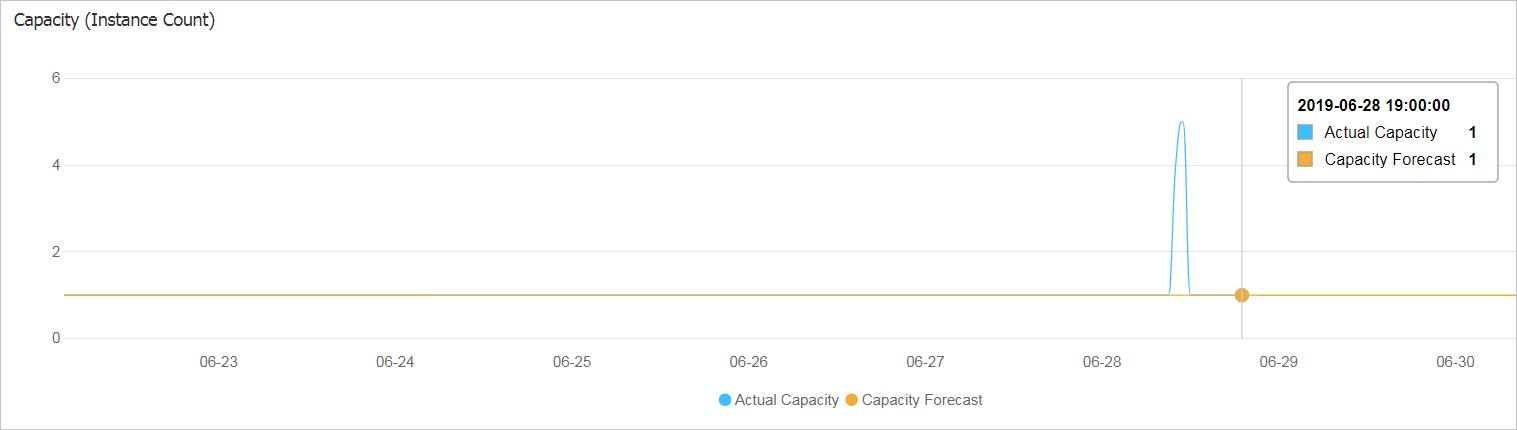
The details page provides multiple metrics to help you evaluate the forecast results. Examples:
Figure 1. CPU utilization comparison
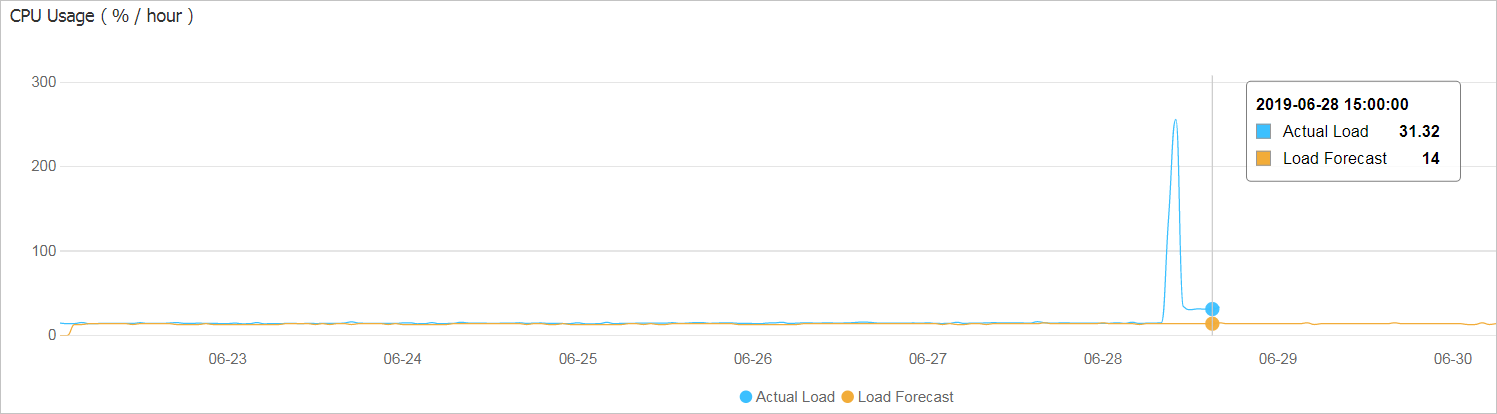
Figure 2. Instance count comparison
The Scheduled tasks generated from predictions list contains three columns: Start Time, Min Instances, and Max Instances. The system generates one scheduled task record per hour. In this example, the minimum number of instances is 1 and the maximum number of instances is 100.
Next steps
After you confirm that the forecasting results are as expected, you can change the Predictive Mode to Forecast and Scale. For more information, see Modify a scaling rule. If you enable the Forecast and Scale mode, the predictive scaling rule automatically creates predictive tasks (which are a type of scheduled task) based on the forecast schedule.
-
View created predictive tasks
-
In the left-side navigation pane, choose .
-
On the Scheduled Tasks page, view the details of the predictive tasks.
Predictive tasks use the following naming format:
PredictiveScaling-Scaling rule name-Execution time.The scheduled tasks list displays the predictive tasks automatically created by predictive scaling. Each task is in the Running state. The tasks modify the minimum and maximum instance counts of the scaling group, with a retry expiration time of 600 seconds. You can Disable, Modify, or Delete a task.
-
-
View the activity details of a predictive task
When a predictive task runs, it adjusts the scaling group's boundaries, such as the maximum and minimum instance count. The system automatically deletes a predictive task after it runs successfully. You can review the activity details on the Scaling Activities tab. These details include the activity status, cause, and a detailed description.