When you create a scaling group, you can configure a multi-zone scaling policy to ensure that if one zone has insufficient resources or a fault occurs, Auto Scaling can schedule resources from other zones to maintain high availability. You can also specify multiple instance types in a scaling configuration to avoid scale-out failures caused by insufficient inventory of a single instance type. This topic describes how to combine a cost optimization policy with multiple instance types to improve scale-out success rates and reduce costs.
Prerequisites
A virtual private cloud (VPC) is created. For more information, see VPCs and vSwitches.
Multiple vSwitches are created in the VPC. The vSwitches belong to different zones. For more information, see VPCs and vSwitches.
Background information
Spot instances are subject to market price fluctuations. Failed bids may delay scale-outs and affect your business. You can configure a scaling policy such as a cost optimization policy so that when spot instance creation fails, the scaling group automatically creates pay-as-you-go instances of the same type. Multiple instance types also mitigate scale-out failures caused by insufficient inventory of a single type. Combining a scaling policy with multiple instance types significantly improves scale-out success rates and reduces costs:
Scaling policy
Auto Scaling allows you to specify multiple vSwitches when you create a scaling group. If the zone of a vSwitch has insufficient resources, Auto Scaling automatically creates instances in another zone to ensure successful scaling activities. After you configure multiple zones, you can set a scaling policy such as a cost optimization policy based on your business deployment to meet various requirements. A scaling group that uses the cost optimization policy creates ECS instances in ascending order of vCPU unit price. Even without spot instances, you can use the same scale of ECS instance resources at a lower cost.
NoteA multi-zone scaling policy can be a priority policy, a balanced distribution policy, a cost optimization policy, or a custom combination policy. For more information, see Create an ECS scaling group.
You can configure a multi-zone scaling policy for only scaling groups that reside in VPCs.
Multiple instance types
Auto Scaling allows you to specify multiple instance types in a scaling configuration. If Auto Scaling fails to create instances of the highest-priority type, it automatically attempts the next type until an instance is created. Multiple instance types mitigate resource unavailability and ensure successful scaling activities. For example, during peak hours when you need high-spec instances to handle service traffic, relying on a single instance type may cause failures. Multiple instance types provide the flexibility to meet varying requirements.
Procedure
Create a scaling group of the Elastic Compute Service (ECS) type.
For more information, see Create an ECS scaling group.
The following table describes the parameters that are used in this example.
Parameter
Description
Network Type
Select VPC.
VPC
The VPC of the scaling group. Select an existing VPC, such as
vpc-bp1idd****.vSwitch
The vSwitches of the scaling group. Select multiple vSwitches such as
vsw1andvsw2.NoteEach vSwitch belongs to a single zone. By selecting multiple vSwitches in different zones, you can create ECS instances across zones and leverage resources from multiple zones.
Scaling Policy
Select Cost Optimization Policy.
Create and enable a scaling configuration.
For more information, see Create a scaling configuration (ECS instance).
The following table describes the parameters that are used in this example.
Parameter
Description
Billing Method
Select Spot Instance.
Instance Configuration Mode
Select Specify Instance Type or Specify Instance Pattern. In this example, select Specify Instance Type.
Select Instance Type
Select multiple instance types. You can select up to 10 instance types.
We recommend that you select instance types with similar vCPU, memory, processor frequency, internal bandwidth, or packet forwarding rates.
We recommend that you set a maximum bid for each instance type to control costs. If you use automatic bidding, Auto Scaling creates spot instances at the current market price.
I/O optimized instances and non-I/O optimized instances have significantly different configurations. Mixing them in the same scaling configuration does not improve the scale-out success rate.
Enable the scaling group.
Create a scaling rule. For information about how to create a scaling rule, see the Configure scaling rules.
The following table describes the parameters that are used in this example.
Parameter
Description
Rule Type
Select Simple Scaling Rule.
Operation
Set the value to Add 1 Instances.
Execute the scaling rule.
Verify the result
Combining a scaling policy with multiple instance types can significantly reduce costs. The following example demonstrates the cost optimization effect.
Example
In this example, the vSwitches that belong to Hangzhou Zone J and Hangzhou Zone K are specified for a scaling group.
The ecs.g8y.xlarge and ecs.g8i.xlarge instance types are specified in the scaling configuration of the scaling group.
The billing method of the scaling configuration is Spot Instance.
Each instance type has two unit prices: the unit price of vCPUs for spot instances and the unit price of vCPUs for pay-as-you-go instances.
ImportantThe prices listed in the following table are used for reference only. The prices that are displayed on the instance buy page take precedence.
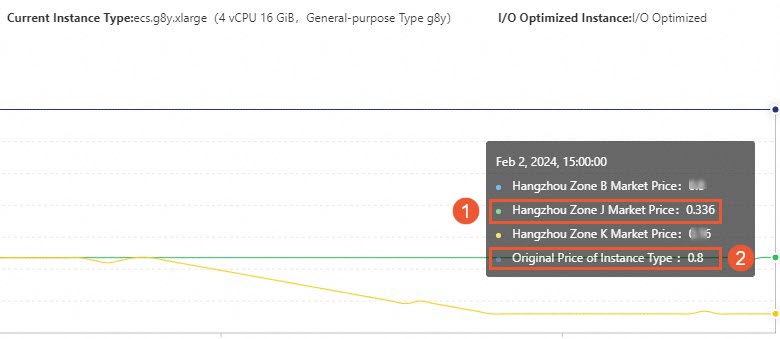
In the following table, ① specifies the market price of spot instances and ② specifies the market price of pay-as-you-go instances.
Based on the instance types and billing methods, four instance creation solutions are available, sorted by vCPU unit price from lowest to highest:
No.
Instance type
Billing method
vCPU
Market price
Individual cost per vCPU
Solution1
ecs.g8y.xlarge
Spot Instance
4
0.22 USD per hour
0.055 USD per hour
Solution2
ecs.g8i.xlarge
Spot Instance
4
0.336 USD per hour
0.084 USD per hour
Solution3
ecs.g8y.xlarge
Pay-as-you-go
4
0.8 USD per hour
0.2 USD per hour
Solution4
ecs.g8i.xlarge
Pay-as-you-go
4
1.099 USD per hour
0.275 USD per hour
Effect
Expected result: When a scale-out is triggered in the scaling group, Auto Scaling preferentially creates spot ECS instances based on Solution 1. If the instance creation fails in Hangzhou Zone K and Hangzhou Zone J, Auto Scaling attempts to create ECS instances based on Solution 2, Solution 3, and Solution 4 in sequence.
Result verification: After you execute a scaling rule to trigger a scaling activity, one ECS instance is added to the scaling group. Go to the Instances tab in the Auto Scaling console, click the ID of the automatically created ECS instance to go to the Instance Details tab in the ECS console, and view the billing method and instance type.
Billing Method: Spot Instance
Instance Type: ecs.g8y.xlarge
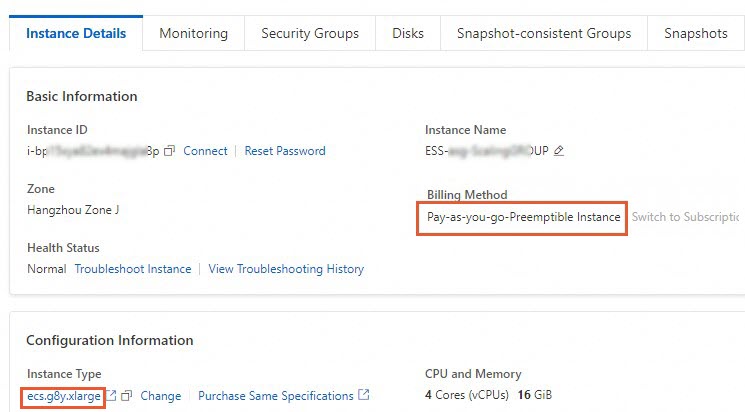 The result matches expectations. Auto Scaling creates an ECS instance based on Solution 1. This confirms that combining a cost optimization policy with multiple instance types effectively reduces costs.