Sudden traffic spikes from events like flash sales can overwhelm backend services. Local throttling lets you limit traffic on the ingress gateway to protect your system.
How local throttling works
Local throttling uses a token bucket algorithm. The quota parameter sets the number of requests allowed within the fill_interval time window. When the bucket is empty, the gateway responds with 429 Too Many Requests until the bucket refills.
| Parameter | Role in the token bucket | Example |
|---|---|---|
quota | Bucket capacity -- maximum requests per interval | 10 |
fill_interval | Refill period | 1 second |
Throttling granularity
The ASMLocalRateLimiter custom resource defines throttling rules. Each rule targets a gateway workload and specifies rate limits at one of the following levels:
| Level | Behavior | Use case |
|---|---|---|
| Single route | Limits traffic matching a specific VirtualService route; other routes remain unaffected | Protect a specific backend service |
| Domain and port | Limits all traffic to a host:port pair, regardless of route | Apply a blanket rate limit across all services behind a domain |
| Route with header matching | Limits only requests on a specific route that carry a designated header; other requests pass through | Throttle specific clients or request types based on headers |
Applicable scope
Local throttling applies to ASM gateways and application services with sidecar proxies injected.
Prerequisites
Before you begin, make sure that you have:
An ASM instance that meets the version requirements:
Professional Edition or Ultimate Edition: version 1.11.5.30 or later. See Upgrade an ASM instance
Standard Edition: version 1.9 or later. Standard Edition supports only the native Istio rate limiting feature. The reference document varies based on the Istio version. For the latest version, see Enabling Rate Limits using Envoy
A cluster added to the ASM instance
An ingress gateway deployed in the ASM instance
The Bookinfo service deployed in the
defaultnamespace and the Nginx service deployed in thefoonamespace. See Deploy an application in a cluster associated with an ASM instanceA gateway rule and a virtual service configured for the sample services
The hey load testing tool installed
The following sections walk through all three throttling levels using the Bookinfo and Nginx sample services.
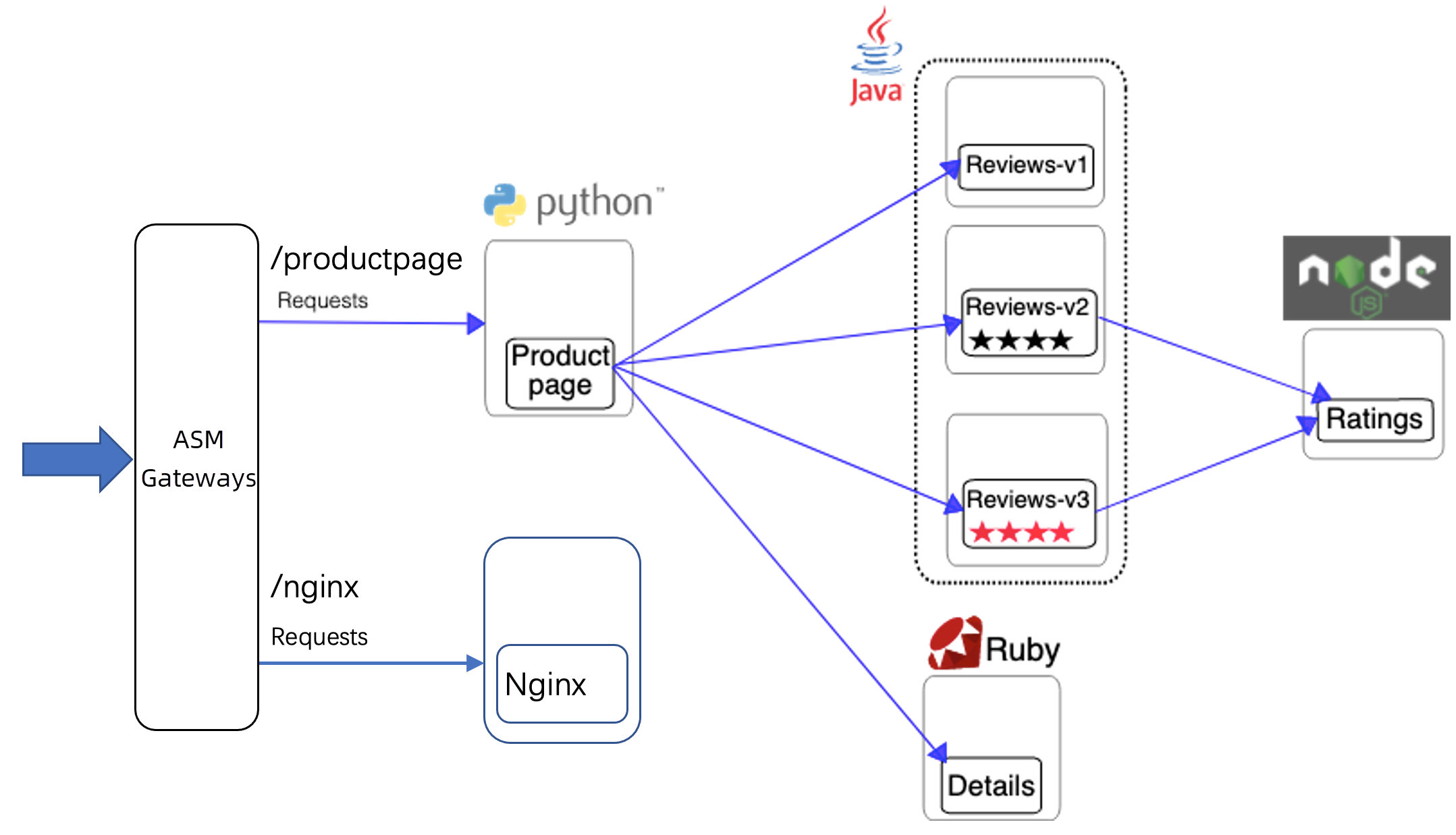
Throttle a single virtual service route
This configuration throttles the productpage-route-name1 route for bf2.example.com:80. Requests matching /productpage, /static, /login, /logout, and /api/v1/products are rate-limited. The /nginx route remains unaffected.
Create the throttling rule
Log on to the ASM console. In the left-side navigation pane, choose Service Mesh > Mesh Management.
On the Mesh Management page, click the name of the ASM instance. In the left-side navigation pane, choose Traffic Management Center > Traffic Protection and Scheduling.
Click Create and configure the following parameters:
Section Parameter Value Basic throttling information Namespace istio-system(all ASM gateways are deployed in this namespace)Name ingressgatewayEffective workload type Apply to Gateway Associated workload Select bookinfo-gateway under Select Gateway Rule Throttling rule list Gateway domain name bf2.example.comGateway port 80Match virtual service route productpage-route-name1Throttling configuration Time Window For Throttling Detection 1 secondNumber of requests allowed in the time window 10(Optional) Expand Show Advanced Settings to customize throttled responses. For example, enter
{"ret_code": xxx,"message": "Your request be limited"}in Custom Throttling Response Body.Click OK.
For parameter details, see ASMLocalRateLimiter CRD reference.
Verify that the route is throttled
Generate sustained load against both routes:
hey -host bf2.example.com -c 10 -n 100000 http://<ASM gateway IP address>/productpage
hey -host bf2.example.com -c 10 -n 100000 http://<ASM gateway IP address>/nginx
Send a request to the throttled
/productpagepath:curl -H 'host: bf2.example.com' http://<ASM gateway IP address>/productpage -vExpected output:
< HTTP/1.1 429 Too Many Requests
< Content-Length: 18
< Content-Type: text/plain
< Date: Thu, 13 Jan 2022 03:03:09 GMT
< Server: istio-envoy
<
local_rate_limited
The
429 Too Many Requestsresponse confirms that the Bookinfo service is throttled.Send a request to the
/nginxpath:curl -H 'host: bf2.example.com' http://<ASM gateway IP address>/nginx -vA normal response without a
429status code confirms that the Nginx route is not affected.
Throttle all routes for a domain and port
This configuration throttles the entire bf2.example.com:80 combination. All routes under this domain and port -- including both /productpage and /nginx -- are rate-limited.
Create the throttling rule
Log on to the ASM console. In the left-side navigation pane, choose Service Mesh > Mesh Management.
On the Mesh Management page, click the name of the ASM instance. In the left-side navigation pane, choose Traffic Management Center > Traffic Protection and Scheduling.
Click Create and configure the following parameters:
Section Parameter Value Basic throttling information Namespace istio-systemName ingressgatewayEffective workload type Gateway Associated workload Select bookinfo-gateway under Select Gateway Rule Throttling rule list Gateway domain name bf2.example.comGateway port 80Match virtual service route Leave blank to match all routes Throttling configuration Time Window For Throttling Detection 1 secondNumber of requests allowed in the time window 10Click OK.
Verify that all routes are throttled
Generate sustained load:
hey -host bf2.example.com -c 10 -n 100000 http://<ASM gateway IP address>/nginxSend a request to the
/nginxpath:curl -H 'host: bf2.example.com' http://<ASM gateway IP address>/nginx -vA
429 Too Many Requestsresponse confirms that all routes underbf2.example.com:80are throttled.
Throttle requests with a specific header on a single route
This configuration throttles the nginx-route-name1 route for bf2.example.com:80, but only for requests that carry the ratelimit: true header. Requests without this header pass through normally.
Create the throttling rule
Log on to the ASM console. In the left-side navigation pane, choose Service Mesh > Mesh Management.
On the Mesh Management page, click the name of the ASM instance. In the left-side navigation pane, choose Traffic Management Center > Traffic Protection and Scheduling.
Click Create and configure the following parameters:
Section Parameter Value Basic throttling information Namespace istio-systemName ingressgatewayEffective workload type Applicable Gateway Associated workload Select bookinfo-gateway under Select Gateway Rule Throttling rule list Gateway domain name bf2.example.comGateway port 80Match virtual service route nginx-route-name1Match request properties Match Attribute Specific Request Header Request Header Name ratelimitMatching Method Exact Match Matched Content trueThrottling configuration Time Window For Throttling Detection 1 secondNumber of requests allowed in the time window 10Click OK.
Verify that header-based throttling is applied
Generate sustained load with the
ratelimit: trueheader:hey -host bf2.example.com -H 'ratelimit: true' -c 10 -n 10000 http://<ASM gateway IP address>/nginxSend a request with the header:
curl -H 'host: bf2.example.com' -H 'ratelimit: true' http://<ASM gateway IP address>/nginx -vA
429 Too Many Requestsresponse confirms that requests carrying theratelimit: trueheader are throttled.Send a request without the header:
curl -H 'host: bf2.example.com' http://<ASM gateway IP address>/nginx -vA normal response without a
429status code confirms that requests without the header are not affected.
Delete a throttling rule
Log on to the ASM console. In the left-side navigation pane, choose Service Mesh > Mesh Management.
On the Mesh Management page, click the name of the ASM instance. In the left-side navigation pane, choose Traffic Management Center > Traffic Protection and Scheduling.
Find the target throttling rule and click Delete in the Actions column. In the Confirm dialog box, click OK.
Verify that throttling is removed:
curl -H 'host: bf2.example.com' http://<ASM gateway IP address>/nginx -vA normal response without a
429status code confirms that the throttling rule has been removed.