After you install an agent for a Go application, ARMS starts monitoring the application. On the Instance Monitoring page, you can view information about your application, such as basic monitoring metrics, instance GC, and heap memory.
Prerequisites
An agent must be installed for the application. For more information, see Application Monitoring overview.
View instance monitoring
Log on to the ARMS console. In the left navigation bar, select .
On the Application List page, select a region at the top of the page, and then click the name of the target application.
NoteThe icons in the Language column represent the following:
 : A Java application integrated with application monitoring.
 : A Go application integrated with application monitoring.
 : A Python application integrated with application monitoring.
-: An application integrated with Managed Service for OpenTelemetry.
In the top navigation bar, click the Instance Monitoring tab.
Overview
The Instance Monitoring page automatically adapts the dashboard based on your application's deployment environment. It displays different information for applications running on ECS instances or in container environments.
For applications in container environments, if you have integrated with Managed Service for Prometheus, ARMS prioritizes data from Managed Service for Prometheus to display container information. To learn how to integrate a container environment with Managed Service for Prometheus, see Container observability.
If the container environment is not integrated with Managed Service for Prometheus, the dashboard displays only basic container information.
ECS environment
Basic Monitoring: Displays trend charts for CPU utilization, memory usage, and disk usage over a specified time range. You can switch between average and maximum values from the drop-down list next to the chart title.
Instance GC: Displays a trend chart for GCs over a specified time range.
Heap Memory: Displays a trend chart for heap memory usage over a specified time range.
Click the
 icon to open a dialog box where you can view statistics for a selected time period or compare the same time window on different dates. Use the
  icon to switch between a column chart and a trend chart.
From the instance list, you can perform the following operations:
Click an instance IP address or click Details in the Actions column to view instance details. For more information, see Instance details.
Click Traces in the Actions column to view the instance's traces. For more information, see Trace Explorer.
Container environment (Prometheus)
Basic Monitoring: Displays trend charts for CPU usage and memory usage over a specified time range. You can switch between average and maximum values from the drop-down list next to the chart title.
Instance GC: Displays a trend chart for GCs over a specified time range.
Heap Memory: Displays a trend chart for heap memory usage over a specified time range.
Click the
icon to open a dialog box where you can view statistics for a selected time period or compare the same time window on different dates. Use the icon to switch between a column chart and a trend chart.From the instance list, you can perform the following operations:
Click an instance IP address or click Details in the Actions column to view instance details. For more information, see Instance details.
Click Traces in the Actions column to view the instance's traces. For more information, see Trace Explorer.
Container environment (ARMS agent)
The Actions column in the instance list also provides Runtime Monitoring, Pool Monitoring, and Container Monitoring entries for viewing monitoring details in the corresponding dimensions.
In the Quick Filter area, you can filter the charts and the instance list by host IP address.
In the trend chart area, you can view time-series charts for Basic Monitoring, Instance GC, and Heap Memory.
Basic Monitoring: Displays trend charts for CPU usage and memory usage over a specified time range. You can switch between average and maximum values from the drop-down list next to the chart title.
Instance GC: Displays a trend chart for GCs over a specified time range.
Heap Memory: Displays a trend chart for heap memory usage over a specified time range.
Click the
icon to open a dialog box where you can view statistics for a selected time period or compare the same time window on different dates. Use the icon to switch between a column chart and a trend chart.In the instance list area, you can view information such as instance IP, CPU usage, memory usage, load, GC count, heap memory usage, and RED metrics (request count, error count, and average response duration).
In the instance list, you can perform the following operations:
Click an instance IP address or click Details in the Actions column to view instance details. For more information, see Instance details.
Click Traces in the Actions column to view the instance's traces. For more information, see Trace Explorer.
Instance details
Overview
The Overview tab displays the request count, error count, and average response duration for the target instance.
The top of the page displays metric cards showing Requests, Errors, and Average Response Time with day-over-day comparisons. Below are 5-minute granularity trend charts: request count bar chart, error count bar chart (with error rate line overlay), and response time line chart.
Runtime monitoring
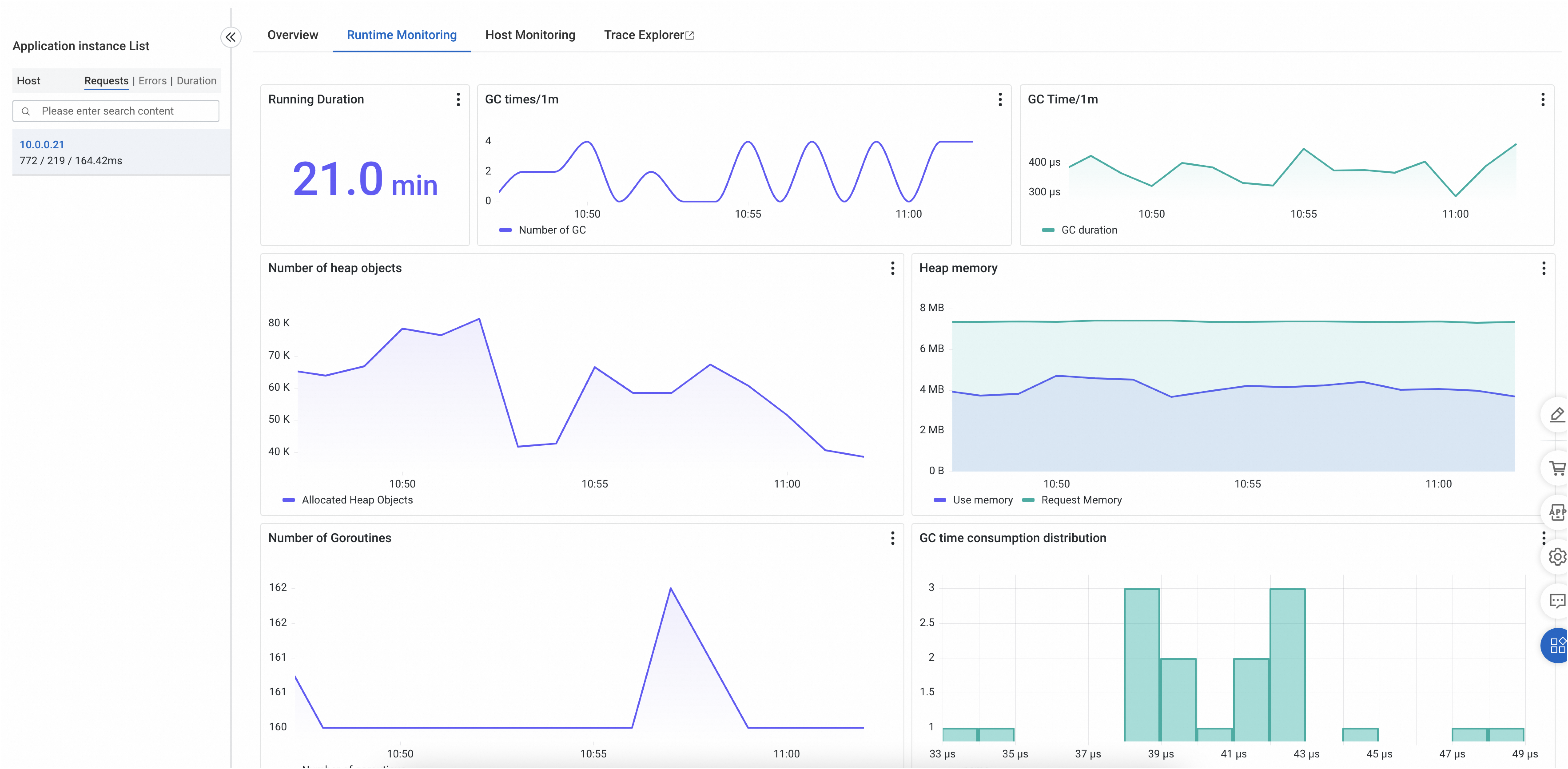
The Runtime Monitoring tab displays information for the selected instance, including GC count, GC duration, and heap memory.
Host monitoring
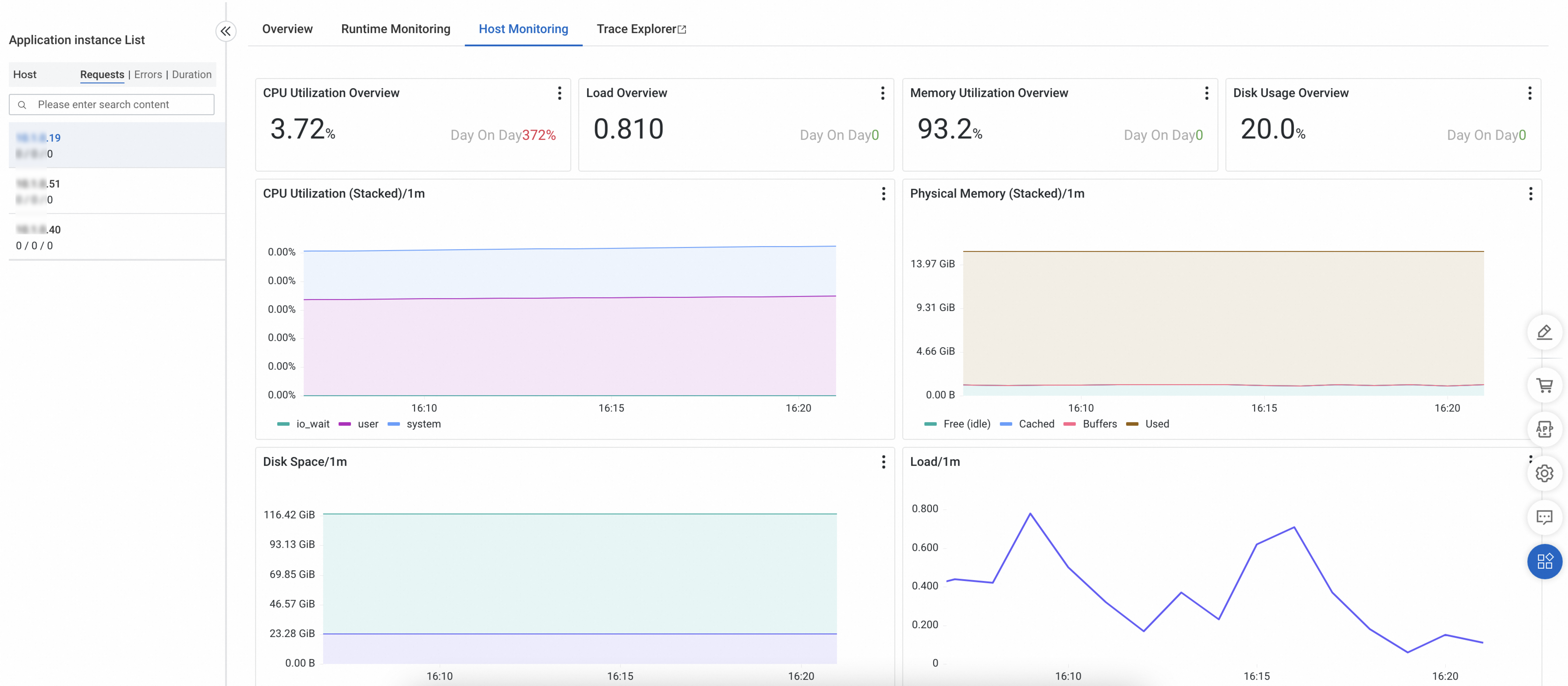
The Host Monitoring tab displays metrics for CPU, memory, disk, load, network traffic, and network packets.
Container monitoring
Container environment (Prometheus)
To integrate with Managed Service for Prometheus, see Prometheus instance for Container Service.
The Container Monitoring tab displays container-level metrics for CPU, memory, disk, load, network traffic, and network packets.
The container monitoring page shows the application instance list on the left (displaying request count, error count, and average response time). The main area displays detailed information for the selected Pod:
Pod Overview: includes Namespace, Age, Status, Phase, Node Name, and Restart Count
Resource configuration: Requests and Limits for CPU (cores) and Memory (MiB)
Containers table: shows running status, Image, Restarts, CPU Request, and Memory Request for each container
Warning Events: alert events
Resource area: trend charts for Memory/Limit(%), Memory Usage, Memory Failcnt, and Network Error(Percent)
Container environment (ARMS agent)
The Container Monitoring tab displays time-series charts for container-level CPU, memory, and network traffic.
The left panel shows the application instance list, filterable by Host, Requests, Errors, and Response Time. The main area is divided into two sections:
Overview: shows average, maximum, and latest values and Limit for Namespace, Cluster, CPU (cores), and Memory.
Resource: shows four time-series charts: Memory/Limit(%), Memory Usage, CPU Usage(%), and CPU Usage By Cores.
Trace Explorer
The Trace Explorer feature performs real-time analysis based on stored full trace data. You can combine filter conditions and aggregation dimensions for custom diagnostics in various scenarios. For more information, see Trace Explorer.
Related documents
For detailed information about application monitoring metrics, see Application monitoring metrics.