ARMS includes built-in Application Monitoring metrics. To define your own, use the OpenTelemetry Java SDK. This topic shows you how to create custom metrics and query them in Grafana.
Prerequisites
-
You have connected your application to ARMS Application Monitoring. For more information, see Application access.
-
The ARMS agent must be version 4.5.0 or later.
Add dependencies
Add the following Maven dependencies to import the OpenTelemetry Java SDK. For more information, see the official OpenTelemetry documentation.
<dependencies>
    <dependency>
    <groupId>io.opentelemetry</groupId>
    <artifactId>opentelemetry-api</artifactId>
    </dependency>
    <dependency>
    <groupId>io.opentelemetry</groupId>
    <artifactId>opentelemetry-sdk-trace</artifactId>
    </dependency>
    <dependency>
    <groupId>io.opentelemetry</groupId>
    <artifactId>opentelemetry-sdk</artifactId>
    </dependency>
</dependencies>

<dependencyManagement>
  <dependencies>
    <dependency>
      <groupId>io.opentelemetry</groupId>
      <artifactId>opentelemetry-bom</artifactId>
      <version>1.23.0</version>
      <type>pom</type>
      <scope>import</scope>
    </dependency>
  </dependencies>
</dependencyManagement>
Procedure
OpenTelemetry supports four main types of metric instruments:
-
Counter: Records a value that only increases over time. Use a counter to track cumulative data, such as the total number of HTTP requests or errors.
-
UpDownCounter: Records a value that can increase or decrease. Use an UpDownCounter to track non-monotonic values, such as the number of active connections or tasks in a queue.
-
Histogram (Not supported): Records the statistical distribution of a set of values, such as request latency or response size. It can be used to calculate quantiles (for example, P90 or P95).
-
Gauge: Captures an instantaneous value at a specific point in time. Use a gauge to track values that can change arbitrarily, such as CPU utilization or memory usage.
Step 1: Add a custom metric
The following code provides a simple example of a flash sale application. It defines two metrics:
-
product_seckill_count: The number of flash sale attempts. -
product_current_stock: The current product inventory.
When you obtain the meter factory class to define metrics, a product_seckill parameter is passed. This parameter acts as a group identifier. All metrics that are subsequently defined by using this meter belong to this group, which is used in later configurations.
import io.opentelemetry.api.GlobalOpenTelemetry;
import io.opentelemetry.api.OpenTelemetry;
import io.opentelemetry.api.common.AttributeKey;
import io.opentelemetry.api.common.Attributes;
import io.opentelemetry.api.metrics.LongCounter;
import io.opentelemetry.api.metrics.Meter;
import io.opentelemetry.api.metrics.ObservableLongGauge;

import javax.annotation.PreDestroy;
import java.util.concurrent.atomic.AtomicInteger;

class ProductService {

    // Static inventory counter.
    public final AtomicInteger stock = new AtomicInteger(0);

    private LongCounter seckillCounter;
    private ObservableLongGauge observableLongGauge;
    private final AttributeKey<String> seckillResult = AttributeKey.stringKey("seckill_result");

    public ProductService() {
        OpenTelemetry agentOpenTelemetry = GlobalOpenTelemetry.get();

        // Define the metric factory class. The 'product_seckill' name is important.
        Meter meter = agentOpenTelemetry.getMeter("product_seckill");
        // Define a counter to record the number of flash sale attempts.
        seckillCounter = meter.counterBuilder("product_seckill_count")
                .setUnit("1")
                .setDescription("seckill product count")
                .build();

        // Define a gauge to represent the current product inventory.
        observableLongGauge = meter.gaugeBuilder("product_current_stock").ofLongs().buildWithCallback((measurement -> {
            // Record the current product quantity.
            measurement.record(stock.get());
        }));

    }

    @PreDestroy
    public void clear() {
        observableLongGauge.close();
    }

    public void setKillProductCount(int count) {
        stock.set(count);
    }

    public String seckillProduct() {
        int currentStock = stock.get();
        if (currentStock <= 0) {
            seckillCounter.add(1, Attributes.of(seckillResult, "failed"));
            return "Flash sale failed. The product is sold out.";
        }
        // Try to decrement the stock.
        if (stock.decrementAndGet() >= 0) {
            seckillCounter.add(1, Attributes.of(seckillResult, "success"));
            return "Flash sale successful. Remaining stock: " + stock.get();
        } else {
            stock.incrementAndGet(); // Rollback.
            seckillCounter.add(1, Attributes.of(seckillResult, "failed"));
            return "Flash sale failed. The product is sold out.";
        }
    }
}
Step 2: Configure metric collection
In the console, modify the Custom Metric Collection Configuration by adding the group name you specified when creating the Meter in the previous step.
This configuration takes effect only for agent versions 4.5.0 or later and does not require an application restart. When you finish, click Save.
Step 3: View metrics and configure alerts
-
In the ARMS console, navigate to the page. From the top menu bar, select the region where your application is deployed. Search for the Prometheus storage instance whose name starts with
metricstore-apm-metrics-custom, and then click Shared Edition to open Grafana. -
On the Grafana page, click Explore. From the data source drop-down list, select the Prometheus storage instance from the previous step.
On the Grafana folder page, if the folder is empty, you will see the message
This folder doesn't have any dashboards yet. Click + Create Dashboard to add a new one, or click Manage dashboards to move an existing dashboard into the folder. -
Use PromQL to query the custom metrics defined in your code, as shown in the following figure. You can also create a custom observability dashboard in Grafana.
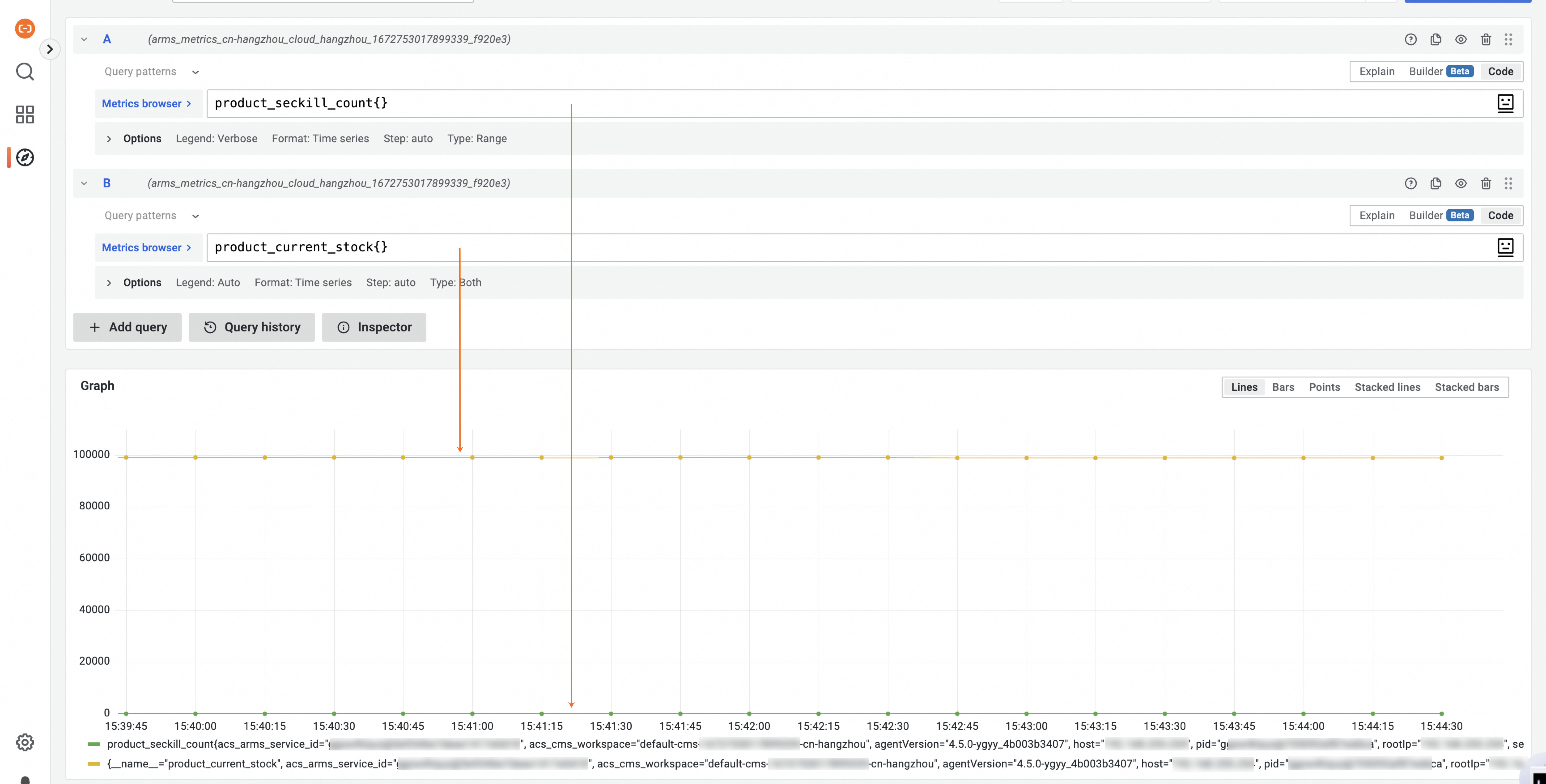
ARMS reports and stores the custom metrics defined with the OpenTelemetry SDK in your Prometheus storage instance. You can then create alert rules for these metrics.
Usage notes
-
ARMS reports metrics at a 15-second interval.
-
For
countermetrics, ARMS reports the incremental value within each reporting interval, not the cumulative total.