ARMS system policies grant broad permissions that may exceed what individual users need. To enforce least-privilege access for Application Monitoring, create a custom Resource Access Management (RAM) policy that targets specific applications, regions, or tags, then attach it to a RAM user or role.
When to use custom policies
ARMS provides two levels of access control:
| Approach | Use case |
|---|---|
System policies (e.g., AliyunARMSReadOnlyAccess, AliyunARMSFullAccess) | Grant read-only or full access to all ARMS resources. Suitable when users need uniform access across all applications. |
| Custom policies | Grant permissions on specific applications, regions, or tag-based resource sets. Required when different users need different levels of access to different applications. |
If a system policy meets your needs, attach it directly. For fine-grained control -- such as granting read-only access to a single application -- create a custom policy.
Custom policy basics
A custom policy is a JSON document that defines which actions are allowed or denied on which resources, with optional conditions. After you create a custom policy, attach it to a RAM user, user group, or role to grant the specified permissions.
Key behaviors:
A custom policy has no effect until it is attached to a principal (user, user group, or role).
To delete a custom policy, first detach it from all principals.
Custom policies support version control through the RAM version management mechanism.
Prerequisites
Before you begin, make sure that you have:
A basic understanding of policy elements, structure, and syntax
The
AliyunARMSReadOnlyAccessorReadOnlyAccesssystem policy attached to the RAM user, so the user can access the ARMS consoleThe
AliyunARMSFullAccesssystem policy not attached to the RAM user
Alibaba Cloud accounts activated after 00:00 on April 1, 2022 can attach custom policies to ARMS RAM users by default. For accounts activated before this date, submit a ticket to enable this capability.
To grant read-only permissions on all ARMS features to a specific resource group, attach the AliyunARMSReadOnlyAccess policy and grant the ReadTraceApp permission to the resource group. Without both, ARMS cannot display the application list for that resource group.
Step 1: Create a custom policy
Log on to the RAM console as a RAM user with administrative rights.
In the left-side navigation pane, choose Permissions > Policies.
On the Policies page, click Create Policy.
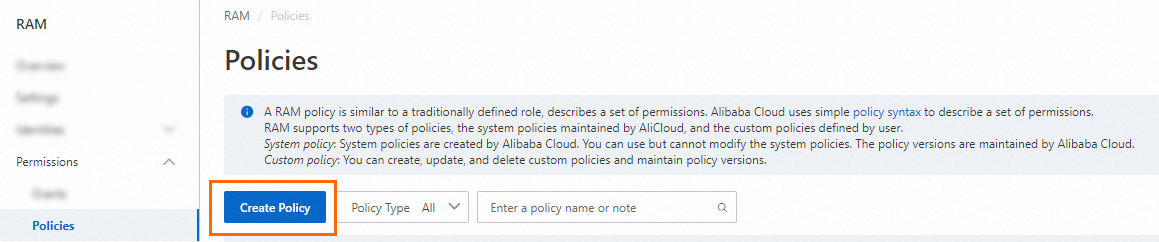
On the Create Policy page, click the JSON tab. Enter your policy in the editor.
See Policy elements reference for a breakdown of each element.
The following example grants read-only access to applications in the China (Hangzhou) region that are tagged with
key0: value01orkey0: value02:{ "Version": "1", "Statement": [ { "Action": [ "arms:ReadTraceApp" ], "Resource": "acs:arms:cn-hangzhou:*:armsapp/*", "Effect": "Allow", "Condition": { "StringEquals": { "arms:tag/key0": [ "value01", "value02" ] } } } ] }Click Optional advanced optimize, then click Perform to let RAM optimize the policy. This step splits incompatible resources or conditions, narrows resource scope, and deduplicates or merges statements.
Click OK.
In the Create Policy dialog box, enter a Name and Description, then click OK.
Step 2: Attach the custom policy
Attach the custom policy to a RAM user or a RAM role, depending on how you manage access in your organization.
Attach to a RAM user
Log on to the RAM console as a RAM administrator.
In the left-side navigation pane, choose Identities > Users.
On the Users page, find the target RAM user and click Add Permissions in the Actions column.
To grant permissions to multiple users at once, select the users and click Add Permissions at the bottom of the page.

In the Grant Permission panel, configure the following parameters:
Resource Scope: Select the scope for this authorization.
Account: Permissions apply to all resources in the current Alibaba Cloud account.
ResourceGroup: Permissions apply only to resources in a specific resource group.
ImportantIf you select ResourceGroup, make sure that the required cloud service supports resource groups. For more information, see Services that work with Resource Group. For more information about how to grant permissions on a resource group, see Use a resource group to grant a RAM user the permissions to manage a specific ECS instance.
Principal: The RAM user to receive permissions. The current user is selected by default.
Policy: Select the custom policy you created. You can select multiple policies at once.
NoteThe system flags high-risk system policies such as
AdministratorAccessandAliyunRAMFullAccess. Avoid attaching these unless specifically required.Click Grant permissions.
Click Close.
Attach to a RAM role
Log on to the RAM console as a RAM administrator.
In the left-side navigation pane, choose Identities > Roles.
On the Roles page, find the target RAM role and click Grant Permission in the Actions column.
To grant permissions to multiple roles at once, select the roles and click Grant Permission at the bottom of the list.

In the Grant Permission panel, configure the following parameters:
Resource Scope: Select the scope for this authorization.
Account: Permissions apply to all resources in the current Alibaba Cloud account.
Resource Group: Permissions apply only to resources in a specific resource group.
NoteIf you select Resource Group, make sure that the required cloud service supports resource groups. For more information, see Services that work with Resource Group.
Principal: The RAM role to receive permissions. The current role is selected by default.
Policy: Select the custom policy you created. You can select multiple policies at once.
NoteThe system flags high-risk system policies such as
AdministratorAccessandAliyunRAMFullAccess. Avoid attaching these unless specifically required.Click Grant permissions.
Click Close.
After attaching the policy, the RAM role can access ARMS with the granted permissions. For more information, see Assume a RAM role.
Policy elements reference
Effect
Specifies whether the statement result is an explicit allow or an explicit deny. Valid values: Allow, Deny.
Action
The following table lists the ARMS Application Monitoring actions available for custom policies:
| Action | Description |
|---|---|
arms:ReadTraceApp | Read-only access to the specified application, including application overview, interface calls, and application diagnostics |
arms:EditTraceApp | Edit access to the specified application, including custom configurations and custom parameters |
arms:DeleteTraceApp | Permission to delete the specified application |
Resource
Specifies the target resources using an Alibaba Cloud Resource Name (ARN):
acs:arms:<region-id>:*:armsapp/<app-name>Replace the placeholders with actual values:
| Placeholder | Description | Example |
|---|---|---|
<region-id> | The region ID. Use * for all regions. | cn-hangzhou |
<app-name> | The application name. Use * for all applications, or a prefix with wildcard for prefix matching. | k8s* |
Condition
Conditions filter resources by tag key-value pairs. A condition block contains one or more conditions, each composed of an operator, a key, and one or more values.
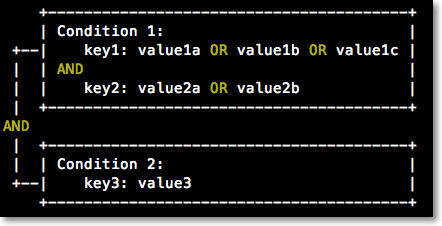
Evaluation rules:
If multiple values are specified for a condition key, the condition is met when the request matches any value.
If multiple keys are attached to a single operator, the condition is met only when all key requirements are satisfied.
If multiple conditions exist in a condition block, all conditions must be met.
Supported operators:
| Operator | Description |
|---|---|
StringEquals | Exact string match |
StringNotEquals | String does not match |
StringEqualsIgnoreCase | Case-insensitive exact match |
StringNotEqualsIgnoreCase | Case-insensitive non-match |
StringLike | Wildcard string match |
StringNotLike | Wildcard string non-match |
Condition key: arms:tag
The following example matches applications tagged with key0: value01 or key0: value02:
"Condition": {
  "StringEquals": {
    "arms:tag/key0": [
      "value01",
      "value02"
    ]
  }
}
For more information about tagging applications, see Manage tags.