ApsaraMQ for RocketMQ provides three methods to query messages: by message ID, by message key, and by topic. You can use the message query feature to verify that a message was sent successfully, check its content, and view its message trace.
Query methods
By default, messages in ApsaraMQ for RocketMQ are stored for three days. This means you can query only messages from the last three days. For example, if the current time is 15:09:48 on June 10, 2019, the earliest message that you can query in a topic was sent at 15:09:48 on June 7, 2019.
The following table describes and compares the three query methods.
|
Query method |
Query condition |
Match type |
Description |
|
By message ID |
topic + message ID |
exact match |
Finds a specific message based on its topic and message ID to retrieve its properties. |
|
By message key |
topic + message key |
fuzzy match |
Finds up to 64 of the most recent messages that match a specified topic and message key. Important
Producers should assign a unique key to each message. If more than 64 messages share the same key, some messages may not be returned in the query results. |
|
By topic |
topic + time range |
range match |
Retrieves all messages in a topic within a specified time range. This method can return a large volume of messages, making it difficult to find a specific one. |
Recommended query process
We recommend that you follow this process to query messages.
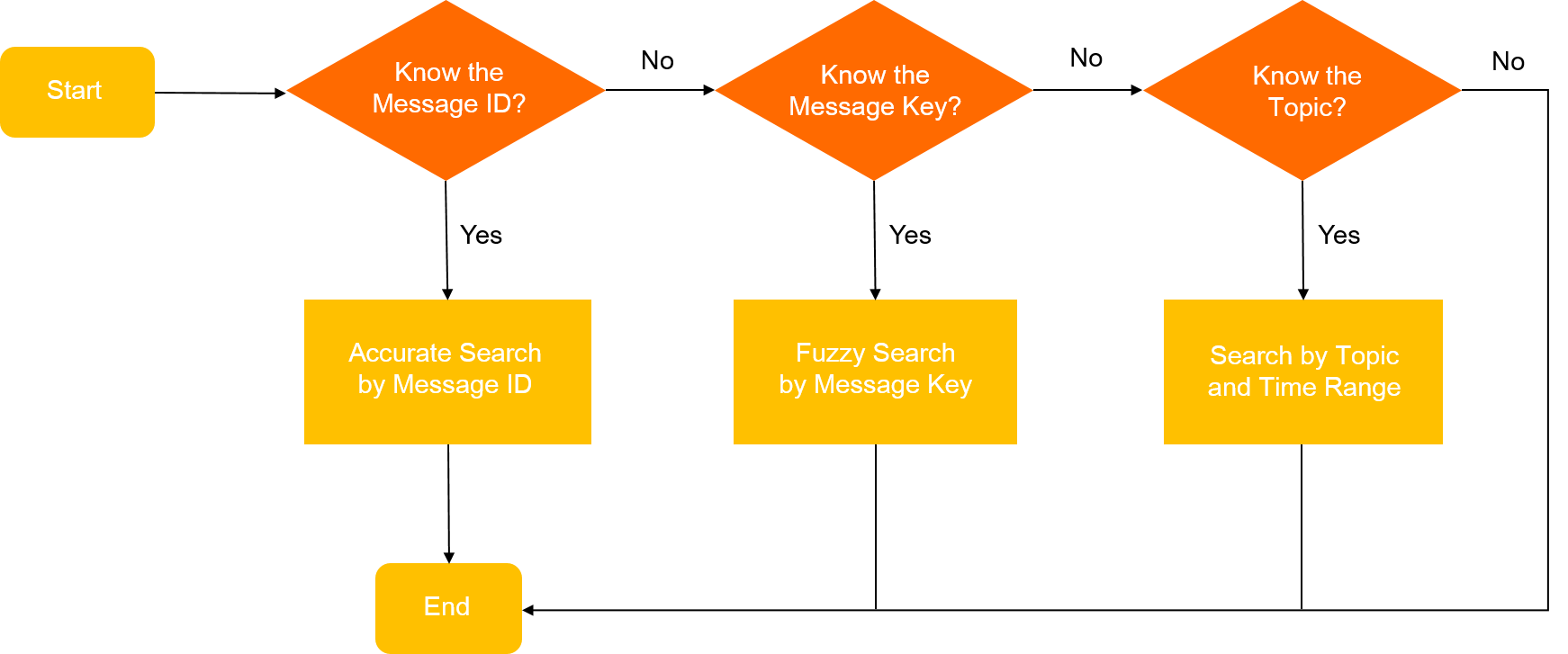
Procedure
-
Log on to the ApsaraMQ for RocketMQ console. In the left-side navigation pane, click Instances.
-
In the top navigation bar, select a region, such as China (Hangzhou).
-
On the Instances page, find the target instance. In the Actions column, click More, and then select Message Query from the drop-down list.
-
On the Message Query page, select a query method, enter the required information, and then click Search.
-
Query by Message ID
To perform an exact match query for a specific message, enter its topic and message ID. Logging the message ID after a successful send simplifies troubleshooting.
The following code shows how to obtain the message ID by using the Java SDK.
   SendResult sendResult = producer.send(msg);
   String msgId = sendResult.getMessageId();
For other languages, see SDK reference overview.
-
Query by Message Key
ApsaraMQ for RocketMQ creates an index for messages based on the message key that you set. When you search for a message by using the key, ApsaraMQ for RocketMQ uses the index to find and return the matching messages.
Important-
You must set the message key when sending the message to use this query method.
-
A query by message key returns only the 64 most recent matching messages. Use keys that are unique and business-distinguishable.
The following code shows how to set a message key.
Message msg = new Message("Topic","*","Hello MQ".getBytes()); /** * Set a unique business key for message retrieval. A globally unique key is recommended. * This allows you to query the message in the ApsaraMQ for RocketMQ console if you fail to receive it. * If you do not set a key, message sending and receiving are not affected, but key-based queries will not work. */ msg.setKey("TestKey"+System.currentTimeMillis()); -
-
Query by Topic
Use this method when you do not know the message ID or message key. Specify a topic and a time range to retrieve all messages sent during that period.
ImportantWhen you query messages by topic:
-
This range match can return a large number of messages. Narrow the time range as much as possible to limit the results.
-
The results are paginated because the query can return a large volume of messages.
-
-
Query results
You can view the queried messages on the Message Query page in the console. The results include the message ID, tag, key, production time, and storage time. You can also query message traces, perform consumption verification, or download messages.
Consumption verification
ApsaraMQ for RocketMQ provides a consumption verification feature. This feature lets you push a specific message to an online client to test its consumption logic and verify the results.
Consumption verification is only a testing tool for client logic. It does not affect normal message delivery or change the message's consumption status.
In the consumption verification dialog box, select a group ID and a client ID, and then click OK. Consumption verification may cause message redelivery.
References
From the query results, you can view the message trace to check its consumption status and result. For more information, see query message traces.