ksqlDB is a streaming SQL engine for Apache Kafka. It simplifies stream processing by providing an interactive SQL interface for handling data in Kafka. ksqlDB enables you to run continuous SQL queries on streaming data and supports powerful operations, such as aggregations, joins, windows, and sessions.
Architecture
The following diagrams compare a traditional stream processing architecture with one based on ksqlDB. In the ksqlDB architecture, the stream processing engine and connectors are integrated rather than being separate components. In addition, ksqlDB provides query capabilities during stream processing through materialized views. For more information about ksqlDB, see the official ksqlDB documentation.
-
Traditional stream processing architecture
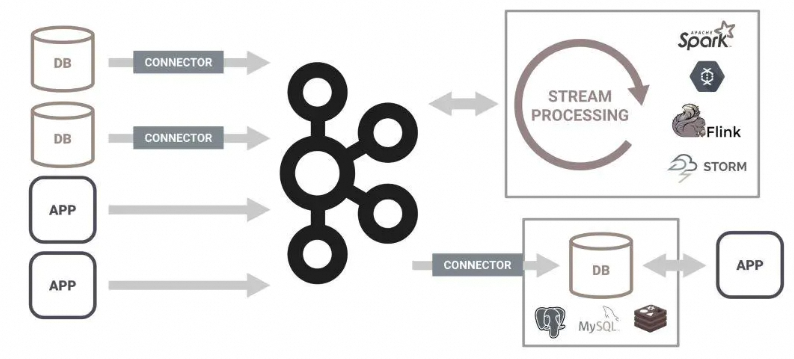
-
ksqlDB-based architecture

Use ksqlDB
Create a topic and configure it
-
Create a topic. This guide uses a topic named
ksql_testas an example. -
Create a schema. Select Avro as the validation mode and add the following schema definition.
{ "namespace": "io.confluent.examples.clients.basicavro", "type": "record", "name": "Payment", "fields": [ { "name": "id", "type": "string" }, { "name": "amount", "type": "double" } ] } -
Enable schema validation for the
ksql_testtopic.
Authorization
ApsaraMQ for Confluent uses role-based access control (RBAC) to manage access to ksqlDB clusters. This guide uses a new user named test as an example.
-
Create the
testuser and grant permissions as shown in the following table. For more information, see user management and authorization.Username
Cluster
Resource
Role
test
Kafka cluster
cluster
SystemAdmin
test
ksqlDB
cluster
ResourceOwner
test
Schema Registry
cluster
SystemAdmin
-
Grant the default ksqlDB user, ksql, read-only access to the
ksql_testtopic.Username
Cluster
Resource
Role
ksql
Kafka cluster
topic
DeveloperRead
Procedure
Log on to the ApsaraMQ for Confluent console. In the left-side navigation pane, click Instances.
-
In the top navigation bar, select a region. On the Instances page, click your target instance.
-
On the Instance Details page, click Log on to Console in the upper-right corner.
-
Log on to the Control Center console. On the Home page, click the controlcenter.clusterk card to open the Cluster overview page.
The Cluster overview page displays two summary cards: the Brokers card shows the total number of brokers and trends for production and consumption throughput, and the Topics card shows the total number of topics, the number of partitions, and the replica synchronization status.
-
In the left-side navigation pane, click ksqlDB, and then click the name of your target ksqlDB cluster.
-
On the ksqlDB cluster details page, click the Editor tab. You can create streams, run SELECT queries, and perform other operations with ksqlDB commands. For more information, see the ksqlDB Quick Start.
-
Create a stream
CREATE STREAM ksql_test_stream WITH (KAFKA_TOPIC='ksql_test',VALUE_FORMAT='AVRO'); -
Query data from the stream
SELECT * FROM ksql_test_stream EMIT CHANGES;
-
Test and verify
-
Start a stream query.
On the ksqlDB page, click the Editor tab, enter the following query statement, and then click Run query.
SELECT * FROM ksql_test_stream EMIT CHANGES;In the Add query properties dialog, set
auto.offset.resetto Latest. After you run the query, the results area displays No new messages, indicating that no new messages have been received since the page loaded. -
Produce a test message.
-
Open a new Control Center console window.
-
On the details page of the
ksql_testtopic, click the Messages tab, and then click Produce a new message. -
In the Produce a new message panel, enter the message content, and then click Produce.
{
    "id": "Tome",
    "amount": 18
}
For Key, enter
test. For the Value schema, select Default - ksql_test-value.
-
-
Verify the sent message.
Return to the stream query window. The test message is now displayed.
The query returns one JSON-formatted event:
{"ID": "Tome", "AMOUNT": 18}.